
JupyterLab
JupyterLab is an open-source web-based interactive development environment primarily used for data science, scientific computing, and machine learning. It allows users to create and manage interactive documents that combine live code, visualizations, equations, and narrative text in a single workspace. These documents are saved with the .ipynb extension, which stands for IPython Notebook, reflecting its origins in the IPython project.
Unlike traditional text editors or IDEs, JupyterLab provides a highly flexible interface that lets users open multiple notebooks, terminals, text files, and data viewers simultaneously in tabs or split screens. It supports numerous programming languages, with Python being the most common, and offers extensive integration with libraries for data analysis, plotting, and machine learning, such as NumPy, pandas, Matplotlib, and TensorFlow.
Key features of JupyterLab include:
- Interactive code execution: Run code in real-time, see outputs immediately, and modify code cells independently.
- Rich media support: Embed images, videos, interactive plots, and LaTeX equations directly within notebooks.
- Extensible interface: Customize the environment with extensions like version control, debugging tools, or additional language kernels.
- Collaboration and sharing: Notebooks can be shared with others, exported to multiple formats (HTML, PDF, Markdown), or run on cloud platforms like Google Colab or Binder.
Overall, JupyterLab is a powerful tool for data exploration, analysis, and presentation, combining code execution and documentation into a single cohesive platform.
Installing JupyterLab on Windows
- Install Python (Make sure to check mark the
Add Python X To Pathin the installation window) - Go to the CMD and install jupyterlab using
pip install jupyterlab
Installing JupyterLab on Linux-based OS (Ubuntu)
- Go to the terminal
- Install Python using
sudo apt-get install python3 - Install pip using
sudo apt-get install python3-pip - Install jupyterlab using
pip3 install jupyterlab
- Install Python using
Installing JupyterLab on MacOS
- Go to the terminal
- Install jupyterlab using
pip3 install jupyterlab
- Install jupyterlab using
In some operating systems, such as Windows, the pip command is aliased to pip3.
Alternatives
*If you are having issues with installing JupyterLab, use, use Visual Studio Code or any environment that supports that
Running JupyterLab
You can use the interactive interface using the JupyterLab command in the terminal or command line interpreter. That command takes different switches, and the one that we will use is lab (You may need to elevate privileges). You may need to close the terminal or CMD before running the jupyterlab command because new environment variables are added (the easiest way to refresh them is to simply close the terminal or CMD and open it again).
jupyter # Main Jupyter command-line tool
lab # Subcommand to launch the JupyterLab interface
(Host) jupyter labor
python # Starts the Python interpreter
-m # Tells Python to run a module as a script, instead of running a .py file
jupyterlab # The name of the Python module being executed
(Host) python -m jupyterlab
...
...
...
[C 2023-09-23 13:06:53.906 ServerApp]

    To access the server, open this file in a browser:
        file:///Users/pc/Library/Jupyter/runtime/jpserver-5633-open.html
    Or copy and paste one of these URLs:
        http://localhost:8889/lab
        http://127.0.0.1:8889/lab
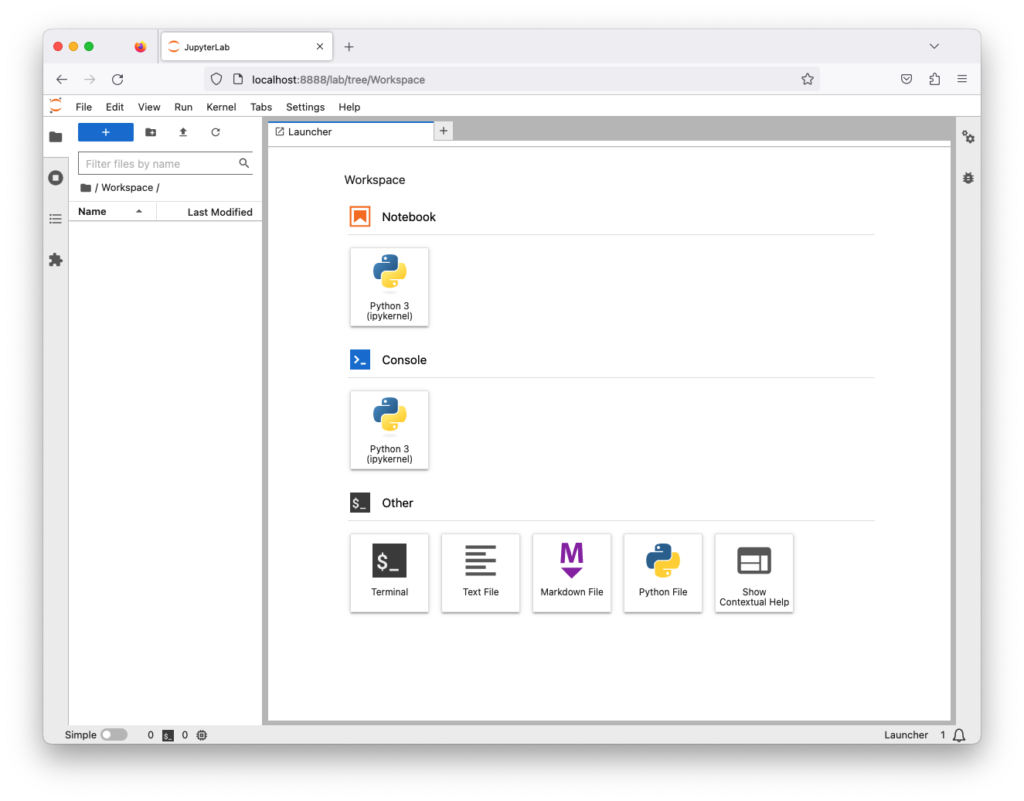
The browser will open and show the interactive interface. If the browser did not open, you can open the browser and open the URL shown from the terminal or command line interpreter
Create a Jupyter Notebook
You can create a notebook by clicking on File, then New, then Notebook. Or, you can click on the following icon
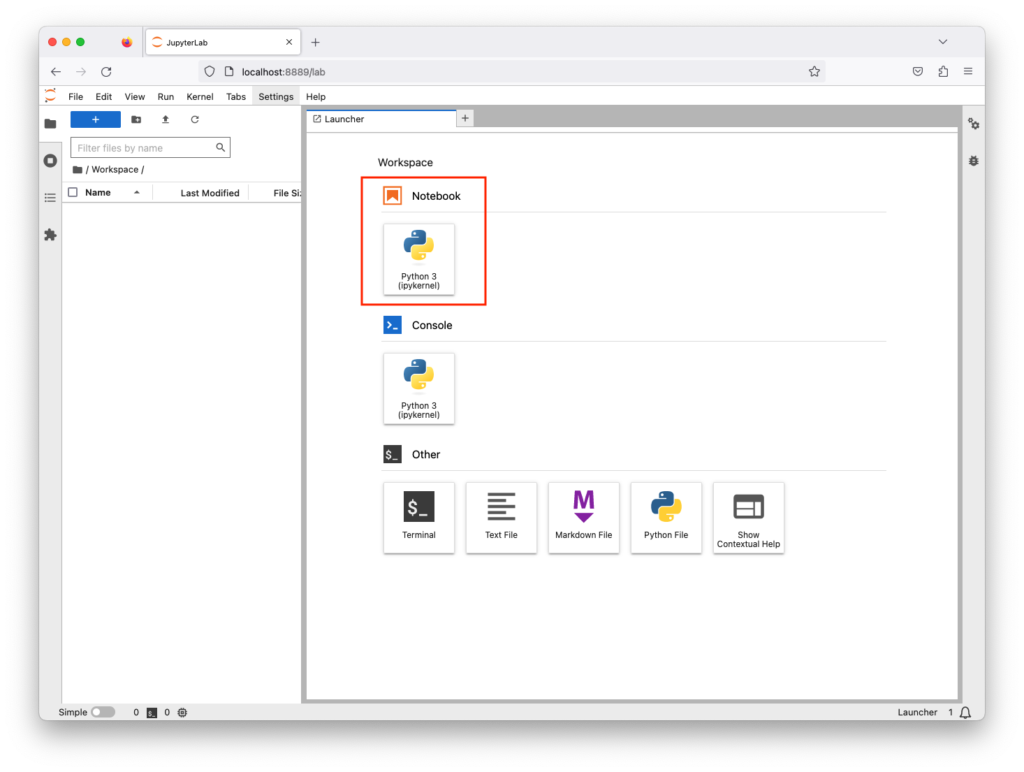
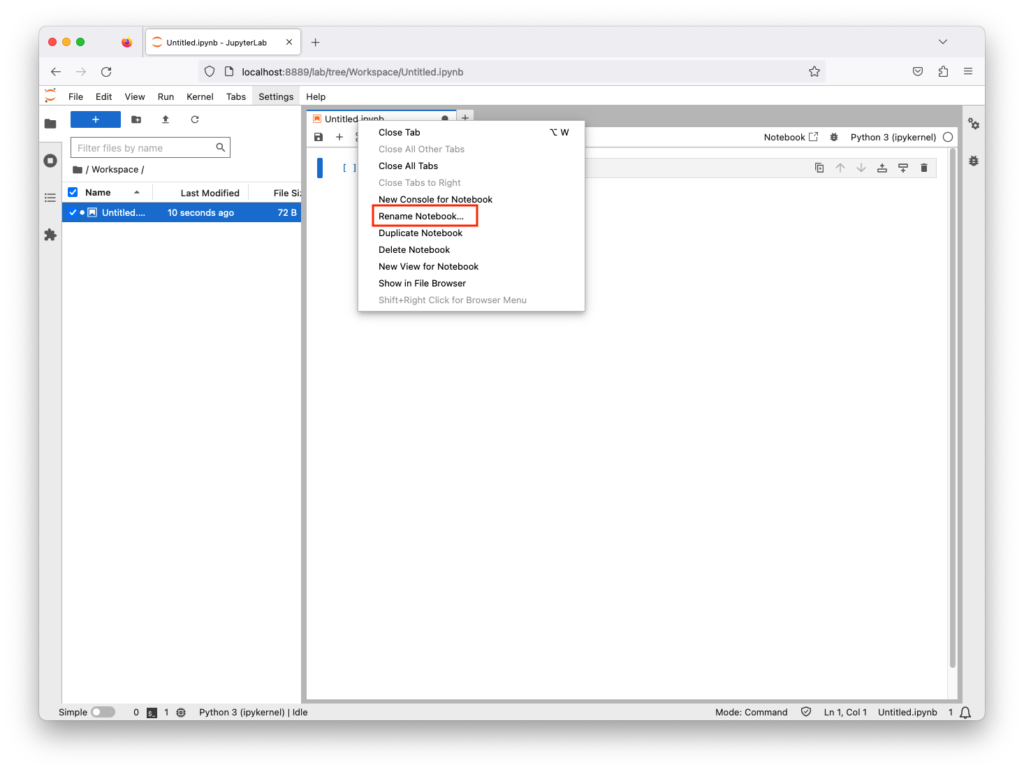
You can change the newly created file name by right-clicking on the file tab, then Rename Notebook
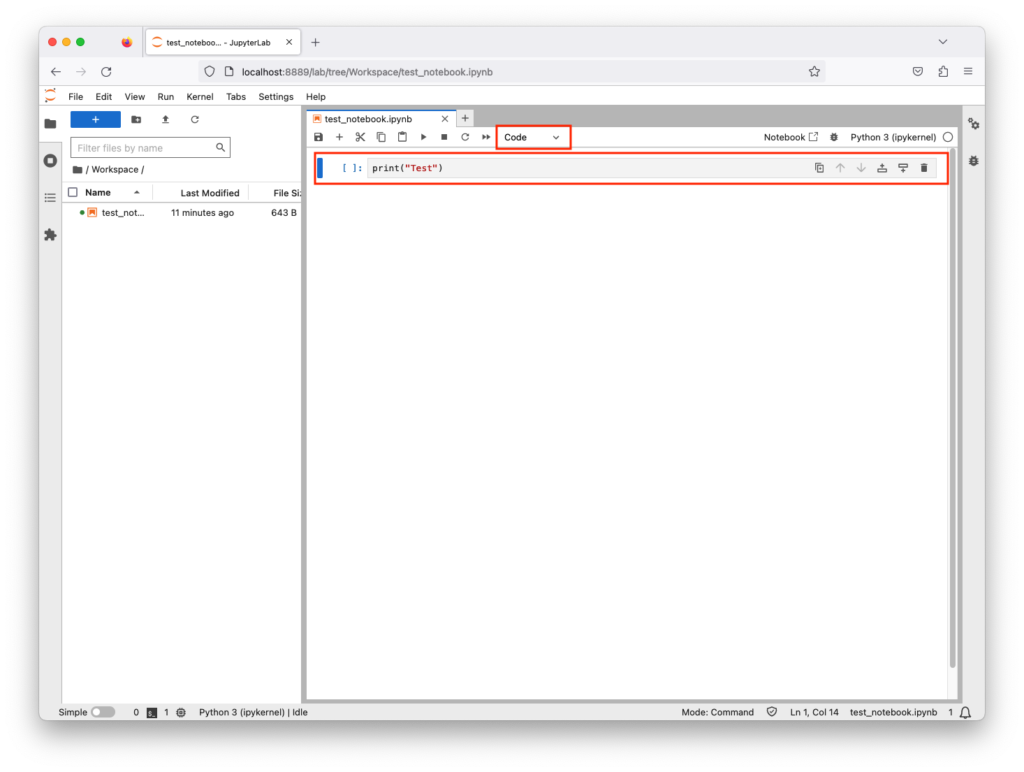
In the notebook file, make sure that code is selected and type print("test")
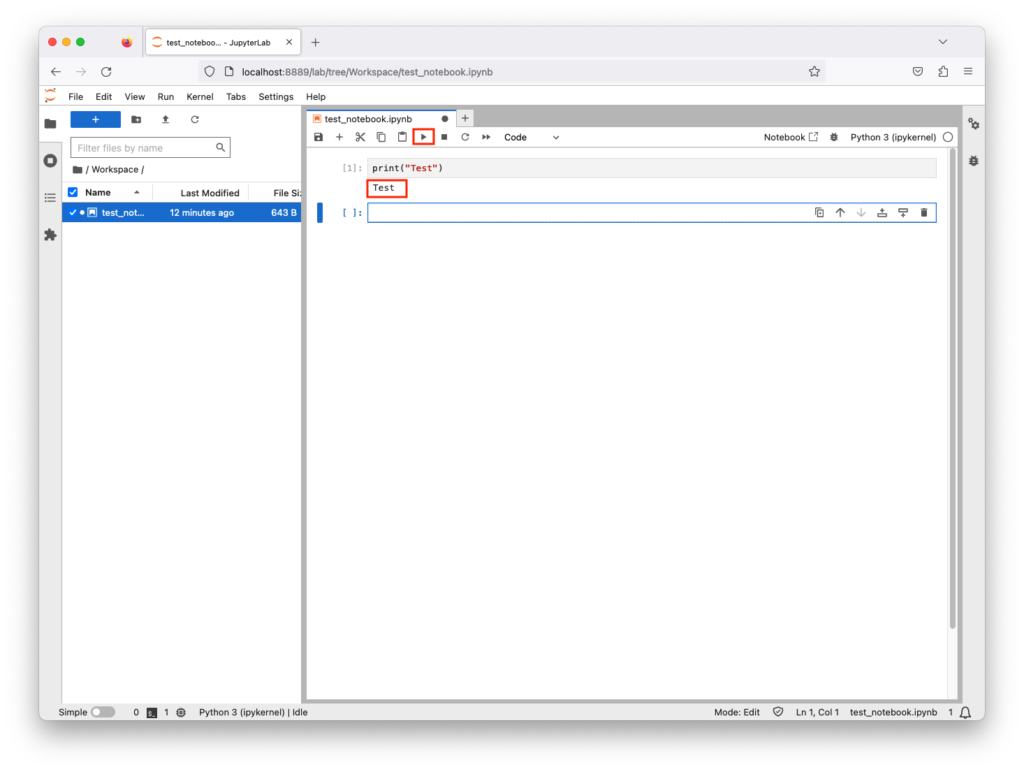
To execute the code, click the play icon; your code will run, and the result is shown in the next line. You can re-execute this block as many times as you want
Magic Commands
Also known as magic functions, these are commands that modify the behavior or code explicitly, extending the notebook’s capabilities. Some of them allow users to escape the Python interpreter. E.g., you can run a shell command and capture its output by using the ! character before the command. This is helpful when the user is limited to the notebook interface.
If you try to the whoami command, it will fail because it will be interrupted as Python code

If you try the whoami command, it will fail because it will be interrupted as Python code
Shutting down JupyterLab
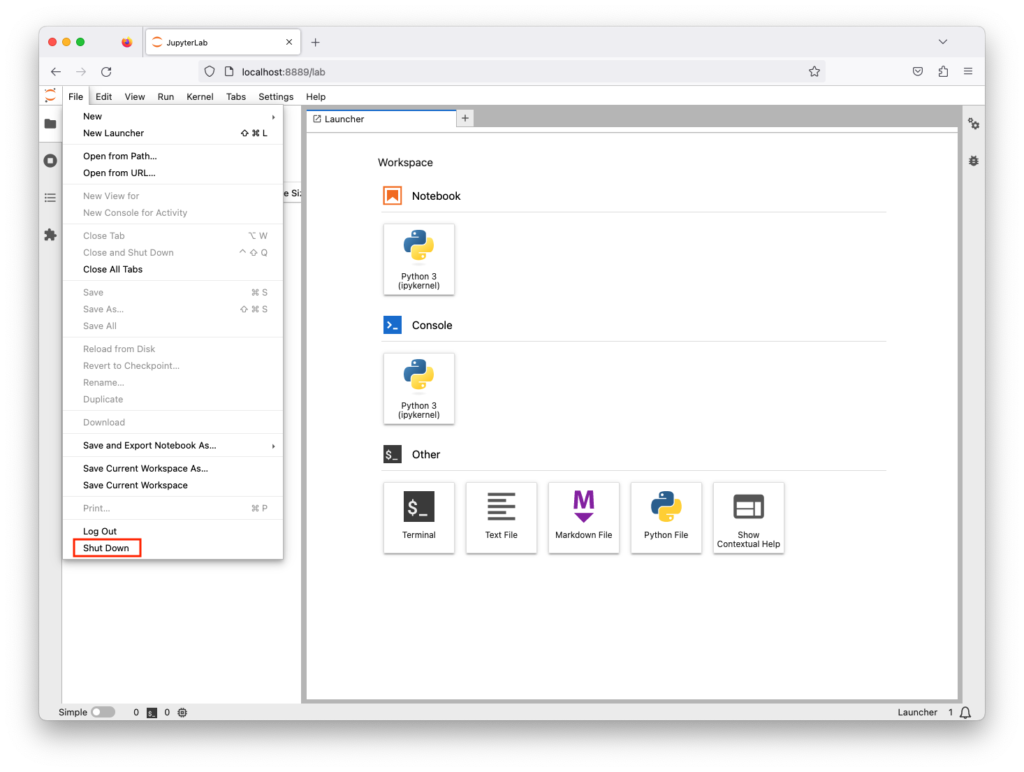
You can shut down the Jupyter lab from the terminal or command line interrupter by using CTRL with C or X. Or, go File, then shutdown
Setting up Password
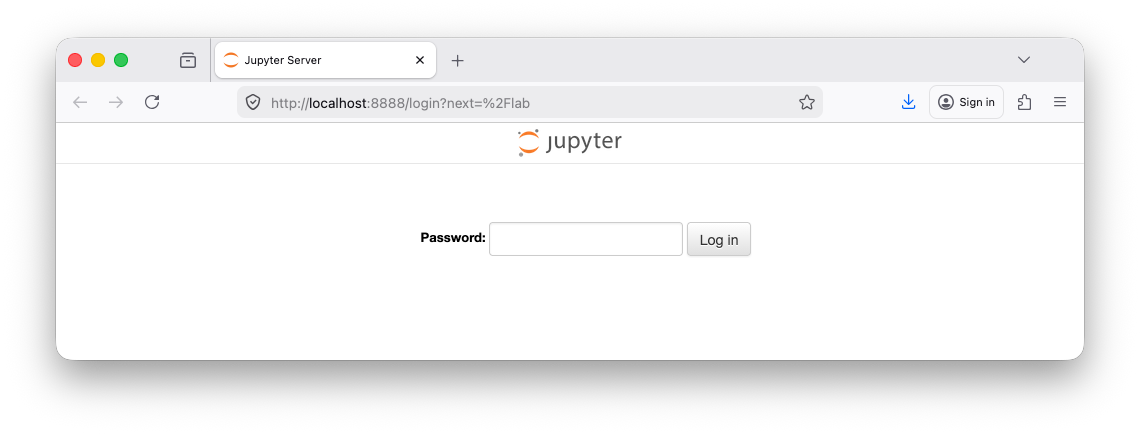
You can configure a password for JupyterLab that must be entered before a user can access the interface, ensuring secure access to the environment
jupyter # Main Jupyter command-line tool
lab # Subcommand to launch the JupyterLab interface
password # Option to setup/change password
(Host) jupyter lab password
Enter password:
Verify password:
[JupyterPasswordApp] Wrote hashed password to /Users/user/.jupyter/jupyter_server_config.json
jupyter # Main Jupyter command-line tool
lab # Subcommand to launch the JupyterLab interface
(Host) jupyter lab
...
...
...
[C 2023-09-23 13:06:53.906 ServerApp]

    To access the server, open this file in a browser:
        file:///Users/pc/Library/Jupyter/runtime/jpserver-5633-open.html
    Or copy and paste one of these URLs:
        http://localhost:8889/lab
        http://127.0.0.1:8889/lab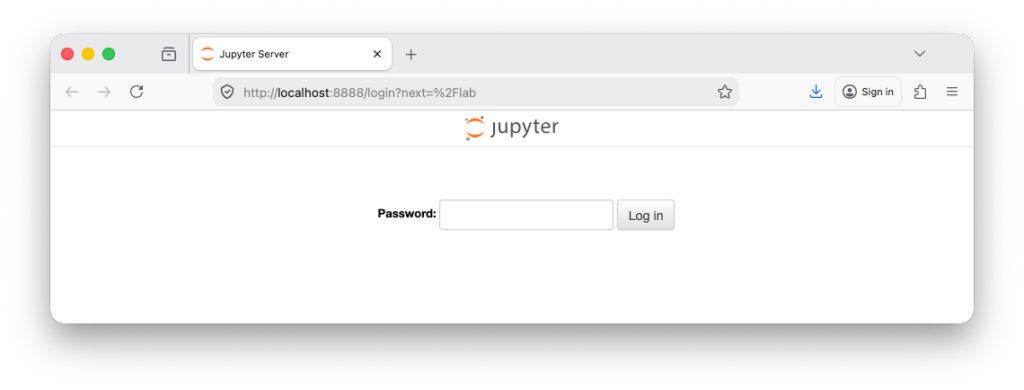
External Modules
The following are some of the external modules used in data analysis and visualization
numpy– a library for large multidimensional arrayspandas– a library for data analysismatplotlib– a library for creating interactive visualizations
Install Modules
You can install all the modules using the install switch in pip3
! # In Jupyter Notebook, ! lets you run shell commands from a cell.
pip # Python’s package manager
install # A command to download and install libraries from PyPI (Python Package Index
numpy # Library for numerical computing, arrays, and matrices.
pandas # Library for data manipulation and analysis, especially tabular data.
matplotlib # Library for creating plots and visualizations in Python.
beautifulsoup4 # Library for parsing HTML and XML, often used in web scraping.
lxml # Library for fast XML and HTML parsing, used by BeautifulSoup for speed and reliability.
selenium # Library for automating web browsers, often used for testing or web scraping dynamic websites.
webdriver-manager # Library to automatically download and manage browser drivers for Selenium, like ChromeDriver or GeckoDriver.
!pip install numpy pandas matplotlib beautifulsoup4 lxml selenium webdriver-managerReview Modules
You can review all installed module using the list switch in pip3
! # In Jupyter Notebook, ! lets you run shell commands from a cell.
pip # Python’s package manager
list # A command to list all installed packages
!pip listRemove Modules
You can remove any module using the uninstall switch in pip3
! # In Jupyter Notebook, ! lets you run shell commands from a cell.
pip # Python’s package manager
list # A command to uninstall a package
xyz # A package to uninstall from the system
!pip uninstall xyz