Tag: Security

  • Physical Layer

    Physical Layer

    Physical Layer

    The Physical Layer is the lowest layer in the OSI (Open Systems Interconnection) model, defining physical connections between devices in a network. It handles raw binary data, or bit-streams, consisting of 1s and 0s without processing or decision-making.

    This layer converts bits into signals for transmission over media such as copper cables, fiber-optic networks, or wireless networks. In electrical cables, bit representation is 1 for medium-high voltage and 0 for low voltage; in optical fibers, it is 1 for light pulses and 0 for their absence.

    The Physical Layer also defines connector types, cable specifications, signal frequencies, transmission rates (bandwidth), and network topology. It ensures reliable data transmission between devices, forming the foundation for higher layers of the network model. Though it is unaware of the content being transmitted, its proper functioning is critical for overall performance and reliability.


    Coaxial Cable

    A coaxial cable is an electrical cable designed to transmit radio frequency (RF) signals with minimal loss and interference. It consists of a central copper conductor surrounded by an insulating layer, a metallic shield, and an outer protective jacket. The metallic shield protects the signal from electromagnetic interference, making coaxial cables ideal for applications like cable television, internet connections, and radio communications.

    Coaxial cables can transmit high-frequency signals over long distances while maintaining signal integrity, and they are widely used in both residential and commercial networking environments.


    Binary

    Binary is a base-2 number system using only two values: 1 and 0. It represents all forms of data and instructions in digital systems. Each digit in a binary number, called a bit, is the fundamental unit of information in computing and digital communications.

    The simplicity of binary makes it ideal for electronic devices, as circuits can easily distinguish between two states-ON (1) and OFF (0), or high and low voltage. By combining multiple bits, complex data, instructions, and multimedia content can be efficiently encoded, stored, and transmitted, forming the foundation of modern computing and digital communication technologies.

    echo -n "qeeqbox" | xxd -b
    00000000: 01110001 01100101 01100101 01110001 01100010 01101111  qeeqbo
    00000006: 01111000                                               x

    Bits

    A bit, short for binary digit, is the smallest unit of data in a computer and represents a single binary value: 0 or 1. Bits are the fundamental building blocks of all digital information, forming the basis for how computers store, process, and transmit data. By combining multiple bits, more complex units such as bytes, characters, and instructions can be represented.

    Despite their simplicity, bits enable computers to perform a wide range of operations, from basic calculations to running sophisticated software, making them essential to the functioning of all digital systems.

    1  On
    0 Off

    Bytes

    A byte is a unit of digital information consisting of 8 bits and is commonly used to represent a single character, such as a letter, number, or symbol. For example, the letter "C" is represented in binary as 01000011, with each bit contributing to the character’s value.

    While one byte is sufficient for most standard ASCII characters, more complex characters (such as those from non-Latin alphabets, emojis, or special symbols) may require multiple bytes, as seen in encoding schemes like UTF-8. Bytes serve as a fundamental unit of memory and storage in computers, allowing data to be organized, processed, and transmitted efficiently across digital systems.

    00110001 is equal to 1
    01110100 01100101 01110011 01110100 is equal to test

    Medium types

    • Cables
      • The signals are electrical pulses
    • Fiber
      • The signals are light pluses
    • Wireless
      • The signals are electromagnetic waves

    Some Functions

    • Transmission mode
      • Simplex: A unidirectional communication where the sender sends data, and the receiver receives data 
      • Half duplex: A bidirectional communication where the sender can send or receive data but only in one direction at a time
      • Full duplex: A bidirectional communication simultaneously where the sender can send and receive data at a time
    • Physical typologies
      • Point-to-point: Two nodes are connected with a dedicated link
      • Bus: Nodes are connected using a single cable
      • Ring: Each node is connected (Point-to-point) to another on each side, the last one is connected to the first one (Data travels in a circle)
      • Mesh: Nodes are connected (Point-to-point) with all the other nodes
      • Star: Nodes are connected to a central node (Each node communicates indirectly through the central node)

    Latency

    Latency is the time it takes for data to travel from its source to its destination across a network or system. It is a critical measure of network performance and responsiveness, influenced by factors such as physical distance, the quality of the transmission medium, the number of network hops, and processing time at intermediate devices.

    Low latency is essential for real-time applications such as video conferencing, online gaming, and financial trading, where even small delays can significantly degrade performance and user experience. High latency can cause lag, slow data transfers, and reduced efficiency, making it a key consideration in network design, optimization, and


    Wired vs. Wireless

    • Wired
      • Faster data transfer: Speed is consistent
      • Has Lower latency: Data travels faster, which means low latency by default
      • Hard to deploy: Connected devices usually do not move (Desktop)
      • More secure (Data does not need to be encrypted?): Data can be accessed by devices that physically attached to that network
    • Wireless
      • Slow data transfer
        • Speed is not consistent
      • Has higher latency
        • Distance
        • Data is susceptible to noise (Re-send)
        • Data is encrypted and needs some time to be decrypted
      • Easy to deploy
        • Connected devices can be moved (A smart phone)
      • Less secure (Data needs to be encrypted?)
        • Data travels through the air and can be intercepted

    Examples

    • Network interface cards (NIC): Provides a physical connection to a network
    • Modem: Converts the signal type from one type to another type
    • Hubs: Connects multiple devices in the network (A node that broadcasts data to all connected devices)
    • Cables: A wire or a set of wires that connects one device with another

    Physical attacks


    PCAP Example

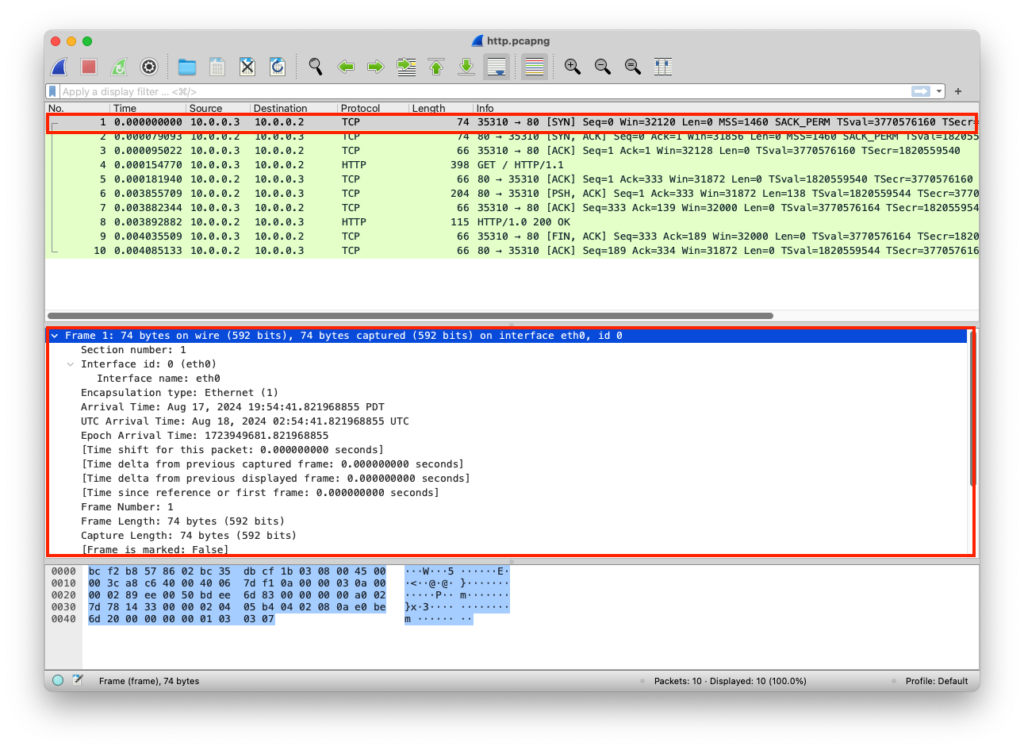
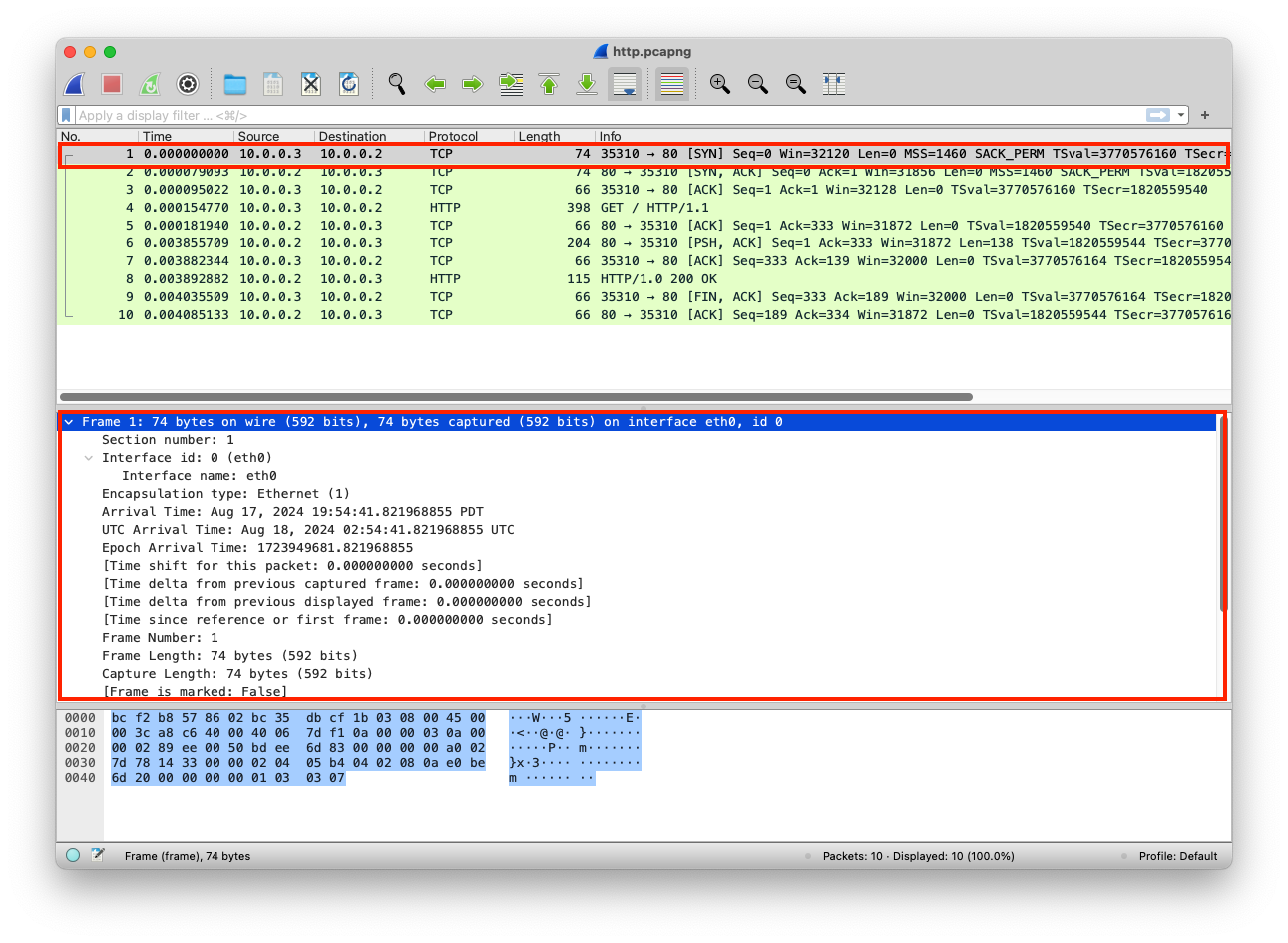
    In the PCAP file, you can get an overview of the data by clicking on the entry, then Frame 1 (In this case, it’s the metadata gathered about the data), which includes detailed info about the data that are transmitted or received, some of the info, like interface id, name, and description, are not part of the data, but they are in Wireshark for analysis and troubleshooting network problems

    from http.server import SimpleHTTPRequestHandler # Import the built-in HTTP request handler
    from socketserver import TCPServer # Import a basic TCP server implementation
    from io import BytesIO # Import BytesIO to handle bytes in memory (for gzip compression)
    from gzip import GzipFile # Import GzipFile to compress HTTP response 
    from datetime import datetime # Import datetime to generate timestamps for logging
    from contextlib import suppress # Import suppress to prevent crashes

    with suppress(Exception): # Try importing network interface details
        from netifaces import gateways, ifaddresses, AF_INET, AF_LINK # Network interface utilities
        print(“The default network interface is: “, gateways()[‘default’][AF_INET][1]) # Display default network interface name
        print(“The default network interface mac address is: “, ifaddresses(gateways()[‘default’][AF_INET][1])[AF_LINK]) # Display MAC address of the default network interface

    class Server(SimpleHTTPRequestHandler): # Define a custom HTTP server

        def do_GET(self): # Handle HTTP GET requests
            compressed = False # Track whether gzip compression is used
            content = b'<HTML><h1>Hello World!</h1></HTML>’ # HTTP response body (bytes)

            if len(content) > 0: # Only attempt compression if content exists
                if ‘accept-encoding’ in self.headers: # Check if client sent Accept-Encoding header
                    if ‘gzip’ in self.headers[‘accept-encoding’]: # Client supports gzip
                        bytes_ = BytesIO() # Create an in-memory byte buffer
                        with GzipFile(fileobj=bytes_, mode=’w’, compresslevel=5) as f: # Gzip wrapper
                            f.write(content) # Compress the response body
                        content = bytes_.getvalue() # Replace content with compressed bytes
                        compressed = True # Mark response as compressed

            self.send_response(200) # Send HTTP 200 OK status
            if compressed:
                self.send_header(‘content-encoding’, ‘gzip’) # Notify client of gzip encoding
            self.send_header(‘content-length’, len(content)) # Send content length header
            self.end_headers() # End HTTP headers
            self.wfile.write(content) # Write response body to client

        def log_message(self, format, *args): # Override default request logging
            print(“[{}] – {}:{} – {} {}”.format( # Custom log format
                datetime.now().strftime(“%m/%d/%Y %H:%M:%S”), # Timestamp
                self.client_address[0], # Client IP address
                self.client_address[1], # Client source port
                args[0], # HTTP method
                args[1] # Requested path
            ))

    TCPServer((‘0.0.0.0’, 80), Server).serve_forever() # Start server on all interfaces, port 80

    from http.server import SimpleHTTPRequestHandler
    from socketserver import TCPServer
    from io import BytesIO
    from gzip import GzipFile
    from datetime import datetime
    from contextlib import suppress

    with suppress(Exception):
        from netifaces import gateways, ifaddresses, AF_INET, AF_LINK
        print("The default network interface is: ",gateways()['default'][AF_INET][1])
        print("The default network interface mac address is: ",ifaddresses(gateways()['default'][AF_INET][1])[AF_LINK])

    class Server(SimpleHTTPRequestHandler):
        def do_GET(self):
            compressed = False
            content = b'<HTML><h1>Hello World!</h1></HTML>'
            if len(content) > 0:
                if 'accept-encoding' in self.headers:
                    if 'gzip' in self.headers['accept-encoding']:
                        bytes_ = BytesIO()
                        with GzipFile(fileobj=bytes_, mode='w', compresslevel=5) as f:
                            f.write(content)
                            f.close()
                            content = bytes_.getvalue()
                            compressed = True
            self.send_response(200)
            if compressed:
                self.send_header('content-encoding', 'gzip')
            self.send_header('content-length', len(content))
            self.end_headers()
            self.wfile.write(content)

        def log_message(self, format, *args):
            print("[{}] - {}:{} - {} {}".format(datetime.now().strftime("%m/%d/%Y %H:%M:%S"), self.client_address[0],self.client_address[1],args[0],args[1]))

    TCPServer(('0.0.0.0', 80), Server).serve_forever()

    Clint/Server Data

    The data is transmitted and transported in raw format

    LayerProtocolPDUInfoPortsIPsMACs
    Transport LayerTCPSegments3 Way handshake Process (SYN)Src Port: 35310
    Dst Port: 80
    Network LayerIPPackets3 Way handshake Process (SYN)Src Port: 35310
    Dst Port: 80
    Src IP: 10.0.0.3
    Dst IP: 10.0.0.2
    Data Link LayerEthernetFrames3 Way handshake Process (SYN)Src Port: 35310
    Dst Port: 80
    Src IP: 10.0.0.3
    Dst IP: 10.0.0.2
    Src MAC: bc:35:db:cf:1b:03
    Dst MAC: bc:f2:b8:57:86:02
    Physical LayerCoaxBits01001000 01010100 0101010001001000 0101010001001000 0101010001001000 01010100
    Physical Layer
  • OSI Model

    OSI Model

    Network

    A computer network connects devices like computers, servers, routers, and other hardware to share data, resources, and services. These networks create pathways for information to flow between devices, enabling activities such as sending emails, browsing the web, streaming video, or participating in video calls.

    Computer networks can vary in size and complexity. Local Area Networks (LANs) connect devices within small areas like homes, offices, or schools. Wide Area Networks (WANs) cover larger geographic regions, linking offices, data centers, or even countries. The internet is the largest global network, connecting billions of devices worldwide.

    Networks are essential for our daily digital lives, supporting personal communication, business operations, online education, healthcare systems, financial transactions, cloud computing, and many other services. They rely on protocols, hardware, and security measures to ensure data is transmitted efficiently, reliably, and safely between devices.


    Network Security

    Network security refers to methods, technologies, and procedures used to protect computer networks and their resources from unauthorized access, misuse, modification, or disruption. It ensures sensitive information (such as personal data, financial records, or confidential business information) remains safe while maintaining the availability and integrity of network services

    Network security covers a wide range of practices including:

    • Access Control: Restricting who can connect to the network or access specific resources using passwords, authentication systems, or multi-factor authentication (MFA).
    • Firewalls: Devices or software that monitor and filter incoming and outgoing traffic to block malicious activity.
    • Intrusion Detection and Prevention: Systems that detect unusual or suspicious activity and respond to potential threats.
    • Encryption: Protecting data in transit by converting it into a format unreadable by unauthorized users.
    • Network Monitoring: Continuously observing network traffic and performance to identify potential security breaches or vulnerabilities.
    • Regular Updates and Patching: Ensuring network devices and software are up to date to protect against known vulnerabilities.

    Effective network security not only prevents unauthorized access but also reduces the risk of data breaches, malware infections, and service disruptions, helping maintain trust, reliability, and operational continuity for individuals and organizations alike.


    Protocols

    In networking, a protocol is a formal set of rules and conventions that govern how devices communicate over a network. Protocols define data formatting, transmission, routing, and reception, ensuring information from one device can be correctly interpreted by another, even if they are from different manufacturers or run different software. They cover aspects like error detection, data compression, addressing, encryption, and session management, making communication reliable and secure.

    Examples of common network protocols include:

    • HTTP/HTTPS: For web traffic
    • FTP (File Transfer Protocol): Transfers files between a client and server
    • SSH (Secure Shell Protocol): Enables secure communication between two computers
    • Telnet: Enables communication between two computers
    • SMTP (Simple Mail Transfer Protocol): Sends, receives, and relays emails
    • DNS (Domain Name System): Translates human-readable hostnames into IP addresses
    • TCP/IP (Transmission Control Protocol/Internet Protocol): For end-to-end communication
    • IMAP (Internet Message Access Protocol): Retrieves messages from email servers
    • HTTPS: Securely transports data between a client and web server
    • Microsoft Directory Services (Microsoft-DS): Used for file sharing over TCP/IP by SMB service
    • MySQL: Relational database management system
    • RDP (Remote Desktop Protocol, ms-wbt-server): Interacts with a desktop computer remotely
    • VNC (Viewer Remote Desktop): Interacts with a desktop computer remotely

    By following standardized protocols, networks achieve interoperability, efficiency, and consistency, allowing diverse systems to work together seamlessly.


    Open Systems Interconnection (OSI)

    The Open Systems Interconnection (OSI) model is a standardized framework for understanding and implementing network communications. It consists of seven distinct layers, each defining specific functions and protocols to ensure successful data exchange between devices on a network. The layers, from bottom to top, are Physical, Data Link, Network, Transport, Session, Presentation, and Application.

    The OSI model provides a structured approach to designing and troubleshooting networks by clearly separating different network functions, such as how data is physically transmitted, how devices are addressed and routed, how data integrity is ensured, and how applications access network services. Introduced in the 1980s based on ISO recommendations, the OSI model serves as a universal reference that promotes interoperability between hardware and software from different vendors, making it easier to design, manage, and maintain complex network systems.

    Layers

    Layer 7ApplicationHTTP, HTTPS, FTP, SMTPHost Layer
    Layer 6PresentationASCII, JPEG, GZIPHost Layer
    Layer 5SessionSocketHost Layer
    Layer 4TransportTCP, UDPHost Layer
    Layer 3NetworkIPv4, IPv6, IPSecMedia Layer
    Layer 2Data LinkPPP, IEEE, L2TP, EthernetMedia Layer
    Layer 1PhysicalCables, WirelessMedia Layer

    OSI in Action – Browsing The Internet (Web Client)

    Layer 7ApplicationHTTPthe client uses a web browser to send http data
    Layer 6PresentationGZIPhandles the data format and compresses it (If applicable)
    Layer 5SessionSocketopens a session for communication between source and destination (Web Server)
    Layer 4TransportTCPdata is segmented, and each segment will have the source and destination port number
    Layer 3NetworkIPv4converts segments into packets; each packet will have the source and destination IP address
    Layer 2Data LinkEthernetconverts packets into frames; each frame will have the source and destination MAC address
    Layer 1PhysicalCoaxconverts frames into bit-stream and send the data over the physical medium

    OSI in Action – Browsing The Internet (Web Server)

    Layer 1PhysicalCoaxconverts bit-stream into frames
    Layer 2Data LinkEthernetmerges all frames into packets
    Layer 3NetworkIPv4converts packets into segments
    Layer 4TransportTCPconverts segments into data
    Layer 5SessionSocketdata is kept
    Layer 6PresentationGZIPdecompresses data and reverts the formatting
    Layer 7ApplicationHTTPthe destination receives the client http data

    Python Web Server

    Python has a built-in package called http.server that can be used as file server or a customized web server that handles HTTP(s) requests.

    How to Run http.server (Default)

    In the terminal, go to the directory that has the static content (files, images, etc..) and type python3 -m http.server, this serves the directory content to clients (Some threat actors utilize this method when they breach a network, Python is most likely running on the devices, so it’s used to move data in the breached network). After running the http.server it will show if it was successful or not, and the port that’s used

    python3 # Python using version 3
    -m # Tell Python to run a module as a script
    http.server # Start the built-in HTTP file server on port 8000 (default)

    (RPi) python3 -m http.server
    Serving HTTP on :: port 8000 (http://[::]:8000/) 

    The output will change depending on the directory (folder) from which the server is started

    <html>
    <head>
    <meta http-equiv="Content-Type" content="text/html; charset=utf-8">
    <title>Directory listing for /</title>
    </head>
    <body>
    <h1>Directory listing for /</h1>
    <hr>
    <ul>
    <li><a href=".bash_history">.bash_history</a></li>

    How to Run http.server (Customized)

    The course content is built around a customized webserver that responds to HTTP GET requests, handles sessions/compressions, and logs requests. You may need to install a package called netifaces using pip3 install netifaces (In case you do not want to run the server or having issues with it, there is a Wireshark dump that was captured while interacting with the customized webserver, skip these steps)

    pip3 # The Python 3 package installer (runs pip for Python 3.x)
    install # The command telling pip3 to install a package
    netifaces # The name of the package to install, provides access to network interface information (IP, MAC addresses)

    (RPi) pip3 install netifaces

    Then copy the following into a file (E.g. server.py)

    from http.server import SimpleHTTPRequestHandler # Import the built-in HTTP request handler
    from socketserver import TCPServer # Import a basic TCP server implementation
    from io import BytesIO # Import BytesIO to handle bytes in memory (for gzip compression)
    from gzip import GzipFile # Import GzipFile to compress HTTP response 
    from datetime import datetime # Import datetime to generate timestamps for logging
    from contextlib import suppress # Import suppress to prevent crashes

    with suppress(Exception): # Try importing network interface details
        from netifaces import gateways, ifaddresses, AF_INET, AF_LINK # Network interface utilities
        print(“The default network interface is: “, gateways()[‘default’][AF_INET][1]) # Display default network interface name
        print(“The default network interface mac address is: “, ifaddresses(gateways()[‘default’][AF_INET][1])[AF_LINK]) # Display MAC address of the default network interface

    class Server(SimpleHTTPRequestHandler): # Define a custom HTTP server

        def do_GET(self): # Handle HTTP GET requests
            compressed = False # Track whether gzip compression is used
            content = b'<HTML><h1>Hello World!</h1></HTML>’ # HTTP response body (bytes)

            if len(content) > 0: # Only attempt compression if content exists
                if ‘accept-encoding’ in self.headers: # Check if client sent Accept-Encoding header
                    if ‘gzip’ in self.headers[‘accept-encoding’]: # Client supports gzip
                        bytes_ = BytesIO() # Create an in-memory byte buffer
                        with GzipFile(fileobj=bytes_, mode=’w’, compresslevel=5) as f: # Gzip wrapper
                            f.write(content) # Compress the response body
                        content = bytes_.getvalue() # Replace content with compressed bytes
                        compressed = True # Mark response as compressed

            self.send_response(200) # Send HTTP 200 OK status
            if compressed:
                self.send_header(‘content-encoding’, ‘gzip’) # Notify client of gzip encoding
            self.send_header(‘content-length’, len(content)) # Send content length header
            self.end_headers() # End HTTP headers
            self.wfile.write(content) # Write response body to client

        def log_message(self, format, *args): # Override default request logging
            print(“[{}] – {}:{} – {} {}”.format( # Custom log format
                datetime.now().strftime(“%m/%d/%Y %H:%M:%S”), # Timestamp
                self.client_address[0], # Client IP address
                self.client_address[1], # Client source port
                args[0], # HTTP method
                args[1] # Requested path
            ))

    TCPServer((‘0.0.0.0’, 80), Server).serve_forever() # Start server on all interfaces, port 80

    from http.server import SimpleHTTPRequestHandler
    from socketserver import TCPServer
    from io import BytesIO
    from gzip import GzipFile
    from datetime import datetime
    from contextlib import suppress

    with suppress(Exception):
        from netifaces import gateways, ifaddresses, AF_INET, AF_LINK
        print("The default network interface is: ",gateways()['default'][AF_INET][1])
        print("The default network interface mac address is: ",ifaddresses(gateways()['default'][AF_INET][1])[AF_LINK])

    class Server(SimpleHTTPRequestHandler):
        def do_GET(self):
            compressed = False
            content = b'<HTML><h1>Hello World!</h1></HTML>'
            if len(content) > 0:
                if 'accept-encoding' in self.headers:
                    if 'gzip' in self.headers['accept-encoding']:
                        bytes_ = BytesIO()
                        with GzipFile(fileobj=bytes_, mode='w', compresslevel=5) as f:
                            f.write(content)
                            f.close()
                            content = bytes_.getvalue()
                            compressed = True
            self.send_response(200)
            if compressed:
                self.send_header('content-encoding', 'gzip')
            self.send_header('content-length', len(content))
            self.end_headers()
            self.wfile.write(content)

        def log_message(self, format, *args):
            print("[{}] - {}:{} - {} {}".format(datetime.now().strftime("%m/%d/%Y %H:%M:%S"), self.client_address[0],self.client_address[1],args[0],args[1]))

    TCPServer(('0.0.0.0', 80), Server).serve_forever()

    Then run the file as Python script with elevated privileges, the reason why you need to elevate privileges because the customized webserver is using port 80 (Port below 1024 can be open only with elevated privileges, E.g. root)

    sudo # Run the command with superuser (root) privileges
    python3 # Run the Python 3 interpreter
    server.py # The Python script file to execute (in this case, your HTTP server)

    (RPi) sudo python3 server.py
    The default network interface is:  eth0
    The default network interface mac address is:  [{'addr': 'bc:f2:b8:57:86:02'}]

    You can either use a web browser or client to communicate with that server, the content URL in this case is http://127.0.0.1:80

    curl # A command-line tool used to send requests and receive responses
    http://127.0.0.1:80  # Send an HTTP GET request to the local Python http.server running on port 80

    (RPi) curl http://127.0.0.1:80

    <HTML><h1>Hello World!</h1></HTML>

    Packet Analyzer (Wireshark)

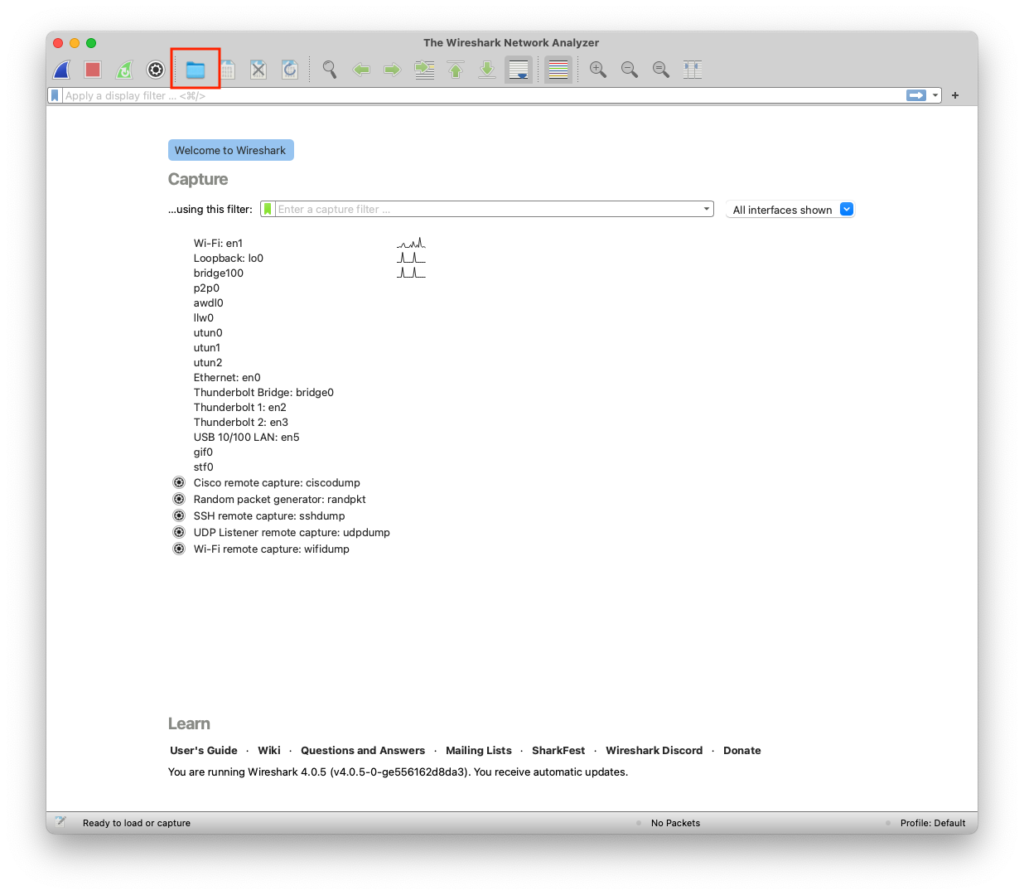
    A tool or device for capturing and analyzing packets of data traveling in a communication channel. Click on open a capture file, then open the following http.pcapng file

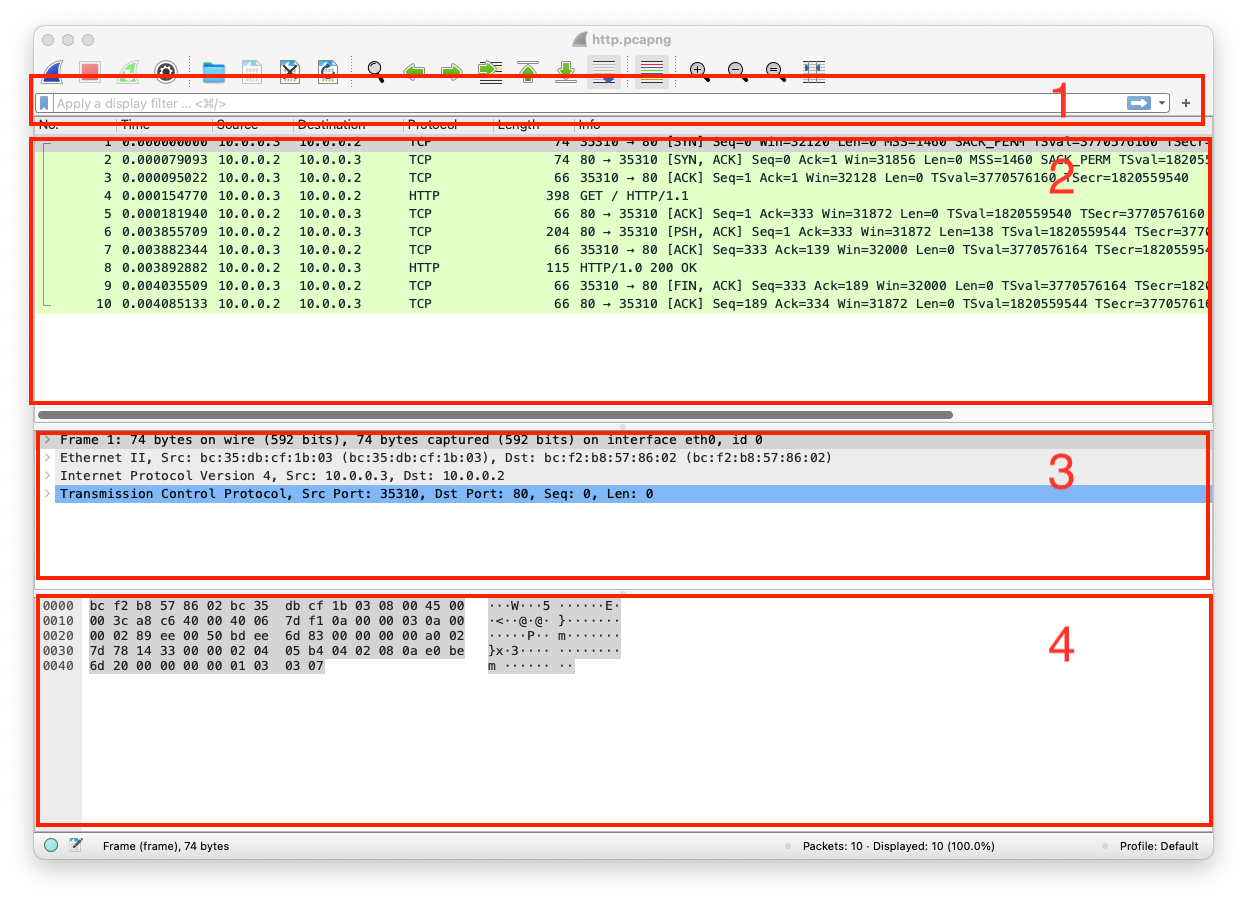
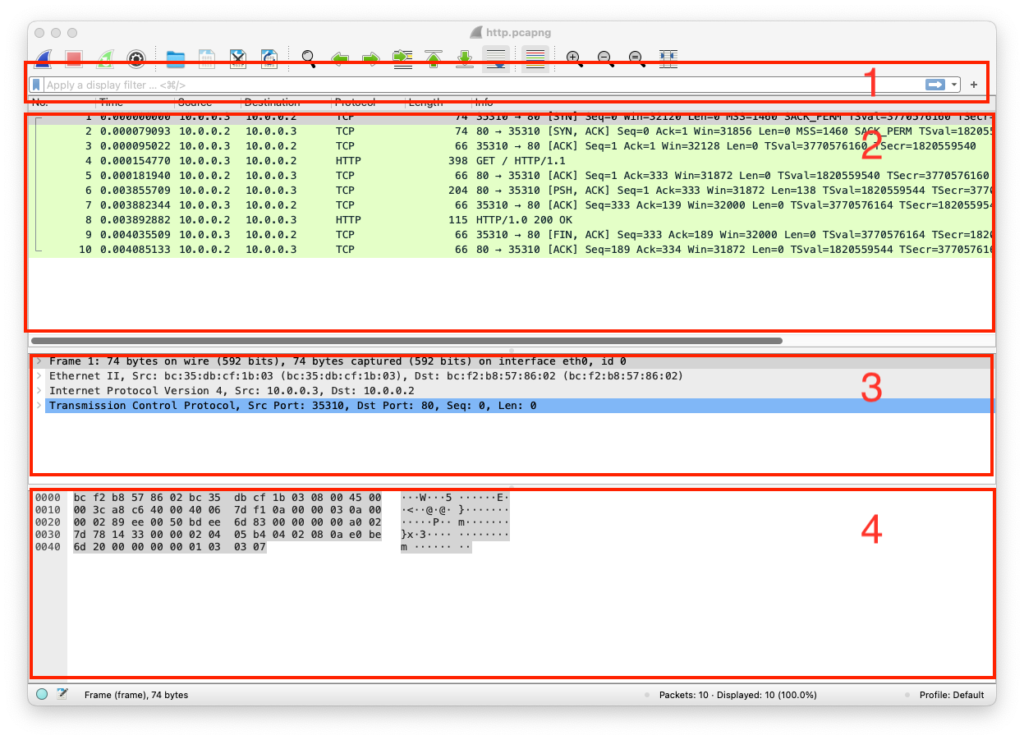
    There are four important sections in Wireshark

    1. Filter Bar – You can filter the traffic based on specific rules like IP, port, or protocol
    2. Packets List – This shows the traffic as entries and you click on any of the entries for more details, or you can sort them by time, IP, etc..
    3. Packet Details – When you click on an entry, the details of that entry will show up in this section
    4. Packet bytes – You can review any packet bytes in this section, if you click on any byte, it will show the meaning of it in the Packet Details section (This is a very helpful feature)