Tag: Python

  • Web Scraping Prevention

    Web Scraping Prevention Techniques

    Many websites prohibit web scraping and use anti-scraping measures to block automated data extraction. These protections can make it challenging and time-consuming to scale scraping activities. For instance, if a script sends requests too frequently (like once every second), the website may block those requests or display a message asking the user to slow down or try again later.

    Fingerprinting

    Fingerprinting is a technique used to identify and track clients based on detailed technical information such as IP addresses, user-agent strings, browser versions, operating systems, screen resolutions, installed fonts, and even hardware characteristics. By combining these signals, websites can create a unique “fingerprint” for each visitor. If multiple requests appear to originate from the same fingerprint in an automated pattern, the system can flag or block them, even if the IP address changes.

    Example

    from http.server import BaseHTTPRequestHandler, HTTPServer # import base classes for HTTP server
    from time import time # import time function for request timing
    requests = {} # dictionary to store request history per fingerprint

    class CustomHandler(BaseHTTPRequestHandler): # define request handler class
        def do_GET(self): # handle GET requests
            now = time() # current timestamp
            ip = self.client_address[0] # get client IP address
            user_agent = self.headers.get(“User-Agent”, “”) # browser info
            accept_lang = self.headers.get(“Accept-Language”, “”) # language preference
            encoding = self.headers.get(“Accept-Encoding”, “”) # compression support
            fingerprint = f”{ip}{user_agent}|{accept_lang}|{encoding}” # create a simple fingerprint using IP + headers
            requests[fingerprint] = [t for t in requests.get(fingerprint, []) if now – t < 10] # keep only requests from last 10 seconds for this fingerprint
            requests[fingerprint].append(now) # log current request time

            if len(requests[fingerprint]) > 5: # if too many requests in time window, block client
                self.send_response(429) # HTTP status: Too Many Requests
                self.send_header(‘Content-type’, ‘text/plain’) # response type
                self.end_headers() # finish HTTP headers
                self.wfile.write(f”Fingerprint:{fingerprint} – Too many requests…”.encode(“utf-8”)) # send blocked message with fingerprint info
            else:
                self.send_response(200) # HTTP OK
                self.send_header(‘Content-type’, ‘text/plain’) # response type
                self.end_headers() # finish headers
                self.wfile.write(f”Fingerprint:{fingerprint} – Server Running…”.encode(“utf-8”)) # send normal response with fingerprint info

            return # end request handling

    HTTPServer((“”, 8085), CustomHandler).serve_forever() # start server on port 8080 and run forever

    from http.server import BaseHTTPRequestHandler, HTTPServer
    from time import time
    requests = {}

    class CustomHandler(BaseHTTPRequestHandler):
        def do_GET(self):
            now = time()
            ip = self.client_address[0]
            user_agent = self.headers.get("User-Agent", "")
            accept_lang = self.headers.get("Accept-Language", "")
            encoding = self.headers.get("Accept-Encoding", "")
            fingerprint = f"{ip}{user_agent}|{accept_lang}|{encoding}"
            requests[fingerprint] = [t for t in requests.get(fingerprint, []) if now - t < 10]
            requests[fingerprint].append(now)

            if len(requests[fingerprint]) > 5:
                self.send_response(429)
                self.send_header('Content-type', 'text/plain')
                self.end_headers()
                self.wfile.write(f"Fingerprint:{fingerprint} - Too many requests...".encode("utf-8"))
            else:
                self.send_response(200)
                self.send_header('Content-type', 'text/plain')
                self.end_headers()
                self.wfile.write(f"Fingerprint:{fingerprint} - Server Running...".encode("utf-8"))

            return

    HTTPServer(("", 8080), CustomHandler).serve_forever()

    Authentication

    Authentication systems require users to verify their identity before accessing content. This is often achieved through login pages, API keys, or session tokens. By requiring users to authenticate, websites can better control who accesses their data and monitor usage per account. This also allows them to enforce limits on a per-user basis rather than per IP address, making scraping more challenging. 

    Example

    from http.server import BaseHTTPRequestHandler, HTTPServer # import basic HTTP server classes
    api_keys = {“Example-6C324086-6B3B-48D5-9FEE-4A30C66B70CC”:[“ip”:””,”user”,””]} # dictionary storing valid API keys and optional metadata (invalid Python dict syntax for nested list here)

    class CustomHandler(BaseHTTPRequestHandler): # define request handler class
        def do_GET(self): # handle GET requests
            api_key = self.headers.get(“X-API-Key”, “”) # extract API key from request headers
            if api_key not in api_keys: # check if API key is invalid or missing
                self.send_response(401) # return HTTP 401 Unauthorized
                self.send_header(‘Content-type’, ‘text/plain’) # set response content type
                self.end_headers() # finish HTTP headers
                self.wfile.write(b”Authentication required”) # send authentication error message
            else: # if API key is valid
                self.send_response(200) # return HTTP 200 OK
                self.send_header(‘Content-type’, ‘text/plain’) # set response content type
                self.end_headers() # finish HTTP headers
                self.wfile.write(b”Server Running…”) # send success response message
            return # end request handling

    HTTPServer((“”, 8080), CustomHandler).serve_forever() # start server on port 8080 and run forever

    from http.server import BaseHTTPRequestHandler, HTTPServer
    api_keys = {"Example-6C324086-6B3B-48D5-9FEE-4A30C66B70CC":["ip":"","user",""]}

    class CustomHandler(BaseHTTPRequestHandler):
        def do_GET(self):
            api_key = self.headers.get("X-API-Key", "")
            if api_key not in api_keys:
                self.send_response(401)
                self.send_header('Content-type', 'text/plain')
                self.end_headers()
                self.wfile.write(b"Authentication required")
            else:
                self.send_response(200)
                self.send_header('Content-type', 'text/plain')
                self.end_headers()
                self.wfile.write(b"Server Running...")
            return

    HTTPServer(("", 8080), CustomHandler).serve_forever()

    Challenges (CAPTCHA)

    CAPTCHA tests are designed to differentiate humans from bots. They may involve identifying distorted text, selecting images, solving puzzles, or performing simple interactive tasks. Since most automated scripts struggle with these challenges, CAPTCHA serves as an effective barrier to prevent large-scale scraping or automated form submissions. 

    Example

    from http.server import BaseHTTPRequestHandler, HTTPServer # HTTP server framework
    from random import randint # generate random numbers for CAPTCHA
    from uuid import uuid4 # generate unique session ID for each CAPTCHA
    captcha_db = {} # store captcha_id -> correct answer mapping

    class Handler(BaseHTTPRequestHandler): # request handler class
        def do_GET(self): # handle GET requests (show CAPTCHA page)
            random_a = randint(1, 10) # first random number
            random_b = randint(1, 10) # second random number
            captcha_id = str(uuid4()) # create unique ID for this CAPTCHA session
            captcha_db[captcha_id] = str(random_a + random_b) # store correct answer on server
            self.send_response(200) # HTTP 200 OK
            self.send_header(“Content-type”, “text/html”) # response is HTML page
            self.end_headers() # finish headers
            # send HTML form to user
            self.wfile.write(f”””
            <html>
            <body>
                <h3>CAPTCHA: What is {random_a} + {random_b}?</h3>
                <form method=”POST”>
                    <input name=”answer” type=”text”>
                    <input type=”hidden” name=”captcha_id” value=”{captcha_id}”>
                    <input type=”submit” value=”Submit”>
                </form>

            </body>
            </html>
            “””.encode())

        def do_POST(self): # handle form submission
            length = int(self.headers.get(‘Content-Length’)) # get size of request body
            data = self.rfile.read(length).decode() # read and decode form data
            fields = dict(x.split(“=”) for x in data.split(“&”)) # parse form fields
            user_answer = fields.get(“answer”, “”) # user submitted answer
            captcha_id = fields.get(“captcha_id”, “”) # session id from form
            correct_answer = captcha_db.get(captcha_id, “”) # get stored correct answer
            self.send_response(200) # HTTP OK
            self.send_header(“Content-type”, “text/plain”) # plain text response
            self.end_headers() # finish headers
            if user_answer == correct_answer: # check if answer is correct
                self.wfile.write(b”CAPTCHA passed”) # success message
            else:
                self.wfile.write(b”CAPTCHA failed”) # failure message

            del captcha_db[captcha_id] # remove CAPTCHA after attempt (single-use)

    HTTPServer((“”, 8080), Handler).serve_forever() # start server on port 8080

    from http.server import BaseHTTPRequestHandler, HTTPServer
    from random import randint
    from uuid import uuid4
    captcha_db = {}

    class Handler(BaseHTTPRequestHandler):
        def do_GET(self):
            random_a = randint(1, 10)
            random_b = randint(1, 10)
            captcha_id = str(uuid4())
            captcha_db[captcha_id] = str(random_a + random_b)
            self.send_response(200)
            self.send_header("Content-type", "text/html")
            self.end_headers()
           
            self.wfile.write(f"""
            <html>
            <body>
                <h3>CAPTCHA: What is {random_a} + {random_b}?</h3>
                <form method="POST">
                    <input name="answer" type="text">
                    <input type="hidden" name="captcha_id" value="{captcha_id}">
                    <input type="submit" value="Submit">
                </form>

            </body>
            </html>
            """.encode())

        def do_POST(self):
            length = int(self.headers.get('Content-Length'))
            data = self.rfile.read(length).decode()
            fields = dict(x.split("=") for x in data.split("&"))
            user_answer = fields.get("answer", "")
            captcha_id = fields.get("captcha_id", "")
            correct_answer = captcha_db.get(captcha_id, "")
            self.send_response(200)
            self.send_header("Content-type", "text/plain")
            self.end_headers()
            if user_answer == correct_answer:
                self.wfile.write(b"CAPTCHA passed")
            else:
                self.wfile.write(b"CAPTCHA failed")

            del captcha_db[captcha_id]

    HTTPServer(("", 8080), Handler).serve_forever()

    Dynamic Content

    Dynamic content is generated at runtime rather than being fixed in the HTML source. This often involves JavaScript rendering, API calls, or asynchronous data loading. Since the content is not directly present in the initial page source, simple HTML-only scraping tools cannot easily extract the data without simulating a real browser environment. 

    from http.server import BaseHTTPRequestHandler, HTTPServer # HTTP server framework
    from datetime import datetime # used to generate dynamic runtime timestamp

    class CustomHandler(BaseHTTPRequestHandler): # request handler class
        def do_GET(self): # handle GET requests
            if self.path == “/”: # main webpage route
                self.send_response(200) # HTTP 200 OK
                self.send_header(‘Content-type’, ‘text/html’) # response is HTML page
                self.end_headers() # finish headers
                self.wfile.write(b”””
                <html>
                <body>
                    <h1>Server Running…</h1>
                    <div id=”data”>Loading…</div>
                    <script>
                        setTimeout(() => { // wait 10 seconds before loading data
                            fetch(“/data”) // request dynamic backend endpoint
                            .then(r => r.text()) // convert response to text
                            .then(t => document.getElementById(“data”).innerText = t); // update page content
                        }, 10000); // 10000ms delay (10 seconds)
                    </script>
                </body>
                </html>
                “””)
                return # stop processing this request

            if self.path == “/data”: # dynamic data endpoint
                self.send_response(200) # HTTP OK
                self.send_header(‘Content-type’, ‘text/plain’) # plain text response
                self.end_headers() # finish headers
                self.wfile.write(f”Dynamic Content Loaded: {datetime.now().strftime(“%m-%d-%Y %I:%M %p”)}”.encode()) # write the dynamic content
                return # end request

    HTTPServer((“”, 8080), CustomHandler).serve_forever() # start server on port 8080

    from http.server import BaseHTTPRequestHandler, HTTPServer
    from datetime import datetime

    class CustomHandler(BaseHTTPRequestHandler):# request handler class
        def do_GET(self):
            if self.path == "/":
                self.send_response(200)
                self.send_header('Content-type', 'text/html')
                self.end_headers()
                self.wfile.write(b"""
                <html>
                <body>
                    <h1>Server Running...</h1>
                    <div id="data">Loading...</div>
                    <script>
                        setTimeout(() => { // wait 10 seconds before loading data
                            fetch("/data") // request dynamic backend endpoint
                            .then(r => r.text()) // convert response to text
                            .then(t => document.getElementById("data").innerText = t); // update page content
                        }, 10000);// 10000ms delay (10 seconds)
                    </script>
                </body>
                </html>
                """)
                return

            if self.path == "/data":
                self.send_response(200)
                self.send_header('Content-type', 'text/plain')
                self.end_headers()
              self.wfile.write(f"Dynamic Content Loaded: {datetime.now().strftime("%m-%d-%Y %I:%M %p")}".encode())
                return

    HTTPServer(("", 8080), CustomHandler).serve_forever()

    Randomized Identifiers

    Websites often change element IDs, class names, or API endpoints dynamically. This prevents scrapers from relying on fixed selectors to locate data. For instance, a product price element might have a different ID each time the page loads. This forces scrapers to constantly adapt and makes automation less reliable. 

    from http.server import BaseHTTPRequestHandler, HTTPServer # import HTTP server classes
    from random import randint # used to generate random IDs

    class CustomHandler(BaseHTTPRequestHandler): # define request handler
        def do_GET(self): # handle GET requests
            self.send_response(200) # send HTTP 200 OK status
            self.send_header(‘Content-type’, ‘text/html’) # response is HTML
            self.end_headers() # finish headers
            random_id = f”id_{randint(1000,9999)}” # generate random element ID each request
            # send HTML response to client
            self.wfile.write(f”””
            <html>
                <body>
                    <div id=”{random_id}”>Gas Price is: $5.99 per gallon</div>
                </body>
            </html>
            “””.encode()) 

    HTTPServer((“”, 8080), CustomHandler).serve_forever() # start server on port 8080

    from http.server import BaseHTTPRequestHandler, HTTPServer
    from random import randint 

    class CustomHandler(BaseHTTPRequestHandler): 
        def do_GET(self):
            self.send_response(200)
            self.send_header('Content-type', 'text/html') 
            self.end_headers()
            random_id = f"id_{randint(1000,9999)}"
            self.wfile.write(f"""
            <html>
                <body>
                    <div id="{random_id}">Gas Price is: $5.99 per gallon</div>
                </body>
            </html>
            """.encode()) 

    HTTPServer(("", 8080), CustomHandler).serve_forever()

    User Behavior Analysis

    User Behavior Analysis technique focuses on analyzing how users interact with a website over time. Typical human behavior includes pauses, scrolling, clicks, and irregular timing, while bots tend to generate consistent, fast, and repetitive request patterns. Websites use machine learning or rule-based systems to detect anomalies, such as extremely fast navigation, identical click paths, or repetitive page access patterns, and subsequently restrict or block suspicious activity.


    Honeypots

    Honeypots are hidden elements embedded in a webpage that are either invisible or irrelevant to normal users (such as hidden links or form fields). Bots that blindly follow all available elements may end up interacting with these traps. Once triggered, the system can flag the behavior as automated and take action such as blocking the IP address, logging the activity, or redirecting the user. 

  • Web Scraping

    Web Scraping

    Data Scraping

    Data scraping is the process of extracting information from a target source and saving it into a file for further use. This target could be a website, an application, or any digital platform containing structured or unstructured data. The main goal of data scraping is to collect large amounts of data efficiently without manual copying, making it easier for organizations or individuals to gather the information they need for analysis or reporting.

    The process often involves using automated tools or scripts, such as web crawlers, bots, or specialized scraping frameworks. These tools navigate the target source, locate the desired data, and extract it in a structured format such as CSV, JSON, or Excel. Depending on the source, data scraping may require overcoming challenges such as dynamic content, login requirements, or anti-bot measures. It is a technical process that requires careful handling to ensure accuracy and efficiency.

    While data scraping focuses on data collection, the extracted information is often analyzed in a subsequent process called data mining. For example, a web crawler may scrape product details, prices, and reviews from e-commerce websites, and the collected data can then be analyzed to identify trends, patterns, or insights. By separating extraction from analysis, organizations can efficiently manage raw data and transform it into actionable intelligence, making data scraping a crucial first step in many data-driven workflows.


    Web Scraping

    Web Scraping is the automated process of extracting data from websites by using software tools or scripts to collect information directly from web pages. Websites can contain either static content, which is fixed in the page’s HTML and generally easier to scrape, or dynamic content, which is generated using JavaScript and may require more advanced tools or browser automation to access. Web scraping is commonly used for data collection, research, price monitoring, market analysis, and cybersecurity investigations. However, it is important to follow ethical and legal guidelines when scraping data, including reviewing the website’s terms of service and robots.txt file to ensure that scraping is permitted, as unauthorized data extraction may violate policies or laws.


    Manual Web Scraping

    The process of extracting data from webpages without using any scraping tools or features is convenient for very small amounts of content. Still, it becomes very complicated if the data is large or needs to be scraped more often. One of the great benefits of manual scraping is human review; every data point is checked by the person who scrapes it.


    Manual Web Scraping (Example #1)

    Getting all the URLs from this wiki page

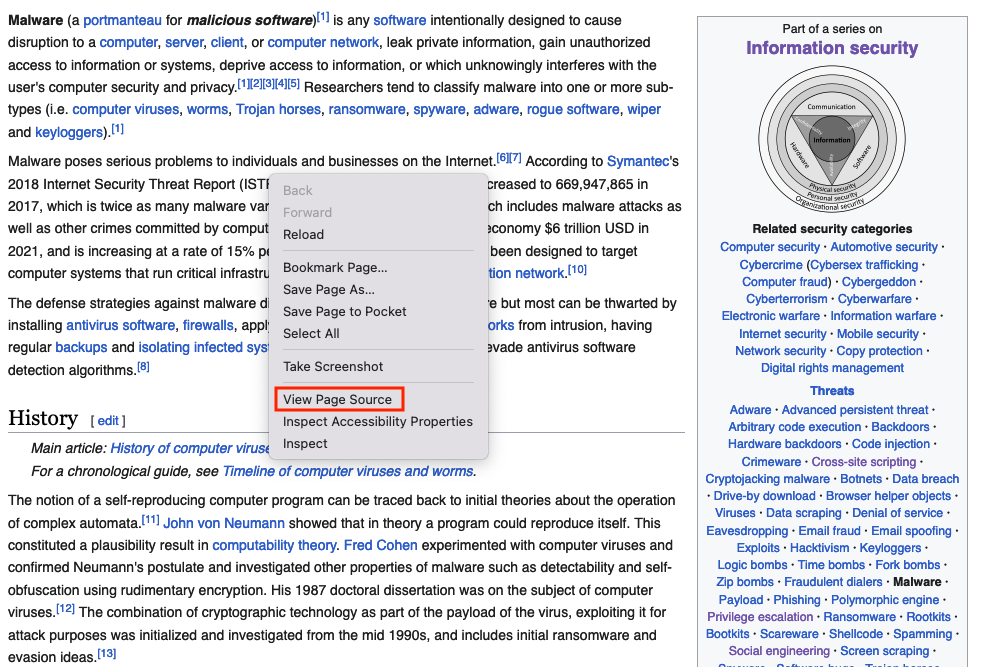
    Right click of the page and choose View Page Source

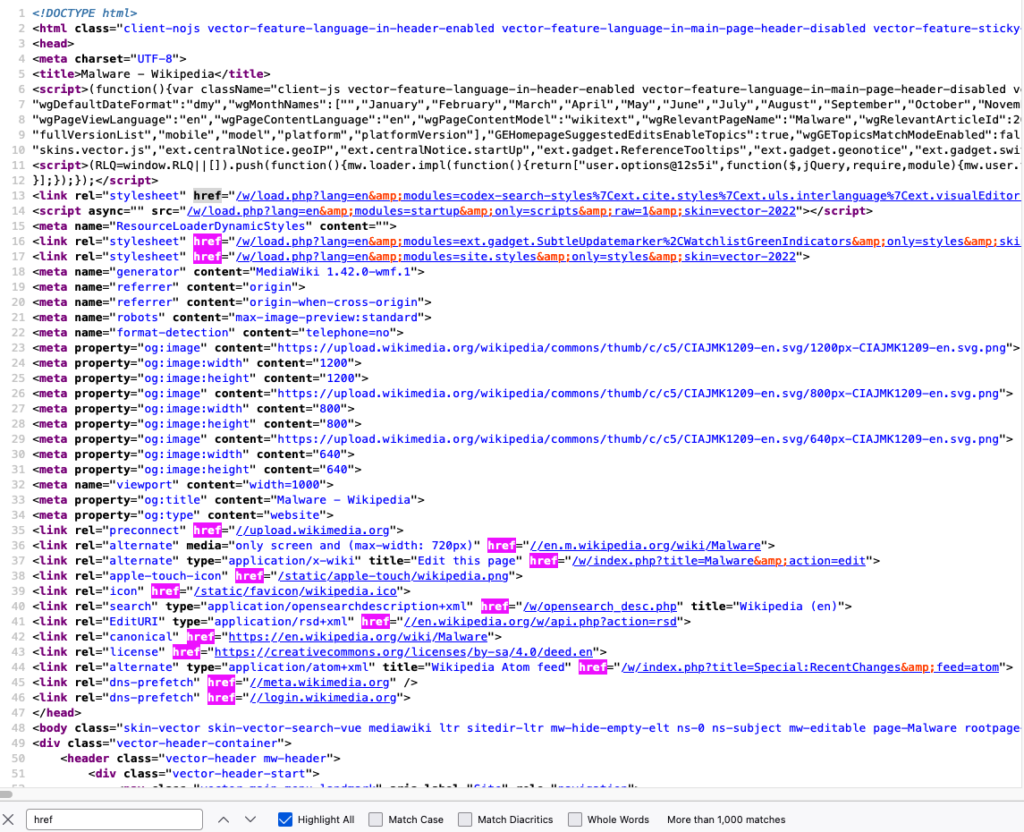
    Search the page for the href html tags (This tag defines a hyperlink), click on Highlight All and copy them one by one, this will take very long time, what you can do is taking the content and paste it into a text editor, and use href=["'](?<link>.*?)['"] or (?<=href=")[^"]* regex 

    Save them into a file

    href="/w/load.php?lang=en&amp;modules=codex-search-styles%7Cext.cite.styles%7Cext.uls.interlanguage%7Cext.visualEditor.desktopArticleTarget.noscript%7Cext.wikimediaBadges%7Cjquery.makeCollapsible.styles%7Cskins.vector.icons%2Cstyles%7Cwikibase.client.init&amp;only=styles&amp;skin=vector-2022"
    href="/w/load.php?lang=en&amp;modules=ext.gadget.SubtleUpdatemarker%2CWatchlistGreenIndicators&amp;only=styles&amp;skin=vector-2022"
    href="/w/load.php?lang=en&amp;modules=site.styles&amp;only=styles&amp;skin=vector-2022"
    href="//upload.wikimedia.org"
    href="//en.m.wikipedia.org/wiki/Malware"
    href="/w/index.php?title=Malware&amp;action=edit"
    href="/static/apple-touch/wikipedia.png"
    href="/static/favicon/wikipedia.ico"
    href="/w/opensearch_desc.php"
    href="//en.wikipedia.org/w/api.php?action=rsd"
    href="https://en.wikipedia.org/wiki/Malware"
    href="https://creativecommons.org/licenses/by-sa/4.0/deed.en"
    href="/w/index.php?title=Special:RecentChanges&amp;feed=atom"
    href="//meta.wikimedia.org"
    href="//login.wikimedia.org"
    ...
    ...
    ...

    Automated Web Scraping

    This is done by utilizing tools that get the content and save it into files; Python has been heavily utilized for web scraping. There are different Python modules like beautifulsoup or pandas that are used for both scraping and mining.


    Automated Web Scraping (Example #1)

    The beautifulsoup module is good for getting all the URLs from a webpage, this method of scraping is limited, it works great with static content, but you cannot get dynamic content or  a screenshot of the website using this method

    Install beautifulsoup4 and lxml using the pip command

    from bs4 import BeautifulSoup # Import BeautifulSoup for HTML parsing
    from requests import get # Import get() to send HTTP requests
    headers = {“User-Agent”: “Mozilla/5.0 (Windows NT 10.0; Win64; x64) AppleWebKit/537.36 (KHTML, like Gecko) Chrome/100.0.4896.75 Safari/537.36”} # Mimic a real browser
    response = get(“https://en.wikipedia.org/wiki/Main_Page”, headers=headers) # Send GET request with defied header
    print(response.status_code) # Print HTTP status code (200 = OK)
    soup = BeautifulSoup(response.text, ‘html.parser’) # Parse HTML content
    for item in soup.find_all(href=True): # Loop through all tags containing an href attribute
        print(item[‘href’]) # Print the link URL

    from bs4 import BeautifulSoup
    from requests import get
    headers = {"User-Agent": "Mozilla/5.0 (Windows NT 10.0; Win64; x64) AppleWebKit/537.36 (KHTML, like Gecko) Chrome/100.0.4896.75 Safari/537.36"}
    response = get("https://en.wikipedia.org/wiki/Main_Page", headers=headers)
    print(response.status_code)
    soup = BeautifulSoup(response.text, 'html.parser')
    for item in soup.find_all(href=True):
        print(item['href'])

    Output

    href="/w/load.php?lang=en&amp;modules=codex-search-styles%7Cext.cite.styles%7Cext.uls.interlanguage%7Cext.visualEditor.desktopArticleTarget.noscript%7Cext.wikimediaBadges%7Cjquery.makeCollapsible.styles%7Cskins.vector.icons%2Cstyles%7Cwikibase.client.init&amp;only=styles&amp;skin=vector-2022"
    href="/w/load.php?lang=en&amp;modules=ext.gadget.SubtleUpdatemarker%2CWatchlistGreenIndicators&amp;only=styles&amp;skin=vector-2022"
    href="/w/load.php?lang=en&amp;modules=site.styles&amp;only=styles&amp;skin=vector-2022"
    href="//upload.wikimedia.org"
    href="//en.m.wikipedia.org/wiki/Malware"
    href="/w/index.php?title=Malware&amp;action=edit"
    href="/static/apple-touch/wikipedia.png"
    href="/static/favicon/wikipedia.ico"
    href="/w/opensearch_desc.php"
    href="//en.wikipedia.org/w/api.php?action=rsd"
    href="https://en.wikipedia.org/wiki/Malware"
    href="https://creativecommons.org/licenses/by-sa/4.0/deed.en"
    href="/w/index.php?title=Special:RecentChanges&amp;feed=atom"
    href="//meta.wikimedia.org"
    href="//login.wikimedia.org"
    ...
    ...
    ...

    Automated Web Scraping (Example #2)

    The pandas module is good for getting all tables within a page, similar to the previous example, this method of scraping is limited, it works great with static content, but you cannot get dynamic content or  a screenshot of the website using this method

    Install pandas and lxml using the pip command

    # bash /Applications/Python*/Install\ Certificates.command # macOS command to install SSL certificates if needed
    import pandas as pd # Import pandas for data handling and HTML table parsing
    import ssl # Import SSL module to handle HTTPS settings
    ssl._create_default_https_context = ssl._create_unverified_context # Disable SSL certificate verification (useful when encountering certificate errors)
    tables = pd.read_html(“https://goblackbears.com/sports/baseball/stats”) # Read all HTML tables from the given URL into a list of DataFrames
    for i, table in enumerate(tables): # Loop through each table with its index
        print(“Table %s\n” % i, table.head()) # Print table index and first 5 rows

    import pandas as pd
    tables = pd.read_html("https://goblackbears.com/sports/baseball/stats")
    for i, table in enumerate(tables):
        print("Table %s\n" % i,table.head())

    Output

    Table 0
         0                                                  1
    0 NaN  This article has multiple issues. Please help ...
    1 NaN  This article needs to be updated. Please help ...
    2 NaN  This article needs additional citations for ve...
    Table 1
         0                                                  1
    0 NaN  This article needs to be updated. Please help ...
    Table 2
         0                                                  1
    0 NaN  This article needs additional citations for ve...
    Table 3
          Virus  ...                                              Notes
    0     1260  ...   First virus family to use polymorphic encryption
    1       4K  ...  The first known MS-DOS-file-infector to use st...
    2      5lo  ...                            Infects .EXE files only
    3  Abraxas  ...  Infects COM file. Disk directory listing will ...
    4     Acid  ...  Infects COM file. Disk directory listing will ...

    [5 rows x 9 columns]
    Table 4
          vteMalware topics                                vteMalware topics.1
    0   Infectious malware  Comparison of computer viruses Computer virus ...
    1          Concealment  Backdoor Clickjacking Man-in-the-browser Man-i...
    2   Malware for profit  Adware Botnet Crimeware Fleeceware Form grabbi...
    3  By operating system  Android malware Classic Mac OS viruses iOS mal...
    4           Protection  Anti-keylogger Antivirus software Browser secu...

    Automated Web Scraping (Example #3)

    One of the best web scraping techniques is using a headless browser, which means running a browser that runs without a graphical user interface (GUI). This was originally used for automated quality assurance tests but has recently been used for scraping. The main two benefits of using the headless browser is rendering dynamic content and behaving like a human browsing a website.

    The following scripts will not run on Google Colab

    Scrape using Firefox (with geckodriver setup)

    1. Install the latest Firefox version
    2. Install selenium using the pip command
    3. Download the geckodriver from here (The Firefox application version has to match the webdriver version)
    4. Extract the geckodriver and note the location (E.g., /scrape/geckodriver)

    from selenium import webdriver # Import Selenium WebDriver
    options = webdriver.firefox.options.Options() # Create Firefox options object
    options.add_argument(“–headless”) # Run Firefox in headless mode (no GUI)
    service = webdriver.firefox.service.Service(r’path to the geckodriver’) # Specify the local path to geckodriver executable
    browser = webdriver.Firefox(options=options, service=service) # Launch Firefox with the specified options
    browser.get(‘https://www.google.com’) # Open Google homepage
    # print(browser.find_element(By.XPATH, “/html/body”).text) # (Optional) Print the full page text
    browser.save_screenshot(“screenshot_using_firefox.png”) # Save a screenshot of the loaded page
    browser.close() # Close the browser window
    browser.quit()

    from selenium import webdriver
    options = webdriver.firefox.options.Options()
    options.add_argument("--headless")
    service = webdriver.firefox.service.Service(r'path to the geckodriver')
    browser = webdriver.Firefox(options=options, service=service)
    browser.get('https://www.google.com')
    #print(browser.find_element(By.XPATH, "/html/body").text)
    browser.save_screenshot("screenshot_using_firefox.png")
    browser.close()
    browser.quit()

    Scrape using Firefox (without geckodriver setup)

    1. Install the latest Firefox version
    2. Install selenium and webdriver-manager using the pip command

    from selenium import webdriver # Import Selenium WebDriver
    from webdriver_manager.firefox import GeckoDriverManager # Automatically download/manage GeckoDriver
    options = webdriver.firefox.options.Options() # Create Firefox options object
    options.add_argument(“–headless”) # Run Firefox in headless (no GUI) mode
    service = webdriver.firefox.service.Service(GeckoDriverManager().install()) # Set up GeckoDriver service
    browser = webdriver.Firefox(options=options, service=service) # Launch Firefox with specified options
    browser.get(‘https://www.google.com’) # Open Google homepage
    # print(browser.find_element(By.XPATH, “/html/body”).text) # (Optional) Print full page text
    browser.save_screenshot(“screenshot_using_firefox.png”) # Capture a screenshot of the page
    browser.close() # Close the browser window
    browser.quit()

    from selenium import webdriver
    from webdriver_manager.firefox import GeckoDriverManager
    options = webdriver.firefox.options.Options()
    options.add_argument("--headless")
    service = webdriver.firefox.service.Service(GeckoDriverManager().install())
    browser = webdriver.Firefox(options=options, service=service)
    browser.get('https://www.google.com')
    #print(browser.find_element(By.XPATH, "/html/body").text)
    browser.save_screenshot("screenshot_using_firefox.png")
    browser.close()
    browser.quit()

    Scrape using Chrome (with chromedriver setup)

    1. Install the latest Chrome version
    2. Install selenium using the pip command
    3. Download the ChromeDriver from here (The chrome web browser version has to match the webdriver version)
    4. Extract the ChromeDriver and note the location (E.g., /scrape/chromedriver)

    from selenium import webdriver # Import Selenium WebDriver
    options = webdriver.chrome.options.Options() # Create Chrome options object
    options.add_argument(‘–headless’) # Run Chrome in headless (no GUI) mode
    options.add_argument(‘–no-sandbox’) # Disable sandbox (required in containers/VMs)
    options.add_argument(‘–disable-dev-shm-usage’) # Prevent shared memory issues
    service = webdriver.chrome.service.Service(r’path to the chromedriver’) # Specify the local path to chromedriver
    browser = webdriver.Chrome(options=options, service=service) # Launch Chrome with specified options
    browser.get(‘https://www.google.com’) # Open Google homepage
    browser.save_screenshot(“screenshot_using_chrome.png”) # Take a screenshot of the loaded page
    browser.close() # Close the browser window
    browser.quit()

    from selenium import webdriver
    options = webdriver.chrome.options.Options()
    options.add_argument('--headless')
    options.add_argument('--no-sandbox')
    options.add_argument('--disable-dev-shm-usage')
    service = webdriver.chrome.service.Service(r'path to the chromedriver')
    browser = webdriver.Chrome(options=options, service=service)
    browser.get('https://www.google.com')
    #print(browser.find_element(By.XPATH, "/html/body").text)
    browser.save_screenshot("screenshot_using_chrome.png")
    browser.close()
    browser.quit()

    Scrape using Chrome (without chromedriver setup)

    1. Install the latest Chrome version
    2. Install selenium and webdriver-manager using the pip command

    from selenium import webdriver # Import Selenium WebDriver
    from webdriver_manager.chrome import ChromeDriverManager # Automatically download/manage ChromeDriver
    options = webdriver.chrome.options.Options() # Create Chrome options object
    options.add_argument(‘–headless’) # Run Chrome in headless (no GUI) mode
    options.add_argument(‘–no-sandbox’) # Disable sandbox (required in some environments)
    options.add_argument(‘–disable-dev-shm-usage’) # Avoid shared memory issues in containers
    service = webdriver.chrome.service.Service(ChromeDriverManager().install()) # Set up ChromeDriver service
    browser = webdriver.Chrome(options=options, service=service) # Launch Chrome with specified options
    browser.get(‘https://www.google.com’) # Open Google homepage
    browser.save_screenshot(“screenshot_using_chrome.png”) # Capture a screenshot of the page
    browser.close() # Close the browser
    browser.quit()

    from selenium import webdriver
    from webdriver_manager.chrome import ChromeDriverManager
    options = webdriver.chrome.options.Options()
    options.add_argument('--headless')
    options.add_argument('--no-sandbox')
    options.add_argument('--disable-dev-shm-usage')
    service = webdriver.chrome.service.Service(ChromeDriverManager().install())
    browser = webdriver.Chrome(options=options, service=service)
    browser.get('https://www.google.com')
    #print(browser.find_element(By.XPATH, "/html/body").text)
    browser.save_screenshot("screenshot_using_chrome.png")
    browser.close()
    browser.quit()

    Automated Web Scraping (Example #4 – Best Option)

    You can run this one in google colab

    Install latest chrome version

    !apt update # Update the package list from repositories
    !apt install libu2f-udev libvulkan1 # Install dependencies required by Google Chrome
    !wget https://dl.google.com/linux/direct/google-chrome-stable_current_amd64.deb # Download the Google Chrome .deb package
    !dpkg -i google-chrome-stable_current_amd64.deb # Install the Chrome package manually
    !apt –fix-broken install # Fix missing dependencies caused by dpkg install
    !pip install selenium webdriver-manager # Install Selenium and Chrome driver manager via pip

    !apt update
    !apt install libu2f-udev libvulkan1
    !wget https://dl.google.com/linux/direct/google-chrome-stable_current_amd64.deb
    !dpkg -i google-chrome-stable_current_amd64.deb
    !apt --fix-broken install 
    !pip install selenium webdriver-manager

    Scrape the website

    from selenium import webdriver # Import Selenium WebDriver
    from webdriver_manager.chrome import ChromeDriverManager # Automatically manage ChromeDriver
    from selenium.webdriver.common.by import By # Import locator strategies (e.g., XPATH)
    options = webdriver.chrome.options.Options() # Create Chrome options object
    options.add_argument(‘–headless’) # Run Chrome without a visible window
    options.add_argument(‘–no-sandbox’) # Disable sandbox (needed in containers/Colab)
    options.add_argument(‘–disable-dev-shm-usage’) # Prevent shared memory issues
    service = webdriver.chrome.service.Service(ChromeDriverManager().install()) # Install and configure ChromeDriver service
    browser = webdriver.Chrome(options=options, service=service) # Launch Chrome with defined options
    browser.get(‘https://www.google.com’) # Open Google homepage
    # print(browser.find_element(By.XPATH, “/html/body”).text) # (Optional) Print page text using XPath
    browser.save_screenshot(“screenshot_using_chrome.png”) # Save a screenshot of the loaded page
    browser.close() # Close the browser window
    browser.quit()

    from selenium import webdriver
    from webdriver_manager.chrome import ChromeDriverManager
    from selenium.webdriver.common.by import By 
    options = webdriver.chrome.options.Options()
    options.add_argument('--headless')
    options.add_argument('--no-sandbox')
    options.add_argument('--disable-dev-shm-usage')
    service = webdriver.chrome.service.Service(ChromeDriverManager().install())
    browser = webdriver.Chrome(options=options, service=service)
    browser.get('https://www.google.com')
    #print(browser.find_element(By.XPATH, "/html/body").text)
    browser.save_screenshot("screenshot_using_chrome.png")
    browser.close()
    browser.quit()

    If you want to wait until a website loads, you can use the sleep function

    from selenium import webdriver # Import Selenium WebDriver
    from webdriver_manager.chrome import ChromeDriverManager # Automatically manage ChromeDriver
    from selenium.webdriver.common.by import By # Import locator strategies (e.g., XPATH)
    from time import sleep # Import sleep function
    options = webdriver.chrome.options.Options() # Create Chrome options object
    options.add_argument(‘–headless’) # Run Chrome without a visible window
    options.add_argument(‘–no-sandbox’) # Disable sandbox (needed in containers/Colab)
    options.add_argument(‘–disable-dev-shm-usage’) # Prevent shared memory issues
    service = webdriver.chrome.service.Service(ChromeDriverManager().install()) # Install and configure ChromeDriver service
    browser = webdriver.Chrome(options=options, service=service) # Launch Chrome with defined options
    browser.get(‘https://us.shop.battle.net/en-us’) # Open battle homepage
    sleep(10) # Wait 10 seconds
    # print(browser.find_element(By.XPATH, “/html/body”).text) # (Optional) Print page text using XPath
    browser.save_screenshot(“screenshot_using_chrome.png”) # Save a screenshot of the loaded page
    browser.close() # Close the browser window
    browser.quit()

    from selenium import webdriver
    from webdriver_manager.chrome import ChromeDriverManager
    from selenium.webdriver.common.by import By 
    from time import sleep
    options = webdriver.chrome.options.Options()
    options.add_argument('--headless')
    options.add_argument('--no-sandbox')
    options.add_argument('--disable-dev-shm-usage')
    service = webdriver.chrome.service.Service(ChromeDriverManager().install())
    browser = webdriver.Chrome(options=options, service=service)
    browser.get('https://us.shop.battle.net/en-us')
    sleep(10)
    #print(browser.find_element(By.XPATH, "/html/body").text)
    browser.save_screenshot("screenshot_using_chrome.png")
    browser.close()
    browser.quit()
  • TinyDB

    TinyDB

    A document-oriented database written in pure Python, you will need to download and install it using the pip command

    Install

    pip # Python’s package manager
    install # A command to download and install libraries from PyPI (Python Package Index
    tinydb # a lightweight Python NoSQL database library

    pip install tinydb

    Create a Database

    The TinyDB() function is used to connect to the local database or create a new one if the file does not exist 

    from tinydb import TinyDB # Import the TinyDB class from the tinydb module
    db = TinyDB(‘database.json’) # Create (or open) a TinyDB database stored in a JSON file named ‘database.json’, if the file doesn’t exist, TinyDB will create it automatically

    from tinydb import TinyDB
    db = TinyDB('database.json')

    List All Tables

    You can list all tables using the .table() method, you do need to have data inside the table, otherwise it won’t be shown

    from tinydb import TinyDB # Import the TinyDB class from the tinydb module
    db = TinyDB(‘database.json’) # Create (or open) a TinyDB database stored in a JSON file named ‘database.json’, if the file doesn’t exist, TinyDB will create it automatically
    db.tables() # List all tables in the TinyDB database

    from tinydb import TinyDB
    db = TinyDB('database.json')
    db.tables()

    Output

    {'_default'}

    Create a Table

    Tinydb supports tables (You do not need to use them), to create a table use the .table() method

    from tinydb import TinyDB # Import the TinyDB class from the tinydb module
    db = TinyDB(‘database.json’) # Create (or open) a TinyDB database stored in a JSON file named ‘database.json’, if the file doesn’t exist, TinyDB will create it automatically
    table = db.table(‘users’) # Access (or create if it doesn’t exist) a table named ‘users’ in the TinyDB database

    from tinydb import TinyDB
    db = TinyDB('database.json')
    table = db.table('users')

    Delete Table

    You can delete all the data within a database using the .drop_table() method

    from tinydb import TinyDB # Import the TinyDB class from the tinydb module
    db = TinyDB(‘database.json’) # Create (or open) a TinyDB database stored in a JSON file named ‘database.json’, if the file doesn’t exist, TinyDB will create it automatically
    db.drop_table(‘users’) # Delete the entire table named ‘users’ from the TinyDB database
    print(db.tables()) # Show all tables

    from tinydb import TinyDB
    db = TinyDB('database.json')
    db.drop_table('users')
    print(db.tables())

    Output

    {'_default'}

    Insert Data

    To add new data, use the .insert() method

    from tinydb import TinyDB # Import the TinyDB class from the tinydb module
    db = TinyDB(‘database.json’) # Create (or open) a TinyDB database stored in a JSON file named ‘database.json’, if the file doesn’t exist, TinyDB will create it automatically
    db.drop_table(‘users’) # Delete the entire table named ‘users’ from the TinyDB database
    table = db.table(‘users’) # Access (or create if it doesn’t exist) a table named ‘users’ in the TinyDB database
    table.insert({“id”: 1,”user”: “john”,”hash”: “e66860546f18”}) # Insert a new record (dictionary) into the ‘users’ table 
    table.insert({“id”: 2,”user”: “jane”,”hash”: “cdbbcd86b35e”, “car”:”ford”}) # Insert a new record (dictionary) into the ‘users’ table 

    from tinydb import TinyDB
    db = TinyDB('database.json')
    db.drop_table('users')
    table = db.table('users')
    table.insert({"id": 1,"user": "john","hash": "e66860546f18"})
    table.insert({"id": 2,"user": "jane","hash": "cdbbcd86b35e", "car":"ford"})

    Output


    Fetching Results

    To fetch items from the database, use the .all() method

    from tinydb import TinyDB # Import the TinyDB class from the tinydb module
    db = TinyDB(‘database.json’) # Create (or open) a TinyDB database stored in a JSON file named ‘database.json’, if the file doesn’t exist, TinyDB will create it automatically
    db.drop_table(‘users’) # Delete the entire table named ‘users’ from the TinyDB database
    table = db.table(‘users’) # Access (or create if it doesn’t exist) a table named ‘users’ in the TinyDB database
    table.insert({“id”: 1,”user”: “john”,”hash”: “e66860546f18”}) # Insert a new record (dictionary) into the ‘users’ table 
    table.insert({“id”: 2,”user”: “jane”,”hash”: “cdbbcd86b35e”, “car”:”ford”}) # Insert a new record (dictionary) into the ‘users’ table
    print(table.all()) # Retrieve and print all records from the ‘users’ table

    from tinydb import TinyDB
    db = TinyDB('database.json')
    db.drop_table('users')
    table = db.table('users')
    table.insert({"id": 1,"user": "john","hash": "e66860546f18"})
    table.insert({"id": 2,"user": "jane","hash": "cdbbcd86b35e", "car":"ford"})
    print(table.all())

    Output

    [{'id': 1, 'user': 'john', 'hash': 'e66860546f18'}, {'id': 2, 'user': 'jane', 'hash': 'cdbbcd86b35e', 'car': 'ford'}]

    Find Data

    You can fetch a specific data using the .search() method

    from tinydb import TinyDB # Import the TinyDB class from the tinydb module
    db = TinyDB(‘database.json’) # Create (or open) a TinyDB database stored in a JSON file named ‘database.json’, if the file doesn’t exist, TinyDB will create it automatically
    db.drop_table(‘users’) # Delete the entire table named ‘users’ from the TinyDB database
    table = db.table(‘users’) # Access (or create if it doesn’t exist) a table named ‘users’ in the TinyDB database
    table.insert({“id”: 1,”user”: “john”,”hash”: “e66860546f18”}) # Insert a new record (dictionary) into the ‘users’ table 
    table.insert({“id”: 2,”user”: “jane”,”hash”: “cdbbcd86b35e”, “car”:”ford”}) # Insert a new record (dictionary) into the ‘users’ table
    results = table.search(where(‘user’) == ‘jane’) # Search the ‘users’ table for all records where the ‘user’ field equals ‘jane’
    print(results) # Print the list of matching records

    from tinydb import TinyDB, where
    db = TinyDB('database.json')
    db.drop_table('users')
    table = db.table('users')
    table.insert({"id": 1,"user": "john","hash": "e66860546f18"})
    table.insert({"id": 2,"user": "jane","hash": "cdbbcd86b35e", "car":"ford"})
    results = table.search(where('user') == 'jane')
    print(results)

    Output

    [{'id': 2, 'user': 'jane', 'hash': 'cdbbcd86b35e', 'car': 'ford'}]

    Update Data

    You can update data by using the .update() method

    from tinydb import TinyDB # Import the TinyDB class from the tinydb module
    db = TinyDB(‘database.json’) # Create (or open) a TinyDB database stored in a JSON file named ‘database.json’, if the file doesn’t exist, TinyDB will create it automatically
    db.drop_table(‘users’) # Delete the entire table named ‘users’ from the TinyDB database
    table = db.table(‘users’) # Access (or create if it doesn’t exist) a table named ‘users’ in the TinyDB database
    table.insert({“id”: 1,”user”: “john”,”hash”: “e66860546f18”}) # Insert a new record (dictionary) into the ‘users’ table 
    table.insert({“id”: 2,”user”: “jane”,”hash”: “cdbbcd86b35e”, “car”:”ford”}) # Insert a new record (dictionary) into the ‘users’ table
    table.update({‘car’: ‘jeep’}, where(‘user’) == ‘jane’) # Update all records in the ‘users’ table where ‘user’ is ‘jane’, change the field ‘car’ with value ‘jeep’
    print(table.all()) # Retrieve and print all records from the ‘users’ table

    from tinydb import TinyDB, where
    db = TinyDB('database.json')
    db.drop_table('users')
    table = db.table('users')
    table.insert({"id": 1,"user": "john","hash": "e66860546f18"})
    table.insert({"id": 2,"user": "jane","hash": "cdbbcd86b35e", "car":"ford"})
    table.update({'car': 'jeep'}, where('user') == 'jane')
    print(table.all())

    Output

    [{'id': 1, 'user': 'john', 'hash': 'e66860546f18'}, {'id': 2, 'user': 'jane', 'hash': 'cdbbcd86b35e', 'car': 'jeep'}]

    Delete Specific Data

    You can delete data by using the .remove() method

    from tinydb import TinyDB # Import the TinyDB class from the tinydb module
    db = TinyDB(‘database.json’) # Create (or open) a TinyDB database stored in a JSON file named ‘database.json’, if the file doesn’t exist, TinyDB will create it automatically
    db.drop_table(‘users’) # Delete the entire table named ‘users’ from the TinyDB database
    table = db.table(‘users’) # Access (or create if it doesn’t exist) a table named ‘users’ in the TinyDB database
    table.insert({“id”: 1,”user”: “john”,”hash”: “e66860546f18”}) # Insert a new record (dictionary) into the ‘users’ table 
    table.insert({“id”: 2,”user”: “jane”,”hash”: “cdbbcd86b35e”, “car”:”ford”}) # Insert a new record (dictionary) into the ‘users’ table
    table.remove(where(‘user’) == ‘jane’ # Remove all records in the ‘users’ table where ‘user’ is ‘jane’
    print(table.all()) # Retrieve and print all records from the ‘users’ table

    from tinydb import TinyDB, where
    db = TinyDB('database.json')
    db.drop_table('users')
    table = db.table('users')
    table.insert({"id": 1,"user": "john","hash": "e66860546f18"})
    table.insert({"id": 2,"user": "jane","hash": "cdbbcd86b35e", "car":"ford"})
    table.remove(where('user') == 'jane')
    print(table.all())

    Output

    [{'id': 1, 'user': 'john', 'hash': 'e66860546f18'}]

    Delete All Data

    You can delete all the data within a database using the .drop_table() method

    from tinydb import TinyDB # Import the TinyDB class from the tinydb module
    db = TinyDB(‘database.json’) # Create (or open) a TinyDB database stored in a JSON file named ‘database.json’, if the file doesn’t exist, TinyDB will create it automatically
    db.drop_table(‘users’) # Delete the entire table named ‘users’ from the TinyDB database
    print(db.tables()) # Retrieve and print all tables

    from tinydb import TinyDB
    db = TinyDB('database.json')
    db.drop_table('users')
    print(db.tables())

    Output

    {'_default'}

    User Input (NoSQL Injection)

    A threat actor can construct a malicious query and use it to perform an authorized action

    rom tinydb import TinyDB # Import the TinyDB class from the tinydb module
    temp_user = input(“Enter username: “) # Prompt the user to enter a username
    temp_hash = input(“Enter password: “) # Prompt the user to enter a password (Usually, there will be a function to hash the password, it’s removed from here)
    db = TinyDB(‘database.json’) # Create (or open) a TinyDB database stored in a JSON file named ‘database.json’, if the file doesn’t exist, TinyDB will create it automatically
    db.drop_table(‘users’) # Delete the entire table named ‘users’ from the TinyDB database
    table = db.table(‘users’) # Access (or create if it doesn’t exist) a table named ‘users’ in the TinyDB database
    table.insert({“id”: 1,”user”: “john”,”hash”: “e66860546f18”}) # Insert a new record (dictionary) into the ‘users’ table 
    table.insert({“id”: 2,”user”: “jane”,”hash”: “cdbbcd86b35e”, “car”:”ford”}) # Insert a new record (dictionary) into the ‘users’ table
    if len(temp_hash) == 12: # Check if hash value length is 12
        results = table.search(Query().user.search(temp_user) & Query().hash.search(temp_hash)) # Search the table for records where the ‘user’ field matches temp_user  and the ‘hash’ field matches temp_hash using regex search
        print(results) # Print all results

    from tinydb import TinyDB, Query
    temp_user = input("Enter username: ")
    temp_hash = input("Enter password: ")
    db = TinyDB('database.json')
    db.drop_table('users')
    table = db.table('users')
    table.insert({"id": 1,"user": "john","hash": "e66860546f18"})
    table.insert({"id": 2,"user": "jane","hash": "cdbbcd86b35e", "car":"ford"})
    if len(temp_hash) == 12:
        results = table.search(Query().user.search(temp_user) & Query().hash.search(temp_hash))
        print(results)

    Malicious statement

    If a user enters [a-zA-Z0-9]+ for the username and any password, it will pass the length check, then the users john and jane will be triggered by the regex pattern (When TinyDB evaluates Query().user.search(temp_user), it’s not searching literally for [a-zA-Z0-9]+, Instead, it treats that as a regex pattern, which will match any username composed of letters/numbers.)

    [a-zA-Z0-9]+ detects on john -> True, retrieve this user
    [a-zA-Z0-9]+ detects on jane -> True, retrieve this user

    Output

    [{'id': 1, 'user': 'john', 'hash': 'e66860546f18'}, {'id': 2, 'user': 'jane', 'hash': 'cdbbcd86b35e', 'car': 'ford'}]
  • SQLite

    SQLite3

    SQLite is a lightweight disk-based database library written in C. You can use the SQLite3 binary directly from the command line interface after installing it or the SQLite3 Python module that’s built-in.

    Command-Line Interface

    sqlite>

    Python

    import sqlite3

    Create a Database

    The .connect()method is used to connect to the local database or create a new one if the file does not exist

    Command-Line Interface

    sqlite> .open database.db # Open (or create if it doesn’t exist) a SQLite database file named ‘database.db’
    sqlite> .quit # Exit the SQLite command-line interface

    sqlite> .open database.db
    sqlite> .quit

    Python

    from sqlite3 import connect # Import the connect function from sqlite3 to interact with SQLite databases
    from contextlib import closing # Import closing from contextlib to ensure the connection is properly closed

    with closing(connect(“database.db”,isolation_level=None)) as conn: # Use a context manager to automatically close the database connection when done
        pass # ‘pass’ is just a placeholder; replace with actual DB operations

    from sqlite3 import connect
    from contextlib import closing

    with closing(connect("database.db",isolation_level=None)) as conn:
        pass

    Drop a Table

    To drop a table, use the DROP TABLE keyword and table name,

    Command-Line Interface

    sqlite> .open database.db # Open (or create if it doesn’t exist) a SQLite database file named ‘database.db’
    sqlite> DROP TABLE IF EXISTS test; # Delete the table named ‘test’ if it exists 
    sqlite> .quit # Exit the SQLite command-line interface

    sqlite> .open database.db
    sqlite> DROP TABLE IF EXISTS test;
    sqlite> .quit

    Python

    from sqlite3 import connect # Import the connect function from sqlite3 to interact with SQLite databases
    from contextlib import closing # Import closing from contextlib to ensure the connection is properly closed

    with closing(connect(“database.db”,isolation_level=None)) as conn: # Use a context manager to automatically close the database connection when done
        conn.execute(“DROP TABLE IF EXISTS users”) # Delete the table named ‘test’ if it exists 

    from sqlite3 import connect
    from contextlib import closing

    with closing(connect("database.db",isolation_level=None)) as conn:
        conn.execute("DROP TABLE IF EXISTS users")

    Create a Table

    To create a table, use the CREATE TABLE keyword and table name, you also need to define the table columns and their types or properties

    Command-Line Interface

    sqlite> .open database.db # Open (or create if it doesn’t exist) a SQLite database file named ‘database.db’
    sqlite> DROP TABLE IF EXISTS test; # Delete the table named ‘test’ if it exists 
    sqlite> CREATE TABLE IF NOT EXISTS users (id integer, user text, hash text); # Create a table named ‘users’ if it doesn’t already exist, column ‘id’: stores a numeric identifier for each user, column ‘user’: stores the username as text, column ‘hash’: stores the password hash as text
    sqlite> .quit # Exit the SQLite command-line interface

    sqlite> .open database.db
    sqlite> DROP TABLE IF EXISTS users;
    sqlite> CREATE TABLE IF NOT EXISTS users (id integer, user text, hash text);
    sqlite> .quit

    Python

    from sqlite3 import connect # Import the connect function from sqlite3 to interact with SQLite databases
    from contextlib import closing # Import closing from contextlib to ensure the connection is properly closed

    with closing(connect(“database.db”,isolation_level=None)) as conn: # Use a context manager to automatically close the database connection when done
        conn.execute(“DROP TABLE IF EXISTS users”) # Delete the table named ‘test’ if it exists 
        conn.execute(“CREATE TABLE IF NOT EXISTS users (id integer, user text, hash text)”) # Create a table named ‘users’ if it doesn’t already exist, column ‘id’: stores a numeric identifier for each user, column ‘user’: stores the username as text, column ‘hash’: stores the password hash as text

    from sqlite3 import connect
    from contextlib import closing

    with closing(connect("database.db",isolation_level=None)) as conn:
    conn.execute("DROP TABLE IF EXISTS users")
    conn.execute("CREATE TABLE IF NOT EXISTS users (id integer, user text, hash text)")

    List All Tables

    To review all tables in a database, you can get the users table from sqlite_master using the SELECT keyword

    Command-Line Interface

    sqlite> .open database.db # Open (or create if it doesn’t exist) a SQLite database file named ‘database.db’
    sqlite> DROP TABLE IF EXISTS test; # Delete the table named ‘test’ if it exists 
    sqlite> CREATE TABLE IF NOT EXISTS users (id integer, user text, hash text); # Create a table named ‘users’ if it doesn’t already exist, column ‘id’: stores a numeric identifier for each user, column ‘user’: stores the username as text, column ‘hash’: stores the password hash as text
    sqlite> SELECT name FROM sqlite_master WHERE type=’table’; #Query the SQLite system table ‘sqlite_master’ to list all tables in the database
    sqlite> .quit # Exit the SQLite command-line interface

    sqlite> .open database.db
    sqlite> DROP TABLE IF EXISTS users;
    sqlite> CREATE TABLE IF NOT EXISTS users (id integer, user text, hash text);
    sqlite> SELECT name FROM sqlite_master WHERE type='table';
    sqlite> .quit

    Python

    from sqlite3 import connect # Import the connect function from sqlite3 to interact with SQLite databases
    from contextlib import closing # Import closing from contextlib to ensure the connection is properly closed

    with closing(connect(“database.db”,isolation_level=None)) as conn: # Use a context manager to automatically close the database connection when done
        conn.execute(“DROP TABLE IF EXISTS users”) # Delete the table named ‘test’ if it exists 
        conn.execute(“CREATE TABLE IF NOT EXISTS users (id integer, user text, hash text)”) # Create a table named ‘users’ if it doesn’t already exist, column ‘id’: stores a numeric identifier for each user, column ‘user’: stores the username as text, column ‘hash’: stores the password hash as text
        print(conn.execute(“SELECT name FROM sqlite_master WHERE type=’table’”).fetchall()) #Query the SQLite system table ‘sqlite_master’ to list all tables in the database

    from sqlite3 import connect
    from contextlib import closing

    with closing(connect("database.db",isolation_level=None)) as conn:
    conn.execute("DROP TABLE IF EXISTS users")
    conn.execute("CREATE TABLE IF NOT EXISTS users (id integer, user text, hash text)")
      print(conn.execute("SELECT name FROM sqlite_master WHERE type='table'").fetchall())

    Insert Into a Table

    To add new data, use the INSERT keyword (Always parameterized, you do not want to create SQL injection)

    Command-Line Interface

    sqlite> .open database.db # Open (or create if it doesn’t exist) a SQLite database file named ‘database.db’
    sqlite> DROP TABLE IF EXISTS test; # Delete the table named ‘test’ if it exists 
    sqlite> CREATE TABLE IF NOT EXISTS users (id integer, user text, hash text); # Create a table named ‘users’ if it doesn’t already exist, column ‘id’: stores a numeric identifier for each user, column ‘user’: stores the username as text, column ‘hash’: stores the password hash as text
    sqlite> INSERT into users(id ,user, hash) values(1, “john”, “e66860546f18”); # Insert a new row into the ‘users’ table 
    sqlite> INSERT into users(id, user, hash) values(2, “jane”, “cdbbcd86b35e”); # Insert a new row into the ‘users’ table 
    sqlite> .quit # Exit the SQLite command-line interface

    sqlite> .open database.db
    sqlite> DROP TABLE IF EXISTS users;
    sqlite> CREATE TABLE IF NOT EXISTS users (id integer, user text, hash text);
    sqlite> INSERT into users(id ,user, hash) values(1, "john", "e66860546f18");
    sqlite> INSERT into users(id, user, hash) values(2, "jane", "cdbbcd86b35e");
    sqlite> .quit

    Python

    from sqlite3 import connect # Import the connect function from sqlite3 to interact with SQLite databases
    from contextlib import closing # Import closing from contextlib to ensure the connection is properly closed

    with closing(connect(“database.db”,isolation_level=None)) as conn: # Use a context manager to automatically close the database connection when done
        conn.execute(“DROP TABLE IF EXISTS users”) # Delete the table named ‘test’ if it exists 
        conn.execute(“CREATE TABLE IF NOT EXISTS users (id integer, user text, hash text)”) # Create a table named ‘users’ if it doesn’t already exist, column ‘id’: stores a numeric identifier for each user, column ‘user’: stores the username as text, column ‘hash’: stores the password hash as text
        conn.execute(“INSERT into users(id ,user, hash) values(?,?, ?)”, (1,”john”, “e66860546f18”)) # Insert a new row into the ‘users’ table 
        conn.execute(“INSERT into users(id, user, hash) values(?,?, ?)”, (2,”jane”, “cdbbcd86b35e”)) # Insert a new row into the ‘users’ table 

    from sqlite3 import connect
    from contextlib import closing

    with closing(connect("database.db",isolation_level=None)) as conn:
    conn.execute("DROP TABLE IF EXISTS users")
    conn.execute("CREATE TABLE IF NOT EXISTS users (id integer, user text, hash text)")
        conn.execute("INSERT into users(id ,user, hash) values(?,?, ?)", (1,"john", "e66860546f18"))
        conn.execute("INSERT into users(id, user, hash) values(?,?, ?)", (2,"jane", "cdbbcd86b35e"))

    Fetching Results

    To all results from the database,  use the SELECT keyword and .fetchall() or use can fetch one result the SELECT keyword and .fetchone()

    Command-Line Interface

    sqlite> .open database.db # Open (or create if it doesn’t exist) a SQLite database file named ‘database.db’
    sqlite> DROP TABLE IF EXISTS test; # Delete the table named ‘test’ if it exists 
    sqlite> CREATE TABLE IF NOT EXISTS users (id integer, user text, hash text); # Create a table named ‘users’ if it doesn’t already exist, column ‘id’: stores a numeric identifier for each user, column ‘user’: stores the username as text, column ‘hash’: stores the password hash as text
    sqlite> INSERT into users(id ,user, hash) values(1, “john”, “e66860546f18”); # Insert a new row into the ‘users’ table 
    sqlite> INSERT into users(id, user, hash) values(2, “jane”, “cdbbcd86b35e”); # Insert a new row into the ‘users’ table
    sqlite> SELECT * FROM users; # Select all columns and all rows from the ‘users’ table 
    sqlite> .quit # Exit the SQLite command-line interface

    sqlite> .open database.db
    sqlite> DROP TABLE IF EXISTS users;
    sqlite> CREATE TABLE IF NOT EXISTS users (id integer, user text, hash text);
    sqlite> INSERT into users(id ,user, hash) values(1, "john", "e66860546f18");
    sqlite> INSERT into users(id, user, hash) values(2, "jane", "cdbbcd86b35e");
    sqlite> SELECT * FROM users;
    sqlite> .quit

    Python

    from sqlite3 import connect # Import the connect function from sqlite3 to interact with SQLite databases
    from contextlib import closing # Import closing from contextlib to ensure the connection is properly closed

    with closing(connect(“database.db”,isolation_level=None)) as conn: # Use a context manager to automatically close the database connection when done
        conn.execute(“DROP TABLE IF EXISTS users”) # Delete the table named ‘test’ if it exists 
        conn.execute(“CREATE TABLE IF NOT EXISTS users (id integer, user text, hash text)”) # Create a table named ‘users’ if it doesn’t already exist, column ‘id’: stores a numeric identifier for each user, column ‘user’: stores the username as text, column ‘hash’: stores the password hash as text
        conn.execute(“INSERT into users(id ,user, hash) values(?,?, ?)”, (1,”john”, “e66860546f18”)) # Insert a new row into the ‘users’ table 
        conn.execute(“INSERT into users(id, user, hash) values(?,?, ?)”, (2,”jane”, “cdbbcd86b35e”)) # Insert a new row into the ‘users’ table
        print(conn.execute(“SELECT * FROM users”).fetchall()) # Select all columns and all rows from the ‘users’ table 

    from sqlite3 import connect
    from contextlib import closing

    with closing(connect("database.db",isolation_level=None)) as conn:
    conn.execute("DROP TABLE IF EXISTS users")
    conn.execute("CREATE TABLE IF NOT EXISTS users (id integer, user text, hash text)")
        conn.execute("INSERT into users(id ,user, hash) values(?,?, ?)", (1,"john", "e66860546f18"))
        conn.execute("INSERT into users(id, user, hash) values(?,?, ?)", (2,"jane", "cdbbcd86b35e"))
        print(conn.execute("SELECT * FROM users").fetchall())

    Output

    [(1, 'john', 'e66860546f18'), (2, 'jane', 'cdbbcd86b35e')]

    Find Data

    You can fetch a specific data using the WHERE keyword

    Command-Line Interface

    sqlite> .open database.db # Open (or create if it doesn’t exist) a SQLite database file named ‘database.db’
    sqlite> DROP TABLE IF EXISTS test; # Delete the table named ‘test’ if it exists 
    sqlite> CREATE TABLE IF NOT EXISTS users (id integer, user text, hash text); # Create a table named ‘users’ if it doesn’t already exist, column ‘id’: stores a numeric identifier for each user, column ‘user’: stores the username as text, column ‘hash’: stores the password hash as text
    sqlite> INSERT into users(id ,user, hash) values(1, “john”, “e66860546f18”); # Insert a new row into the ‘users’ table 
    sqlite> INSERT into users(id, user, hash) values(2, “jane”, “cdbbcd86b35e”); # Insert a new row into the ‘users’ table
    sqlite> SELECT * FROM users WHERE id=2; # Select all columns from the ‘users’ table where the user’s id is 2
    sqlite> .quit # Exit the SQLite command-line interface

    sqlite> .open database.db
    sqlite> DROP TABLE IF EXISTS users;
    sqlite> CREATE TABLE IF NOT EXISTS users (id integer, user text, hash text);
    sqlite> INSERT into users(id ,user, hash) values(1, "john", "e66860546f18");
    sqlite> INSERT into users(id, user, hash) values(2, "jane", "cdbbcd86b35e");
    sqlite> SELECT * FROM users WHERE id=2;
    sqlite> .quit

    Python

    from sqlite3 import connect # Import the connect function from sqlite3 to interact with SQLite databases
    from contextlib import closing # Import closing from contextlib to ensure the connection is properly closed

    with closing(connect(“database.db”,isolation_level=None)) as conn: # Use a context manager to automatically close the database connection when done
        conn.execute(“DROP TABLE IF EXISTS users”) # Delete the table named ‘test’ if it exists 
        conn.execute(“CREATE TABLE IF NOT EXISTS users (id integer, user text, hash text)”) # Create a table named ‘users’ if it doesn’t already exist, column ‘id’: stores a numeric identifier for each user, column ‘user’: stores the username as text, column ‘hash’: stores the password hash as text
        conn.execute(“INSERT into users(id ,user, hash) values(?,?, ?)”, (1,”john”, “e66860546f18”)) # Insert a new row into the ‘users’ table 
        conn.execute(“INSERT into users(id, user, hash) values(?,?, ?)”, (2,”jane”, “cdbbcd86b35e”)) # Insert a new row into the ‘users’ table
        print(conn.execute(“SELECT * FROM users WHERE id=2”).fetchall()) # Select all columns and all rows from the ‘users’ table 

    from sqlite3 import connect
    from contextlib import closing

    with closing(connect("database.db",isolation_level=None)) as conn:
    conn.execute("DROP TABLE IF EXISTS users")
    conn.execute("CREATE TABLE IF NOT EXISTS users (id integer, user text, hash text)")
        conn.execute("INSERT into users(id ,user, hash) values(?,?, ?)", (1,"john", "e66860546f18"))
        conn.execute("INSERT into users(id, user, hash) values(?,?, ?)", (2,"jane", "cdbbcd86b35e"))
    print(conn.execute("SELECT * FROM users WHERE id=2").fetchall())

    Output

    (2, 'jane', 'cdbbcd86b35e')

    Delete Data

    You can delete data by using the DELETE keyword

    Command-Line Interface

    sqlite> .open database.db # Open (or create if it doesn’t exist) a SQLite database file named ‘database.db’
    sqlite> DROP TABLE IF EXISTS test; # Delete the table named ‘test’ if it exists 
    sqlite> CREATE TABLE IF NOT EXISTS users (id integer, user text, hash text); # Create a table named ‘users’ if it doesn’t already exist, column ‘id’: stores a numeric identifier for each user, column ‘user’: stores the username as text, column ‘hash’: stores the password hash as text
    sqlite> INSERT into users(id ,user, hash) values(1, “john”, “e66860546f18”); # Insert a new row into the ‘users’ table 
    sqlite> INSERT into users(id, user, hash) values(2, “jane”, “cdbbcd86b35e”); # Insert a new row into the ‘users’ table
    sqlite> DELETE from users WHERE id=1; # Delete rows from the ‘users’ table where the id equals 1
    sqlite> SELECT * FROM users; # Select all columns and all rows from the ‘users’ table
    sqlite> .quit # Exit the SQLite command-line interface

    sqlite> .open database.db
    sqlite> DROP TABLE IF EXISTS users;
    sqlite> CREATE TABLE IF NOT EXISTS users (id integer, user text, hash text);
    sqlite> INSERT into users(id ,user, hash) values(1, "john", "e66860546f18");
    sqlite> INSERT into users(id, user, hash) values(2, "jane", "cdbbcd86b35e");
    sqlite> DELETE from users WHERE id=1
    sqlite> SELECT * FROM users;
    sqlite> .quit

    Python

    from sqlite3 import connect # Import the connect function from sqlite3 to interact with SQLite databases
    from contextlib import closing # Import closing from contextlib to ensure the connection is properly closed

    with closing(connect(“database.db”,isolation_level=None)) as conn: # Use a context manager to automatically close the database connection when done
        conn.execute(“DROP TABLE IF EXISTS users”) # Delete the table named ‘test’ if it exists 
        conn.execute(“CREATE TABLE IF NOT EXISTS users (id integer, user text, hash text)”) # Create a table named ‘users’ if it doesn’t already exist, column ‘id’: stores a numeric identifier for each user, column ‘user’: stores the username as text, column ‘hash’: stores the password hash as text
        conn.execute(“INSERT into users(id ,user, hash) values(?,?, ?)”, (1,”john”, “e66860546f18”)) # Insert a new row into the ‘users’ table 
        conn.execute(“INSERT into users(id, user, hash) values(?,?, ?)”, (2,”jane”, “cdbbcd86b35e”)) # Insert a new row into the ‘users’ table
        conn.execute(“DELETE from users WHERE id=1”) # Delete rows from the ‘users’ table where the id equals 1 
        print(conn.execute(“SELECT * FROM users”).fetchall()) # Select all columns and all rows from the ‘users’ table

    from sqlite3 import connect
    from contextlib import closing

    with closing(connect("database.db",isolation_level=None)) as conn:
    conn.execute("DROP TABLE IF EXISTS users")
    conn.execute("CREATE TABLE IF NOT EXISTS users (id integer, user text, hash text)")
        conn.execute("INSERT into users(id ,user, hash) values(?,?, ?)", (1,"john", "e66860546f18"))
        conn.execute("INSERT into users(id, user, hash) values(?,?, ?)", (2,"jane", "cdbbcd86b35e"))
        conn.execute("DELETE from users WHERE id=1")
        print(conn.execute("SELECT * FROM users").fetchall())

    Output

    [(2, 'jane', 'cdbbcd86b35e')]

    User Input (SQL Injection)

    A threat actor can construct a malicious query and use it to perform an authorized action (This happens because of format string/string concatenation)

    Command-Line Interface

    sqlite> .open database.db # Open (or create if it doesn’t exist) a SQLite database file named ‘database.db’
    sqlite> DROP TABLE IF EXISTS test; # Delete the table named ‘test’ if it exists 
    sqlite> CREATE TABLE IF NOT EXISTS users (id integer, user text, hash text); # Create a table named ‘users’ if it doesn’t already exist, column ‘id’: stores a numeric identifier for each user, column ‘user’: stores the username as text, column ‘hash’: stores the password hash as text
    sqlite> INSERT into users(id ,user, hash) values(1, “john”, “e66860546f18”); # Insert a new row into the ‘users’ table 
    sqlite> INSERT into users(id, user, hash) values(2, “jane”, “cdbbcd86b35e”); # Insert a new row into the ‘users’ table
    sqlite> SELECT * FROM users WHERE user=” or ”=” AND hash=” or ”=”; # Select all columns from ‘users’ table, the WHERE clause is crafted to always be TRUE
    sqlite> .quit # Exit the SQLite command-line interface

    sqlite> .open database.db
    sqlite> DROP TABLE IF EXISTS users;
    sqlite> CREATE TABLE IF NOT EXISTS users (id integer, user text, hash text);
    sqlite> INSERT into users(id ,user, hash) values(1, "john", "e66860546f18");
    sqlite> INSERT into users(id, user, hash) values(2, "jane", "cdbbcd86b35e");
    sqlite> SELECT * FROM users WHERE user='' or ''='' AND hash='' or ''='';
    sqlite> .quit

    Python

    from sqlite3 import connect # Import the connect function from sqlite3 to interact with SQLite databases
    from contextlib import closing # Import closing from contextlib to ensure the connection is properly closed
    temp_user = input(“Enter username: “) # Prompt the user to enter a username
    temp_hash = input(“Enter password: “) # Prompt the user to enter a password (Usually, there will be a function to hash the password, it’s removed from here)
    with closing(connect(“database.db”,isolation_level=None)) as conn: # Use a context manager to automatically close the database connection when done
        conn.execute(“DROP TABLE IF EXISTS users”) # Delete the table named ‘test’ if it exists 
        conn.execute(“CREATE TABLE IF NOT EXISTS users (id integer, user text, hash text)”) # Create a table named ‘users’ if it doesn’t already exist, column ‘id’: stores a numeric identifier for each user, column ‘user’: stores the username as text, column ‘hash’: stores the password hash as text
        conn.execute(“INSERT into users(id ,user, hash) values(?,?, ?)”, (1,”john”, “e66860546f18”)) # Insert a new row into the ‘users’ table 
        conn.execute(“INSERT into users(id, user, hash) values(?,?, ?)”, (2,”jane”, “cdbbcd86b35e”)) # Insert a new row into the ‘users’ table
        print(conn.execute(“SELECT * FROM users WHERE user=’%s’ AND hash=’%s’” % (temp_user,temp_hash)).fetchall()) # Execute a SQL query using string formatting to insert user-controlled values 

    from sqlite3 import connect
    from contextlib import closing
    temp_user = input("Enter username: ")
    temp_hash = input("Enter password: ")
    with closing(connect("database.db",isolation_level=None)) as conn:
    conn.execute("DROP TABLE IF EXISTS users")
      conn.execute("CREATE TABLE IF NOT EXISTS users (id integer, user text, hash text)")
        conn.execute("INSERT into users(id ,user, hash) values(?,?, ?)", (1,"john", "e66860546f18"))
        conn.execute("INSERT into users(id, user, hash) values(?,?, ?)", (2,"jane", "cdbbcd86b35e"))
        print(conn.execute("SELECT * FROM users WHERE user='%s' AND hash='%s'" % (temp_user,temp_hash)).fetchall())

    Malicious statement

    If a use enter ' or ''=' for both username and password, the 

    SELECT * FROM users WHERE user='' or ''='' AND hash='' or ''=''

    Which will always be true, break the WHERE clause down:

    user='' OR ''='' → FALSE OR TRUE → TRUE
    hash='' OR ''='' → FALSE OR TRUE → TRUE

    Output

    The result is every row in the users table is returned, regardless of username or hash.

    [(1, 'john', 'e66860546f18'), (2, 'jane', 'cdbbcd86b35e')]

    User Input (Blind SQL Injection)

    A threat actor can construct a malicious query and use it to perform an authorized action without getting error messages regarding the injection (This happens because of format string/string concatenation)

    Command-Line Interface

    sqlite> .open database.db # Open (or create if it doesn’t exist) a SQLite database file named ‘database.db’
    sqlite> DROP TABLE IF EXISTS test; # Delete the table named ‘test’ if it exists 
    sqlite> CREATE TABLE IF NOT EXISTS users (id integer, user text, hash text); # Create a table named ‘users’ if it doesn’t already exist, column ‘id’: stores a numeric identifier for each user, column ‘user’: stores the username as text, column ‘hash’: stores the password hash as text
    sqlite> INSERT into users(id ,user, hash) values(1, “john”, “e66860546f18”); # Insert a new row into the ‘users’ table 
    sqlite> INSERT into users(id, user, hash) values(2, “jane”, “cdbbcd86b35e”); # Insert a new row into the ‘users’ table
    sqlite> SELECT * FROM users WHERE user=” OR (SELECT COUNT(*) FROM users) > 0 — AND hash=’test’; # Determine if table users exists using only true/false behavior (e.g., login success vs failure).
    sqlite> .quit # Exit the SQLite command-line interface

    sqlite> .open database.db
    sqlite> DROP TABLE IF EXISTS users;
    sqlite> CREATE TABLE IF NOT EXISTS users (id integer, user text, hash text);
    sqlite> INSERT into users(id ,user, hash) values(1, "john", "e66860546f18");
    sqlite> INSERT into users(id, user, hash) values(2, "jane", "cdbbcd86b35e");
    sqlite> SELECT * FROM users WHERE user='' OR (SELECT COUNT(*) FROM users) > 0 -- AND hash='test';
    sqlite> .quit

    Python

    from sqlite3 import connect # Import the connect function from sqlite3 to interact with SQLite databases
    from contextlib import closing # Import closing from contextlib to ensure the connection is properly closed
    temp_user = input(“Enter username: “) # Prompt the user to enter a username
    temp_hash = input(“Enter password: “) # Prompt the user to enter a password (Usually, there will be a function to hash the password, it’s removed from here)
    with closing(connect(“database.db”,isolation_level=None)) as conn: # Use a context manager to automatically close the database connection when done
        conn.execute(“DROP TABLE IF EXISTS users”) # Delete the table named ‘test’ if it exists 
        conn.execute(“CREATE TABLE IF NOT EXISTS users (id integer, user text, hash text)”) # Create a table named ‘users’ if it doesn’t already exist, column ‘id’: stores a numeric identifier for each user, column ‘user’: stores the username as text, column ‘hash’: stores the password hash as text
        conn.execute(“INSERT into users(id ,user, hash) values(?,?, ?)”, (1,”john”, “e66860546f18”)) # Insert a new row into the ‘users’ table 
        conn.execute(“INSERT into users(id, user, hash) values(?,?, ?)”, (2,”jane”, “cdbbcd86b35e”)) # Insert a new row into the ‘users’ table
        result = conn.execute(“SELECT * FROM users WHERE user=’%s’ AND hash=’%s’” % (temp_user,temp_hash)).fetchone() # Determine if table users exists using only true/false behavior (e.g., login success vs failure). 
        if result: # If a row is returned
            print(“Login successful”) # Show the successful message 
        else: # If there is no row
            print(“Login failed”) # Show the failed message 

    from sqlite3 import connect
    from contextlib import closing
    temp_user = input("Enter username: ")
    temp_hash = input("Enter password: ")
    with closing(connect("database.db",isolation_level=None)) as conn:
        conn.execute("DROP TABLE IF EXISTS users")
        conn.execute("CREATE TABLE IF NOT EXISTS users (id integer, user text, hash text)")
        conn.execute("INSERT into users(id ,user, hash) values(?,?, ?)", (1,"john", "e66860546f18"))
        conn.execute("INSERT into users(id, user, hash) values(?,?, ?)", (2,"jane", "cdbbcd86b35e"))
      result = conn.execute("SELECT * FROM users WHERE user='%s' AND hash='%s'" % (temp_user,temp_hash)).fetchone()
        if result:
            print("Login successful")
        else:
            print("Login failed")

    Malicious statement

    If a use enter ' OR (SELECT COUNT(*) FROM users) > 0 -- for the username and any password, it will count how many rows exist in the users table. If at least one user exists, this expression evaluates to TRUE.

    SELECT * FROM users WHERE user='' OR (SELECT COUNT(*) FROM users) > 0 -- AND hash='test'

    Output

    It will show login successful which indicates the users table does exist.

    Login successful

    If a use enter ' OR (SELECT COUNT(*) FROM userx) > 0 -- for the username and any password, it will count how many rows exist in the users table. If at least one user exists, this expression evaluates to TRUE.

    SELECT * FROM users WHERE user='' OR (SELECT COUNT(*) FROM userx) > 0 -- AND hash='test'

    Output

    It will show login successful which indicates the users table does exist.

    Login failed

    Insecure Design

    A threat actor may use any ID to retrieve user info (The logic receives users by incremental ids)

    from sqlite3 import connect # Import the connect function from sqlite3 to interact with SQLite databases
    from contextlib import closing # Import closing from contextlib to ensure the connection is properly closed
    temp_id = input(“Enter id: “) # Prompt the user to enter a id
    with closing(connect(“database.db”,isolation_level=None)) as conn: # Use a context manager to automatically close the database connection when done
        conn.execute(“DROP TABLE IF EXISTS users”) # Delete the table named ‘test’ if it exists 
        conn.execute(“CREATE TABLE IF NOT EXISTS users (id integer, user text, hash text)”) # Create a table named ‘users’ if it doesn’t already exist, column ‘id’: stores a numeric identifier for each user, column ‘user’: stores the username as text, column ‘hash’: stores the password hash as text
        conn.execute(“INSERT into users(id ,user, hash) values(?,?, ?)”, (1,”john”, “e66860546f18”)) # Insert a new row into the ‘users’ table 
        conn.execute(“INSERT into users(id, user, hash) values(?,?, ?)”, (2,”jane”, “cdbbcd86b35e”)) # Insert a new row into the ‘users’ table
        print(conn.execute(“SELECT * FROM users WHERE id=?”, (temp_id,)).fetchall()) # Safely query the users table for a specific id using a parameterized query

    from sqlite3 import connect
    from contextlib import closing
    temp_id = input("Enter id: ")
    with closing(connect("database.db",isolation_level=None)) as conn:
        conn.execute("DROP TABLE IF EXISTS users")
        conn.execute("CREATE TABLE IF NOT EXISTS users (id integer, user text, hash text)")
        conn.execute("INSERT into users(id ,user, hash) values(?,?, ?)", (1,"john", "e66860546f18"))
        conn.execute("INSERT into users(id, user, hash) values(?,?, ?)", (2,"jane", "cdbbcd86b35e"))
        print(conn.execute("SELECT * FROM users WHERE id=?", (temp_id,)).fetchall())

    Statement will be

    SELECT * FROM users WHERE id=1

    Output

    [(1, 'john', 'e66860546f18')]

    User Input (SQL/Blind SQL Injection)

    If you want to pass dynamic values to the SQL statement, make sure to use ? as a placeholder and pass the value in a tuple as (value,). The ? tells the db engine to properly escape the passed values. Escaping means that the value should be treated as string. E.g., if someone enters ' symbol which can be used to close a clause, the db engine will automatically escape it like this \'

    Python

    from sqlite3 import connect # Import the connect function from sqlite3 to interact with SQLite databases
    from contextlib import closing # Import closing from contextlib to ensure the connection is properly closed
    temp_user = input(“Enter username: “) # Prompt the user to enter a username
    temp_hash = input(“Enter password: “) # Prompt the user to enter a password (Usually, there will be a function to hash the password, it’s removed from here)
    with closing(connect(“database.db”,isolation_level=None)) as conn: # Use a context manager to automatically close the database connection when done
        conn.execute(“DROP TABLE IF EXISTS users”) # Delete the table named ‘test’ if it exists 
        conn.execute(“CREATE TABLE IF NOT EXISTS users (id integer, user text, hash text)”) # Create a table named ‘users’ if it doesn’t already exist, column ‘id’: stores a numeric identifier for each user, column ‘user’: stores the username as text, column ‘hash’: stores the password hash as text
        conn.execute(“INSERT into users(id ,user, hash) values(?,?, ?)”, (1,”john”, “e66860546f18”)) # Insert a new row into the ‘users’ table 
        conn.execute(“INSERT into users(id, user, hash) values(?,?, ?)”, (2,”jane”, “cdbbcd86b35e”)) # Insert a new row into the ‘users’ table
        print(conn.execute(“SELECT * FROM users WHERE user=? AND hash=?”, (temp_user,temp_hash,)).fetchall()) # Safely query the users table for a specific username and password using a parameterized query

    from sqlite3 import connect
    from contextlib import closing
    temp_user = input("Enter username: ")
    temp_hash = input("Enter password: ")
    with closing(connect("database.db",isolation_level=None)) as conn:
    conn.execute("DROP TABLE IF EXISTS users")
      conn.execute("CREATE TABLE IF NOT EXISTS users (id integer, user text, hash text)")
        conn.execute("INSERT into users(id ,user, hash) values(?,?, ?)", (1,"john", "e66860546f18"))
        conn.execute("INSERT into users(id, user, hash) values(?,?, ?)", (2,"jane", "cdbbcd86b35e"))
      print(conn.execute("SELECT * FROM users WHERE user=? AND hash=?", (temp_user,temp_hash,)).fetchall())

  • Python Reading and Writing Files

    Read From File

    To read from the file, you can use the open function to open the file. It opens it and returns a file object that users can use to read or modify the content of that file. The syntax is open(file_name, mode), the file_name is the name of the file you want to interact with, and the mode could be any of these:

    • r read mode
    • w write mode (Overwrites existing file)
    • a append to the end mode
    • b binary mod
      • There are other modes, but these are commonly used

    File Content

    Test1
    Test2

    Example

    temp_file = open(“test_1.txt”, “r”) # Open the file “test_1.txt” in read mode (“r”)
    print(temp_file.read()) # Read the entire contents of the file and print it
    temp_file.close() # Close the file to free system resources

    temp_file = open("test_1.txt","r")

    print(temp_file.read())
    temp_file.close()

    Result

    Test1
    Test2

    Read From File (Line by Line)

    You can use the .readline method to read line by line

    File Content

    Test1
    Test2

    Example

    temp_file = open(“test_1.txt”) # Open the file “test_1.txt” in read mode (default mode is “r”)
    for line in temp_file.readlines(): # Read all lines into a list and iterate through each line
        print(line, end=””) # Print each line without adding extra newlines (end=””)
    temp_file.close() # Close the file to free system resources

    temp_file = open("test_1.txt")
    for line in temp_file.readlines():
    print(line, end="")

    temp_file.close()

    Result

    Test1
    Test2

    Or, you can use the .readlines method

    Example

    temp_file = open(“test_1.txt”) # Open the file “test_1.txt” in read mode (default “r”)
    lines = temp_file.readlines() # Read all lines into a list called ‘lines’
    for line in lines: # Iterate through each line in the list
        print(line, end=””) # Print each line without adding extra newlines
    temp_file.close() # Close the file to free system resources

    temp_file = open("test_1.txt")

    lines = temp_file.readlines()
    for line in lines:
    print(line, end="")

    temp_file.close()

    Write to File

    To write, you can use the .write method

    Example

    temp_file = open(“test_1.txt”, “w”) # Open the file in write mode (“w”); creates the file if it doesn’t exist, or overwrites it if it exists
    temp_file.write(“Test\n”) # Write the string “Test” followed by a newline to the file
    temp_file.close() # Close the file to save changes and free resources
    temp_file = open(“test_1.txt”, “r”) # Reopen the file in read mode (“r”)
    print(temp_file.read()) # Read the entire file contents and print that
    temp_file.close() # Close the file after reading

    temp_file = open("test_1.txt","w")
    temp_file.write("Test\n")
    temp_file.close()

    temp_file = open("test_1.txt","r")
    print(temp_file.read())
    temp_file.close()

    Result

    Test

    Write to File (With User Input)

    You can ask the user for input, then save that to a file

    User Input

    Hello World!

    Example

    temp_file = open(“test_1.txt”, “a+”) # Open the file in append and read mode (“a+”); creates file if it doesn’t exist
    temp_user_input = input(“Enter text: “) # Prompt the user to enter text
    temp_file.write(temp_user_input) # Append the user’s input to the end of the file
    temp_file.close() # Close the file to save changes
    temp_file = open(“test_1.txt”, “r”) # Reopen the file in read mode
    print(temp_file.read()) # Read and print the entire contents of the file
    temp_file.close() # Close the file after reading

    temp_file = open("test_1.txt","a+")
    temp_user_input = input("Enter text: ")
    temp_file.write(temp_user_input)
    temp_file.close()

    temp_file = open("test_1.txt","r")
    print(temp_file.read())
    temp_file.close()

    Result

    Hello World!

    Read\Write Without Close Method

    The .close method is used to close the opened file (It’s a good practice to do that). If you do not want to use that, then use the with the statement, which will automatically close it when flow control leaves the with block

    File Content

    Test1
    Test2

    Example

    with open(“test_1.txt”, “r”) as f: # Open the file “test_1.txt” in read mode; ‘with’ ensures it will be automatically closed
        print(f.read()) # Read the entire file content and print it

    with open("test_1.txt","r") as f:
    print(f.read())

    Result

    Test1
    Test2

    Remove a File

    There are different ways to delete a file, one of them is the use the remove function from the Miscellaneous operating system interfaces module (You need to import it first using import os).

    User Input

    Hello World!

    Example

    import os # Import the os module for interacting with the operating system
    os.remove(“test_1.txt”) # Delete the file “test_1.txt” from the filesystem

    import os
    os.remove("test_1.txt")
  • Python Input

    Input

    The input function is used to get input from the user in string data type (If the user enters [1,2,3], it will be "[1,2,3]" – it becomes a string, not a list)

    Example

    age = input(“Enter your age: “) # Prompt the user to enter their age; the input is returned as a string
    print(“Your age is: “, age) # Print the age entered by the user

    age = input("Enter your age: ")
    print("Your age is: ", age)

    Result

    What is your age? 40
    Your age is: 40

    You can also have that in a loop

    Example

    temp_var = “” # Initialize an empty string variable
    while temp_var != “exit”: # Continue looping until the user types “exit”
        temp_var = input(“Enter text: “) # Prompt the user to enter text
        print(“You entered: “, temp_var) # Print the text entered by the user

    temp_var = ""
    while temp_var != "exit":
    temp_var = input("Enter text: ")
    print("You entered: ", temp_var)

    Result

    Enter text: 10
    You entered: 10
    Enter text: test
    You entered: test
    Enter text: exit
    You entered: exit

    Also, you can check the length

    Example

    temp_var = “” # Initialize an empty string variable
    while len(temp_var) != 4: # Repeat the loop until the user enters a string of length 4
        temp_var = input(“Enter a number: “) # Prompt the user to enter a number
        print(“You entered: “, temp_var) # Print the value entered by the user

    temp_var = ""
    while len(temp_var) != 4:
    temp_var = input("Enter a number: ")
    print("You entered: ", temp_var)

    Result

    Enter a number: a
    You entered: a
    Enter a number: bb
    You entered: bb
    Enter a number: ccc
    You entered: ccc
    Enter a number: dddd
    You entered: dddd

    Input (Type)

    The input function returns a string, and you can check that using the type function

    Example

    temp_var = input(“Enter a number: “) # Prompt the user to enter a number; input is always returned as a string
    print(type(temp_var)) # Print the type of temp_var

    temp_var = input("Enter a number: ")
    print(type(temp_var))

    Result

    Enter a number: 40
    <class 'str'>

    Input (Casting or Converting to int)

    To cast, or convert a string into an int, you can use the int function

    Example

    temp_var = input(“Enter a number: “) # Prompt the user to enter a number; input is returned as a string
    temp_var = int(temp_var) # Convert the input string to an integer
    print(type(temp_var)) # Print the type of temp_var

    temp_var = input("Enter a number: ")
    temp_var = int(temp_var)
    print(type(temp_var))

    Result

    Enter a number: 40
    <class 'int'>

    Input (Safe Casting or Converting)

    Sometimes, functions that evaluate a string into code could be exploited, so it’s recommended that you use safe eval functions such as literal_eval from ast module (If needed)

    Example

    import ast # Import the Abstract Syntax Trees module (used here for safe evaluation)
    temp_var = input(“Enter a float number: “) # Prompt the user to enter a number; input is returned as a string
    temp_var = ast.literal_eval(temp_var) # Safely evaluate the input to its Python type (int, float, etc.)
    print(type(temp_var)) # Print the type of temp_var

    import ast
    temp_var = input("Enter a float number: ")
    temp_var = ast.literal_eval(temp_var)
    print(type(temp_var))

    Result

    Enter a number: 40.0
    <class 'float'>

    Sanitizing Input

    If you are expecting input that does not contain specific characters, you need to sanitize the input (Do not rely on the user to input something without the specific characters)

    Example

    temp_var = input(“Enter a string that does not contain @: “) # Prompt the user to enter a string
    temp_var = temp_var.replace(“@”, “”) # Remove all occurrences of “@” from the string
    print(temp_var) # Print the modified string

    temp_var = input("Enter a string that does not contain @: ")
    temp_var = temp_var.replace("@", "")
    print(temp_var)

    Result

    Enter a number: Hello World!@
    Hello World!
  • Python Pattern Matching With Regular Expressions

    Search for a value

    Some variable data type such as string, list, set and tuple allow you to search them by using the in keyword

    Example

    temp_list = [1, 2, 3] # Create a list with elements 1, 2, 3
    temp_string = “Hello World!” # Create a string variable with value “Hello World!”
    if 1 in temp_list: # Check if the number 1 exists in temp_list
        print(“Found number 1”) # If True, print this message
    if “Hello” in temp_string: # Check if the substring “Hello” exists in temp_string
        print(“Found Hello”) # If True, print this message

    temp_list = [1,2,3]
    temp_string = "Hello World!"

    if 1 in temp_list:
    print("Found number 1")

    if "Hello" in temp_string:
    print("Found Hello")

    Result

    Found number 1
    Found Hello

    Check the length

    You can use the len function to check the length

    Example

    mobile = “1112223333” # Create a string variable representing a mobile number
    if len(mobile) == 10: # Check if the length of the mobile number is exactly 10
        print(“Mobile number length is correct”) # If True, print this message

    mobile = "1112223333"

    if len(mobile) == 10:
    print("Mobile number length is correct")

    Result

    Mobile number length is correct

    Check if Numeric

    You can either use the .isdecimal method or loop the string character and check each one individually

    Example

    mobile = “1112223333” # Create a string variable representing a mobile number
    if len(mobile) == 10: # Check if the mobile number has exactly 10 characters
        print(“Mobile number length is valid”) # If True, print this message
        if mobile.isdecimal(): # Check if all characters in the string are decimal digits (0-9)
            print(“Mobile number pattern is valid”) # If True, print this message

    mobile = "1112223333"

    if len(mobile) == 10:
    print("Mobile number length is valid")
    if mobile.isdecimal():
    print("Mobile number pattern is valid")

    Result

    Mobile number length is valid
    Mobile number pattern is valid

    Or, you can loop each character and check if it’s number or not

    Example

    mobile = “1112223333” # Create a string variable representing a mobile number
    numbers = “1234567890” # String containing all valid numeric digits
    if len(mobile) == 10: # Check if mobile number has exactly 10 characters
        print(“Mobile number length is valid”) # Output message if length is valid
        for character in mobile: # Loop through each character in the mobile number
            if character in numbers: # Check if the character is a valid number
                print(character + ” is valid”) # Print a message for each valid character

    mobile = "1112223333"
    numbers = "1234567890"

    if len(mobile) == 10:
    print("Mobile number length is valid")
    for character in mobile:
    if character in numbers:
    print(character + " is valid")

    Result

    Mobile number length is valid
    1 is valid
    1 is valid
    1 is valid
    2 is valid
    2 is valid
    2 is valid
    3 is valid
    3 is valid
    3 is valid
    3 is valid

    Check by index

    You can also use indexing to check a specific character or sub-string

    Example

    mobile = “111-222-3333” # Create a string variable representing a mobile number in the format XXX-XXX-XXXX
    if len(mobile) == 12: # Check if the total length is 12 characters (including dashes)
        if mobile[3] == “-” and mobile[7] == “-“: # Check if the 4th and 8th characters are dashes
            if mobile[0:3].isdecimal() and mobile[4:7].isdecimal() and mobile[8:12].isdecimal(): # Check if the number parts are all digits: first three, middle three, last four
                print(“Mobile number is valid”) # If all conditions are met, print this message

    mobile = "111-222-3333"

    if len(mobile) == 12:
    if mobile[3] == "-" and mobile[7] == "-":
    if mobile[0:2].isdecimal() and mobile[4:6].isdecimal() and mobile[8:11].isdecimal():
    print("Mobile number is valid")

    Result

    Mobile number is valid

    Regex

    Regex, or regular expression, is a language for finding a particular string based on a search pattern.

    • Characters
      • \d matches 0 to 9
        • \d\d\d\d with 1234567 returns 1234
        • \d+ with 1234567 returns 1234567
      • \w matches word character A to Z, a to z, 0 to 9, and _
        • \w\w with Hello! returns He, and ll
        • \w+ with Hello! returns Hello
      • \s matches white space character
      • . matches any character except line break
        • . with car returns c, a, and r
        • .* with car returns car
    • Character classes
      • [ ] for matching characters within the brackets
        • [abcd] matches a, b, c, or d
        • [a-d] matches a, b, c, or d (The – means to)
        • [^abcd] matches anything except a, b, c, or d (The ^ means negated character class)
        • [^a-d] matches anything except a, b, c, or d (The - means to, and ^ means negated character class)
    • Quantifiers
      • + one or more
        • [1-2] with 112233 returns 1, 1, 2, 2
        • [1-2]+ with 112233 returns 1122
      • * zero or more
        • 1*2* with 112233 returns 1122
      • {2} matches 2 times
        • 1{4} with 111111 returns 1111
    • Boundaries
      • ^ start of string
      • $ end of string
    • Normal
      • 123456 with 123456789 returns 123456
      • abcdef with abcdefghijklmnopqrstuvwxyz returns abcdef
        • Escape special characters using \

    Importing Regex (re) Module

    To use the regex module named re, you need to make it available to use by using the import statement

    Example

    import re # Import Python’s built-in regular expression (regex) module
    print(dir(re)) # Print a list of all attributes, functions, and classes available in the ‘re’ module

    import re
    print(dir(re))

    Result

    ['A', 'ASCII', 'DEBUG', 'DOTALL', 'I', 'IGNORECASE', 'L', 'LOCALE', 'M', 'MULTILINE', 'Match', 'Pattern', 'RegexFlag', 'S', 'Scanner', 'T', 'TEMPLATE', 'U', 'UNICODE', 'VERBOSE', 'X', '_MAXCACHE', '__all__', '__builtins__', '__cached__', '__doc__', '__file__', '__loader__', '__name__', '__package__', '__spec__', '__version__', '_cache', '_compile', '_compile_repl', '_expand', '_locale', '_pickle', '_special_chars_map', '_subx', 'compile', 'copyreg', 'enum', 'error', 'escape', 'findall', 'finditer', 'fullmatch', 'functools', 'match', 'purge', 'search', 'split', 'sre_compile', 'sre_parse', 'sub', 'subn', 'template']

    Regex (.search)

    You can use the .search method of re module to find a string based on regex pattern

    Example

    import re # Import the regular expression module
    mobile = “111-222-3333” # Create a string variable representing a mobile number
    if re.search(“\d\d\d-\d\d\d-\d\d\d\d”, mobile): # Search for the pattern XXX-XXX-XXXX using regex
        print(“Mobile number is valid”) # Print this message if the pattern matches

    import re

    mobile = "111-222-3333"

    if re.search("\d\d\d-\d\d\d-\d\d\d\d",mobile):
    print("Mobile number is valid")

    Result

    Mobile number is valid
  • Python Strings

    Indexing

    You can slice a string using smart indexing [] and : or ::

    Example

    temp_string = “abcdefghijk” # Create a string variable with value “abcdefghijk”
    print(temp_string[1:]) # Slice from index 1 to the end and print that
    print(temp_string[2:6]) # Slice from index 2 up to (but not including) index 6 and print that
    print(temp_string[::-1]) # Reverse the string using slicing and print that

    temp_string = "abcdefghijk"

    print(temp_string[1:])
    print(temp_string[2:6])
    print(temp_string[::-1])

    Result

    bcdefghijk
    cdef
    kjihgfedcba

    Concatenation

    You can concatenate strings using the + operator

    Example

    first = “1234” # Create a string variable named first with value “1234”
    second = “5678” # Create a string variable named second with value “5678”
    print(first + second) # Concatenate the two strings and print that

    first = "1234"
    second = "5678"

    print(first + second)

    Result

    12345678

    Replace a letter or sub-string

    You can use the .replace method to replace a word or letter in the string. The .replace method has 3 parameters (old value, new value, count)

    Example

    temp_string = “Hello World!” # Create a string variable with value “Hello World!”
    print(temp_string.replace(“!”, “$”)) # Replace all occurrences of “!” with “$” and print that

    temp_string = "Hello World!"

    print(temp_string.replace("!","$"))

    Result

    Hello World$

    Or, you can replace a word

    Example

    temp_string = “Hello World!” # Create a string variable with value “Hello World!”
    print(temp_string.replace(“World!”, “Mike”)) # Replace the substring “World!” with “Mike” and print that

    temp_string = "Hello World!"

    print(temp_string.replace("World!","Mike"))

    Result

    Hello Mike

    Also, you can remove a word by replacing it with nothing

    Example

    temp_string = “Hello World!” # Create a string variable with value “Hello World!”
    print(temp_string.replace(“World!”, “”)) # Replace the substring “World!” with an empty string and print that

    temp_string = "Hello World!"

    print(temp_string.replace("World!",""))

    Result

    Hello

    Uppercase

    You can use the .upper method to return a copy of the string in upper case

    Example

    temp_string = “Hello World!” # Create a string variable with value “Hello World!”
    print(temp_string.upper()) # Convert all characters in the string to uppercase and print that

    temp_string = "Hello World!"

    print(temp_string.upper())

    Result

    HELLO WORLD!

    Lowercase

    You can use the .lower method to return a copy of the string in upper case

    Example

    temp_string = “Hello World!” # Create a string variable with value “Hello World!”
    print(temp_string.upper()) # Convert all characters in the string to lowercase and print that

    temp_string = "Hello World!"

    print(temp_string.lower())

    Result

    hello world!

    Split

    You can use the .split method to split the string. The split method has 2 parameters (separator, max_split) and the result is a list

    Example

    temp_string = “Hello World!” # Create a string variable with value “Hello World!”
    print(temp_string.split(” “)) # Split the string into a list using space as the separator and print that

    temp_string = "Hello World!"

    print(temp_string.split(" "))

    Result

    ['Hello', 'World!']

    Join

    You can use the .join method to convert a list of strings into one single string

    Example

    temp_items = [“Hello”, “World”, “1”] # Create a list of strings
    print(“,”.join(temp_items)) # Join all elements of the list into a single string, separated by “,” and print that

    temp_items = ["Hello","World","1"]

    print(",".join(temp_items))

    Result

    Hello,World,1

    Find

    You can use .find to return the index of the first occurrence if found; Otherwise, it returns -1

    Example

    temp_string = “0123456789” # Create a string variable with value “0123456789”
    print(temp_string.find(“34”)) # Find the starting index of the substring “34” and print that

    temp_string = "0123456789"

    print(temp_string.find("34"))

    Result

    3

    Count

    You can use .count to return the number of occurrences if found; Otherwise, it returns 0

    Example

    temp_string = “1122334455” # Create a string variable with value “1122334455”
    print(temp_string.count(“1”)) # Count how many times the substring “1” appears in the string and print that

    temp_string = "1122334455"

    print(temp_string.count("1"))

    Result

    2

    String Class

    When you assign a string to a variable, it will create an str object, the str open includes different methods like __str__ that returns the defined string

    Example

    temp_var = “test” # Create a variable named temp_var and assign it the string “test”
    print(type(temp_var)) # Print the type of temp_var

    temp_var = "test"
    print(type(temp_var))

    Result

    <class 'str'>
    ['__add__', '__class__', '__contains__', '__delattr__', '__dir__', '__doc__', '__eq__', '__format__', '__ge__', '__getattribute__', '__getitem__', '__getnewargs__', '__getstate__', '__gt__', '__hash__', '__init__', '__init_subclass__', '__iter__', '__le__', '__len__', '__lt__', '__mod__', '__mul__', '__ne__', '__new__', '__reduce__', '__reduce_ex__', '__repr__', '__rmod__', '__rmul__', '__setattr__', '__sizeof__', '__str__', '__subclasshook__', 'capitalize', 'casefold', 'center', 'count', 'encode', 'endswith', 'expandtabs', 'find', 'format', 'format_map', 'index', 'isalnum', 'isalpha', 'isascii', 'isdecimal', 'isdigit', 'isidentifier', 'islower', 'isnumeric', 'isprintable', 'isspace', 'istitle', 'isupper', 'join', 'ljust', 'lower', 'lstrip', 'maketrans', 'partition', 'removeprefix', 'removesuffix', 'replace', 'rfind', 'rindex', 'rjust', 'rpartition', 'rsplit', 'rstrip', 'split', 'splitlines', 'startswith', 'strip', 'swapcase', 'title', 'translate', 'upper', 'zfill']

    Custom Example

    class string(): # Define a class named string
        def __init__(self, var): # Constructor method, called when creating a new object
            self.var = var # Store the argument var in the instance variable self.var
        def __str__(self): # Define the string representation for printing
            return “{} __str__”.format(self.var) # Return the string with “__str__” appended
        def __eq__(self, other): # Define equality comparison for string objects
             if isinstance(other, string): # Check if other is also an instance of string
                return (self.var == other.var) # Compare the stored values
             return False # If other is not a string object, return False
    print(string(“test”) == string(“test”)) # Compare two string objects and print that

    class string():
        def __init__(self, var):
            self.var = var

        def __str__(self):
            return "{} __str__".format(self.var)

        def __eq__(self, other):
             if isinstance(other, string):
                return (self.var == other.var)
             return False

    print(string("test") == string("test"))

    Result

    True
  • Python Dictionaries

    Dictionary

    A dict is a data type that stores a sequence of key:value pairs (a key is associated with a value). Keys have to be immutable and cannot be duplicated. Notice that dict and set use the same syntax {} . A dict will have key:value pairs, whereas a set, will only have values. Dictionaries are also known as associative arrays or hash tables.

    Example

    dict_1 = {“key_1”: “value_1”, “key_2”: “value_2”} # Create a dictionary with key-value pairs
    set_1 = {“value_1”, “value_2”} # Create a set with two unique values
    print(type(dict_1), “=”, dict_1) # Print the type of dict_1 and its contents
    print(type(set_1), “=”, set_1) # Print the type of set_1 and its contents

    dict_1 = {"key_1":"value_1","key_2":"value_2"}
    set_1 = {"value_1","value_2"}
    
    print(type(dict_1), "=", dict_1)
    print(type(set_1), "=", set_1)

    Result

    <class 'dict'> = {'key_1': 'value_1', 'key_2': 'value_2'}
    <class 'set'> = {'value_2', 'value_1'}

    Structuring Data

    Dictionaries are very powerful – Let’s say that following is a list of users in a company:

    • Jim drives a Toyota Tacoma 2010, and he is 44 years old
    • Sara drives a Ford F-150 2021, and she is 31 years old

    We can have that organized into a dict

    {
    "Users": {
    "Jim": {
    "car": "Toyota Tacoma 2010",
    "age": 44
    },
    "Sara": {
    "car": "Ford F-150 2021",
    "age": 31
    }
    }
    }

    Or, we can structure that in a list of dictionaries

    [
    {
    "name": "Jim",
    "car": "Toyota Tacoma 2010",
    "age": 44
    },
    {
    "name": "Sara",
    "car": "Ford F-150 2021",
    "age": 31
    }
    ]

    Or, more structured (The more structured, the easier to search or analyze)

    [
    {
    "name": "Jim",
    "car": {
    "model": "Tacoma",
    "make": "Toyota",
    "year": 2010
    },
    "age": 44
    },
    {
    "name": "Sara",
    "car": {
    "model": "F-150",
    "make": "Ford",
    "year": 2021
    },
    "age": 31
    }
    ]

    Accessing Values

    You can access a value by its key. If you have a dict named temp_dict that contains {"key_1":"value_1","key_2":"value_2"}, then you can access the value_1 by using key_1 as temp_dict["key_1"] and so on.

    Example

    temp_dict = {“key_1”: “value_1”, “key_2”: “value_2”} # Create a dictionary with two key-value pairs
    print(temp_dict[“key_1”]) # Access the value associated with the key “key_1” and print it

    temp_dict = {"key_1":"value_1","key_2":"value_2"}
    
    print(temp_dict["key_1"])

    Result

    value_1

    Or you can use the .get method

    Example

    temp_dict = {“key_1”: “value_1”, “key_2”: “value_2”} # Create a dictionary with two key-value pairs
    print(temp_dict[“key_1”]) # Access the value associated with the key “key_1” using the method .get and print it

    temp_dict= {"key_1":"value_1","key_2":"value_2"}
    print(temp_dict.get("key_1"))

    Result

    value_1

    Get All Keys

    To get the keys of a dict, you can use the .keys method

    Example

    temp_dict = {“key_1”: “value_1”, “key_2”: “value_2”} # Create a dictionary with two key-value pairs
    print(temp_dict[“key_1”]) # Print all temp_dict keys

    temp_dict = {"key_1":"value_1","key_2":"value_2"}
    
    print(temp_dict.keys())

    Result

    dict_keys(['key_1', 'key_2'])

    Get All Values

    To get the values of a dict, you can use the .values method

    Example

    temp_dict = {“key_1”: “value_1”, “key_2”: “value_2”} # Create a dictionary with two key-value pairs
    print(temp_dict[“key_1”]) # Print all temp_dict values

    temp_dict = {"key_1":"value_1","key_2":"value_2"}
    print(temp_dict.values())

    Result

    dict_values(['value_1', 'value_2'])

    Add or Update key:value Pair

    You can use the update method to add a new pair or update a current pair. Remember that a dict cannot have duplicate keys. So, if you use an existing key, the value will be updated. Otherwise, a new pair will be added to the dict

    Example

    temp_dict = {“key_1”: “value_1”, “key_2”: “value_2”} # Create a dictionary with two key-value pairs
    temp_dict.update({“key_1”: “new_value”}) # Update the value of “key_1” to “new_value”
    print(temp_dict) # Print the updated dictionary
    temp_dict.update({“key_3”: “value_3”}) # Add a new key-value pair “key_3”: “value_3” to the dictionary
    print(temp_dict) # Print the updated dictionary

    temp_dict = {"key_1":"value_1","key_2":"value_2"}
    
    temp_dict.update({"key_1":"new_value"})print(temp_dict)
    
    temp_dict.update({"key_3":"value_3"})print(temp_dict)

    Result

    {'key_1': 'new_value', 'key_2': 'value_2'}
    {'key_1': 'new_value', 'key_2': 'value_2', 'key_3': 'value_3'}

    Modify a value by its Key

    You can use the assignment statement = with the value corresponding key

    Example

    temp_dict = {“key_1”: “value_1”, “key_2”: “value_2”} # Create a dictionary with two key-value pairs
    temp_dict[“key_1”] = “new_value” # Update the value of “key_1” to “new_value”
    print(temp_dict[“key_1”]) # Access and print the updated value of “key_1”

    temp_dict = {"key_1":"value_1","key_2":"value_2"}

    temp_dict["key_1"] = "new_value"
    print(temp_dict["key_1"])

    Result

    new_value

    Length

    You can use the len function, which will return the number of keys

    Example

    temp_dict = {“key_1”: “value_1”, “key_2”: “value_2”} # Create a dictionary with two key-value pairs
    print(len(temp_dict)) # Print the number of key-value pairs in the dictionary

    temp_dict = {"key_1":"value_1","key_2":"value_2"}
    
    print(len(temp_dict))

    Result

    2

    Delete a key:value Pair

    To delete a key:value pair, use the del function with the key

    Example

    temp_dict = {“key_1”: “value_1”, “key_2”: “value_2”} # Create a dictionary with two key-value pairs
    del(temp_dict[“key_1”]) # Delete the key-value pair with key “key_1” from the dictionary
    print(temp_dict) # Print the updated dictionary

    temp_dict = {"key_1":"value_1","key_2":"value_2"}
    
    del(temp_dict["key_1"])print(temp_dict)

    Result

    {'key_2': 'value_2'}
    new_value

    Pass By Reference

    A dict is an immutable objects are passed by reference to function

    def change_value(param_in): # Define a function that takes one parameter called param_in
        param_in.update({2: “test”}) # Update the dictionary by adding a new key-value pair 2: “test”
    var = {1: “test”} # Create a dictionary with one key-value pair 1: “test”
    print(“Value before passing: “, var) # Print the dictionary before calling the function
    change_value(var) # Call the function; the dictionary is modified inside the function
    print(“Value after passing: “, var) # Print the dictionary after the function call

    Example

    def change_value(param_in):
        param_in.update({2:"test"})

    var = {1:"test"}

    print("Value before passing: ", var)
    change_value(var)
    print("Value after passing: ", var)

    Result

    Value before passing:  [0, 1, 2, 3, 4, 5]
    Value after passing:  [0, 1, 2, 3, 4, 5, 99]
  • Python Lists

    List

    A list is a data type that stores multiple\any data types in an ordered sequence. It is mutable and one of the most used data types in Python. You can store integers, floats, strings, and so on.

    Example

    temp_list = [1, 2, 3, 4, 5] # Create a list named temp_list containing the numbers 1 through 5
    print(temp_list) # Print the entire list

    temp_list = [1,2,3,4,5]

    print(temp_list)

    Result

    [1,2,3,4,5]

    The following snippet is a list that uses multiple data types

    Example

    print([1, {1}, (1, 2), “Hello”, 2.9]) # Print a list containing different data types

    print([1,{1},(1,2),"Hello",2.9])

    Result

    [1, {1}, (1, 2), 'Hello', 2.9]

    Indexing

    Indexing means accessing any item inside the list by using its index. If you have a list named listOfstrings that contains ["a","b","c"], then listOfstrings[0] represents the first item. So, listOfstrings[0] is equal to a, listOfstrings[1] is equal to b, and listOfstrings[2] is equal to c.

    Example

    listOfstrings = [“a”, “b”, “c”] # Create a list named listOfstrings containing three letters
    print(listOfstrings[0]) # Print the first element of the list (a)
    print(listOfstrings[1]) # Print the second element of the list (b)
    print(listOfstrings[2]) # Print the third element of the list (c)

    listOfstrings = ["a","b","c"]

    print(listOfstrings[0])
    print(listOfstrings[1])
    print(listOfstrings[2])

    Result

    a
    b
    c

    You can use a smart index to access different elements inside lists, [-1] will return the last item inside the list

    Example

    temp_list = [“a”,”b”,”c”] # Create a list named temp_list containing three letters
    print(temp_list[-1]) # Print the last item

    listOfstrings = ["a","b","c"]

    print(listOfstrings[-1])

    Result

    c

    Or, you can use [-2] will return the second-to-last element of the list

    Example

    temp_list = [“a”,”b”,”c”] # Create a list named temp_list containing three letters
    print(temp_list[-2]) # Print the second-to-last element

    listOfstrings = ["a","b","c"]

    print(listOfstrings[-2])

    Result

    b

    Modify an item inside a list

    You can modify any item inside lists because they are mutable.

    Example

    listOfitems = [“a”, “b”, “c”] # Create a list named listOfitems with three elements
    listOfitems[0] = “aa” # Change the first element from “a” to “aa”
    listOfitems[1] = 2022 # Change the second element from “b” to 2022 (integer)
    print(listOfitems) # Print the updated list

    listOfitems = ["a","b","c"]

    listOfitems[0] = "aa"
    listOfitems[1] = 2022
    print(listOfitems)

    Result

    ['aa', 2022, 'c']

    Duplicates

    A list can have duplicates, whereas a set cannot have duplicates

    Example

    listOfitems = [1, 2, 3] # Create a list named listOfitems with elements 1, 2, 3
    listOfitems[1] = 1 # Change the second element (index 1) from 2 to 1
    listOfitems[2] = 1 # Change the third element (index 2) from 3 to 1
    print(listOfitems) # Print the updated list → Output: [1, 1, 1]

    listOfitems = [1,2,3]

    listOfitems[1] = 1
    listOfitems[2] = 1
    print(listOfitems)

    Result

    [1, 1, 1]

    Loop through a list

    You can loop through a list in a few ways, and you can use the for statement (Remember to indent after the for statement)

    Example

    temp_items = [1, 2, 3] # Create a list named temp_items with elements 1, 2, 3
    for item in temp_items: # Loop through each element in the list
        print(item) # Print the current element (item) in each iteration

    temp_items = [1,2,3]

    for item in temp_items:
    print(item)

    Result

    1
    2
    3

    Or, if you do not want to indent, you can do

    Example

    temp_items = [1, 2, 3] # Create a list named temp_items with elements 1, 2, 3
    for item in temp_items:print(item): # Loop through each element in the list, print the current element (item) in each iteration

    temp_items = [1,2,3]

    for item in temp_items:print(item)

    Result

    1
    2
    3

    Length

    To get the length of a list, you can use the len function, or you can look through the items and increase a counter value

    Example

    temp_items = [1, 2, 3] # Create a list named temp_items with elements 1, 2, 3
    print(len(temp_items)) # Print the size of the list

    temp_items = [1,2,3]

    print(len(temp_items))

    Result

    3

    Add item

    To add an item to a list, you can use .append method

    temp_items = [1, 2, 3] # Create a list named temp_items with elements 1, 2, 3
    temp_items.append(4) # Add the element 4 to the end of the list using append()
    print(temp_items) # Print the updated list

    Example

    temp_items = [1,2,3]

    temp_items.append(4)
    print(temp_items)

    Result

    [1, 2, 3, 4]

    Remove item by Value

    To remove an item inside a list, you can use .remove method. This method will remove an item by value

    Example

    temp_items = [1, 2, 3] # Create a list named temp_items with elements 1, 2, 3
    temp_items.remove(2) # Remove number 2 from the list
    print(temp_items) # Print the updated list

    temp_items = [1,2,3]

    temp_items.remove(2)
    print(temp_items)

    Result

    [1, 3]

    Remove item by Index

    To remove an item inside a list, you can use del statement. This statement will remove an item by index, but you will need to use [index]

    Example

    temp_items = [1, 2, 3] # Create a list named temp_items with elements 1, 2, 3
    del temp_items[1] # Remove number 2 from the list by index
    print(temp_items) # Print the updated list

    temp_items = [1,2,3]

    del temp_items[1]
    print(temp_items)

    Result

    [1, 3]

    Clear a list

    To remove all items from a list, you can use the .clear method

    Example

    temp_items = [1, 2, 3] # Create a list named temp_items with elements 1, 2, 3
    temp_items.clear() # Clear all the items from the list
    print(temp_items) # Print the updated list

    temp_items = [1,2,3]

    temp_items.clear()
    print(temp_items)

    Result

    []

    Pass By Reference

    List is an immutable objects are passed by reference to function

    Example

    def change_value(param_in): # Define a function that takes one parameter called param_in
        param_in.append(99) # Append the number 99 to the list param_in (modifies the original list)
    var = [0, 1, 2, 3, 4, 5] # Create a list variable var with initial values
    print(“Value before passing: “, var) # Print the list before calling the function
    change_value(var) # Call the function and pass var; the list is modified inside the function
    print(“Value after passing: “, var) # Print the list after the function call; shows the updated list

    def change_value(param_in):
        param_in.append(99)

    var = [0,1,2,3,4,5]

    print("Value before passing: ", var)
    change_value(var)
    print("Value after passing: ", var)

    Result

    Value before passing:  [0, 1, 2, 3, 4, 5]
    Value after passing:  [0, 1, 2, 3, 4, 5, 99]